Zendeck for Teams: Real-Time Collaboration on Presentations
Zendeck for Teams: Real-Time Collaboration on Presentations
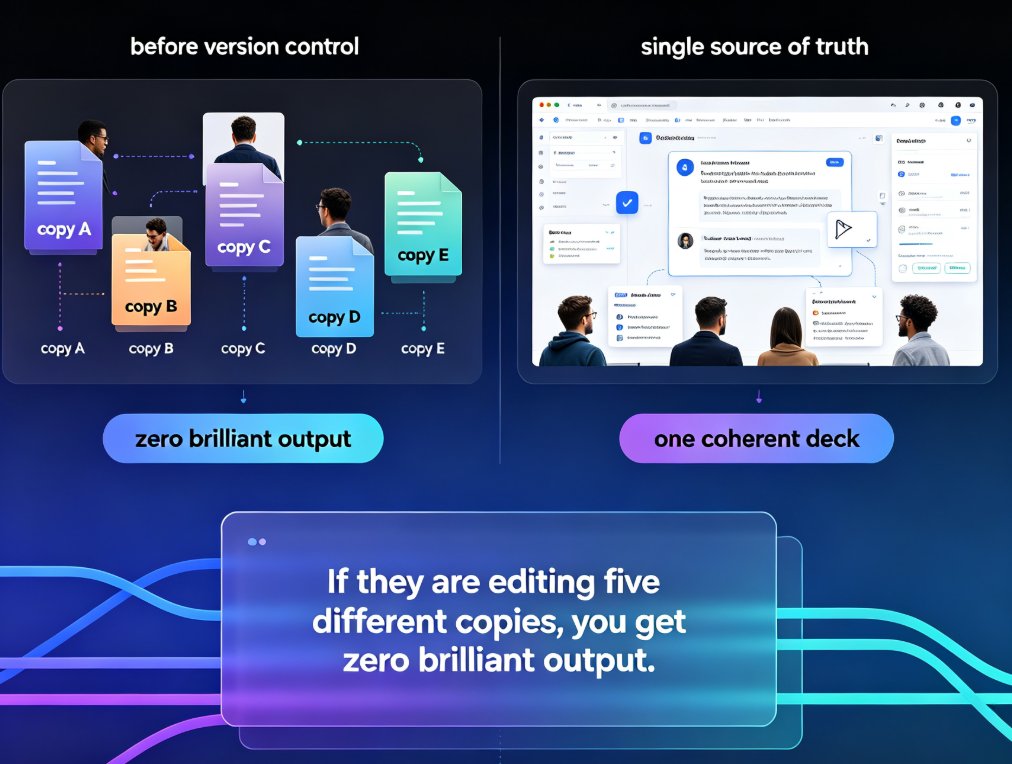
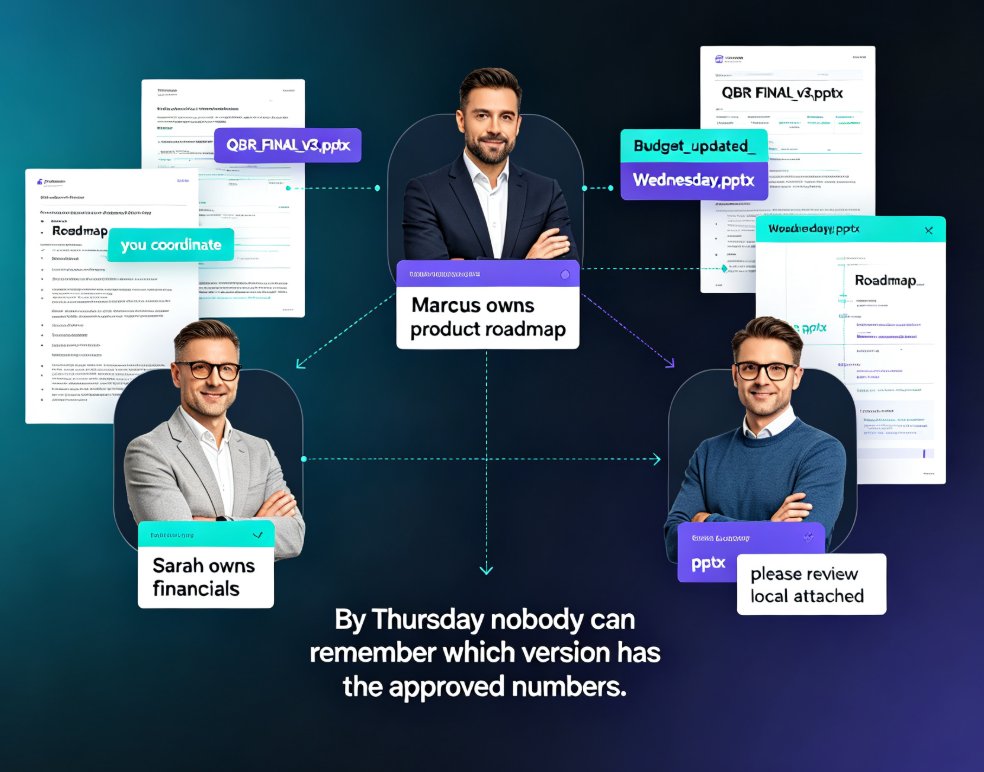
You know the drill. Someone sends "final_v3_REAL_FINAL.pptx" to the group chat, and by Thursday afternoon there are six versions of the same deck floating around, each with different edits. The marketing team updated slide 12. Sales rewrote the intro. Your designer fixed the logo on slide 3. And nobody can remember which file actually has all three changes.
If that sounds familiar, you're not alone. Team presentations break down not because people can't design slides, but because the workflow around them is broken. Email attachments, USB drives, and "I'll just send you my version" are the real productivity killers.
This article walks through how Zendeck handles real-time collaboration on presentations — what it actually looks like in practice, how to keep version control sane, and where the security guardrails are. Whether you're a corporate team co-building a quarterly review or an educator co-creating courseware, the workflow principles here apply.
01 Why Team Presentations Fall Apart
Let's be real: most presentation tools were built for one person at a time. PowerPoint and Google Slides technically allow multiple editors, but the experience still feels like taking turns. You wait for someone to finish, you make your edits, you save, you send a link, and you pray nobody overwrites your changes.
The pain points are predictable:
- Version chaos — "final_v2" becomes "final_v2_FINAL" becomes "final_v2_FINAL_USE_THIS_ONE"
- Lost edits — someone's comment gets buried in an email thread
- Context switching — you're toggling between the deck, a chat window, and a shared drive just to make one change
- No audit trail — when something goes wrong, you can't tell who changed what or when
For educators, the stakes are different but equally real. A curriculum team of three instructors building a semester's worth of courseware can't afford to lose a module's worth of edits because someone saved over the wrong file.
The core problem isn't design skill — it's workflow friction. Teams don't need better slide templates; they need a better way to work together on the slides they already have.
02 What Real-Time Collaboration Actually Means
Real-time collaboration isn't just "multiple people can open the same file." It's a fundamentally different way of working. Here's what it looks like in practice:
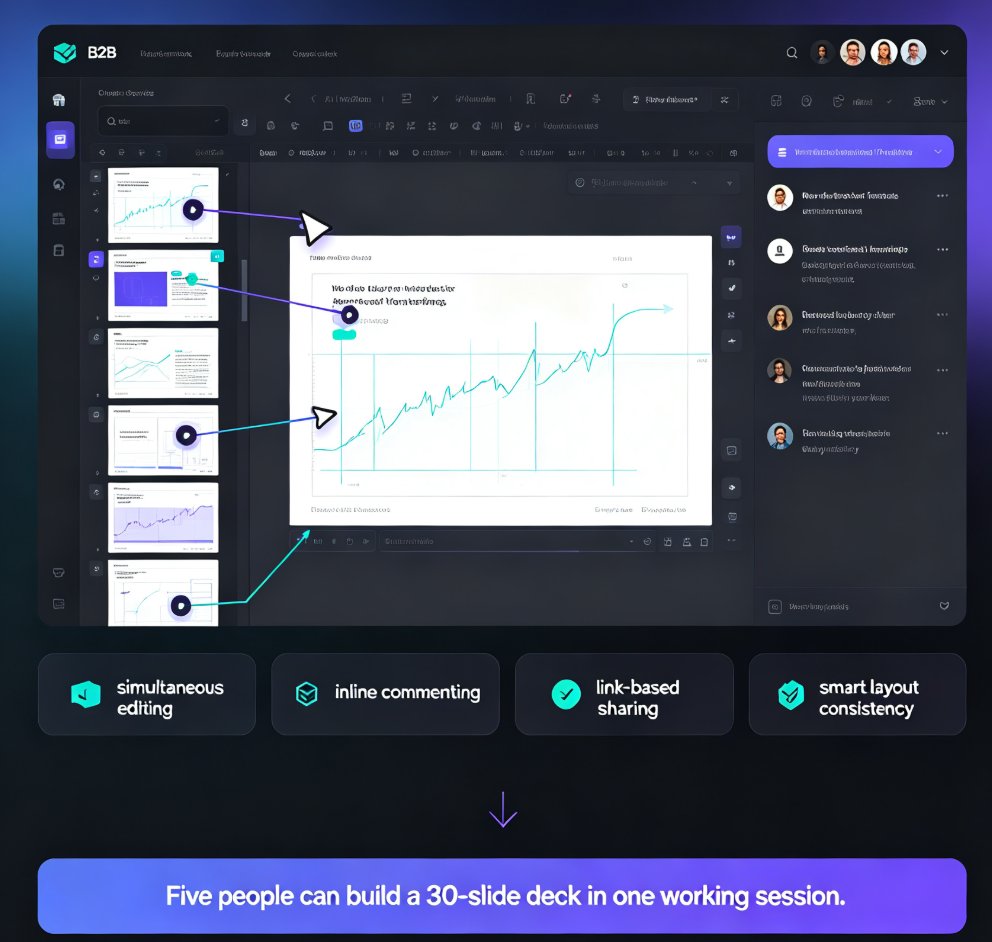
◉ Simultaneous Editing Without Collisions
When two people edit the same slide at the same time, the tool needs to handle the merge gracefully. No locking, no "someone else is editing this file" error messages. Just clean, conflict-free editing.
◉ Comments That Live Where the Work Happens
Instead of a separate chat thread or email chain, comments attach directly to the slide or element they're about. "Can we make this chart bigger?" sits right next to the chart. The context is preserved.
◉ Link Sharing That Respects Permissions
You can share a deck with view-only access, comment access, or full edit access — and you can revoke that access at any time. No more "I accidentally shared the wrong link with the client."
◉ Version History You Can Actually Use
Every edit is tracked. You can see who changed what, when, and roll back to any previous version without losing your current work.
Real-time collaboration is the difference between a shared document and a shared workspace. The first is a file you pass around; the second is a place where work actually happens together.
If you're curious about other features that quietly boost team productivity, check out our breakdown of 5 hidden features of AI presentation tools.
03 Zendeck's Collaboration Workflow: From Outline to Final Deck
Zendeck was built with this workflow in mind. Here's how a typical team project flows through the platform:
Step 1: Start from an Outline, Not a Blank Slide
Instead of staring at an empty slide deck, your team starts with a Word outline or Markdown document. Zendeck's AI generates a structured, visually consistent deck from that outline. This means the team spends its energy on content and decisions, not on formatting. (You can see the full flow in our AI prompt-to-deck guide.)
Step 2: Edit Together in Real Time
Once the deck is generated, multiple team members can open it simultaneously. Edits appear in real time — you see your teammate's cursor, their changes, and their comments as they happen. No waiting, no "are you done yet?" messages.
Step 3: Comment and Resolve Inline
Need to flag a data error on slide 8? Drop a comment right on the chart. Want to suggest a different layout? Comment on the slide. The conversation stays attached to the work, and you can resolve threads as they're addressed.
Step 4: Share Securely with the Right Permissions
When the deck is ready, share it via link with granular permissions. View-only for stakeholders, comment access for reviewers, edit access for your core team. You can revoke access at any time, and every share link respects your workspace's security settings.
Step 5: Track Versions and Roll Back When Needed
Made a change you regret? The version history has your back. You can see the full edit trail and restore any previous version — without losing the work that came after it.
04 Version Control Best Practices for Team Decks
Even with great tools, version control is a discipline. Here are the practices that keep team decks healthy:
1. One Source of Truth
Designate a single "live" version of the deck. Everything else is a draft. With Zendeck, the live version lives in the workspace — not in someone's Downloads folder.
2. Use Comments for Changes, Not New Files
Instead of creating "v2" when someone suggests a change, leave a comment on the slide. The team can discuss, approve, and implement — all in one place. This is the single biggest habit shift that reduces version chaos.
3. Check Version History Before You Panic
Before you ask "who deleted the agenda slide?", check the version history. You'll see exactly who made the change and when, and you can restore it in one click.
4. Set Clear Roles
Not everyone needs edit access. Define who owns the deck, who contributes, and who just reviews. This prevents accidental overwrites and keeps the edit trail clean.
The teams that succeed with collaborative presentations treat the deck as a living document — not a file to be finalized and frozen. Version history isn't a safety net; it's the primary workflow.
05 Security and Access Control: Who Sees What
Collaboration doesn't mean open access. When you're sharing a deck with a client, a student group, or an executive team, you need control over who can see and do what.
Granular Permissions
Zendeck lets you set permissions at the link level. View-only links are perfect for stakeholders who just need to see the final deck. Comment access works for reviewers. Edit access is reserved for your core team.
Revocable Access
Shared a link with the wrong person? Revoke it. No more "I can't unsend this email" panic. Access control is instant and reversible.
Data Security Considerations
If your organization handles sensitive data — student records, financial projections, proprietary research — you need to know where your presentations live and who can access them. The broader trend in AI presentation tools is toward stronger data security and private deployment options. It's worth checking how your collaboration tool handles data residency and encryption before you commit.
For a deeper dive, check out our guides on data security trends in AI presentation tools and the private deployment trend.
06 How Zendeck Compares: Collaboration Features at a Glance
Here's a quick comparison of what different tools offer for team collaboration. Prices are based on publicly listed plans as of early 2026:
| Feature | Zendeck | Traditional PPT | Google Slides | Notion |
|---|---|---|---|---|
| Real-time editing | ✅ | ⚠️ Limited | ✅ | ✅ |
| Inline comments | ✅ | ⚠️ Limited | ✅ | ✅ |
| Version history | ✅ | ⚠️ Basic | ✅ | ✅ |
| Granular link permissions | ✅ | ❌ | ✅ | ✅ |
| AI-assisted deck generation | ✅ | ❌ | ❌ | ⚠️ Limited |
| PPT-to-video conversion | ✅ | ❌ | ❌ | ❌ |
| Brand kit enforcement | ✅ | ❌ | ❌ | ⚠️ |
| Pricing (per user/month) | Contact us | $159.99 one-time | Free / $7.20 Workspace | $10 Plus |
Note: Feature availability varies by plan tier. Check current pricing on each vendor's site.
The takeaway: Zendeck combines the collaboration features you'd expect from a modern cloud tool with AI-powered deck generation — so your team spends less time on formatting and more time on the actual content.
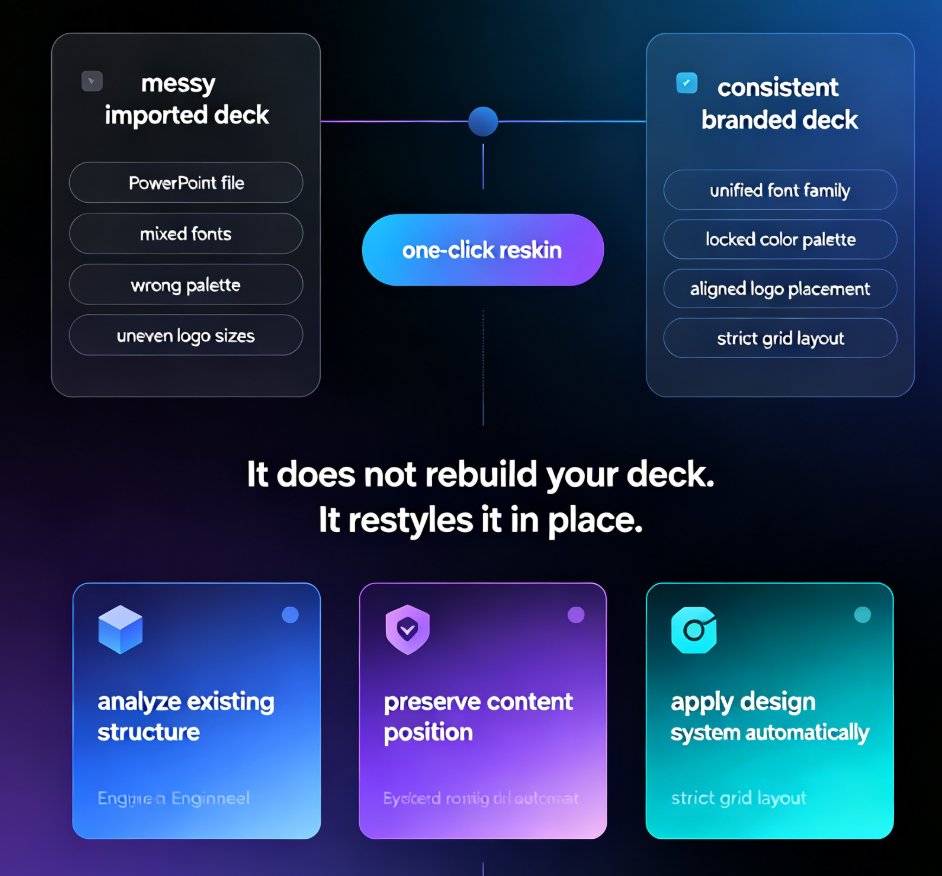
If brand consistency is a concern for your team, you'll also want to see how Zendeck's custom brand kit keeps every deck on-message.
07 Making the Switch: A Practical Checklist
If you're moving your team's presentation workflow to Zendeck, here's a quick checklist:
- [ ] Import your existing decks or start from a Word/Markdown outline
- [ ] Set up your team workspace and invite members
- [ ] Define roles: who edits, who comments, who views
- [ ] Establish a naming convention for drafts (or skip it — version history handles this)
- [ ] Test link sharing with view-only and comment permissions
- [ ] Review the version history after your first collaborative session
For more workflow ideas, browse our office efficiency guides.
FAQ
Q: Can multiple people edit the same Zendeck presentation at the same time? A: Yes. Zendeck supports real-time simultaneous editing, so multiple team members can work on the same deck without file locking or conflicts. Changes appear live, and the version history tracks every edit.
Q: How does Zendeck handle version control for team presentations? A: Zendeck maintains a full version history for every deck. You can see who changed what and when, and restore any previous version at any time without losing subsequent work.
Q: Can I share a Zendeck presentation with someone who doesn't have an account? A: Yes. You can share decks via link with granular permissions — view-only, comment, or edit — and revoke access at any time. Recipients don't need a Zendeck account to view a shared link.
Q: Is Zendeck's collaboration secure for sensitive business or student data? A: Zendeck supports granular access controls and secure link sharing. For organizations with strict data requirements, it's worth reviewing Zendeck's data security and private deployment options — the broader industry trend is toward stronger data protection for AI presentation tools.
Q: What's the best way to start a collaborative deck in Zendeck? A: Start from a Word outline or Markdown document. Zendeck's AI generates a structured, visually consistent deck from your outline, so your team can jump straight into editing and commenting rather than formatting slides from scratch.