Team PPT Collaboration Chaos? Zendeck's Version History & Sharing Fixes It
Intro: The Deck That Almost Died
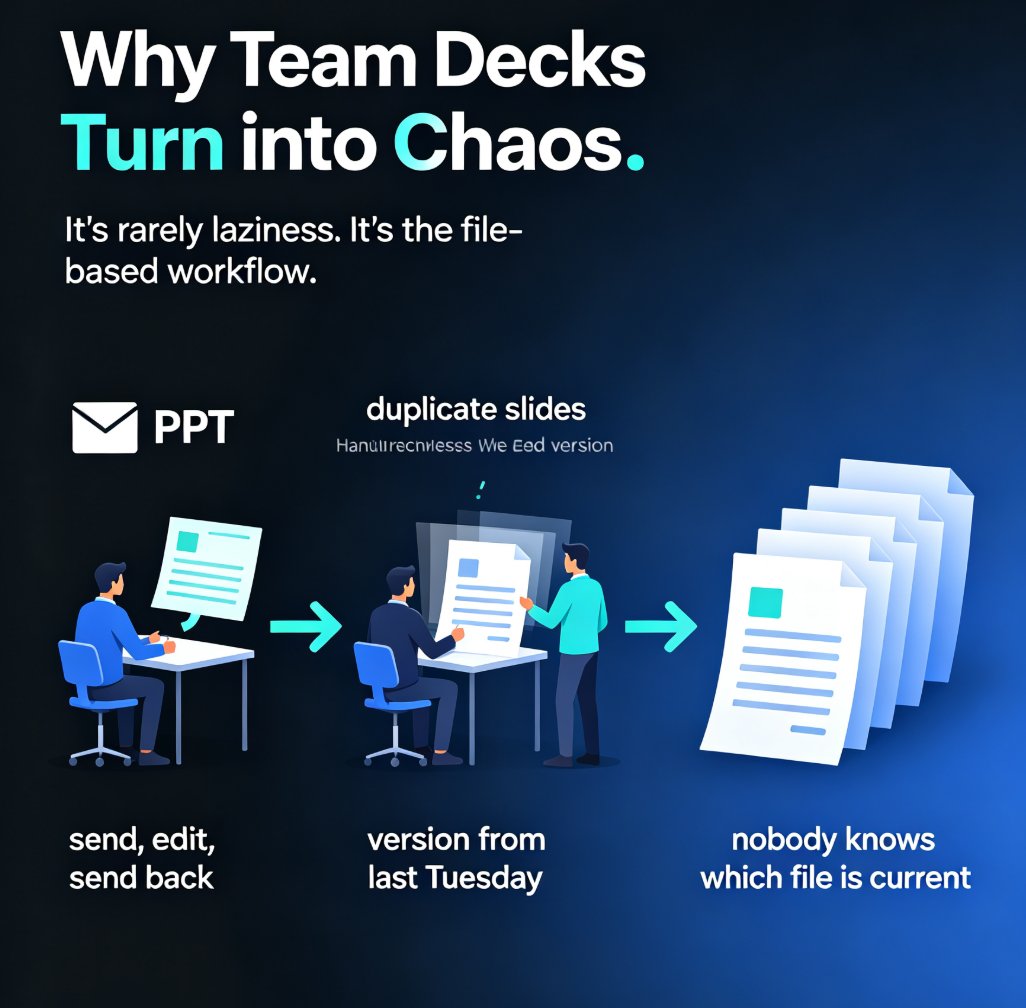
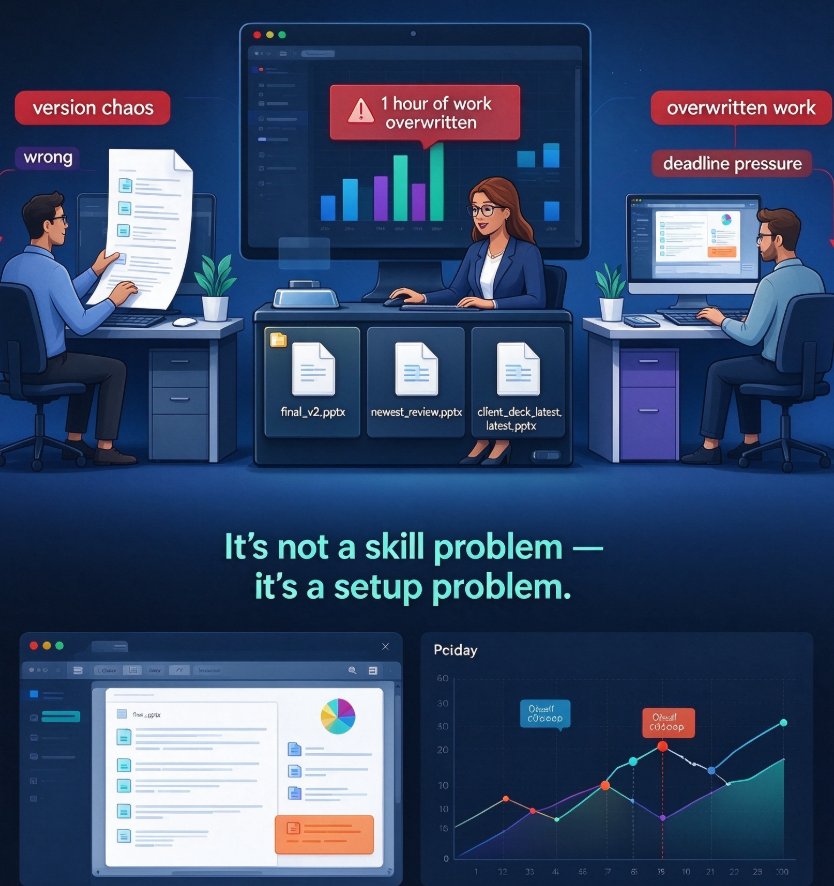
Let's set the scene. Your team is building a big client deck for Friday. Three people are involved—one writes the intro, another pulls the data, a third polishes the design. You'd think three people on one project would cut the work in half. Instead, you end up with three different files, each labeled 'final_v2' or 'newest_review', and nobody remembers which one has the latest numbers. Someone saves over an hour of work right before the deadline. Sound familiar?
That's version chaos, and it's one of the most silent productivity killers in any team that makes slide decks. It's not a skill problem—it's a setup problem. And frankly, most teams keep using the same broken workflow because nobody has the time to rethink it. Let's be real: you've probably spent a whole afternoon trying to figure out which slide deck version was the 'real' one.
The good news? You don't need to rebuild your entire process. You just need the right tooling and a few ground rules. That's where Zendeck's collaboration features come in.
01 The Real Cost of Collaboration Chaos
Before we talk about solutions, let's quantify the pain. According to collaboration studies, employees spend about 20% of their workweek searching for information or tracking down the correct file version—and that's across all document types, not just presentations. For slide decks specifically, the cost multiplies because presentations are visual, and small mistakes (a wrong data point, a broken chart) can ruin an entire pitch.
The most common failure modes in team PPT projects:
- Email round-trips: Someone sends the file, waits for feedback, then re-sends. If two people send edits at once, you get conflicting versions.
- File naming madness: 'final', 'final_clean', 'final_v3_really', 'final_approved_use_this'—we've all seen these.
- Lost comments: Feedback written in emails, IMs, or on printed pages gets disconnected from the actual slide.
- Overwritten work: One person opens an older copy, edits it, and saves it over the latest version—losing hours of updates.
A 2026 survey by a collaboration software firm found that 68% of teams report losing work at least once per month due to version mix-ups. That's not just annoying—it's wasted budget and missed deadlines.
But here's the thing: the problem isn't that your team is disorganized. It's that the default toolkit—PowerPoint files on shared drives, email attachments, USB sticks—was never built for real-time collaboration. It was built for single-author, serial editing. You can bolt on workarounds, but you're still fighting the tool.
02 Why Zendeck's Version History Becomes Your Safety Net
Zendeck treats collaboration the way modern docs do: everything lives in the cloud, every edit is logged, and you can always step back in time. Here's how the version history actually helps in practice.
Reverting Without Panic
Say your designer accidentally deletes a chart the data team spent two hours building. Instead of awkwardly asking them to redo it, you open the version history, find the version from 20 minutes ago, and restore it. Done. Zendeck's version history lets you compare snapshots and restore any previous state—no more relying on someone's memory or a hastily saved 'backup'.
A Clear Audit Trail
Every change is attributed to a collaborator and timestamped. So when someone claims they 'never changed that slide', you can check. That accountability alone changes how seriously people take their edits.
The Psychology of Safe Editing
When people know they can revert, they're more willing to experiment. They try bolder layouts, move sections around, and test new ideas—because the safety net is there. That's a huge boost for creative output.
A quick word from someone who's been editing decks for 15 years: don't wait until something goes wrong to discover version history. Make it a habit—check the history after every significant edit session, just like you'd glance at your bank balance before spending. It takes ten seconds, and it saves you from a three-hour salvage operation.
03 Link Sharing with Permissions: The Antidote to Email Ping-Pong
Emailing files back and forth is the #1 cause of version chaos. Zendeck replaces that with a simple shared link—one URL that opens the live deck in a browser. No downloads, no attachments, no 'did you get the latest?' messages.
Permission Levels That Make Sense
You don't need everyone to edit everything. Zendeck lets you set permissions per link:
- View only: for stakeholders, execs, or external reviewers who just need to see the deck.
- Comment: for people who can leave feedback but can't alter the content.
- Edit: for the core team who actually builds the slides.
This granularity matters. A common disaster is giving 'everything' to everyone, then discovering that a stray comment from a sales rep turned into an edit on the financial model. Zendeck's permission settings keep the content safe while still letting everyone contribute. And you can revoke access at any time—useful when a contractor leaves or a client shouldn't see the draft stage.
The One-Link Rule
Here's the workflow we recommend: create the master deck in Zendeck, then share the edit link with your design team and a comment link with the rest. Everyone works on the same live file. The moment a change is made, it's visible to others in real time. No merging, no conflict resolution, no 'I thought you handled that.'
04 Real-Time Editing: When Everyone Works Simultaneously
Now, the big one. PowerPoint's co-authoring feature exists, but it's clunky—it requires files on OneDrive or SharePoint, and the sync can lag. Zendeck's real-time editing is built from the ground up for slide decks. Multiple people can be in the same deck at the same time, with cursors visible and changes syncing almost instantly.
Imagine this scenario: the data team is updating the numbers in slide 4, the copywriter is rewriting the headline in slide 1, and the designer is swapping the background in slide 9. All at once. No waiting in line. That's how a modern team operates.
Real-time editing also kills the 'feedback loop'. Instead of sending a deck, waiting for comments, then sending it back, you discuss directly on the slide—via comments or even a quick video call. You'll cut your approval cycle from days to hours.
One warning: real-time editing requires discipline. If three people edit the same slide simultaneously, you can still get a messy result (though Zendeck's version history will save you). So assign clear 'slide ownership'—one person is the lead for each section. It's not about the tool, it's about the process. But the tool makes that process possible.
05 A Practical Workflow: From Chaos to Control
Let's put it together with a step-by-step process that any team—whether you're making corporate training decks or lesson plans for a school—can adopt.
Step 1: Create the Master Deck in Zendeck
Start from a template or import your outline. Keep your slides organized from day one. Use Zendeck's smart layout to apply a consistent template and brand kit, so you're not worrying about formatting later.
Step 2: Divide and Assign Slides
Agree on who owns which slides or sections. Write that down in a shared doc. For example: "Sara handles slides 1-5, Mike handles 6-12, and Jen reviews the whole deck for branding."
Step 3: Share with the Right Permissions
- Edit link for the core production team.
- Comment link for reviewers, stakeholders, or subject experts.
- View link for anyone who just needs to peek at the current version.
Step 4: Collaborate in Real Time
Work in the same deck. Use comments for questions. If a major change needs discussion, jump on a quick call and edit together live.
Step 5: Track and Revert
After each significant milestone, check version history. If something looks off, restore the last good state. Don't wait for a disaster.
Step 6: Finalize and Export
Once the deck is approved, lock it (revoke edit permissions) and export to PDF or video if needed. You're done.
That's it. This workflow works because it addresses the root cause of collaboration pain: multiple uncoordinated files. The single live link is your source of truth, and version history is your time machine.
06 Comparison: Old-School vs. Zendeck Collaboration
Here's a quick comparison of how the two approaches play out in real life.
| Aspect | Old-School (Email + Shared Drive + PPT) | Zendeck Collaboration |
|---|---|---|
| File location | Multiple copies on drives, desktops, email attachments | One live deck in the cloud |
| Real-time co-editing | Limited to PowerPoint's clunky co-authoring (if set up correctly) | Seamless, instant sync |
| Version recovery | Manual backups or hoping you didn't overwrite | One-click restore from version history |
| Permissions | File-level or none | View, comment, edit per link; revoke anytime |
| Feedback mechanism | Emails, IMs, comments lost in threads | Comments attached to slides, visible to all |
| Risk of losing work | High—monthly incidents common | Low—history tracks everything |
| Approval cycle | Days of back-and-forth | Hours or same-day |
Now, some of you might think, 'This sounds exactly like Google Slides or Canva.' True—those tools share the same core philosophy. But Zendeck specifically targets slide deck creation with AI-powered design assistance, smart layout, template libraries, and even PPT-to-video conversion. It's not just a blank canvas—it's a machine that helps you build and refine decks faster. For teams who make presentations regularly (trainers, course creators, consultants), that extra horsepower matters.
07 The Bottom Line: Process + Tools = Less Chaos
Let's be honest: no tool alone fixes collaboration. You need clear conventions, shared ownership, and the discipline to use a single source of truth. But the right tool makes those conventions possible. Zendeck gives you the version history, the permission controls, and the real-time editing that turn a chaotic collaboration into a smooth, trackable process.
We've seen teams cut their deck-building time by 30–40% just by moving from email ping-pong to a shared live deck. That's not magic—that's eliminating wasted effort. When everyone works on the same file, comments live where they belong, and you can always recover from a mistake, collaboration stops being a headache.
So next time you're about to email a PPT file 'for review', ask yourself: is this really the fastest path to a finished deck? If you're still stuck in version chaos, give Zendeck a try. Your future self—and your teammates—will thank you.
FAQ
Q: How does Zendeck prevent version conflicts in team PPT projects?
A: Zendeck stores every edit in the cloud and maintains a full version history. When multiple people work on the same deck, each change is saved automatically, so you can always revert to a previous version if something goes wrong. The key is that everyone works on the same live file rather than emailing separate copies.
Q: Can I control who edits or views a shared presentation in Zendeck?
A: Yes. When you share a link, you can set permissions to 'view only', 'comment', or 'can edit'. You can also revoke access anytime, which is critical for protecting sensitive content or keeping a final deck from being altered accidentally.
Q: What happens if two people edit the same slide at the same time in Zendeck?
A: Zendeck supports real-time co-editing, so changes sync instantly. If two users happen to modify the same element, the version history still tracks each change, and you can compare or restore earlier states. It's not a perfect merge, but it prevents the 'overwrite by email' chaos.
Q: Does Zendeck show a track-changes feature like Word?
A: Zendeck doesn't have a traditional Accept/Reject track-changes mode. Instead, it offers version history, comments, and a clear edit trail. You can see who made changes and when, and revert to any point in time—which is actually more reliable for presentations than a linear track-changes flow.
Q: How do I set up a team workflow in Zendeck to avoid lost feedback?
A: Assign each person to specific slides, use the shared link with appropriate permissions, and make a habit of checking version history after major edits. Treat the live link as the single source of truth, and leave comments directly on slides instead of writing feedback in emails.
If you're curious how Zendeck's AI features can further boost your team's productivity, check out our guide on AI Presentation Collaboration in 2026: Secure Sharing, Co-Editing Trends or explore 5 Hidden Features of AI Presentation Tools That Boost Team Productivity. For more productivity strategies, you might also like our Office Efficiency category.