Real-Time Co-Editing for Remote Teams: Zendeck Collaboration Suite
Your Team Doesn't Have a Version Control Problem—It Has a Communication Problem
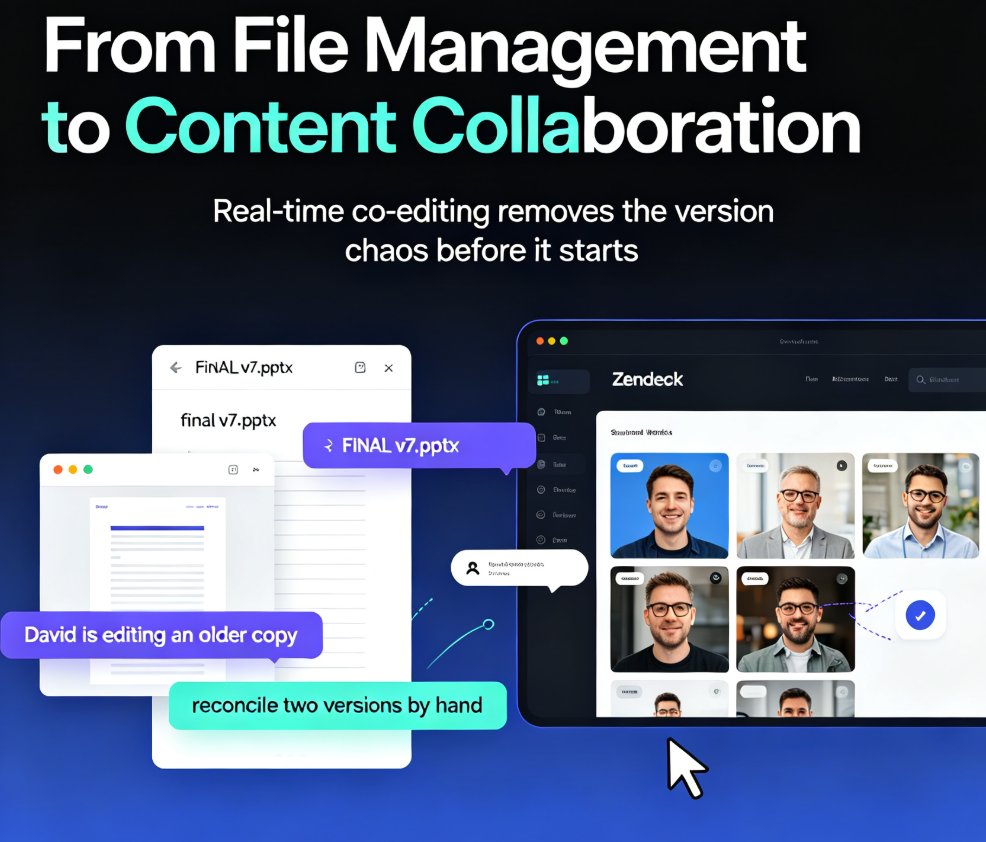
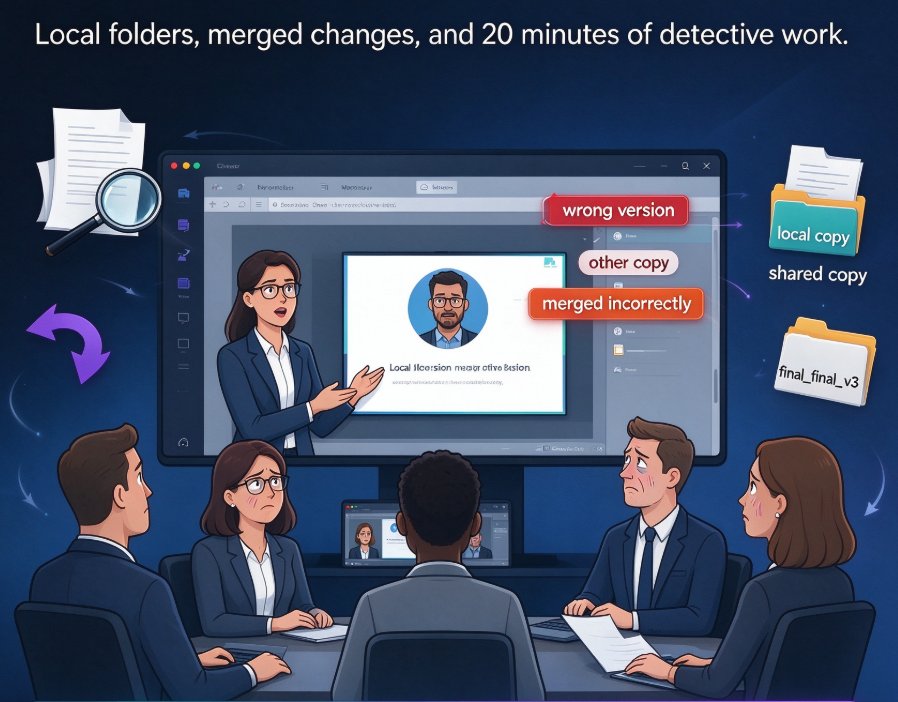
Let's be real: you've been on that call. The one where your teammate shares your screen only to reveal that the deck you spent all morning tweaking is the wrong version, because they had the other copy in their local folder and merged your changes incorrectly. Cue the awkward silence, the rollback, and the 20 minutes of "which file is the current one" detective work.
If you work remotely—which, let's be honest, most of us do at least a few days a week—this is the daily dance. Remote teams lose more hours to version confusion and waiting for feedback than almost any other single productivity leak. And this leak runs everywhere: email attachments, Slack channels piled with .pptx files, OneDrive folders that no one can agree on, and that one colleague who still edits a shared file offline.
But there's a better way. Zendeck's real-time co-editing and sharing were built to end this mess. It's an AI presentation tool with a collaboration layer underneath—so you get the design help and the live teamwork, in one place, without the file chaos.
01 Why Real-Time Collaboration Is a Game-Changer for Remote Teams
Here's what we know from research on collaborative editing tools: teams that adopt real-time co-editing see an average 30% reduction in project completion times. That's not a vanity metric—it's the direct result of cutting out waiting periods and streamlined feedback loops, according to data from Digital Perfection's analysis of collaborative editing technology.
The mechanics are simple. When everyone works in the same live document, there's no "my copy vs. your copy" dance. Edits appear on every screen instantly. You're no longer sending files back and forth; you're co-creating in a single shared space.
But the human impact goes deeper. Think about what happens when a teammate sees your slide change while you're making it—they catch mistakes early, they jump in with a suggestion at the exact moment it's relevant, and they feel like they're actually part of the process instead of an afterthought in a comment thread. That's how work gets better, not just faster.
This has become especially urgent as hybrid and remote work becomes the default. The old tools were built for the office era, where you'd walk over to someone's desk and mark up a printout. Now, the canvas is the cloud, and the tools need to reflect that.
The Cost of Waiting: Why Traditional Feedback Loops Kill Momentum
Let's talk about what happens when you rely on old-school collaboration. You build the first draft. You email it. Your colleague opens it Tuesday, adds comments, saves it, emails it back. You open it Wednesday, realize you can't find their comments, and half your changes were overwritten. You spend Thursday reconciling. Sound familiar?
It's not just wasted time—it's the slow erosion of trust. When people can't see each other's updates, they start questioning whether their work matters. They hold back ideas. They do their own thing and hope it merges. That's how presentations end up disjointed, with mismatched fonts and contradictory data on adjacent slides. The design suffers, and the message gets muddled.
Zendeck's live workspace solves this with one shared URL and a permission system that lets you control who can edit, comment, or just view. Nobody touches a stale file again because nobody opens a stale file—there's only one, and it's always current.
02 How Zendeck's Co-Editing Works: A Quick Tour
Zendeck isn't just a presentation tool; it's a collaboration hub for your content. Here's the flow:
- Create or upload: Drop in a Word outline or paste Markdown, and Zendeck generates a structured deck for you.
- Invite your team: Send a shareable link. Teammates open it in their browser—no downloads, no installs, no "I can't open this file" excuses.
- Edit together: Multiple people work on the deck simultaneously, seeing each other's changes in real time. Comments and suggestions live right alongside the slides.
- Stay on brand: Zendeck's smart layout keeps fonts, colors, and styling consistent as edits roll in, so the deck never turns into a Frankenstein collage.
- Ship it: When you're done, export, present live, or turn the deck into a narrated micro-course using Zendeck's PPT-to-video feature.
Here's what makes Zendeck different from just throwing a Google Slides link into a group chat: the design layer stays disciplined. Your team can contribute freely, but the visual system doesn't fall apart. That's a huge relief for anyone who's spent a Monday fixing a deck that three people "improved" without any design skills.
03 Why Zendeck Beats the Traditional Office Suite for Team Decks
Let's be clear: Microsoft 365 and Google Docs are the benchmarks for live co-editing, and they do it well. But presentations are different from documents. A slide is a visual unit—layout, spacing, color, and content have to work together. When a teammate moves a text box in a traditional editor, it often wrecks the whole slide's balance. That's why Zendeck's approach matters.
Zendeck pairs real-time co-editing with AI-driven layout intelligence, so team edits stay visually coherent without anyone micromanaging the design.
The table below breaks down the difference:
| Feature | Zendeck | Traditional Office Suite (e.g., 365/Google Docs) |
|---|---|---|
| Real-time co-editing | ✅ Native & built-in | ✅ Native |
| AI-generated slide layouts | ✅ Yes, from outline/markdown | ❌ Minimal or manual templates |
| Design consistency during co-edit | ✅ Smart layout auto-aligns | ❌ Requires manual formatting |
| Share via browser link | ✅ Zero-setup | ✅ Generally yes |
| PPT-to-video export | ✅ Built-in | ❌ Requires separate tooling |
| Asset library with brand kit | ✅ Yes | ⚠️ Varies by platform |
| Learning curve | Low—AI does the heavy lifting | Moderate—mostly manual design |
This isn't about bashing the old guard. It's about matching the tool to the job. For a text doc, a traditional editor might be fine. For a presentation—where visual coherence is half the battle—you want a tool that protects the design while your team thinks, writes, and revises.
04 How to Get the Most Out of Real-Time Co-Editing: A Field Guide
You've got the tool. Now let's talk about how to use it so it actually sticks. Based on how teams adopt live collaboration, here are the habits that make or break the workflow:
1. Assign Slide Ownership (Before You Start Editing)
Real-time co-editing removes file conflicts, but it doesn't remove human conflicts. If two people edit the same slide simultaneously, you still get a mess—just faster. Decide who owns which section up front. "You take the metrics, I'll take the strategy deck, we meet in the middle." It's a tiny discipline that saves you an afternoon.
2. Use Comments as the Communication Layer
Don't email your thoughts. Put them in the deck. Zendeck's comment system lets you tag a teammate directly on a slide, so the context lives where the work happens. That way, nothing gets lost in a thread that's 200 messages deep.
3. Time-Box the Co-Editing Sessions
A live editing session is powerful but intense. Set a 45-minute window where everyone's in the same deck, working through the revision list. Then close it and let everyone digest. You'll get more done in that focused burst than after three days of async back-and-forth.
4. Let the AI Handle the Polish
This is the part that surprises most people. When you finish a co-editing session, don't open a design tool to fix spacing and fonts—use Zendeck's smart layout to reskin and reflow the whole deck in one click. The AI aligns everything, fixes the visual rhythm, and turns raw team output into a presentation that looks like it had a professional designer behind it.
One friend's advice here, the kind you'd get over coffee: Don't overthink the "collaborative workflow" talk. Just get everyone into one live session, use comments, and let the tool handle the rest. You'll never go back to emailing files.
05 The 30% That Changes the Math
Let's put a number on it. Teams using collaborative editing tools see an average 30% reduction in project completion times, according to recent analysis of collaborative platform usage. For a deck that used to take your team five days, that's more than a day and a half back in your calendar—every single time you build a presentation.
Here's a simple way to visualize the impact across a quarterly rhythm:
That's a meaningful chunk of time. The ROI isn't just speed—it's the quality of the thinking that goes into the deck. When people aren't busy reconciling files, they're busy sharpening the story.
06 Beyond Decks: When Co-Editing Becomes a Superpower
Real-time co-editing isn't just for the final deck. In a team that builds courseware, onboarding materials, or investor updates, the same workflow scales. Here's where Zendeck's collaboration and AI features compound together:
- Course creation teams can co-edit lesson decks in real time and then convert the finished deck into a narrated micro-course with Zendeck's PPT-to-video feature. One workspace, from outline to published video. Check out our guide to accessible micro-courses with auto-generated subtitles for a practical walkthrough.
- Sales enablement can keep the latest product data in a shared deck, updated live, with the brand-consistent design that Zendeck's asset library enforces. No more stale pricing on the sales floor.
- HR & training teams can collaborate on policy decks and then turn them into video training modules that employees can watch on demand.
This is where collaboration stops being a convenience and becomes a strategic advantage. It's not just about saving a day—it's about building a company where the best ideas actually make it into the final product.
07 Getting Started: A 15-Minute Setup for Your Team
You don't need a rollout plan or a change management committee. Here's how to get going today, roughly in the time it takes to make a coffee:
- Create a workspace in Zendeck and build a test deck from a simple outline (you can import a Word file directly to see how fast it is).
- Invite two teammates via the share link. Set one to editor, one to commenter.
- Assign slide ownership (the 5-minute discipline from earlier).
- Run a live co-editing session for 30 minutes on a real project.
- Wrap up with a one-click reskin using Zendeck's smart layout to polish the final output—you'll see the magic immediately.
That's it. No long migration, no complex setup. The version chaos ends the day you stop sending files and start sharing links.
FAQ
What is real-time co-editing in presentation tools?
Real-time co-editing means multiple people can edit the same deck simultaneously, with every change syncing instantly to all collaborators' screens. It eliminates version conflicts and the endless "final_v3.docx" email chain. Zendeck's online workspace supports live co-editing and link-based sharing for remote teams.
How does Zendeck's link sharing work?
You generate a shareable link with adjustable permissions—view-only, comment, or full edit. Team members open it in their browser, and any changes sync in real time. No downloads, no duplicate files, no version confusion. It's the fastest way to bring a remote team into one working session.
Can real-time co-editing reduce project turnaround time?
Yes. The research on collaborative editing tools points to an average 30% reduction in project completion times, driven by fewer waiting periods and faster feedback loops. When your whole team sees edits live, you cut the back-and-forth that usually stretches deck production by days.
Was Zendeck designed specifically for remote teams?
Zendeck started as an AI presentation tool, but its collaboration features—multi-user editing, smart layout consistency, and asset sharing—are built for distributed teams. The AI handles design, you handle the ideas. It's a natural pairing for hybrid work setups.
How do I avoid conflicts when multiple teammates edit the same deck?
Zendeck uses smart syncing that reconciles edits in real time, similar to how Google Docs handles text. For slides, assign clear ownership of sections (e.g., "Jenna owns the finance slides"), and use comments to tag teammates before editing their areas. That keeps the flow clean.
Interested in the broader picture? Read about AI presentation collaboration trends for 2026 and how hidden AI features boost team productivity.