How to Collaborate on AI Presentations with Zendeck's Real-Time Sharing
Introduction: The Silent Collaboration Crisis in Remote Presentations
Let’s be real — remote teams don’t struggle with making slides. They struggle with making slides together without turning it into a version-control nightmare.
You know the drill: Alice writes bullet points, Bob adjusts the layout, Carol adds her section, and suddenly you have three different files named "Quarterly Review_FINAL_v3_Alice_edit.pptx." Emails fly. Time is wasted. The deck looks like it was designed by committee.
Zendeck changes that. It’s not just an AI presentation generator — it’s a real-time collaboration platform purpose-built for teams who need to co-create, review, and ship presentations fast. Whether you’re a remote startup pitching investors, a corporate trainer building a micro-course, or a content ops team standardizing client decks, the collaborative features in Zendeck save you from the chaos.
In this guide, I’ll walk through exactly how to use Zendeck’s sharing and co-editing tools, plus real scenarios where they make a difference. No fluff, just practical workflows.
I. The Collaboration Problem: Why Traditional Tools Fail Remote Teams
Most AI presentation tools focus on individual creation: you type a prompt, get slides, done. But what about the iterative back-and-forth that happens after the first draft?
Here’s what goes wrong with typical tools:
- No simultaneous editing — Only one person can edit at a time, forcing sequential handoffs.
- Email attachment ping-pong — “Please add your feedback and send back.”
- Lost comments — Feedback scatters across Slack, email, and sticky notes.
- Brand inconsistency — Each team member applies their own font, color, or logo placement.
The pain point is clear: distributing the burden of presentation creation across a team often breaks the process. The outcome? More time managing slides than actually preparing the message.
Zendeck tackles this head-on by embedding real-time collaboration into the core experience. You don’t have to choose between AI speed and team coordination.
II. How Zendeck Solves Real-Time Co-Editing
From Solo to Sync
In Zendeck, you can invite your team to edit a deck simultaneously. Everyone sees changes as they happen — no refreshing, no conflict resolution dialogs. The platform handles sync automatically, even when two people edit the same text box.
Tip: When you start a new project, click the "Share" button in the top right. You’ll see a link with two permission levels: View and Edit. For brainstorming, share with Edit access. For final review, switch to View to prevent accidental changes.
Workspace for Teams
Zendeck also offers team workspaces — a shared folder where all members can access templates, recent projects, and brand assets. This is a game-changer for content teams that produce multiple presentations per week. Instead of recreating the wheel, you grab the latest approved template and start co-editing.
Outcome: A single source of truth. No more rogue versions.
III. Link Sharing and Team Workspaces: Practical Workflows
Scenario 1: Brainstorming a New Training Deck
You’re a learning & development manager rolling out a new compliance course. You have three subject matter experts (SMEs) in different time zones. Here’s the workflow:
- Open Zendeck and paste a rough outline or use the AI prompt to generate a first draft.
- Click Share → Create link with Edit permission.
- Send the link in your team chat. Everyone opens it in their browser.
- SME 1 adds statistics, SME 2 writes case studies, SME 3 adjusts visuals — all at the same time.
- You see changes live and can leave inline comments.
Result: A complete deck in 30 minutes instead of three days.
Scenario 2: Client Proposal with Remote Stakeholders
Your agency is pitching a new campaign. The client wants to review the deck before the presentation. Instead of emailing a PDF, you share a view-only link so they can browse slides in their browser. No downloads, no attachments. If they need to suggest edits, you can upgrade them to Edit access for a limited time.
Pro-tip: Use the PPT-to-video feature to turn the final deck into a narrated video for asynchronous approval. This way, stakeholders can watch the pitch on their own time, and you still get feedback in the same platform.
IV. Real-World Use Cases: Training, Pitches, and Content Ops
Corporate Training: Trainers create AI-generated slides, invite co-facilitators to edit, then convert to a micro-course video. Collaboration happens during creation, not after.
Startup Pitches: Founders co-edit pitch decks in real time with their co-founders. The built-in template library ensures brand consistency, even when multiple people contribute.
Content Operations: Marketing teams maintain a library of approved templates in Zendeck. Anyone can start a new presentation from a template, collaborate with the copywriter and designer, then export as PPTX for client delivery.
Key takeaway: Zendeck’s collaboration feature isn’t an afterthought — it’s the engine that turns a single-user AI tool into a team productivity platform.
V. Comparison: Zendeck vs. Traditional Collaboration Tools
| Feature | Zendeck | Google Slides | Microsoft PowerPoint (Online) | Gamma |
|---|---|---|---|---|
| AI-generated slides | ✅ Yes, from prompt or outline | ❌ No | ❌ No (Copilot limited) | ✅ Yes |
| Real-time co-editing | ✅ Simultaneous with sync | ✅ Yes | ✅ Yes | ❌ No (only commenting) |
| Link sharing with permissions | ✅ View & Edit options | ✅ Yes | ✅ Yes | ✅ Yes (basic) |
| Team workspace & templates | ✅ Shared folders, brand assets | ✅ Shared drives | ✅ SharePoint integration | ❌ Limited |
| Export to PPTX/PDF | ✅ Yes | ✅ Yes | ✅ Yes | ✅ Yes |
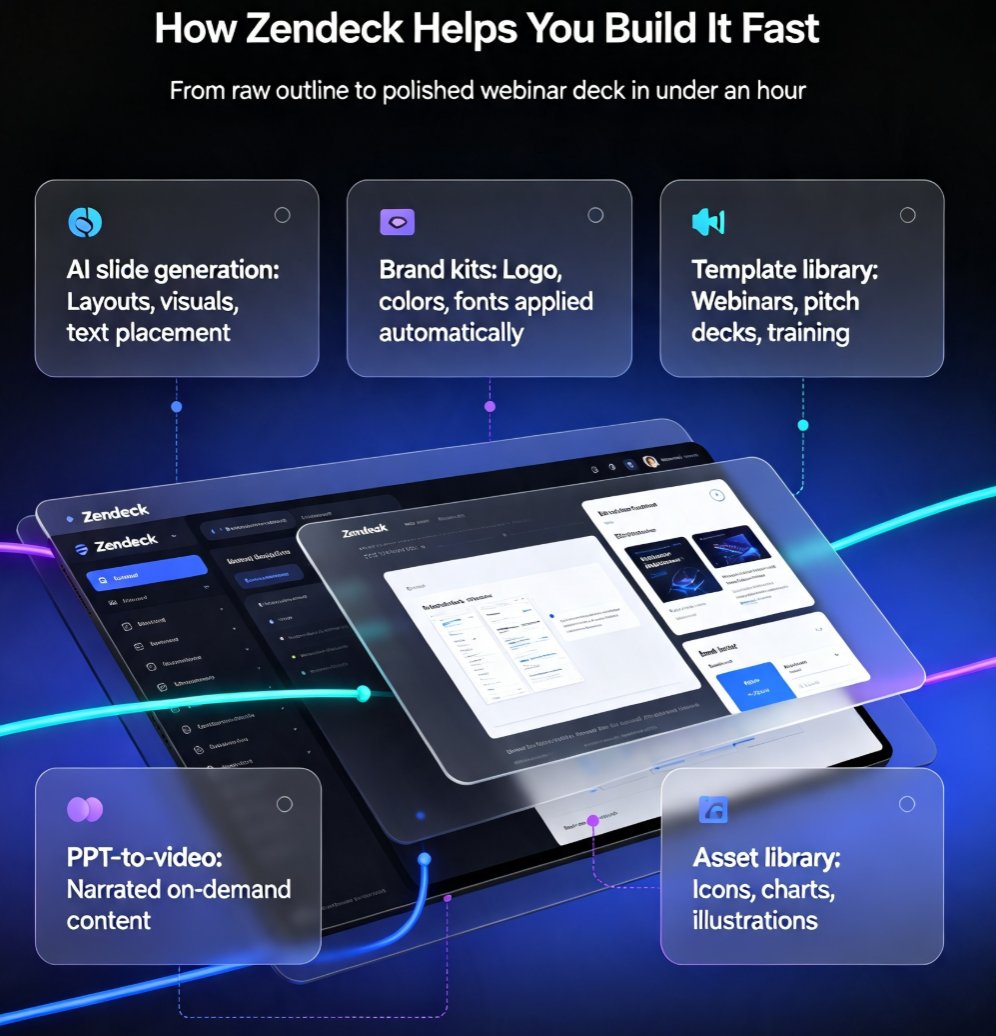
| PPT-to-video | ✅ AI narration | ❌ No | ❌ No | ❌ No |
| Built-in asset library | ✅ Icons, charts, illustrations | ❌ No | ❌ Limited | ✅ Limited |
The table makes it obvious: Zendeck combines AI speed with real-time collaboration in a way that traditional tools and other AI presenters don’t. If your team values both rapid creation and seamless co-editing, Zendeck is the only tool that does both well.
VI. Why Collaboration Matters for AI Presentations
Some people argue that with AI, you don’t need collaboration — just generate the perfect deck alone. I disagree. AI handles the first draft, but humans need to iterate together. The best presentations come from diverse perspectives: a subject matter expert’s knowledge, a designer’s eye, a storyteller’s narrative arc.
Zendeck acknowledges this by making collaboration frictionless. You don’t have to choose between using AI and working as a team. You can do both at the same time.
Bold statement: If you’re a remote team creating more than two presentations a month, Zendeck’s collaboration features will save you more time than the AI generation itself. That’s not an exaggeration — it’s the difference between “I made a deck” and “We made a deck.”
VII. Getting Started: First Steps
- Sign up at Zendeck (free tier available).
- Create a new presentation using AI (just type a topic or upload a Word outline).
- Click Share in the editor, generate a link with Edit permission, and send it to your team.
- Start co-editing — watch changes appear in real time.
- Export as PPTX or convert to video when ready.
For more detailed guides, check out our article on creating on-brand presentations with the template library or importing Word outlines for faster collaboration.
FAQ
Q: Can multiple people edit a Zendeck presentation at the same time?
A: Yes. Zendeck supports real-time co-editing, meaning multiple team members can work on slides simultaneously. Changes are visible instantly, and the platform handles sync automatically, so you never lose work.
Q: How do I share a presentation with my team in Zendeck?
A: You can generate a shareable link directly from the editor. Set permissions to view or edit. Anyone with the link can access the presentation without needing an account (for viewing), or sign in to edit.
Q: Does Zendeck work for remote corporate training?
A: Absolutely. Trainers can create AI-generated slides, invite co-facilitators to edit in real time, and then convert the deck into a narrated video for asynchronous learning. It's a complete workflow for distributed teams.
Q: What file formats can I export from Zendeck after collaboration?
A: Export to PPTX, PDF, or HTML. You can also convert the final deck into a video with AI narration, which is great for sharing with stakeholders who can't attend live meetings.
Q: Is Zendeck better than Google Slides for team collaboration?
A: Zendeck combines AI-powered slide generation with real-time collaboration, whereas Google Slides is a traditional editor without AI. For teams that need both speed and co-editing, Zendeck offers a unique advantage. However, if you only need basic editing, Google Slides is a free alternative.