Zendeck Word Import: Convert Outlines to Presentations in Seconds
If you've ever tried to turn a Word outline into a PowerPoint deck the old-fashioned way, you know the pain. You open PPT, create slides one by one, copy and paste text, resize text boxes, choose fonts, pick colors—and still end up with something that looks like it was designed in 1999. It's a grind that eats hours of your week, especially if you're an educator or a professional who regularly produces training decks, lecture notes, or meeting summaries.
Let's be real: most AI presentation tools aren't much better. They ask you to describe your slides in a prompt, or paste content into a chat box, then generate a deck you still have to tweak endlessly. The friction is still there—just in a different form.
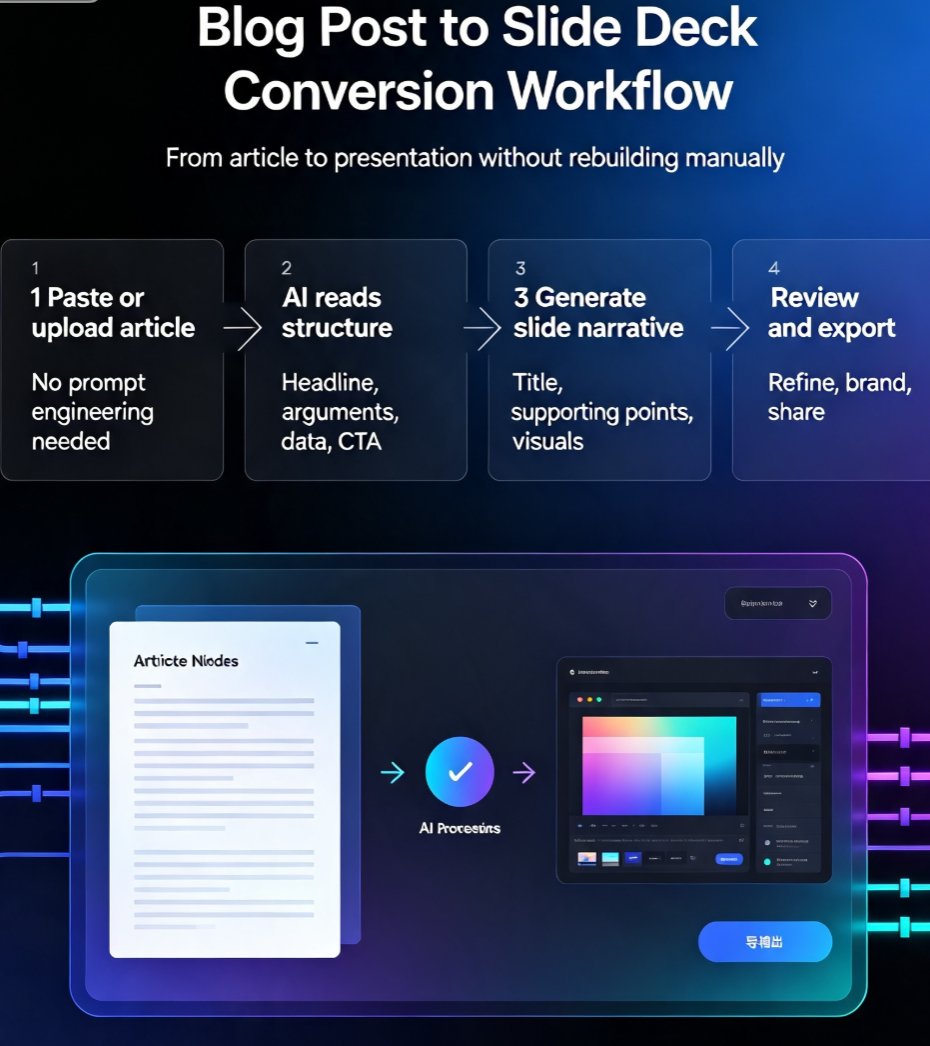
Zendeck flips the script. With its Word import feature, you upload a plain outline (or a full Word document), and the AI builds a polished, visually consistent deck in seconds. No manual formatting, no prompt engineering, no copy-paste dance. This is the closest thing to a one-click presentation generator I've seen.
01 Why Traditional Word-to-PPT Workflows Are Painful
The standard process for converting a Word outline to slides is broken. Microsoft's own method requires you to:
- Open PowerPoint and select
New Slide > Slides from Outline. - Hope your Word document uses proper Heading 1 and Heading 2 styles.
- Watch as PowerPoint imports the text as plain, unstyled slides—no graphics, no color, no layout.
- Spend 30 minutes to an hour manually formatting each slide, adding images, and tweaking layouts.
And if your outline is a plain .txt file? You get even less control. The result is often a deck that looks like a ransom note made of bullet points. For educators and business professionals who need to deliver polished presentations quickly, this workflow is a productivity killer.
The pain point is real: you spend more time formatting than thinking about content. And when you're on a tight deadline, that's a luxury you don't have.
02 What Makes Zendeck’s Word Import Different
Zendeck doesn't just dump your text onto slides. It intelligently parses your outline structure and applies a professional design template in one go. Here's the magic:
- Heading 1 becomes slide titles. Zendeck recognizes hierarchy and automatically creates a new slide for each major section.
- Heading 2 and body text become bullet points or sub-slides. The AI suggests the best layout based on the depth of your outline.
- Smart color and font pairing. Zendeck's theme engine picks a consistent color palette and font pair that suits your content type (educational, corporate, report, etc.).
- Instant visual assets. The AI inserts relevant icons, charts, or illustrations from Zendeck's asset library based on keywords in your text.
This means you go from a raw outline to a deck that looks like it took a designer hours to create—in the time it takes to make coffee.
03 Step-by-Step: How to Import a Word Outline into Zendeck
Here's the exact process, and it's almost embarrassingly simple:
- Prepare your Word document. Use Heading 1 for slide titles, Heading 2 for first-level bullets, and normal style for body text. If you're using a .txt file, indent lines to indicate hierarchy (no indent = title, one tab = bullet, etc.).
- Log into Zendeck and go to the dashboard.
- Click Create New > Import from Word.
- Select your file (up to 50 MB, .docx, .rtf, or .txt).
- Wait about 5–10 seconds. Zendeck processes the outline and generates a preview of your deck.
- Choose a template style or let the AI pick one for you.
- Click Generate. Your deck is ready.
From there, you can edit slides, add images, change themes, or even convert the entire deck to a video narration using Zendeck's PPT to video feature. The whole process takes under a minute for a 20-slide deck.
Pro tip: If you're a teacher importing lecture notes, use a clear hierarchy: the main topic as Heading 1, subtopics as Heading 2, and key points as normal text. Zendeck will automatically create a clean study guide deck.
04 Real-World Scenario: From Lecture Notes to Courseware in Under a Minute
Let's say you're a university professor with a 3,000-word lecture outline on the French Revolution. You've written it in Word with headings: "Causes," "Key Events," "Major Figures," "Impact." Under each, you have bullet points with dates, names, and details.
Traditionally, you'd: - Open PowerPoint (30 seconds). - Create slides manually (10 minutes). - Copy and paste text (5 minutes). - Format fonts, colors, and layouts (15 minutes). - Search for images and icons (10 minutes). - Total: 40+ minutes.
With Zendeck: - Upload the Word file (10 seconds). - Let AI generate the deck (10 seconds). - Review and make minor tweaks (2 minutes). - Total: under 3 minutes.
The outcome is a visually engaging courseware deck that students can follow easily. The time saved is not just a convenience—it's an opportunity to improve your actual teaching content.
05 Comparison: Zendeck vs. Native PowerPoint Import
Let's put the two head-to-head so you can see the difference in practice.
| Feature | Microsoft PowerPoint (Native) | Zendeck (AI-Powered) |
|---|---|---|
| Import formats | .docx, .rtf, .txt | .docx, .rtf, .txt |
| Heading recognition | Requires strict Heading 1 & 2 | Works with any hierarchical structure, even plain text with indentation |
| Design application | None (plain text slides) | Auto-applies professional theme, fonts, colors, and layouts |
| Visual assets | None | Inserts relevant icons, charts, and illustrations automatically |
| Editing after import | Manual formatting necessary | Full editor with drag-and-drop, smart reskin, and collaboration |
| Time to 20-slide deck | 30–60 minutes | 1–3 minutes |
| PPT to video | Not available | One-click narration and video export |
The table doesn't lie: Zendeck saves you an order of magnitude of time while delivering a far superior visual result. This is especially critical for professionals who produce multiple presentations per week.
06 Tips for Optimizing Your Outline for Best Results
To get the most out of Zendeck's Word import, follow these simple guidelines:
- Use consistent heading styles. If you're on Word, apply Heading 1 for main ideas, Heading 2 for subpoints. If you're on a plain text editor, use a clear indentation pattern.
- Keep slide titles concise. A title should be a short phrase, not a sentence. Let the bullet points carry the detail.
- Limit subpoints. No more than 5–7 bullet points per slide. Zendeck will handle the layout, but less text makes for better slides.
- Include keywords. Zendeck's AI scans your text for topic keywords to suggest relevant icons. If you're talking about "revenue growth," it might pull a chart icon.
- Proofread before importing. Fix typos and grammar—Zendeck imports the text exactly as written.
Watch out: If you include images or tables in your Word document, those are not imported as slide objects yet. For now, add them after generation using the asset library.
07 FAQ
Q: What file formats does Zendeck's Word import support? A: Zendeck supports .docx, .rtf, and .txt files. For best results, use a .docx file with heading styles (Heading 1, Heading 2) to define slide titles and bullets.
Q: Do I need to install any software to use the Word import? A: No. Zendeck is a web-based platform. Simply upload your Word file through the browser-based interface, and the AI processes it in seconds.
Q: Can I edit the imported slides after generation? A: Yes. After Zendeck generates the deck, you can freely edit text, swap layouts, change colors, and add images or icons using the built-in editor.
Q: How does Zendeck's Word import compare to PowerPoint's native import? A: PowerPoint can import Word outlines, but it requires strict heading styles and often produces bare-bones slides. Zendeck's AI automatically applies professional templates, font pairing, and visual hierarchy, saving you hours of formatting.
Q: Is Zendeck's Word import suitable for team projects? A: Absolutely. You can share the generated deck with team members for collaborative editing, commenting, and real-time updates, all within Zendeck.
If you're tired of spending hours turning outlines into slides, give Zendeck's Word import a try. It's the kind of tool that makes you wonder why nobody did it this way before. For more tips on creating presentations faster, check out our PPT tutorial category and AI courseware guide. And if you want to supercharge your entire workflow, our office efficiency page has you covered.