How to Turn a Word Outline into a Polished Presentation with AI in 5 Minutes
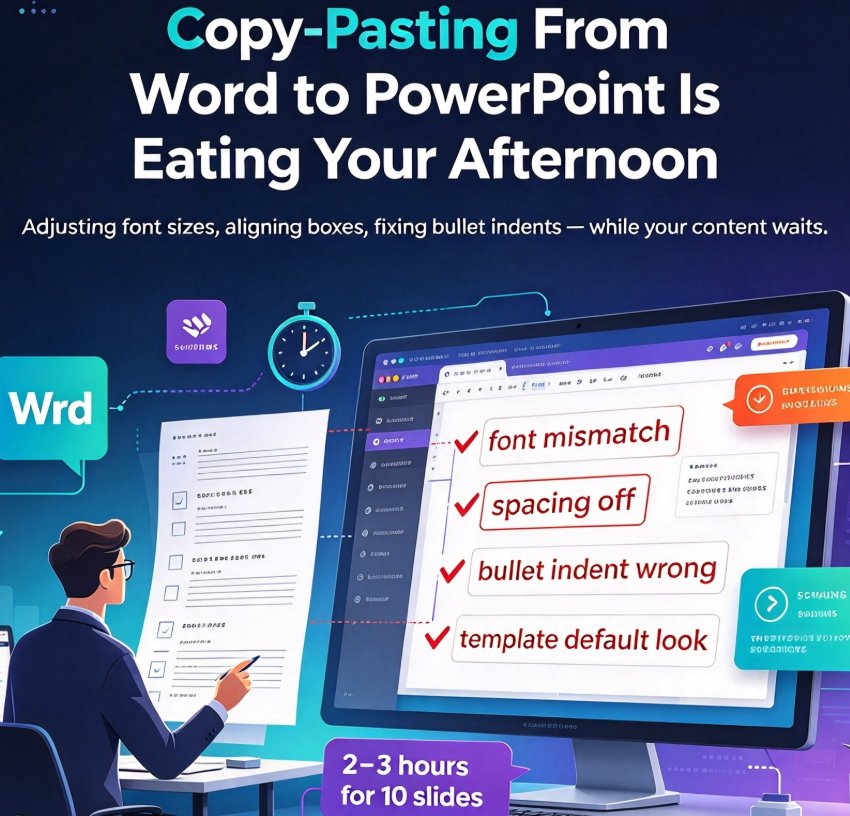
If you've ever built a PowerPoint by copy-pasting from a Word document, you know the pain — adjusting font sizes, aligning boxes, wrestling with bullet indent levels, and losing your afternoon to formatting. For teachers, trainers, and business professionals, this is a weekly ritual. But there's a faster way. With Zendeck's import-to-deck capability, you can turn a simple Word outline into a polished, design-consistent presentation in under 5 minutes. No design skills required. No manual formatting. Just paste your outline and let AI do the heavy lifting.
I. Why Word Outlines Are the Best Starting Point for Presentations
Think about the last time you created a presentation. You probably started in Word or even a notepad — drafting a rough structure, listing bullet points, and organizing your thoughts. That outline is the skeleton of your deck. The problem is that converting that skeleton into polished slides is a separate, painfully manual step.
The old workflow looks like this: open PowerPoint, create a new slide, copy the heading, paste it, then copy each bullet and paste, then manually adjust font size and position — for every single slide. A 10-slide deck easily eats 2–3 hours. And the result? Often inconsistent fonts, awkward spacing, and a design that screams 'template default.'
Zendeck was built to eliminate that drudgery. Instead of treating Word and PowerPoint as separate worlds, it treats your outline as the source of truth and turns it into a deck automatically. You already have the content — Zendeck just makes it look like a designer spent 30 minutes on it.
This isn't about generic AI generation; it's about a direct import-to-deck workflow that understands the structural hierarchy of your document. Whether you have a lecture outline, a project report, or a meeting agenda, Zendeck parses the heading levels and converts them into slide titles and content in seconds. For a deeper dive into the import mechanics, check out this guide on converting Word outlines into decks.
II. Manual Conversion vs. Zendeck: A Time and Effort Comparison
To get a clear picture of what you're saving, let's compare the two approaches side by side. We'll use a typical 10-slide professional deck as the baseline.
| Aspect | Manual Copy-Paste | Zendeck Import-to-Deck |
|---|---|---|
| Time required | 2–3 hours (120–180 min) | 5 minutes or less |
| Font alignment | Manually adjust each slide | AI auto-applies consistent typography |
| Layout | Inconsistent spacing | Smart layout unifies design |
| Branding | Need to create or apply template manually | One-click reskin with brand kit |
| Editing after conversion | Full manual control | Slides remain fully editable |
| Design skills | Required for a good look | Zero design knowledge needed |
As the table shows, the time savings alone justify switching. With Zendeck, you cut conversion time by 97%. That's not a typo — what takes 3 hours can now be done in a fraction of the time, freeing you to focus on content quality and delivery.
For a visual sense of the gap, look at this comparison of time spent on a standard 10-slide deck:
This chart isn't theoretical. It's based on feedback from educators and business users who regularly use Zendeck. The efficiency gain is real, and it compounds every time you create a deck.
III. Step-by-Step: Convert Your Word Outline to a Polished Deck in 5 Minutes
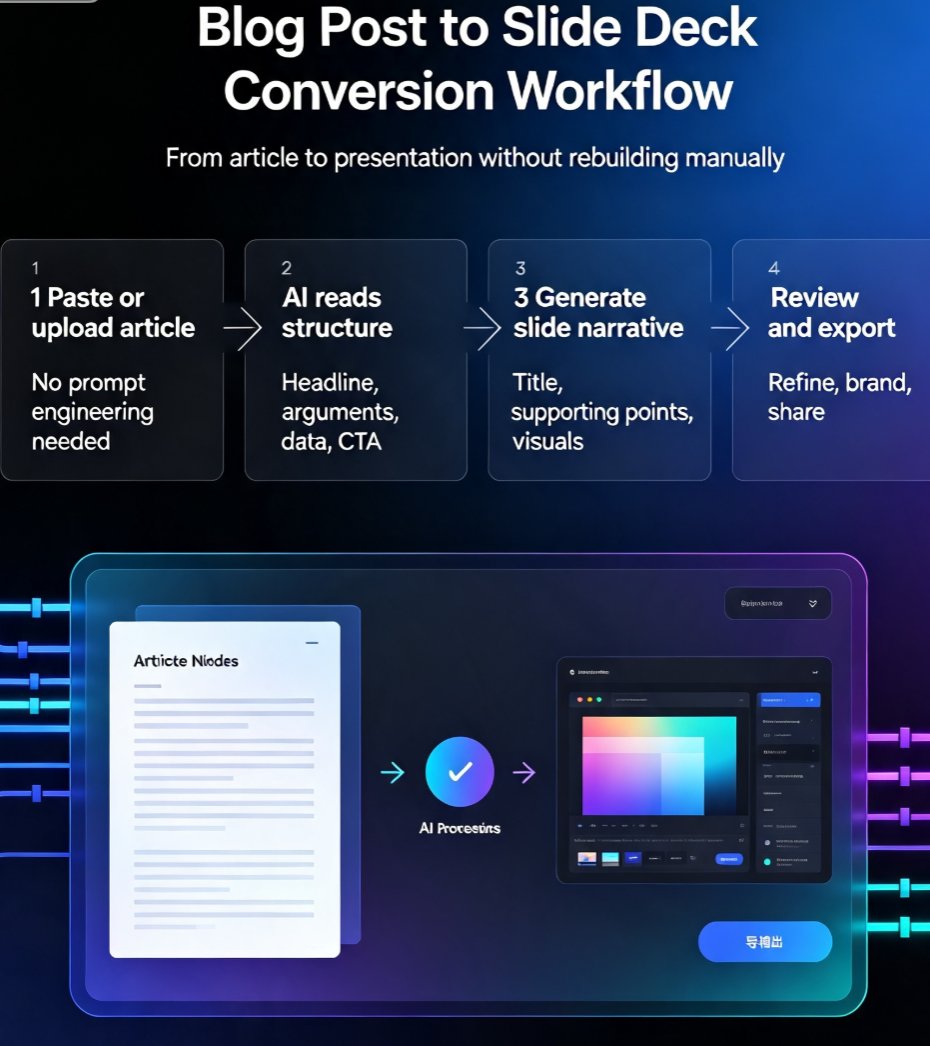
Ready to skip the copy-paste grind? Here's the exact workflow we use in Zendeck. It takes about five minutes from start to polished deck.
Step 1: Prepare Your Document
The magic starts with using proper heading styles. In Word, assign Heading 1 to your slide titles and Heading 2 (or lower) to bullet points. This hierarchy tells Zendeck exactly what should become a slide and what goes inside it. If you don't have heading styles, don't worry — Zendeck can also infer structure from your outline's numbering (like "1. Introduction").
Tip: Keep each slide's content to 3–5 bullets. Too many lines will make your final slides cluttered, but Zendeck's smart layout handles overflow gracefully if you keep it reasonable.
Step 2: Upload or Paste Into Zendeck
In Zendeck, click "Import" and select your .docx file, or simply paste the outline as Markdown or plain text. The import feature accepts Word, Markdown, and TXT formats — no need to convert anything. If you're using Markdown, check out this detailed Markdown-to-PPT tutorial for syntax tips.
Step 3: Let the AI Parse and Generate
Once your content is in, click "Generate." Zendeck's AI reads the document, identifies the slide boundaries based on your heading levels, and creates a draft deck instantly. This is the core of the import-to-deck capability — the AI understands the outline's structure without you writing a single prompt.
Step 4: Apply Smart Layout and Unify the Design
Now comes the fun part. Your draft deck might have mixed layouts, but Zendeck's Smart Layout feature can unify fonts, colors, and visual rhythm across all slides in one click. If you have a brand kit, apply it here for consistent corporate styling. For a deeper look at how Smart Layout works, see this article on reducing design time.
Step 5: Polish with the Asset Library
Need an icon or a chart? Zendeck's asset library offers a vast collection of icons, illustrations, and chart templates that you can drag onto slides. Adding a data visualization to support your key point takes seconds, not a trip to another tool. The result is a deck that looks intentionally designed.
Step 6: Export or Share
Once you're happy, export the deck to PowerPoint, PDF, or share it via a link for team collaboration. You can also move straight into PPT-to-video if you want to create a narrated micro-course from the same content.
That's it — six steps, under five minutes, and you have a polished presentation. No design tools, no formatting battles.
IV. Pro Tips for Getting the Best Results from Outline-to-Deck
You'll get the best results with a little preparation. Here are some habits we've picked up:
- Stick to a clear hierarchy. Use Heading 1 only for slide titles and Heading 2/3 for content. Mixed or missing levels confuse the parser and require manual cleanup later.
- Keep bullet text concise. A slide is not a document. Break long paragraphs into short phrases; Zendeck will present them cleanly.
- Add speaker notes in your outline. If you put notes in the Word comment or as a separate paragraph, Zendeck can turn them into presenter notes — though you can also add notes directly after generation.
- Leverage templates strategically. Instead of sticking with the default template, explore Zendeck's template library and use contextual templates that adapt to your content type. For more on this, read about template trends.
- Create a reusable brand kit. If you're producing decks regularly for your team or school, set up a custom brand kit once and apply it to every new deck. This ensures brand consistency without extra effort.
One more thing: if your outline is more of a free-flowing script, consider using Markdown formatting with # for slide titles and - for bullets — it's cleaner for import if you don't want to fuss with Word styles.
V. Beyond the Basics: What You Can Do After the Deck Is Generated
Your new deck is just the start. Zendeck extends far beyond static slides:
- Turn your deck into a video. Add narration to each slide and generate a micro-course or training video. This is perfect for flipped classrooms or remote onboarding. See how to add narration with PPT-to-video.
- Add interactivity. Embed quizzes, polls, or interactive charts directly into your slides to boost engagement. For a step-by-step, check out how to add polls and quizzes.
- Collaborate in real time. Share the deck with colleagues, leave comments, and co-edit online. Zendeck supports live collaboration, so your team can refine the deck together.
- Maintain accessibility. Zendeck can auto-generate alt text for images and captions for videos, helping you meet WCAG standards. More on that in this accessibility guide.
The outline you already have contains the seeds of not just one presentation, but potentially a video course, an interactive lesson, or a shareable training resource. That's the power of starting with structured content and letting AI do the conversion work.
VI. Conclusion
We've all been there: spending hours clicking through PowerPoint, trying to make a deck look decent when you'd rather spend that time on content or delivery. Zendeck's import-to-deck feature changes the game by making your Word outline the starting point, not the raw material for manual labor.
Whether you're a professor converting lecture notes, a trainer building a course, or a business professional repurposing a report, you can now go from outline to polished presentation in under 5 minutes. It's not about learning design — it's about using AI to handle the boring parts so you can do what you do best: teach, present, and lead.
So next time you're staring at a page of Word bullet points, remember: you're only five minutes away from a deck that looks like it took hours. Give Zendeck a try with your next outline.
FAQ
Q: Can I use a Word outline without any design skills?
A: Absolutely. Zendeck takes care of layout, typography, and visual hierarchy automatically. You just supply the outline — the AI handles the rest, producing a cohesive deck that matches professional standards.
Q: What file formats are supported for outline import?
A: Zendeck supports .docx (Word), Markdown (.md), and plain TXT files. You can also paste your outline directly. The AI parses heading levels to detect slide titles and bullet points.
Q: How much time can I save using Zendeck instead of manual conversion?
A: Typical users report saving 3–4 hours per deck. A 10-slide outline that takes 2.5–3 hours manually can be converted in under 5 minutes with Zendeck, including design and formatting.
Q: Can I customize the generated deck after import?
A: Yes. Every slide is fully editable. Use Zendeck's smart layout to reskin the design, swap templates, add icons or charts from the asset library, and even add narration or voiceover for PPT-to-video conversion.
Q: Does Zendeck work for both education and business presentations?
A: Definitely. Educators use it for lecture notes and courseware; professionals for reports, pitch decks, and training materials. The same import-to-deck workflow works across all use cases.