Zendeck Template Library: Design Consistent Courseware in 3 Steps
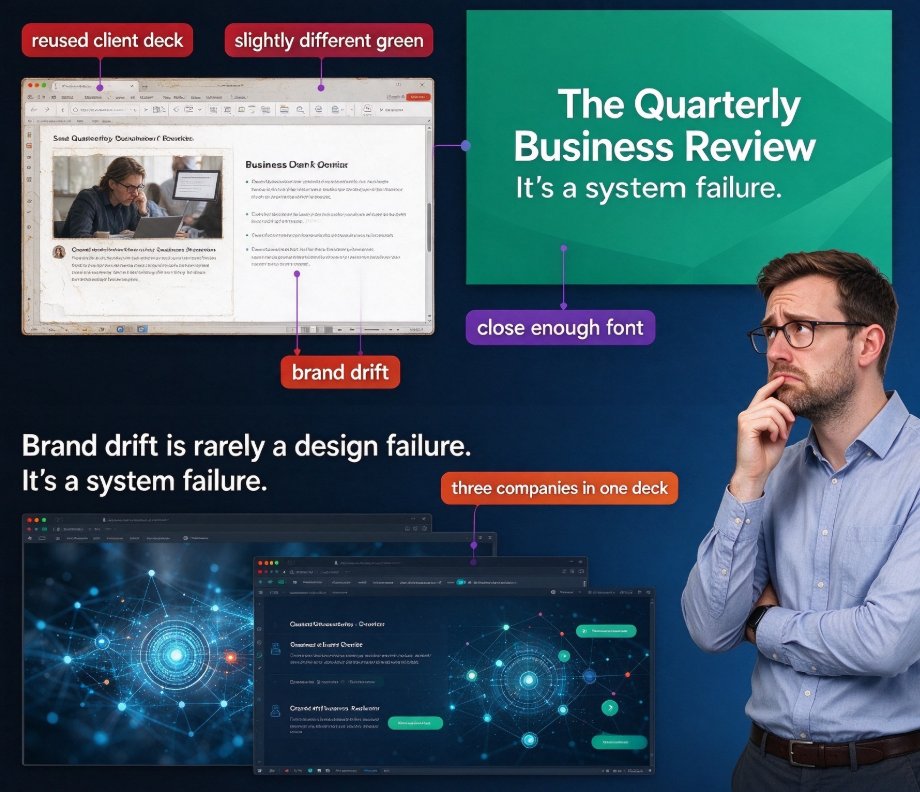
Let's be honest: when was the last time you opened a courseware deck and saw three different font families, four shades of blue, and slide layouts that changed personality halfway through? If you've built anything for training or education, you know the feeling — the content is solid, but the deck looks like it was assembled by five different people on five different days.
That's not a skill problem. It's a system problem. And it's exactly the problem Zendeck's template library was built to remove.
This guide walks you through how to use Zendeck's template library to design consistent, professional courseware in three steps: set up your brand kit, feed your content in, and let smart layout make everything feel designed on purpose.
01 Why Visual Consistency Is the Silent Killer of Good Courseware
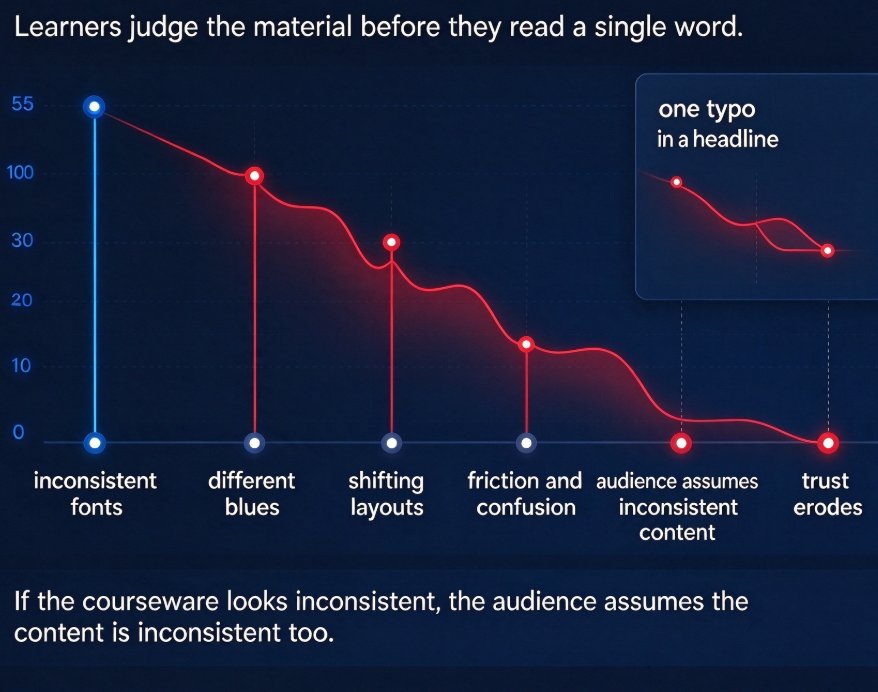
Here's the uncomfortable truth: learners judge your material before they read a single word. If your courseware looks inconsistent, your audience assumes the content is inconsistent too, no matter how well it's written. A slide that shifts from a formal title bar to a playful accent color mid-deck breaks their trust as reliably as a typo in a headline.
The pain points are painfully familiar: - Someone on your team "tweaks" a template and the spacing drifts. - Brand colors exist only in someone's memory, so every deck uses a slightly different blue. - New trainers copy slides between old files, importing stale layouts and broken fonts.
The solution isn't stricter people. It's a stricter system. When your design constraints — fonts, colors, layout rules — are enforced by the tool itself, consistency stops depending on discipline and starts depending on defaults. That's the shift behind Zendeck's template library, and it's part of a broader trend toward contextual templates that adapt to your content rather than forcing your content into fixed frames.
02 What Makes Zendeck's Template Library Different
A generic template library hands you a bunch of static layouts and hopes you sort out the rest. Zendeck's library works differently, because it pairs its templates with the platform's AI generation logic.
When you generate a deck from a Word outline or Markdown file, Zendeck's AI reads the structure of your content — slide density, content type, audience familiarity — and picks a template that matches the material. Building a compliance training deck? It leans toward clean, authoritative layouts. Building a product onboarding course? It suggests warmer, more illustrative designs. You can read more about how Zendeck picks the right template for a given deck.
That context-aware selection matters, because the right template is about more than aesthetics. It's about signaling intent. A compliance deck that looks playful undermines the material; a creative workshop deck that looks like a legal brief sucks the energy out of the room. The selection logic exists precisely to avoid that mismatch.
The result: your courseware doesn't just look consistent — it looks consistent with what the content is trying to achieve.
03 Step 1: Turn Your Brand into a Brand Kit
Before you generate a single slide, set up a brand kit in Zendeck. This is where you declare your fonts, colors, and logo rules once, so they apply to every deck you produce from now on.
The workflow is simple: 1. Upload your logo and define your color palette. 2. Set your heading and body font families. 3. Decide accent styles and any layout preferences.
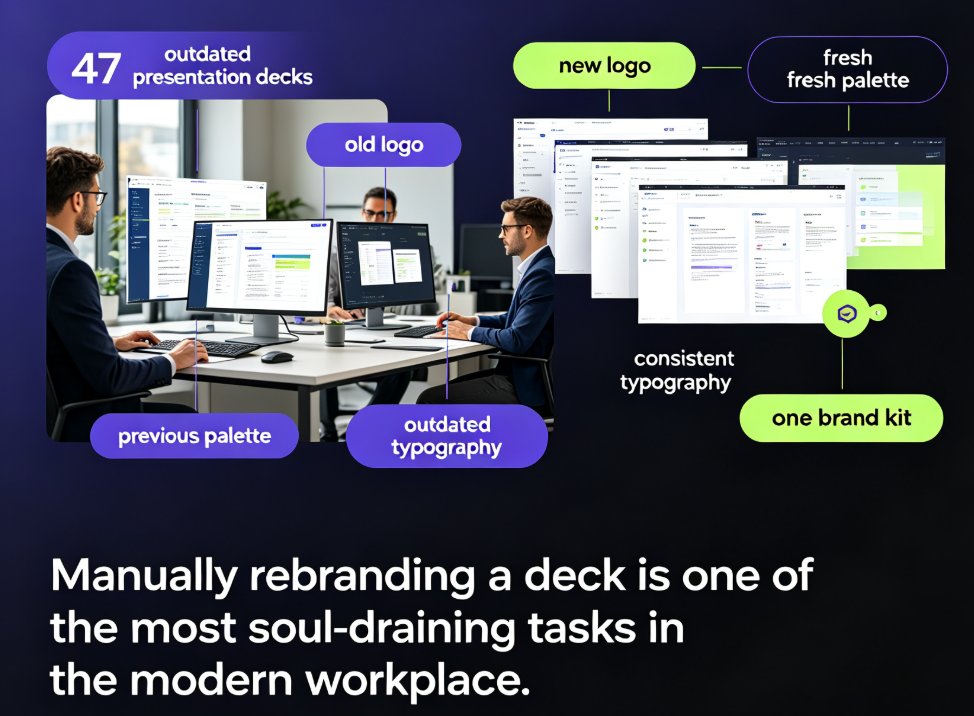
Once that's in place, every template you use inherits your brand automatically. You never hand-pick a color again — the kit decides for you. If you want the full rundown, we've covered this workflow in depth: 5 Ways to Create a Custom Brand Kit in Zendeck for Consistent Decks.
Here's the thing most people underestimate: a brand kit isn't a marketing luxury. For educators and trainers, it's the difference between courseware that looks like branded internal material and courseware that looks like a personal side project. Your audience picks up on that in seconds.
04 Step 2: Feed Your Content In and Let the AI Pick the Template
Here's where the magic happens. You don't open a blank slide and start decorating. You bring your content — a Word outline, pasted text, or Markdown — and Zendeck builds the deck around it.
Paste your outline, and the AI does two things at once: it structures your content into slides, and it selects a template that fits the material. That's the contextual selection logic we talked about, and it's a big part of why Zendeck beats generic library hopping. If you'd rather control the choice yourself, you can browse the template library manually and preview how your content would look in different styles before committing.
A practical tip, off the record: keep your outline clean before you paste it. Clear heading levels and short bullet points give the AI far better material to work with. Garbage in, gorgeous-but-empty slides out.
05 Step 3: Generate, Polish with Smart Layout, Then One-Click Reskin
With a brand kit and a template in place, you're one button away from a finished deck. But "finished" and "polished" are different things, and this is where Zendeck's smart layout tools earn their keep.
Smart layout handles the fine-grained work humans dread: aligning elements, balancing slide density, adjusting spacing, and normalizing visual rhythm across every page. It's the difference between slides that look assembled and slides that look designed.
And if you're working with legacy materials — old decks, inherited files, or half-finished courses — the one-click reskin is your best friend. Drop your existing slides in, apply a new template, and Zendeck re-skins the whole deck in one action. Your content stays intact; only the styling changes. You can modernize years of old courseware in a single evening, not a single quarter. Here's how that works in practice: AI One-Click Reskin: Modernize Old Slides.
This flow — brand kit, contextual template, smart layout — is the entire secret to consistent courseware. It's not about doing more; it's about doing less, in the right order.
06 The Quick Comparison: Why This Beats the Old Ways
Numbers help. Here's how the three common approaches stack up when you're building a 30-slide courseware deck. The figures below are typical ranges we see across client teams, not a promise:
| Criteria | Manual design | Generic template library | Zendeck template library |
|---|---|---|---|
| Visual consistency | Designer-dependent | Partial, often drifts | Enforced by system |
| Brand alignment | Manual effort per slide | Manual effort, error-prone | Automatic via brand kit |
| Time per 30-slide deck | 6-8 hours | 3-4 hours | 20-40 minutes |
| Updating across slides | Manual, risky | Manual edits | One-click reskin |
| Layout adaptation | Hand-adjusted slide by slide | Fixed, static frames | Context-aware smart layout |
| Collaboration | Version chaos | Limited sharing | Online co-editing & link sharing |
And if you prefer the visual version, here's what the same story looks like as a bar chart:
The takeaway is straightforward: manual design buys you control at the cost of your evening. Generic templates buy you speed at the cost of consistency. Zendeck's template library buys you both, because the design constraints are baked into the tool rather than left to discipline. If you're curious about where this trend is heading, our guide on contextual templates covers why generic libraries are losing ground.
07 When to Still Think Twice
Nothing is magic, so let's be fair about the edge cases.
- If your brand guidelines are extremely niche — say, a highly specific visual language with custom illustration rules — you'll still want to build those into your brand kit and verify the output on a test deck first.
- If you're generating a one-off, highly bespoke piece like a board-level investor narrative, you might want to hand-tune a few slides after generation. The tool gets you 90% there; the last 10% is yours.
- And if you're working with sensitive or proprietary content, remember that AI courseware comes with real privacy considerations — worth a quick read before you upload student or corporate data.
For the 95% of everyday courseware — training modules, onboarding sessions, compliance refreshers, classroom lessons — the three-step flow is more than enough. It's genuinely the fastest path from outline to on-brand deck that I've seen in fifteen years of editing this kind of material. Browse more courseware design guides in our courseware design hub if you want to keep going.
FAQ
Q: What is the Zendeck template library? A: The Zendeck template library is a collection of premium, professionally designed templates that pair with Zendeck's AI generation engine. Instead of static frames, the library uses contextual selection — the AI picks a template that matches your content type, slide density, and audience — and then automatically applies your brand kit for font, color, and layout consistency.
Q: How do I keep my courseware on-brand using Zendeck templates? A: Set up a brand kit in Zendeck first — upload your logo, define your brand palette, and set your fonts. Once the kit is in place, every template you apply inherits your brand automatically, so all your courseware stays visually aligned without manual color or font work on each slide.
Q: Can I import an existing Word outline into a Zendeck template? A: Yes. You can upload a Word outline or paste Markdown/TXT content, and Zendeck will structure it into slides and pick a fitting template. If you'd rather choose yourself, you can browse the template library manually and preview your content in different styles.
Q: Does the one-click reskin change my content or just the design? A: Just the design. The one-click reskin reapplies your template's fonts, colors, and layout rules to the existing slides while leaving your text and structure intact. It's designed for modernizing old or inherited decks without rebuilding them from scratch.
Q: Who is the Zendeck template library best suited for? A: Educators, trainers, HR teams, and content operators who need professional, on-brand courseware at scale. It's especially valuable when multiple people create decks, because the brand kit and smart layout enforce consistency across the whole team without anyone needing design skills.