Zendeck One-Click Reskin: Fix Inconsistent Branding in Decks
I. The 11 PM Branding Nightmare
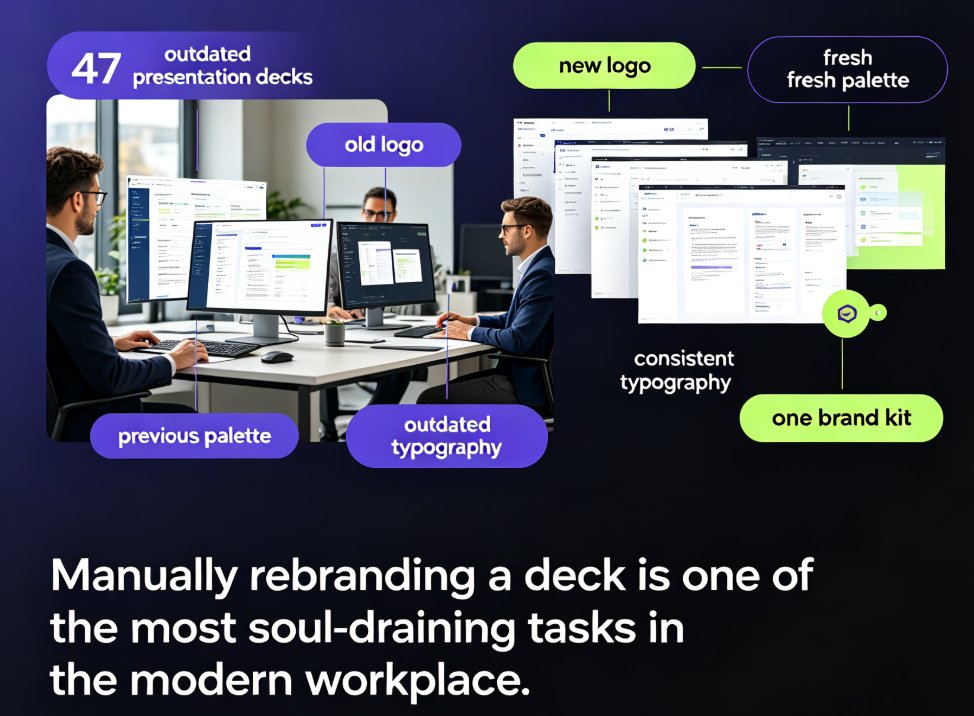
It's 11 PM, and you're staring at a deck that looks like it was designed by three different people who never spoke to each other. Slide 4 uses a navy blue that's almost your brand color. Slide 12 has a font that's close to your typeface but definitely not it. And slide 27? That one still has the old logo from before the rebrand.
We've all been there. You're about to present to a client, or worse, to your own leadership team, and the deck is a patchwork of inconsistent branding. Inconsistent branding doesn't just look sloppy—it actively erodes trust and makes your team look less professional.
Let's be real: manually fixing this is a nightmare. You open the master slide, change the font, then discover that three slides have hard-coded styles that don't respond to the master. You hunt down hex codes. You resize logos. You pray that the alignment on slide 19 doesn't break when you fix slide 8.
This is exactly the problem Zendeck's one-click reskin was built to solve.
II. Why Decks End Up Off-Brand (It's Not Your Fault)
Before we talk about the fix, let's talk about the root cause. Decks become inconsistent for a few predictable reasons:
- Multiple contributors: Sales, marketing, and product teams each add their own slides, each with their own interpretation of "our brand."
- Legacy files: That deck from 2022? It still has the old color palette and the pre-rebrand logo.
- Copy-paste chaos: Pulling slides from other decks is efficient, but it drags in their formatting too.
- Template drift: Even with a template, people override fonts and colors to "make it work" for their content.
The result? A deck that feels disjointed. Your audience might not consciously notice the font mismatch, but they'll subconsciously feel that something is off. Research shows that consistent brand presentation can increase revenue by up to 23%—but inconsistent branding has the opposite effect, making your team look disorganized.
This isn't a design problem. It's a governance problem. And the solution isn't more manual discipline—it's automation.
III. What One-Click Reskin Actually Does
Zendeck's one-click reskin is exactly what it sounds like: you click one button, and the AI restyles your entire deck to match your brand kit. Here's what happens under the hood:
- Scans your brand kit — Zendeck reads your saved brand kit (colors, fonts, logo, layout rules) or creates one from an existing deck.
- Audits every slide — The AI identifies every element that deviates from the brand kit: wrong colors, mismatched fonts, off-brand logos, inconsistent spacing.
- Applies fixes automatically — It replaces non-compliant styles with your brand's approved styles, across all slides simultaneously.
- Preserves your content — Crucially, it doesn't touch your text, data, or images. It only changes the styling.
The result is a deck that looks like it was designed by one person, even if it was assembled from five different sources.
The key insight: reskinning is not redesigning. It's enforcing brand rules at scale—something that's physically impossible to do manually in a reasonable timeframe.
IV. Manual Rebranding vs. One-Click Reskin: The Real Numbers
Let's put this in perspective. Here's a comparison based on what teams typically experience:
| Task | Manual Rebranding | Zendeck One-Click Reskin |
|---|---|---|
| Time to rebrand a 40-slide deck | 2–4 hours | Under 1 minute |
| Consistency across slides | Depends on the day | Guaranteed by AI rules |
| Risk of missing a slide | High (especially slide 27) | Zero—every slide is scanned |
| Handling legacy files | Manual cleanup required | Auto-detects and fixes |
| Team collaboration | Version control chaos | Single source of truth |
| Learning curve | None (but tedious) | None (one click) |
The math is simple: if your team creates 10 decks per month, manual rebranding costs you 20–40 hours. Zendeck's one-click reskin reduces that to under 10 minutes. That's time you can spend on content, strategy, or actually getting some sleep.
V. How to Use One-Click Reskin in Zendeck (Step by Step)
Here's the workflow. It's embarrassingly simple.
Step 1: Set Up Your Brand Kit
If you haven't already, create a brand kit in Zendeck. Upload your logo, pick your brand colors, and select your fonts. This is a one-time setup that pays off forever. If you need help, check out our guide on setting up brand kits for consistent presentations.
Step 2: Import or Create Your Deck
You can start from a blank canvas, paste a Markdown outline, upload a Word document, or import an existing PowerPoint. Zendeck handles all of it.
Step 3: Click "Reskin"
That's it. The AI scans your deck, compares it against your brand kit, and applies the fixes. You'll see a preview of the changes before you commit.
Step 4: Fine-Tune If Needed
Zendeck is not a black box. After reskinning, you can still manually edit any slide. The reskin gives you a perfect starting point; you add the finishing touches.
A friend's advice: Don't treat reskin as a magic wand for a deck that's structurally broken. If the content is a mess, reskin won't fix that. Fix the content first, then reskin for polish.
VI. Beyond One Deck: Brand Governance at Scale
Here's where it gets interesting. One-click reskin isn't just about fixing a single deck—it's about enforcing brand consistency across your entire library.
Think about it: your team has dozens, maybe hundreds, of decks. Sales decks, pitch decks, training materials, conference keynotes. Each one was created at a different time, by different people, with different levels of design care. The cumulative effect is a brand that looks fragmented.
Zendeck's reskin, combined with brand kits, turns brand governance from a manual chore into an automated system. You set the rules once, and every deck—past, present, and future—can be brought into compliance with a single click.
This is what we call AI-governed brand consistency. It's the difference between hoping your team follows the brand guidelines and knowing that they do.
VII. Common Reskin Mistakes (And How to Avoid Them)
Even with a one-click tool, there are pitfalls. Here's what we've seen:
- Skipping the brand kit setup: If your brand kit is incomplete, the reskin has nothing to work with. Take the 15 minutes to set it up properly.
- Reskinning before content is final: Reskin early and often, but do your final reskin after content is locked. Otherwise, you'll need to reskin again.
- Ignoring the preview: Always review the preview. The AI is smart, but it doesn't know that your CEO hates the color teal.
- Forgetting about accessibility: Reskinning can change contrast ratios. Make sure your brand colors still meet WCAG standards. We've written about accessible AI presentations if you need a refresher.
VIII. The Bottom Line: Stop Fixing, Start Presenting
Here's the thing. You didn't get into your role to spend hours hunting down hex codes and resizing logos. You got into it to communicate ideas, win clients, and train teams.
One-click reskin is not a luxury feature—it's a baseline expectation for any team that takes its brand seriously. The days of manually rebranding decks are over. The tools exist to automate this away, and Zendeck is leading the charge.
So next time you're staring at a deck that looks like a brand identity crisis, don't open the master slide. Open Zendeck, click reskin, and go home at a reasonable hour.
Your brand—and your sleep schedule—will thank you.
FAQ
What is one-click reskin in Zendeck?
One-click reskin is a Zendeck feature that automatically reapplies your brand kit—fonts, colors, logo placement, and layout rules—across an entire deck in a single action. Instead of manually updating each slide, the AI scans your content and restyles it to match your brand guidelines, saving hours and eliminating visual inconsistencies.
How does Zendeck's reskin fix inconsistent branding?
Zendeck's reskin works by reading your brand kit (colors, typography, logo, and layout preferences) and then applying those rules uniformly to every slide. It replaces mismatched fonts, corrects off-brand colors, and aligns spacing and alignment. The result is a deck that looks like it was designed by one person, even if it was assembled from multiple sources.
Can I manually edit slides after using one-click reskin?
Absolutely. Zendeck is built for flexibility. After reskinning, every element remains fully editable—you can tweak text, swap images, or adjust layouts manually. The reskin is a starting point, not a lock-in. This hybrid approach lets you get 90% of the way automatically and fine-tune the rest by hand.
Does one-click reskin work on imported PowerPoint files?
Yes. You can upload an existing PowerPoint or Word outline into Zendeck, and the one-click reskin will apply your brand kit to the imported slides. This is especially useful for teams that receive decks from external partners or legacy files that don't match current brand guidelines.
How is Zendeck different from manually rebranding a deck?
Manual rebranding typically takes 2-4 hours per deck—you're hunting down every font, color, and alignment issue slide by slide. Zendeck's one-click reskin does this in under a minute. It also enforces consistency across an entire library of decks, not just one file, so your brand stays uniform everywhere.