How to Add Interactive Quizzes to Your Micro-Course with Zendeck
You know that feeling—you've spent hours crafting a micro-course, the content is solid, the pacing is tight, yet learners still zone out by the third minute. The culprit isn't your delivery; it's the lack of interaction. A passive viewer is a disengaged learner. The fix? Interactive quizzes. And with Zendeck, adding them to your micro-course is faster than you think.
!
01 Why Interactive Quizzes Are Non-Negotiable in Micro-Courses
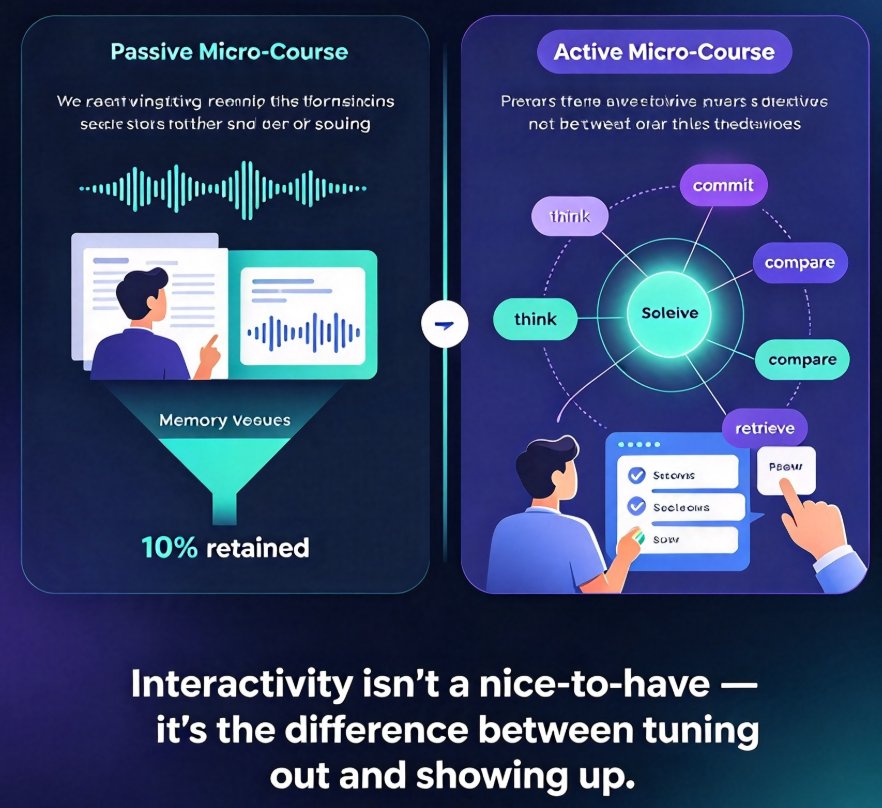
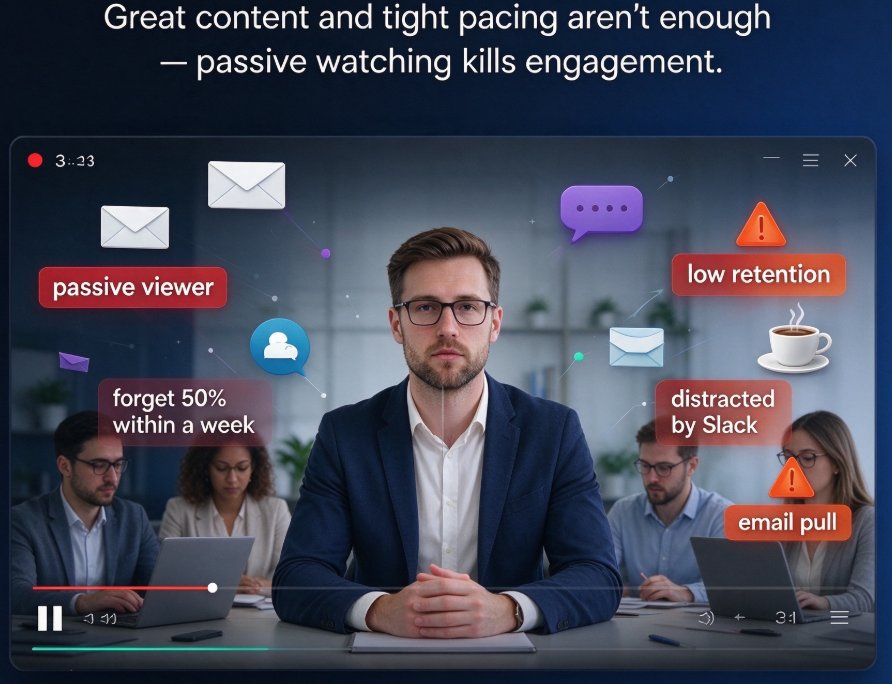
Micro-courses are designed for short attention spans. But if your learners are only watching and never doing, you're losing them to emails, Slack notifications, or that tempting coffee break. Passive consumption leads to low retention—research shows learners forget up to 50% of video content within a week. Interactive quizzes flip that script.
When you drop a quiz into your video, something shifts. A learner goes from observer to participant. They're forced to recall, think, and answer. That cognitive effort is what cements the knowledge. In fact, a study from the eLearning Industry found that interactive elements can boost engagement by up to 80%. That's not a nice-to-have; that's a game-changer for your training ROI.
The pain point is real: disengaged learners don't complete courses, and incomplete courses waste your budget. The solution is equally real: quizzes inserted at strategic points keep learners active and motivated. The outcome? Higher completion rates, better assessment scores, and learners who actually remember what you taught.
02 What Zendeck Brings to the Table: Interactive Quiz Capabilities
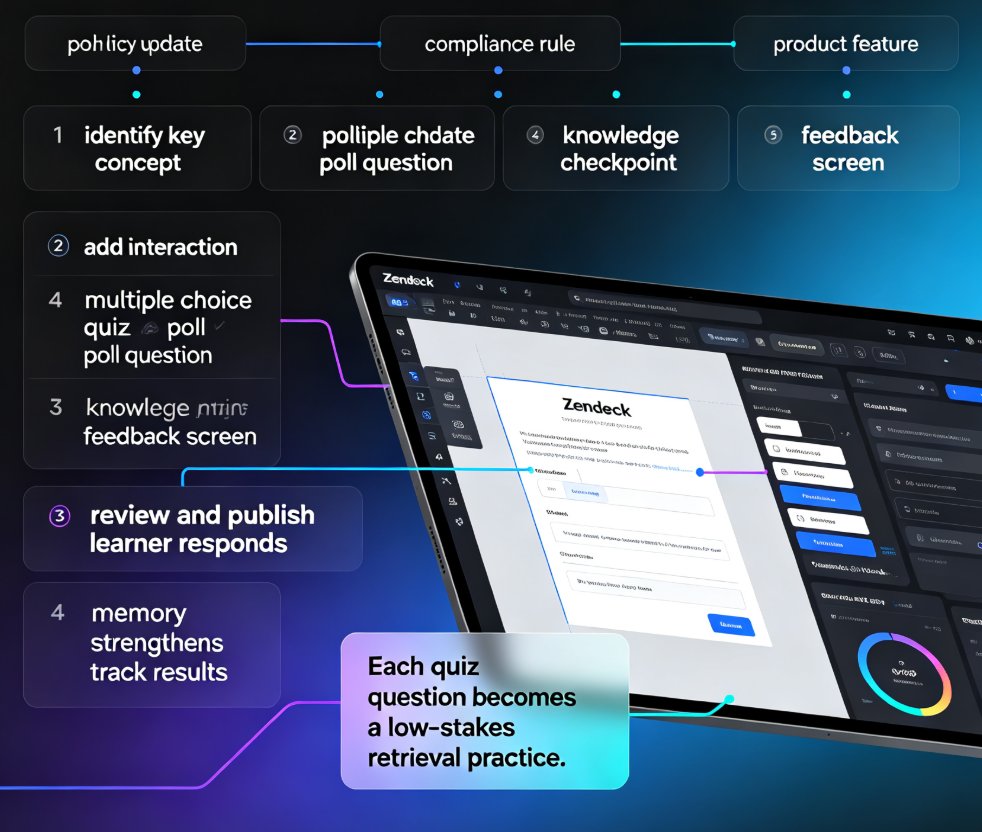
Let's be clear about what Zendeck offers. It's not just a tool that sticks a question at the end of your video. Zendeck's interactive editor lets you place quizzes anywhere in your micro-course—right after explaining a key concept, before a big transition, or as a final assessment. You can mix question types freely.
Here's a quick look at the question formats Zendeck supports, and when they work best:
| Question Type | Best Used For | Example in a Micro-Course |
|---|---|---|
| Multiple Choice | Checking factual recall or comprehension | "Which of these is a key benefit of interactive quizzes?" |
| True/False | Reinforcing single, clear statements | "Quizzes increase passive viewing time. True or False?" |
| Short Answer | Encouraging recall without hints | "State one reason why quizzes boost retention." |
| Poll | Gauging opinions and preferences | "Which topic would you like to dive deeper into next?" |
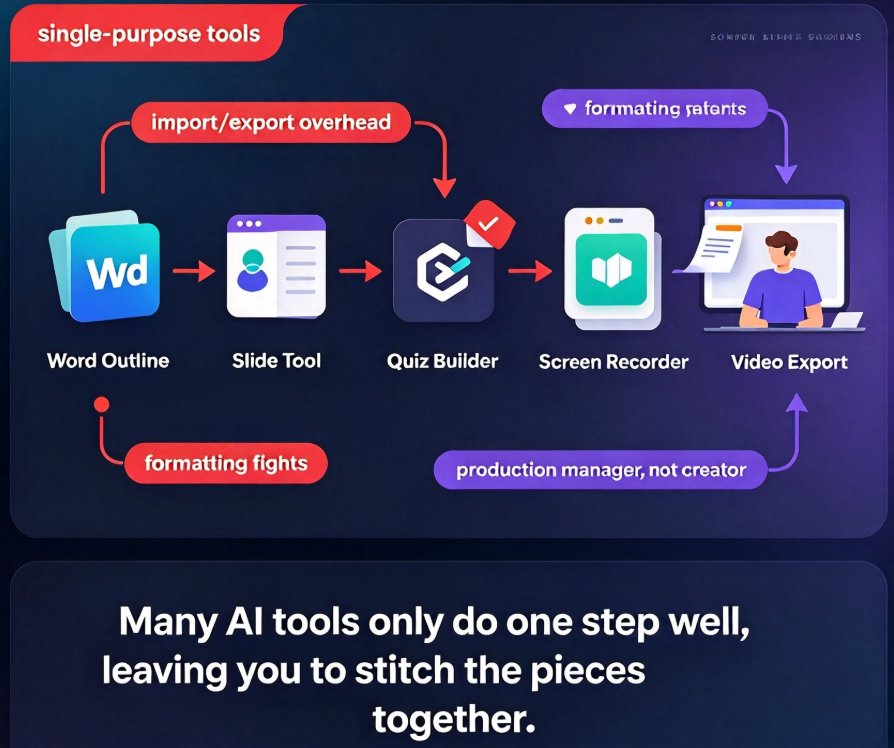
Zendeck also handles the heavy lifting of setup. You don't need to write complex scripts or fiddle with external plugins. The interactive editor is built into the platform, so you create, preview, and publish quizzes right where your video lives.
03 Step-by-Step: How to Add Interactive Quizzes in Zendeck
Now, let's walk through the actual process. I'll keep it practical, so you can apply it to your next course in minutes.
Step 1: Open Your Micro-Course in the Interactive Editor
In Zendeck, navigate to your micro-course project and select Interactivity > Interactive editor. This is where all the magic happens. You'll see your video timeline with markers where you can insert questions. If you haven't created your micro-course yet, check out our guide on turning a PowerPoint outline into a video deck to get started.
Step 2: Add a Poll or Quiz Question
Find the point in your video where you want the learner to pause and engage. Click Polls and quizzes in the editor. Choose either a poll or a quiz, then enter your question and answer options. For a quiz, mark the correct answer with the star icon. This is your opportunity to reinforce a critical point or test comprehension.
Step 3: Preview Your Video with the Quiz Overlay
Before you commit, hit Preview to see how the quiz appears. You want it to feel natural—not like a pop-up ad. Check that the question stays on screen long enough for learners to read and respond. Adjust timing if needed.
Step 4: Save and Publish with SCORM Export
Once you're satisfied, save your changes. When you're ready to publish, choose Publish > Export to LMS. Select Quiz score as your scoring method. This ensures your video is formatted to be SCORM-compliant. You'll receive a zip file, ready to upload to your learning management system. This is a lifesaver for corporate trainers who need to report on learner performance.
Step 5: Upload and Launch in Your LMS
Take that zip file, log into your LMS (Moodle, Canvas, Blackboard—you name it), and upload it as a new lesson. When learners open it, they'll watch the video, hit the quiz questions, and their answers get recorded instantly. No manual grading, no spreadsheets.
For a deeper dive into the export workflow, see our dedicated article on adding interactive quizzes to micro-courses.
04 Designing Quiz Questions That Actually Teach
Not all quizzes are created equal. A poorly designed question can frustrate learners or, worse, reinforce misconceptions. Here's how to craft questions that genuinely add value.
Keep It Short and Focused
Each question should test one single idea. If you combine concepts, you'll confuse learners. For instance, instead of asking "Which of these are benefits?" with multiple correct answers, ask "Name one benefit of interactive quizzes." Simple, clear, effective.
Space Your Quizzes Strategically
Don't cram all questions at the end. Place a quiz right after you introduce a major concept. That's when learners are most primed to engage. The act of answering consolidates the memory. If you wait until the end, the information has already faded.
Use Polls for Instant Feedback
Sometimes you don't want a right or wrong answer. You want to gauge opinions—like "Which product feature interests you most?" Polls give learners a voice and make them feel invested. You can even use the results to adjust future content in real time.
Mix Question Types
Variety keeps things fresh. Alternate between multiple-choice, true/false, and short-answer. A wall of identical question types gets monotonous. And remember, every question should serve a purpose—if it doesn't reinforce a learning objective, cut it.
Here's a tip, offhand: when you're writing a question, read it out loud. If it sounds awkward, it will confuse. Keep the language plain and direct, just like you'd speak to a colleague across the table.
05 Measuring Engagement and Iterating
Adding quizzes isn't a one-and-done task. To get the most out of them, you need to track performance and refine. Zendeck gives you basic response data, but for granular insights, export to your LMS.
Watch for these metrics:
- Completion rate: Did learners finish the course? If not, maybe your quizzes are too hard or too frequent.
- Answer accuracy: Are learners getting questions right? Low accuracy suggests your teaching isn't landing.
- Time spent on each question: If learners linger too long, the question might be ambiguous.
The key is to treat quiz results as feedback on your content, not just on your learners. Use the data to tweak your explanations, add supporting examples, or adjust the quiz's placement. Iteration is what separates a decent micro-course from a stellar one.
Zendeck's analytics, combined with your LMS reporting, gives you the full picture. And when you see engagement metrics climbing, you'll know the strategy is working.
06 Real-World Scenarios: Where Interactive Quizzes Shine
Let's ground this in everyday situations. You're an L&D manager rolling out a new compliance training. Your learners hate it—it's dry. But you add a quick true/false quiz after each policy section. Suddenly, they're not just scrolling; they're checking their understanding. That's engagement.
Or you're a university instructor creating a micro-course on data literacy. You embed polls asking students which visualization type they find hardest to interpret. That feedback lets you tailor your next live session. Interactive quizzes turn a one-way lecture into a dynamic dialogue.
In corporate settings, quizzes also serve as proof of learning. For mandatory training, you need to document that employees understood the material. SCORM-compliant quizzes give you that audit trail—no more guessing who actually paid attention.
For more inspiration on making your micro-courses stick, check out our piece on adding polls and quizzes to slides. And if you're new to micro-course production, browse our micro-course category for a treasure trove of tips.
FAQ
Can I add interactive quizzes to existing Zendeck micro-courses?
Yes. Zendeck allows you to open any existing micro-course in the interactive editor and insert quiz questions at any point in the video. You can also edit or remove them later without affecting the rest of the content.
Does Zendeck export quizzes in SCORM format for LMS integration?
Absolutely. When you publish your micro-course, Zendeck can export a SCORM-compliant package. Just choose the 'Export to LMS' option and select the quiz score as the scoring method. You'll get a zip file ready to upload to your learning management system.
What types of quiz questions can I create in Zendeck?
Zendeck supports multiple-choice, true/false, and short-answer questions. You can also add polls for instant audience feedback, making it easy to gauge learner opinions and adjust your training on the fly.
How do interactive quizzes improve learner engagement?
Quizzes break the passive watching pattern. They require active participation, which boosts attention and retention. Studies show that interactive content increases learner engagement by up to 80%, and micro-courses with quizzes see higher completion rates and better knowledge recall.
Can I track quiz results without an LMS?
Yes. Zendeck provides a simple dashboard where you can view aggregated responses and scores. For detailed tracking per learner, use the SCORM export and integrate with a major LMS like Moodle, Canvas, or Blackboard.
Ready to make your micro-courses interactive? Zendeck is the tool that makes it effortless. Start with a quiz in your next course, and watch your engagement metrics climb. You've got the know-how now—go build something learners will actually remember.