How to Turn a Word Outline into a Professional PPT in 5 Steps Using Zendeck
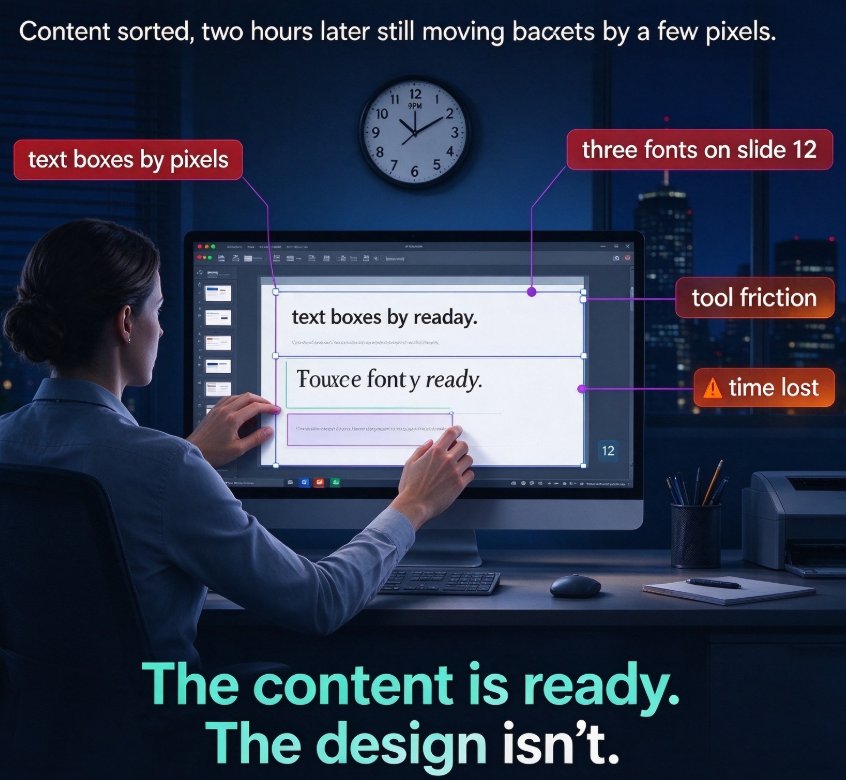
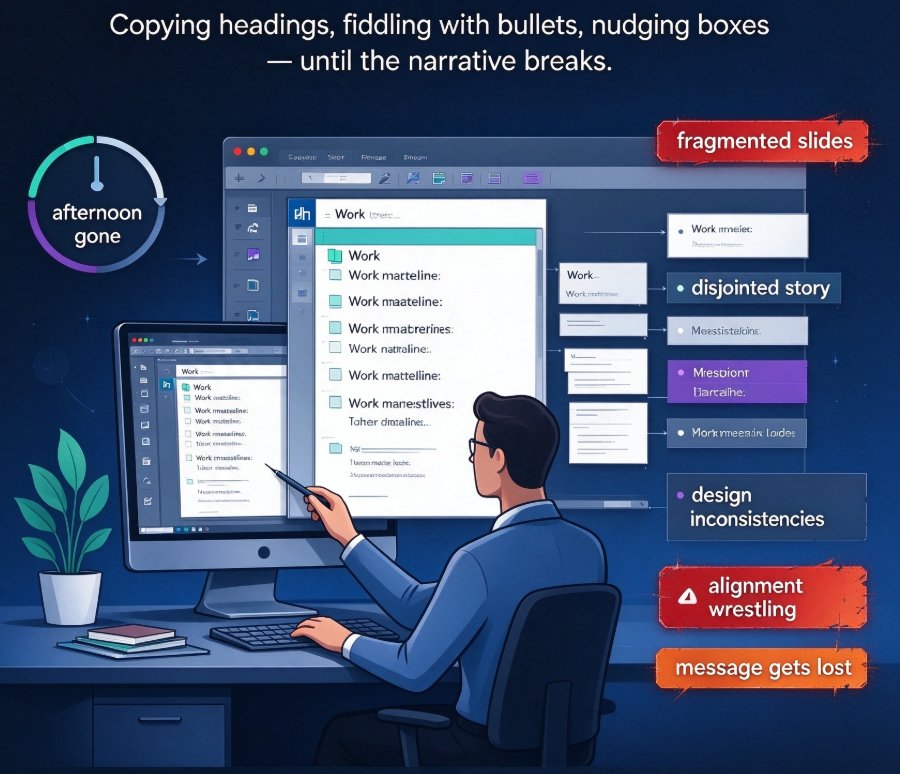
You've got a few hours, a Word outline, and a presentation due. You start manually turning that outline into slides—copying headings, fiddling with bullet points, nudging text boxes... and before you know it, the afternoon is gone and your 'presentation' looks like a pile of disjointed notes. Sound familiar?
You're not alone. Manually converting an outline into slides is a notorious time-sink that often wrecks your narrative flow. But it doesn't have to be that way. With Zendeck's Doc-to-Slides feature, you can turn that messy outline into a polished, professional PPT in just a few clicks. Let's break it down into five simple steps.
01 Why Manual Outline-to-PPT Conversion Fails
When you convert an outline by hand, you're micromanaging every element. Slides end up fragmented, the story feels disjointed, and design inconsistencies creep in. You end up with a deck that's technically correct but fails to deliver your message. That's exactly why AI presentation generators are taking over—they let you focus on the narrative instead of wrestling with alignment.
02 The 5 Steps to Convert a Word Outline to PPT with Zendeck
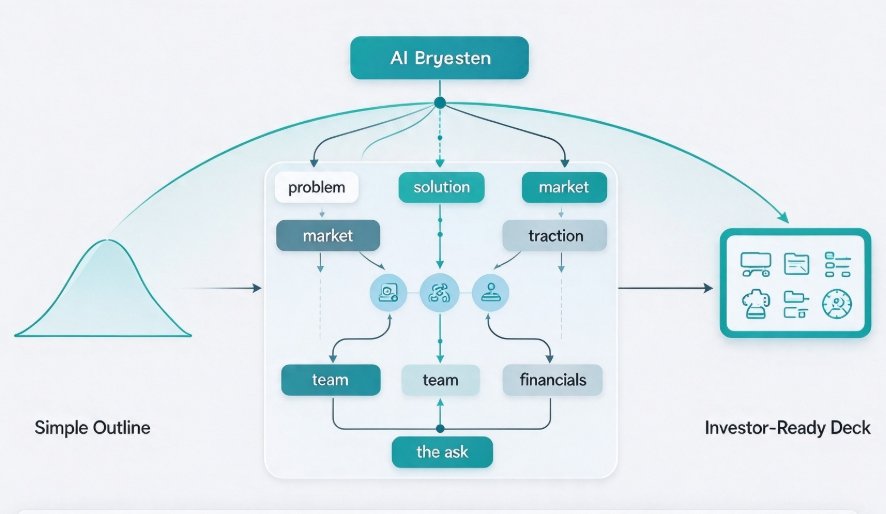
These steps are refreshingly simple. Think of it as: you feed in a messy document, Zendeck outputs a structured presentation.
Step 1: Prepare Your Word Outline (Really, You Don't Need To)
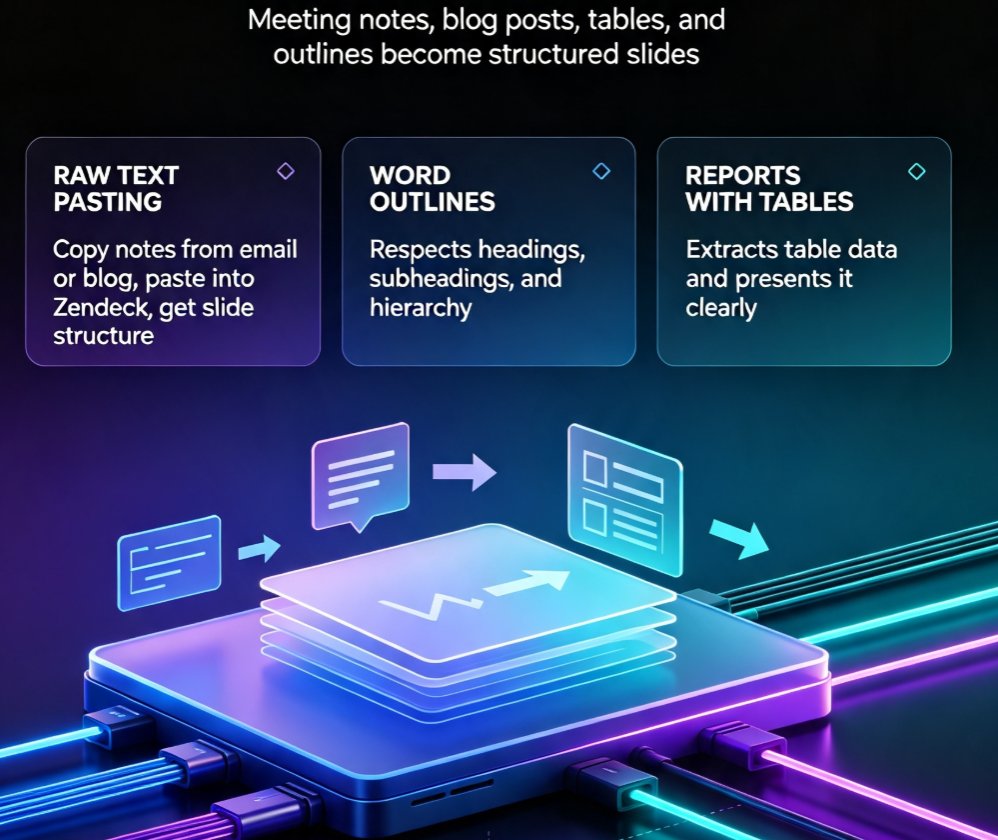
Zendeck can handle messy formatting. Nested bullets, stream-of-consciousness writing, even meeting notes—the AI parses it all into a logical structure. Just make sure your main ideas are in the document. If you've used headings, great; if not, the AI will infer the hierarchy for you.
Step 2: Paste into Zendeck and Choose Doc-to-Slides
In Zendeck, select the Doc-to-Slides option. Paste your outline (or import the Word file). The AI treats your text as the content source and maps each key concept to a slide.
Step 3: Customize Parameters (Optional but Useful)
You can set slide count (5–50+), select a language (14+ supported), and even define the tone—technical, casual, or boardroom-ready. Choose your audience so the AI adjusts depth and style. A training deck will look very different from a pitch deck, and Zendeck knows the difference.
Step 4: Generate the Slides
Hit generate. Zendeck produces an entire deck in seconds. No template placeholders, no lorem ipsum. Your actual content appears in professional layouts with consistent typography, relevant imagery, and automatic animations. It's a finished product, not a draft.
Step 5: Review and Refine with AI Assistance
Preview the deck as a slideshow. Check the flow. If something feels off, use the built-in AI to adjust. For example, "merge these three bullets into a single paragraph" or "make the color scheme brighter." Once you're satisfied, export to PPT or share a link directly.
03 Why Zendeck's AI Makes You a Better Presenter
The real win isn't just speed—it's quality. You don't have to be a designer. Zendeck picks layouts, colors, and typography based on context—trained on millions of successful presentations. It knows the difference between a sales pitch and a board report and adapts accordingly. Your content gets a cohesive visual identity, zero design effort required.
04 Manual vs AI: The Time Comparison
Let's be real: time is the ultimate currency. Here's the number that matters—manual conversion takes 3–4 hours minimum; Zendeck does it in under a minute.
The table below summarizes the key differences:
| Method | Time Required | Design Consistency | Skills Needed |
|---|---|---|---|
| Manual (copy-paste into PowerPoint) | 3–4 hours | Inconsistent, requires manual fix-ups | Basic design skills |
| Zendeck Doc-to-Slides | <1 minute | Automatic, uniform | Zero design skills |
05 Common Pitfalls to Avoid (And How Zendeck Automatically Avoids Them)
The biggest pitfalls of manual work: disjointed narratives, fragmented slides, and inconsistent design. Zendeck sidesteps all of this by treating your outline as one cohesive story. You get a coherent flow, not a pile of disconnected slides. And when you're on a deadline, Zendeck's speed means you never sacrifice depth for polish.
06 Practical Tips for Turning Word into PPT
- Keep your main sections manageable (5–10 headings is a sweet spot).
- Use action verbs like "pitch," "train," or "report" to guide the tone.
- If you have specific data, include it so the AI can format it as charts or graphs.
- Leverage Zendeck's brand kit to lock in your company colors and fonts across every slide. Want a deeper dive? Check out how to create a consistent brand kit with Zendeck.
With Zendeck, you spend more time perfecting your message and less time wrestling with slide formatting. For broader insights on where AI presentation tools are headed, see our 2026 AI presentation trends guide or browse the AI PPT category for more workflow ideas.
FAQ
Can Zendeck handle messy, unstructured outlines?
Yes. Zendeck's AI parses messy text—nested bullets, stream-of-consciousness writing, even meeting notes—and automatically translates it into a structured, logical slide sequence. You don't need to pre-clean your document.
Can I control the number of slides and language?
Absolutely. Before generating, you can set a slide count (5–50+), choose from over 14 supported languages, and adjust the tone—technical, casual, or boardroom-ready—to match your audience and context.
Do I need any design skills?
No. Zendeck automatically handles layout, typography, color, and imagery based on your content and context. It's built for anyone who wants a polished deck without opening PowerPoint's design tools.
What if I don't even have an outline?
No problem. You can start with a simple idea or a brief prompt, and Zendeck's AI will expand it into a full outline, which then gets converted into a complete presentation. You can even go from text to a finished deck in one flow.
Can I edit the generated slides afterwards?
Yes. With Zendeck's live editor, you can tweak text, switch templates, apply your brand kit, or use the AI one-click reskin to give the whole deck a new look in seconds.