How Zendeck Smart Layout Auto-Builds Professional Decks from Your Text
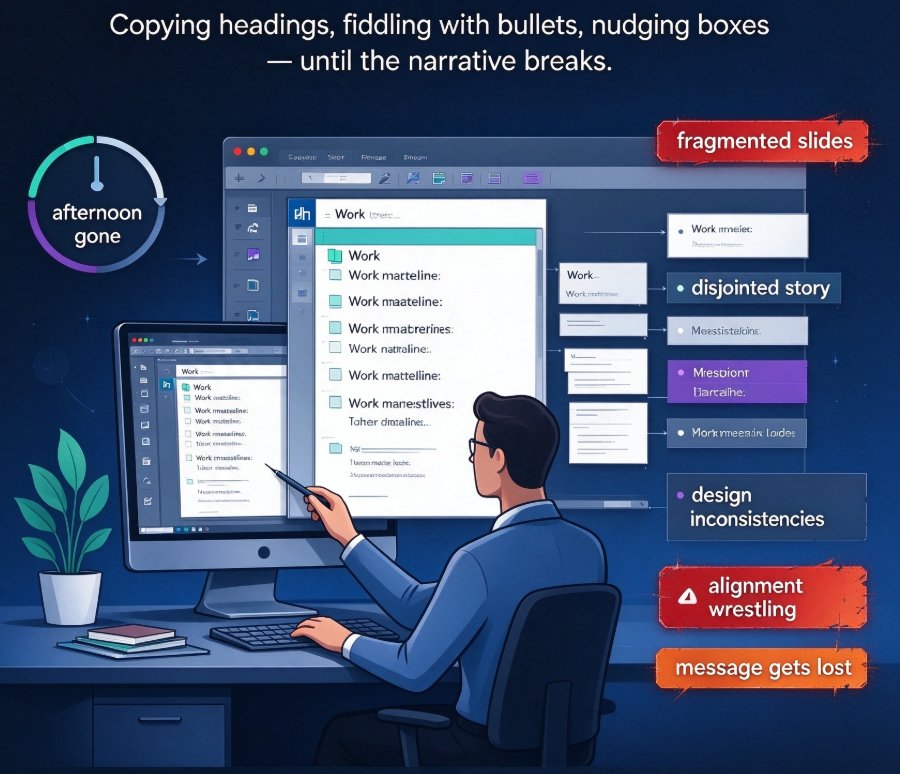
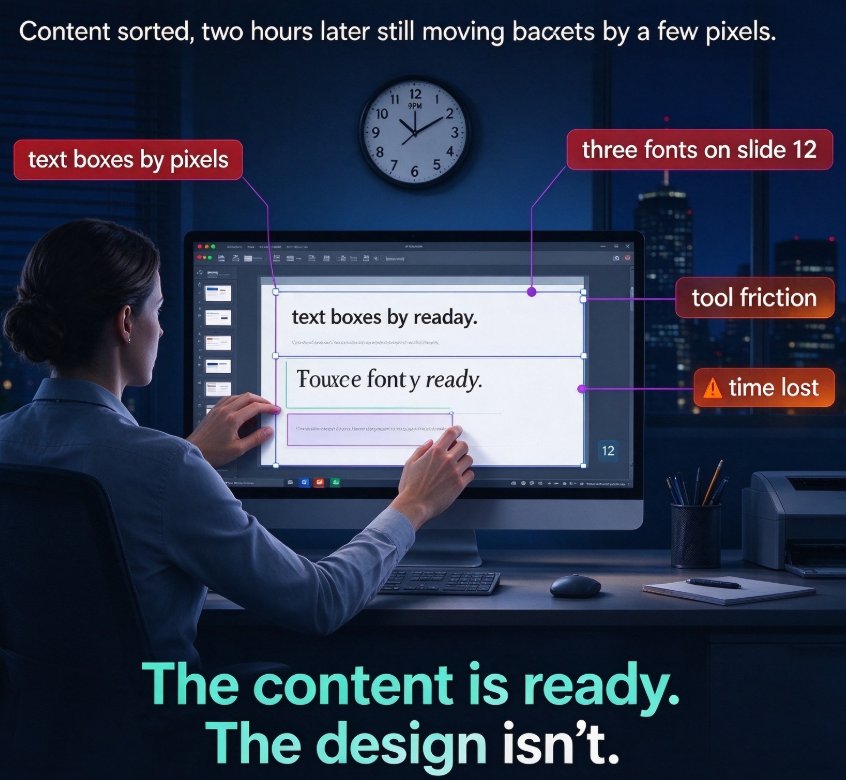
Here's a scene most office workers know too well: it's 9 PM on a Tuesday, you've finally got your content sorted, and you open PowerPoint. Two hours later, you're still moving text boxes by a few pixels and wondering why slide 12 has three different fonts. You're not designing — you're fighting the tool. And you're not alone.
The average professional spends 2 to 4 hours formatting a single deck. That's time stolen from actual thinking: the message, the narrative, the story your slides are supposed to tell. The content is ready. The design isn't. And for educators, trainers, HR managers, and consultants — people who make decks every week, not designers — that gap is the real enemy.
The pain point is simple: raw notes get dumped onto slides as walls of text, or they get squeezed into generic templates that don't fit. Either way, the deck looks amateurish, and the presenter loses credibility before they even open their mouth.
The outcome everyone actually wants is a clean, professional deck that respects the original narrative — without requiring a design degree. And that's exactly where AI layout engines come in.
01. What Smart Layout Actually Does (And What It Doesn't Do)
Let's be precise about what a smart layout engine does, because the marketing around AI design tools can get thick. Zendeck's Smart Layout is not a "make my deck pretty" button. It's a structured process:
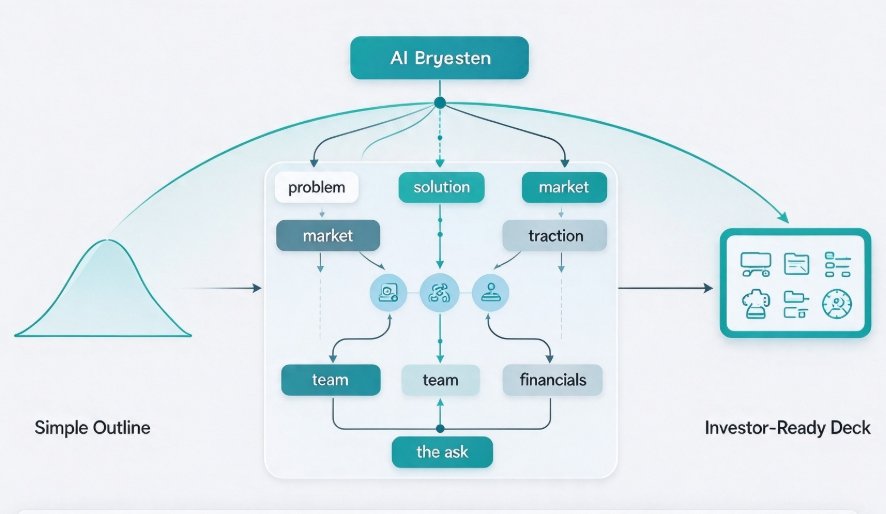
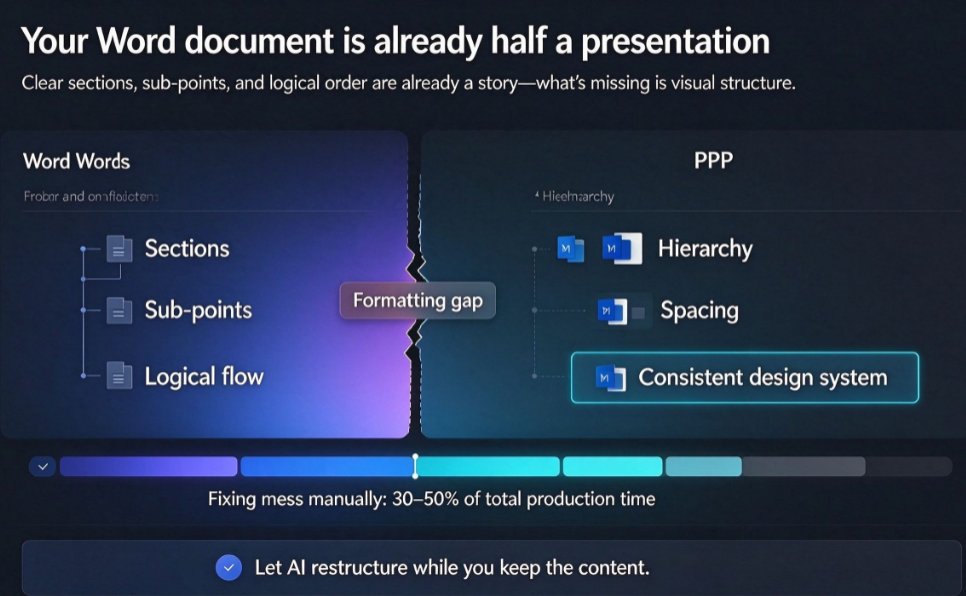
- It parses your content hierarchy. When you upload a Word file or paste Markdown, the AI reads the heading levels and bullet structure. It knows a "Heading 1" is a slide title and a "Heading 2" is a section break. That hierarchy becomes the skeleton of your deck.
- It maps content to layouts. Rather than forcing text into a fixed template grid, it selects layouts based on content type — a process slide, a comparison slide, a data slide. This is context-aware design, not cookie-cutter templating.
- It enforces visual consistency. Fonts, colors, spacing, alignment — all get normalized across every slide. This kills the "three different fonts on slide 12" problem entirely.
What it doesn't do: it won't rewrite your content, it won't invent data you didn't provide, and it won't replace your judgment on what your audience needs to hear. AI handles the layout; you handle the message. That division of labor is what makes the workflow work.
02. From Word Outline to Polished Deck: The Exact Workflow
Here's the actual step-by-step process. It's similar to what we break down in our guide on cutting presentation design time with Zendeck's Smart Layout, but let me compress it for you:
Step 1: Prepare your outline properly. Use real heading styles. A Word document where headings are bolded but not styled as "Heading 1" or "Heading 2" will confuse the parser. If you paste Markdown, use # for titles and ## for sections. The AI respects your structure — garbage in, garbage out.
Step 2: Upload or paste. Drop the .docx file, or paste your Markdown directly into Zendeck.
Step 3: Pick a template — or don't. In a hurry? The AI picks a context-aware template for you. Have brand constraints? Choose from the library or apply a custom brand kit. Our AI deck template selection guide covers the full breakdown.
Step 4: Review and refine. Zendeck generates the deck. You read it slide by slide, adjust wording, reorder sections. This is where your judgment matters.
Step 5: One-click reskin for brand consistency. Working with an older deck? The reskin feature unifies fonts, colors, and layouts across all slides instantly.
Step 6 (optional): Turn it into a video deck. If it's training or courseware material, you can convert the finished deck into a narrated micro-course — the full workflow lives in our PPT-to-video section.
The whole flow, from upload to polished deck, takes 10 to 15 minutes for a 20-slide presentation. That's not a marketing claim — it's what happens when the machine does the formatting.
03. Manual vs. Smart Layout: The Data Behind the Time Savings
Let's get concrete about the numbers. Based on typical user-reported workflows, here's what building a standard 20-slide deck looks like:
And the same data as a table:
| Task | Manual (Minutes) | Zendeck (Minutes) | Time Saved |
|---|---|---|---|
| Formatting text & headings | 45 | 3 | 93% |
| Template selection | 30 | 2 | 93% |
| Alignment & spacing | 40 | 2 | 95% |
| Image & icon sourcing | 25 | 3 | 88% |
| Total | 140 | 10 | 93% |
The numbers vary by deck, of course. A content-heavy training module takes longer than a light pitch deck. But the ratio holds: formatting and alignment eat roughly 60% of manual deck-building time, and those are exactly the tasks Smart Layout automates.
If you build four decks a week, that's roughly five hours saved every week. Over a year, that's more than 250 hours — six full work weeks just on layout.
04. Three Outline Habits That Get You the Best Slides
You can get good results with a messy outline. You get great results with a structured one. Three habits make the difference:
Habit 1: One idea per slide heading. Use "Quarterly Revenue Growth" instead of "Q3 Revenue, Expenses and Forecast." The AI can only build a clean layout around a single clear idea. Split compound topics into separate slides.
Habit 2: Keep bullet levels shallow. Two levels of nesting maximum — a main point and a supporting sub-bullet. Deeper nesting produces slides that look like a text dump no matter how smart the layout engine is.
Habit 3: Write your takeaway as a slide title. Instead of "Market Analysis," write "The Middle Market Is Growing Faster Than Expected." That gives you slide titles that read as narrative and gives the layout engine a clear focus.
(And honestly, a tip from someone who has made too many decks: don't try to fix alignment in the final pass. If you're manually nudging text boxes, you're losing. Structure the content first, then let the tool handle the layout.)
05. When Smart Layout Isn't Enough (And What to Do Instead)
Let's be real: Smart Layout handles the majority of deck-building. But there are cases where you need more:
- Highly creative keynote presentations — striking visuals, minimal text, strong art direction. The layout engine gives you a clean base, but you'll want to customize further.
- Data-heavy decks with custom charts — if your content needs complex interactive visualizations, Smart Layout will structure the slides, but the chart design itself may need extra work. Our interactive charts guide covers this.
- Legacy decks with messy formatting — the reskin tool unifies fonts and colors across slides, but structural content changes should still be done first.
The framework is simple: use Smart Layout for structure and consistency, then add the human touch where the deck's purpose demands it. For 80% of internal decks, training material, and client pitches, the generated output is ready as-is.
If you want to explore more of what the platform can do — from courseware to interactive quizzes to accessibility features — browse the rest of our AI courseware library.
FAQ
Q: How does Zendeck's Smart Layout work on an uploaded Word outline? A: Zendeck parses the heading structure and bullet hierarchy of your .docx file, then maps that hierarchy onto slide layouts. It applies consistent typography, alignment, and spacing so every slide follows the same visual system without manual tweaks.
Q: Can I use Smart Layout on slides I've already designed? A: Yes. Zendeck's one-click reskin re-applies a new template and unifies fonts, colors, and layout across an existing deck, so you don't have to start from scratch.
Q: Does Smart Layout support other input formats besides Word? A: You can paste Markdown or plain text directly, and the same layout engine structures your content into slides. The key is to use clear heading levels so the AI knows which lines are titles versus body text.
Q: How much time does Smart Layout actually save? A: Most users report cutting deck-building time from 2-4 hours to 10-15 minutes per presentation, and the reskin feature saves an additional 30-60 minutes when rebranding old decks.
Q: Will my slides look different from standard PowerPoint templates? A: Yes, and that's the point. Smart Layout generates layouts that match your content structure and context rather than forcing text into a generic template grid.