Smart Layout Tools That Fix PPT Formatting Nightmares in Minutes
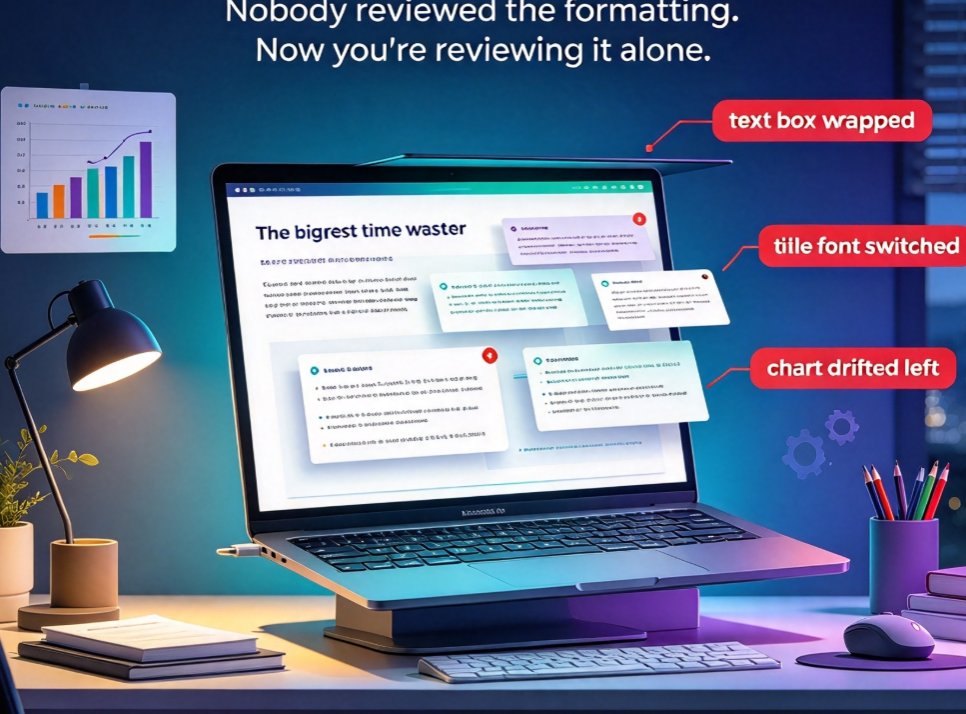
Closing my laptop at 6:42 PM on a Friday is a small victory for most people. For me, it used to be the moment I discovered that slide seven had wrapped its text box, that the title font had quietly switched to the one my colleague installed for a wedding invitation, and that the chart I had carefully centered was now floating somewhere near the left margin. We had all reviewed the deck. Nobody had reviewed the formatting.
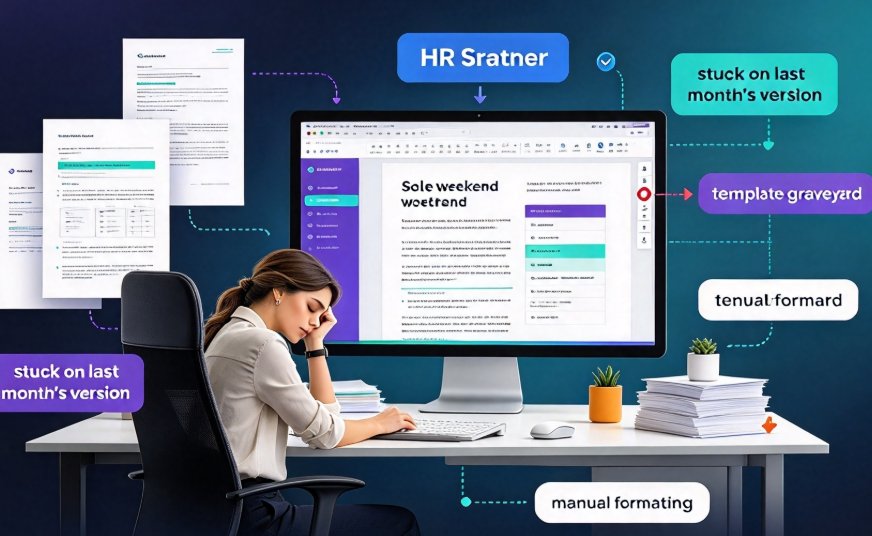
If that scene feels personal, you are in good company. Somewhere between "let's just add one more bullet" and "can you make the logo bigger," presentations stopped being about the message and became about the mechanics. And the mechanics are exactly where most of us lose the afternoon. The biggest time-waster in presentation work is not writing the content — it is fixing the formatting after someone else breathes on the file.
The fix is not more discipline. The fix is a smart layout engine — software that handles the spacing, alignment, and typography decisions so you do not have to. Let me show you what that actually looks like.
01 — The formatting traps we all fall into (and blame ourselves for)
Every presentation tool hands us the same toolbox: bold and italic toggles, bulleted and numbered lists, nested lists, text color, background color, and a few alignment buttons we are never quite sure we are using correctly. On its own, each tool is fine. Multiply them across forty slides, and they become eight hundred tiny judgment calls you were never trained to make.
The traps are always the same set:
- Inconsistent typography. Someone pastes text from an email, and suddenly slide ten is in a different font than slides one through nine.
- Orphaned and wrapping bullets. Add two words to a bullet and the whole block spills past the edge of the text box.
- Misaligned visuals. Images, charts, and icons that sit a few pixels off, which everyone notices but nobody fixes.
- Uneven spacing. Gutters that change width from slide to slide, making the deck feel unsettled even when the content is solid.
Here is what I wish someone had told me years ago: a smart layout engine reads your slide, understands its structure, and rebuilds the visual hierarchy so every element lands where it should — without you touching a ruler, a guide, or the arrow keys. You set the intent once, and the engine keeps the delivery consistent across every slide.
02 — What misalignment actually costs you (and your team)
Let's put real numbers on the pain. In working sessions with small marketing, HR, and education teams, the pattern is remarkably consistent. For a typical ten-slide deck, manually fixing the four most common formatting tasks adds up quickly:
| Formatting task | Manual effort (typical) | With smart layout | Time saved |
|---|---|---|---|
| Standardizing fonts across a 10-slide deck | ~25 min | ~2 min | ~23 min |
| Aligning images, charts, and icons | ~20 min | ~1 min | ~19 min |
| Fixing spacing, margins, and gutters | ~30 min | ~3 min | ~27 min |
| Matching brand colors across slides | ~15 min | ~1 min | ~14 min |
Add those together and a single deck quietly eats about an hour and a half of pure layout busywork. Do that five times a month — which is normal for a content operator or an L&D specialist — and you are out roughly a full workday every month. And the kicker: none of that time improved the message by a single word.
Here is the same story as a chart:
Illustrative comparison of minutes saved per task on a typical ten-slide weekly deck produced by small teams.
The takeaway is not just the minutes. When the same workflow runs across a teaching semester, a sales quarter, or a training rollout, the compounding is real. In our own working sessions, the consistent observation is that across a typical five-deck month, smart layout returns three to four hours that otherwise go to nudging objects pixel by pixel. That is an afternoon you can spend on strategy, review, or — let's be honest — leaving at a reasonable hour.
03 — Inside Zendeck's smart layout engine: what actually happens
Zendeck approaches the problem from the content side. You upload a Word outline or paste Markdown or TXT, and Zendeck generates a structured deck. Then the smart layout engine goes to work on the three things that cause the most grief:
1. Typography that stops misbehaving. The engine sets a consistent type scale and auto-shrinks overflow so bullets never wrap past their box. No more shrinking text by hand, point by point, until everything fits.
2. Spacing on an invisible grid. Margins, gutters, and white space are computed uniformly across slides. The deck stops feeling off even when you cannot articulate why.
3. Snap-aligned visuals. Images, icons, charts, and diagrams lock onto the same alignment logic, so nothing floats near a margin by accident.
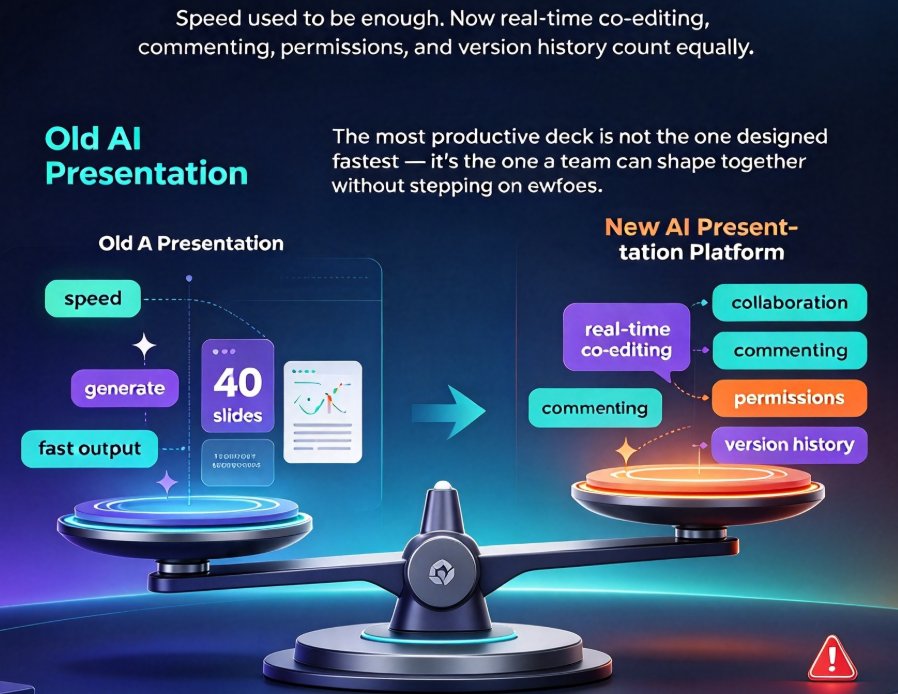
Then there is the part that feels almost like cheating: a one-click reskin that unifies fonts and colors across the entire deck at once. If you have ever clicked through forty slides re-applying a theme, you know exactly why that matters.
We have written a full walkthrough of where this saves the most minutes — you can see how Zendeck smart layout cuts presentation design time in a practical, step-by-step breakdown. For the bigger question of where the whole category is heading, AI-driven design automation is worth a read.
04 — Who wins most (and why it changes how you work)
The honest answer: everyone who touches a deck more than twice a month. But the biggest winners tend to be three groups.
Content operators and marketers live in the weekly deck. Brand consistency, approval chains, last-minute edits from three different stakeholders — smart layout means the final cleanup pass collapses from an hour to seconds, and decks stop degrading as more people edit them.
HR and L&D teams ship training decks and compliance material on tight cycles. When a policy changes, they rebuild content, not layout. Smart layout keeps those updates predictable, and it plays nicely with the shift toward AI-powered courseware when training needs to move beyond static slides.
Educators and course designers deal with the worst formatting workloads of all: formulas, diagrams, and dense text blocks that refuse to behave. Removing the formatting fight is often the difference between shipping a course and rescheduling it. If you spend your week in courseware design, the time savings compound fast.
The common thread is that none of these people are designers by trade. They are experts in their field who got drafted into deck-building. Office-efficiency is the category most of this work lives in, and smart layout is the single highest-leverage tool inside it.
05 — Wait, do I lose control over the design?
This is the objection I hear most: "If the tool formats everything, won't my deck look like everyone else's?"
It is a fair worry, and it deserves a straight answer. Smart layout is a safety net, not a straightjacket. You still choose the template, the brand colors, the fonts, and the tone. The engine simply stops the deck from falling apart as people edit it. If you want your decks to look unmistakably yours, start with a custom brand kit in Zendeck and let smart layout enforce it rather than fight it.
The practical workflow ends up looking like this: paste an outline or import a Word document → Zendeck generates the deck → smart layout normalizes typography, spacing, and alignment → a one-click reskin applies your brand rules → export or move to a narrated version. Each step can be overridden, and nothing is destructive. The beautiful part is that polish — the part everyone dreads — becomes a single click instead of a Friday evening.
06 — The takeaway
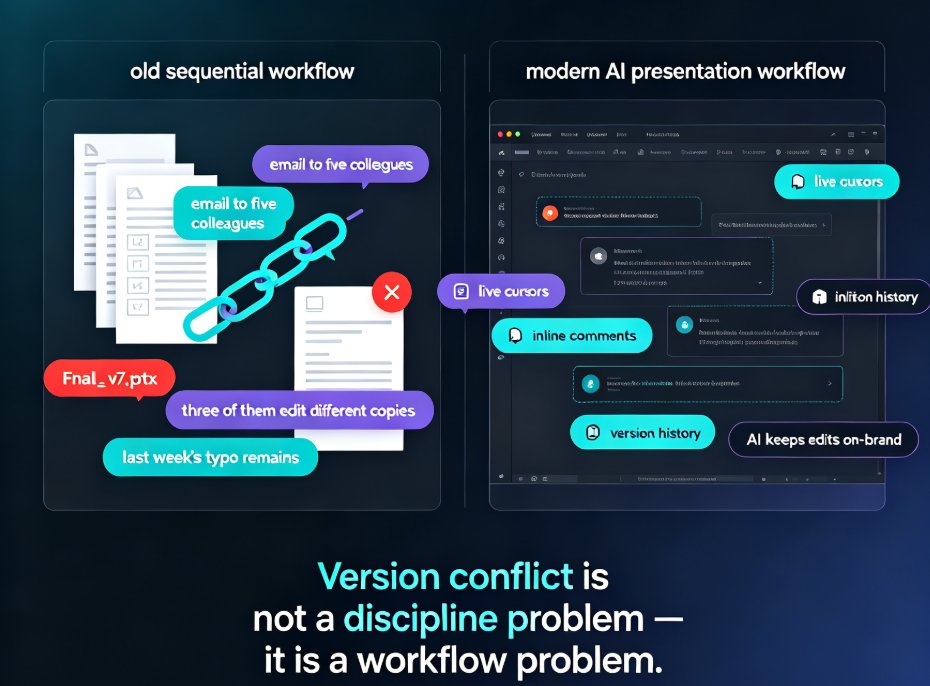
Formatting is not a skill issue. It is a systems issue. You were never supposed to be an alignment hobbyist; you were supposed to have an opinion about the content. The tools finally caught up to that reality.
The best formatting tool is the one you never notice. Smart layout earns its keep by making formatting a non-event — so the only thing left on your plate is the actual message. For busy professionals, educators, and teams who ship decks on a deadline, that is not a convenience. It is the difference between dreading the deck and finishing it in the time you planned.
Try it the next time a colleague improves your slide. Let the engine tidy up. Then go home at a reasonable hour — you have earned it.
FAQ
Q: Will Zendeck's smart layout work on decks I already created in PowerPoint? A: Yes. You can paste or upload your content into Zendeck, and the smart layout engine re-normalizes fonts, spacing, and alignment across the whole deck. You keep your message; the engine handles the visuals.
Q: Will smart layout override my brand colors and custom fonts? A: Not if you set them first. Smart layout respects the template and brand kit you choose — it enforces your palette and type scale rather than inventing a new look. It mainly rescues you from the rogue fonts and colors someone pasted in from elsewhere.
Q: How long does it take to apply smart layout to a deck? A: Nearly instant. Once your outline or draft is in Zendeck, applying smart layout to a ten- to twenty-slide deck takes seconds, and a one-click reskin unifies colors and fonts across every slide at once.
Q: Can I undo a smart layout pass if I don't like the result? A: Yes. Smart layout is non-destructive — you can adjust or revert individual slides, and your brand kit stays intact. Treat it like an assistant who tidies up and then politely backs off.
Q: Do I need any design experience to use smart layout? A: No. That is the entire point. The engine makes the alignment, spacing, and typography decisions that used to require design training, so educators, HR teams, and content operators can ship polished decks without opening a single alignment tutorial.