From PDF or Web to Slides: Zendeck's Multi-Format Import
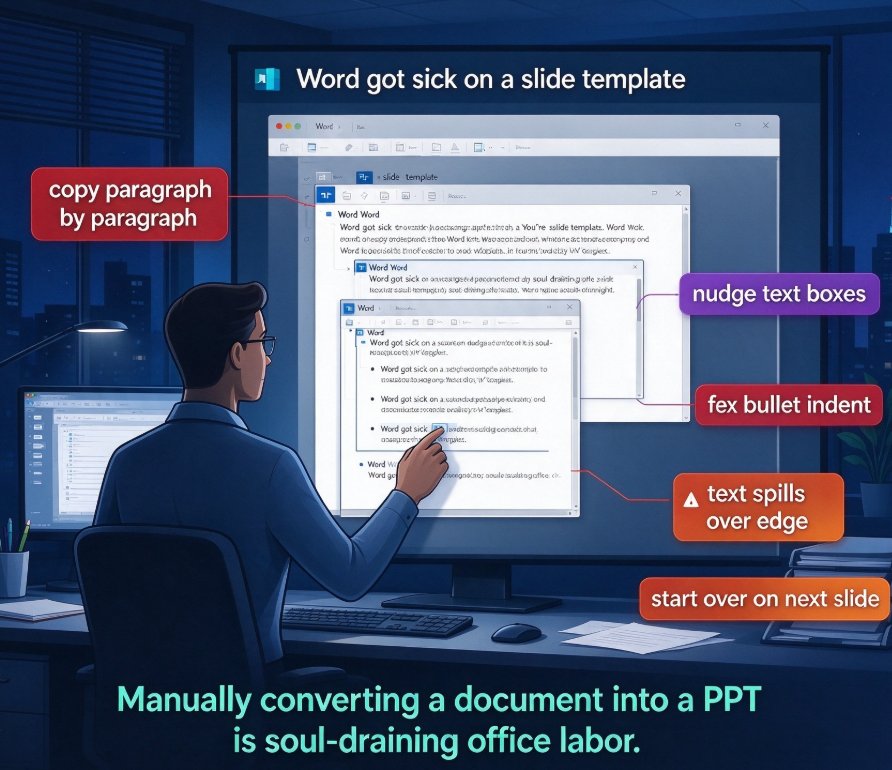
Let's be real: the deck you're supposed to deliver tomorrow isn't living in one file. Your quarterly numbers are in a 40-page PDF from finance. Your meeting notes are a half-formed Word doc. The case study you keep citing is a web page you bookmarked at 11 p.m. And somehow, all of it has to become one coherent, on-brand presentation by 9 a.m. If that sounds familiar, this article is for you.
For years, the standard answer was "just copy and paste." Then came "import your Word outline." Both work — until they don't. That's why multi-format import — dropping in PDFs, web pages, Word docs, and more to generate slides directly — has become the workflow upgrade that actually matters. Let's walk through why, and how Zendeck handles it.
01 | Why "Word Doc Only" Imports Don't Cut It Anymore
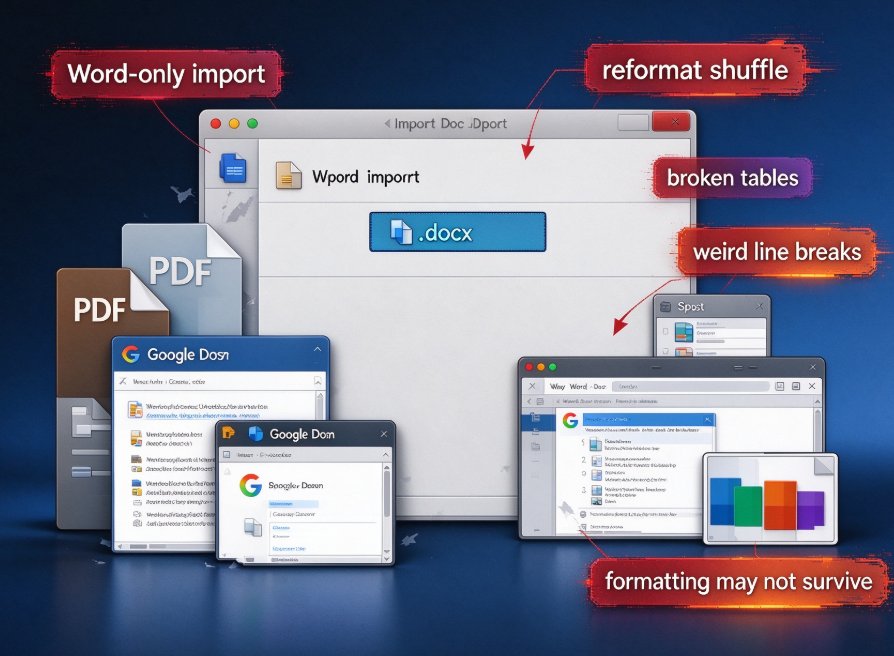
Most presentation tools still treat Word documents as the only legitimate source. And that's a problem, because your source material rarely lives in a .docx.
Think about how content actually flows in a real organization:
- Finance hands you a PDF — because PDFs are the one format nobody can accidentally edit.
- Your research lives on web pages — blog posts, industry reports, competitor pages.
- Your proposal was drafted in Google Docs, exported to PDF, and emailed around six times.
- Your training material might be a mix of slides, a Word outline, and a few screenshots.
When a tool only accepts Word, you end up doing what I call the "reformat shuffle": open the PDF → copy the text into Word → fight with broken tables and weird line breaks → fix the heading styles → then import into PowerPoint and pray the formatting survives. That's 30 to 60 minutes of busywork before you've built a single slide.
The outcome you should expect from any modern tool is simple: upload the source file, get a structured slide outline back, and spend your time editing — not reformatting. If a tool can't do that, you're paying for a typewriter with extra steps.
02 | What Multi-Format Import Looks Like in Practice
Here's where Zendeck's approach differs. Instead of forcing you through a single input path, Zendeck accepts content from multiple source formats and normalizes it into a clean, structured outline before generating slides. You can drop in:
- A Word document or outline (upload or paste Markdown/TXT)
- A PDF with research, reports, or meeting notes
- A web page — yes, a URL — that you want to turn into a deck
- And even build straight from text prompts when you're starting from scratch
Once the content is in, Zendeck's AI reads the structure, identifies the key points, and lays them out onto slides with its smart layout engine. The result isn't a literal "screen dump" of your PDF — it's a presentation, with a clear storyline and consistent typography.
This matters more than you'd think. The difference between "importing a file" and "importing content" is the difference between a pile of pages and a presentation. Zendeck treats your source as raw material to be understood, not just displayed.
03 | The Four Roads to a Deck: A Reality Check
Let's compare the actual routes to a finished deck. Based on how these workflows typically play out, here's the trade-off summary:
| Method | Best for | What you actually do | Trade-off |
|---|---|---|---|
| PowerPoint outline import | Clean Word outlines | Map headings, then import | Very little design help |
| Word → PDF → PPT pipeline | Styled, structured documents | Convert through PDF first | Extra step, cleanup required |
| AI document upload | Long reports and briefs | Upload and let AI restructure | You must review summaries and slide logic |
| Zendeck multi-format import | Mixed sources: PDF, web, Word, prompts | Upload and let AI build the deck | Review and refine the narrative |
The takeaway from that table: fastest isn't always best. Literal conversion is the fastest route for a clean Word outline. But for a dense 50-page PDF, or a web article that needs restructuring into a story, you want AI to rewrite and reorganize — otherwise you're presenting a document, not telling a story.
Here's the same comparison as a rough steps-to-first-draft view (fewer steps = less friction):
A quick personal note here: the "manual paste" bar isn't just slow — it's where formatting gremlins live. You paste a table from a PDF, and suddenly your slide has 40pt text in a 2-inch column. If you've been there, you know the pain. Every format conversion you can eliminate is a formatting disaster you don't have to debug.
04 | How to Turn a PDF into Slides Without Losing Your Mind
The most common use case is also the most painful: a research PDF that has to become a client deck or a course. Here's the workflow with Zendeck's multi-format import:
- Upload your PDF into Zendeck.
- Let AI chunk the content — it identifies sections, key findings, and logical slide breaks.
- Review the generated outline — this is your moment to adjust narrative flow. Delete, reorder, merge.
- Pick a template — Zendeck matches the content and audience to an appropriate design.
- Refine and export — clean up text, then export or even turn it into a video deck.
The key step is number three. AI restructures, but you own the story. Reviewing the outline takes five minutes and separates a good deck from a generic one.
Offhand advice: if your PDF has weird page breaks or scanned tables, don't sweat it. The AI still reads the text content. You'll fix the table on the slide side, not the source side — far less back-and-forth.
05 | Web Page to Slides: The Underrated Workflow
Here's a scenario most articles skip: you found a great blog post or industry report on the web, and you want to turn it into a training deck or a talk.
With Zendeck, you can paste a URL and have it converted into a structured slide deck. This is a killer feature for:
- Educators building course material from reference articles.
- Marketers turning a competitor analysis or thought-leadership piece into an internal briefing.
- Consultants transforming a client's case study webpage into a proposal deck.
The practical payoff is real: what used to be a "retype the key points" task becomes a "review the AI's outline" task. And because the content is web-based, you can also pull in the visual language of the original — charts, examples, quotes — before applying your own template.
If this feels adjacent to AI-powered workflow automation, you're right — this is exactly the kind of capability that's reshaping how decks get made in 2026. Check out our breakdown of how AI deck generation is replacing manual PPT assembly.
06 | When AI Rewrite Beats Literal Conversion — and When It Doesn't
Let's be honest about the nuance. The search results and community discussions (like this one on turning research PDFs into decks) highlight a consistent theme: literal conversion is fastest for outlines, but AI rewrite is faster for dense documents that no one should present verbatim.
In practical terms:
- Clean Word outline → literal conversion is perfect. No AI needed; just map headings.
- Dense PDF report → you want AI to identify and reorganize the meaningful points. A literal slide-per-page deck is unreadable.
- Web article → AI should extract the core narrative, not dump every paragraph.
So the real skill is knowing which mode to use. Tools that offer only literal conversion leave you with a pile of slides. Tools that only rewrite can over-summarize a simple outline. The best workflows let you choose, and Zendeck's multi-format import plus smart layout lets you lean either way.
And if you're working in a team, there's a bonus: when import and layout are automated, teammates stop arguing about fonts and start editing content. See how hidden AI features of presentation tools can boost team productivity.
07 | How It Compares: Pricing and Positioning of Import Tools
If you're evaluating tools, here's what the official pages show as of mid-2026:
- Microsoft PowerPoint imports Word outlines via "Slides from Outline," but its Word web export feature is being deprecated. No extra doc-to-deck pricing on official pages.
- Plus AI accepts PDFs, Word docs, PPTX, and text files, but document uploads sit on its Pro, Team, and Max plans — priced from $10/month (Basic, annual) to $20/month (Pro, annual).
- Gamma supports content import and exports to PPT, PDF, PNG, and Google Slides, with a free tier (400 credits) and paid plans from $9 (Plus) to $90 (Ultra) annually.
What these tools share: they treat import as a feature. What Zendeck does differently is treat import as the starting line, not the finish — your source format matters less than the deck you end up with. Because Zendeck combines multi-format import, smart layout, template matching, and even presentation-to-video, the import step is one part of a longer content pipeline rather than the whole product.
Worth a look if you're chasing office efficiency: our full guide to workflow-boosting capabilities in the office-efficiency category. If you're just here for one takeaway, let it be this: stop treating your source files as sacred. Treat them as raw material for the story you're building.
FAQ
Q: What formats can Zendeck import to generate slides?
A: Zendeck accepts multiple sources — Word documents or outlines, PDFs, web page URLs, and plain Markdown/TXT. Upload or paste, and the AI converts the content into a structured slide deck, then applies a matching template and smart layout.
Q: Does Zendeck convert a PDF slide-by-slide, or does it restructure the content?
A: It restructures. Zendeck reads the PDF's content, identifies key points and sections, then builds a new narrative flow suited to slides. You review and adjust the outline before templates and layout are applied.
Q: Can I import content from a web page, not just a PDF or Word doc?
A: Yes. You can paste a URL, and Zendeck converts the page's content into a structured deck — useful for turning articles, case studies, or competitor reports into training and briefing decks.
Q: Is manual copying and pasting from a PDF still necessary?
A: No. That's the whole point of multi-format import. The PDF is uploaded directly; you skip the reformat shuffle of copying text into Word and fixing broken tables. Any formatting fixes happen on the slide side, not in the source file.
Q: Who benefits most from multi-format import in Zendeck?
A: Anyone working with mixed content sources — educators building courseware from PDFs, consultants turning research and web articles into client decks, and marketers repurposing online content into internal briefings.