Import Markdown into Zendeck to Generate Developer-Friendly Slides
You're a developer. You've just finished writing a brilliant technical doc in Markdown—clean, structured, version-controlled. Then someone asks you to "turn it into a slide deck." Cue the dread: copy-pasting each section into PowerPoint, fighting with text boxes, and watching your carefully formatted code turn into a mess of misaligned monospace. It's a pain we've all felt.
But what if you could skip all that? What if the same Markdown file that lives in your repo could become a presentation-ready deck in seconds—with code blocks intact, headings mapped to slides, and a design that doesn't make your eyes bleed? That's exactly what Zendeck does.
01. Why Markdown for Presentations? (And Why It's Not Just for Devs)
Markdown has long been the go-to format for technical writing—READMEs, API docs, engineering wikis. But its power goes far beyond that. Markdown is structured, plain-text, and universally supported. That means it's perfect for version control, collaboration, and automation. When you write in Markdown, you're not just writing content; you're defining a hierarchy that can be interpreted by any tool.
For presentations, this structure is gold. Headings become slide titles. Bullet points become content. Code blocks stay code blocks. The moment you import Markdown into Zendeck, that structure is preserved and translated into a visual deck. No more guessing which font size to use or how to align a list—the AI handles it.
And it's not just developers. Technical writers, trainers, and even product managers who work with specs or research notes can benefit. If you've ever had to turn a dense document into a digestible presentation, you know the pain of reformatting. Markdown eliminates that friction at the source.
02. How to Import Markdown into Zendeck: A Step-by-Step Walkthrough
Let's be real: the whole point of this is to save time. Here's how the workflow looks in practice.
Step 1: Prepare Your Markdown File
You don't need to do anything special. Just have your Markdown ready—whether it's a README, a design doc, or a set of meeting notes. Zendeck works with standard Markdown syntax: # for headings, - for bullets, and triple backticks for code blocks.
Step 2: Upload or Paste
In Zendeck, click Import and select your .md file, or simply paste the Markdown text into the editor. The AI immediately parses the structure. You'll see your content broken into slides, with headings as titles and body text as bullet points.
Step 3: Choose a Template and Generate
Pick a template that fits your audience—clean and minimal for technical reviews, or more visual for stakeholder updates. Zendeck applies consistent fonts, colors, and layout automatically. Hit Generate, and within seconds you have a deck that's ready to present.
Step 4: Refine and Export
You're not locked in. You can edit any slide, reorder them, or adjust the design. When you're happy, export to PPTX, PDF, or share via link. The whole process takes minutes, not hours.
Pro tip: If you're importing a long document, break it into logical sections with
##headings. Zendeck treats each##as a new slide, so you get a natural narrative flow.
03. Handling Code Blocks and Technical Content Like a Pro
This is where most presentation tools fail. You paste a code snippet into PowerPoint, and suddenly the indentation is gone, the syntax highlighting vanishes, and the font is Comic Sans. It's a nightmare.
Zendeck handles code blocks with care. Fenced code blocks (```) are preserved with syntax highlighting and language labels. Whether you're showing Python, JavaScript, or SQL, the code stays readable and professional. No more screenshots of your IDE—just clean, editable text on the slide.
But it's not just about code. Technical content often includes tables, nested lists, and inline code. Zendeck respects all of that. Tables become structured slide elements, nested lists become indented bullet points, and inline code gets a monospace treatment that's easy to spot.
Here's a quick example of how a Markdown code block looks after import:
def hello_world():
    print("Hello, Zendeck!")
That's it. No manual formatting, no lost indentation. Zendeck turns your code into a slide element that's both beautiful and functional.
04. Structuring Your Markdown for the Best Slide Output
Not all Markdown is created equal. To get the most out of Zendeck, follow these simple guidelines:
- Use
#for the deck title,##for each slide's title, and###for subheadings. This maps directly to slide hierarchy. - Keep bullet points concise. Aim for 3-5 bullets per slide. If you have more, consider splitting into multiple slides.
- Put code in fenced blocks. Zendeck recognizes them and applies syntax highlighting automatically.
- Use
---to separate slides if you want manual control. Zendeck also respects horizontal rules as slide breaks. - Add speaker notes as blockquotes (
>) if you want them to appear in the notes section.
These aren't hard rules—just best practices that make the AI's job easier. The better your structure, the cleaner your slides.
05. Manual vs. Zendeck: The Real Cost of Building Slides
Let's put this in perspective. Here's a comparison of what it takes to turn a 10-page Markdown doc into a presentation, the old way vs. with Zendeck.
| Task | Manual (PowerPoint) | Zendeck (AI Import) |
|---|---|---|
| Copy content into slides | 30-60 minutes | 0 (automatic) |
| Format headings and bullets | 15-30 minutes | 0 (automatic) |
| Insert and format code blocks | 20-40 minutes | 0 (preserved) |
| Apply consistent design | 30-60 minutes | 0 (template applied) |
| Adjust layout and alignment | 20-30 minutes | 5-10 minutes (minor tweaks) |
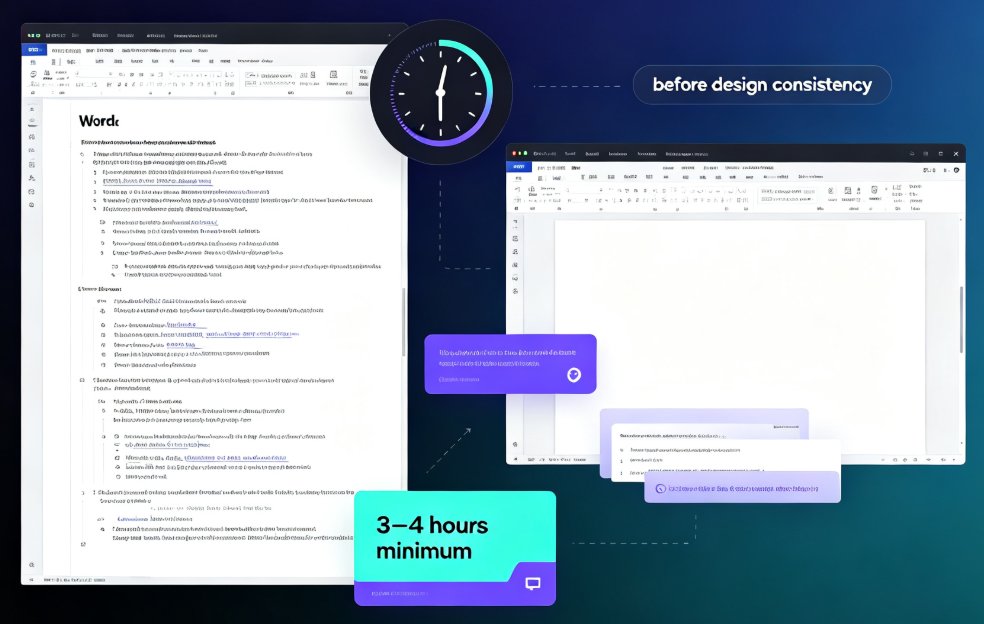
| Total time | 1.5 - 3.5 hours | 5 - 15 minutes |
The time savings are dramatic—often 90% or more. And that's not even counting the frustration saved. When you're a developer, your time is better spent solving problems than fighting with slide layouts.
06. Real-World Use Cases: Who Benefits Most?
Technical Writers
If you write API docs or user guides, you already have the content. Importing your Markdown into Zendeck lets you create training decks, webinars, or client presentations without duplicating effort. Your documentation becomes a living source for multiple formats.
Developers and Engineers
Whether it's a sprint review, an architecture walkthrough, or a tech talk, you can turn your design docs into slides in minutes. No more last-minute panic before a demo. Zendeck gives you back your evenings.
Trainers and Educators
If you teach coding or technical topics, you can create course materials from your existing Markdown notes. The code blocks stay intact, so students see exactly what they need. It's like having a teaching assistant that formats everything for you.
07. Beyond Markdown: Other Ways to Feed Zendeck
Markdown is just the beginning. Zendeck also accepts plain text, Word documents, PDFs, and even pasted raw text. This means you can import a research report, a client brief, or a messy set of notes and get a structured deck. The same AI that handles Markdown also understands other formats.
If you're curious about other import options, check out our guide on importing PDFs and raw text or how to turn a brain dump into a structured presentation. And for a deeper dive into Markdown-specific workflows, our Markdown to Slides article covers advanced tips.
FAQ
How do I import Markdown into Zendeck?
Simply upload your .md or .markdown file directly into Zendeck, or paste the Markdown text into the editor. Zendeck automatically parses the structure—headings become slide titles, bullet points become content, and code blocks are preserved with syntax highlighting. You can then choose a template and generate a polished deck in seconds.
Does Zendeck support code blocks in Markdown?
Yes. Zendeck recognizes fenced code blocks (```) and preserves indentation, syntax highlighting, and language labels. This means your code snippets stay readable and professional on the slide, without any manual reformatting or copy-paste errors.
Can I edit the slides after importing Markdown?
Absolutely. After import, you're in the full Zendeck editor. You can rearrange slides, tweak text, change layouts, apply a brand kit, or add visuals. The AI-generated structure is just a starting point—you have complete control to refine everything.
What file formats can I import besides Markdown?
Zendeck supports Markdown (.md), plain text (.txt), Word documents (.docx), PDFs, and even pasted raw text. This flexibility lets you work from any source—whether it's a README, a technical spec, or a research report—and turn it into a presentation in minutes.
Is Zendeck suitable for technical presentations?
Definitely. Zendeck is built for professionals who need clean, structured slides without design skills. For developers and technical writers, it handles code blocks, technical terminology, and complex hierarchies gracefully, making it ideal for API docs, architecture overviews, and engineering updates.
Ready to stop fighting with PowerPoint? Import your Markdown into Zendeck and see how effortless developer-friendly slides can be. Your future self—and your team—will thank you.