Import PDFs, Reports, and Raw Text into Zendeck for Instant AI Decks
You've got a 50-page PDF report, a dense research paper, or a bunch of meeting notes in plain text. Now you need a presentation. The old way? Copy-paste each paragraph, reformat, hunt for images, and spend hours wrestling with slide layouts. Let's be real—nobody has time for that.
Zendeck changes the game. Instead of limiting you to Word outlines (like most tools), it lets you import PDFs, reports, and even raw text directly. The AI reads your document, understands the structure, and generates a complete, visually consistent deck in seconds. That's the difference between a tool that works for one scenario and one that works for every document you have.
I. The Pain of Starting from Scratch
Every professional has been there: a client sends a PDF whitepaper and asks for a summary deck. Or you have a Word document with a report outline, but the slides need to be ready by tomorrow. The typical workflow is brutal:
- Copy text from the PDF—formulas break, tables get messy.
- Paste into PowerPoint—then spend 30 minutes adjusting fonts and bullet points.
- Add slide titles manually, because PowerPoint doesn't know what's important.
- Search for images—another 20 minutes.
- Repeat for every slide.
The result? Hours of grunt work that could be spent refining your message or practicing your delivery.
II. What Files Can You Import? (Zendeck vs. the Rest)
Most AI presentation tools claim to import outlines, but they only support Word documents. Zendeck goes further. Here's a quick comparison:
| File Type | Zendeck | Competitor A (Word-only) | Competitor B (Word-only) |
|---|---|---|---|
| Word (.docx) | ✓ | ✓ | ✓ |
| ✓ | ✗ | ✗ | |
| Plain text (.txt) | ✓ | ✗ | ✗ |
| Pasted Markdown | ✓ | ✓ (limited) | ✗ |
| Raw text (paste) | ✓ | ✓ (limited) | ✗ |
Zendeck is the only tool that handles PDFs, raw text, and Word outlines in one unified import flow. This means you can upload a client's PDF report, a research paper, or even a messy text file, and get a polished deck without touching a single template.
III. How to Import a PDF into Zendeck
Let's walk through a real scenario: you have a 20-page PDF market research report. Here's how Zendeck turns it into a slide deck:
- Open Zendeck and click "New Presentation."
- Drag and drop your PDF file onto the upload area—or click to browse.
- Select the import mode (Zendeck automatically detects it's a PDF).
- Click "Generate." The AI extracts the text, identifies key sections, and creates a structured outline.
- Review the generated slides. Zendeck applies a default template, but you can change it later.
- Edit or export. Tweak the content, add visuals, or export to PowerPoint, PDF, or video.
The whole process takes under 30 seconds. No more copy-paste, no more formatting headaches.
IV. Importing Raw Text and Reports
What if you don't have a PDF, but just a bunch of notes or a report pasted from an email? Zendeck handles that too.
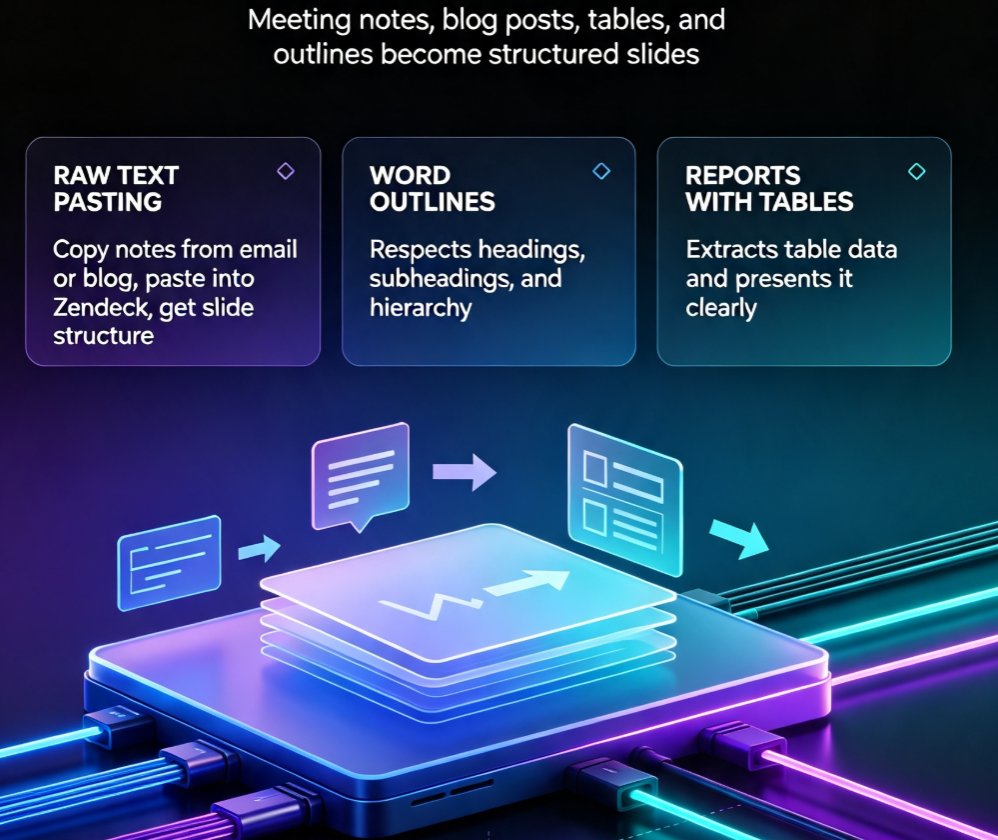
- Raw text pasting: Copy your text from any source, paste it into Zendeck's text input field, and let the AI structure it into slides. Perfect for meeting notes or blog posts.
- Word outlines: If you already have a Word document with headings, Zendeck respects the outline—just like the Word import feature we covered earlier.
- Reports with tables: Zendeck's AI can extract data from tables in PDFs or Word documents and present them as clear slide content.
Pro tip: If your document has a lot of formatting (like columns or footnotes), paste the raw text first to give the AI a clean starting point. It's a small step that saves even more time.
V. Why Zendeck's Import Is Different from Competitors
Every presentation tool talks about "AI generation." But most of them are limited to one input format: Word outlines. Here's why Zendeck's approach is a game-changer:
- Native PDF support: No need to convert your PDF to Word first—that often breaks formatting. Zendeck reads the PDF directly.
- Smart content extraction: The AI doesn't just dump text. It identifies headings, subheadings, and key points, then structures them into a logical slide flow.
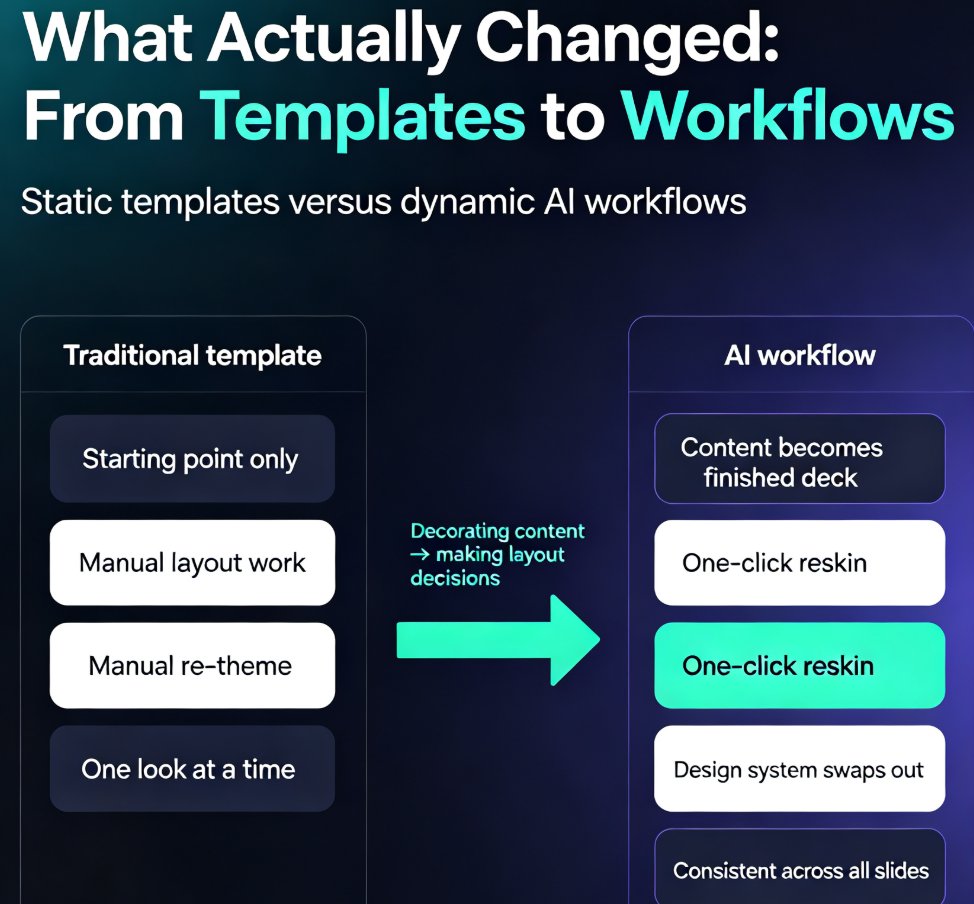
- One-click reskin: After import, you can apply any template from Zendeck's library to instantly change the look—perfect for on-brand presentations.
- Export to video: Once your deck is ready, you can turn it into a narrated video for micro-courses or client pitches.
The bottom line: Zendeck saves you the most time where it counts—the messy, manual work of moving content from one format to another.
VI. From Import to Polished Deck: The Full Workflow
Let's say you just imported a PDF report. What happens next? Here's a typical workflow:
- Import: PDF → Zendeck generates 10 slides.
- Review: You check the AI's structure—move a slide, edit a bullet.
- Design: Apply a branded template from the library. (More on that in our template library guide.)
- Enhance: Add icons, charts, or images from the asset library.
- Collaborate: Share the deck with a colleague for feedback using real-time collaboration.
- Export or present: Download as PPT, share online, or turn into a video.
This entire pipeline—from PDF to a collaborative, brand-ready deck—takes less time than you'd spend manually formatting the first three slides.
VII. FAQ
Can Zendeck import PDF files directly?
Yes, Zendeck supports importing PDFs. You can upload a PDF document, and the AI will extract the text, structure it into slides, and apply a professional template. This works for reports, whitepapers, and even scanned PDFs (with OCR support).
What file formats does Zendeck accept for import?
Zendeck accepts PDF, Word (.docx), plain text (.txt), and pasted Markdown or raw text. It also supports importing outlines from Word documents. This is broader than most competitors, which only accept Word outlines.
How do I import a report into Zendeck?
Simply drag and drop your report file (PDF or Word) onto the Zendeck upload area, or paste the text directly. The AI will automatically analyze the content and generate a slide deck. You can then edit, reskin, or export to video.
Does Zendeck preserve the original formatting of my document?
Zendeck focuses on extracting the core content and structure, not the original formatting. It then applies its own clean, professional templates. You can further customize the design using the template library.
Is Zendeck's import feature better than using PowerPoint's built-in import?
Yes, because Zendeck uses AI to intelligently structure your content into slides, rather than just dumping text into placeholders. It also supports more file types (PDF, raw text) and offers one-click reskin and video export.