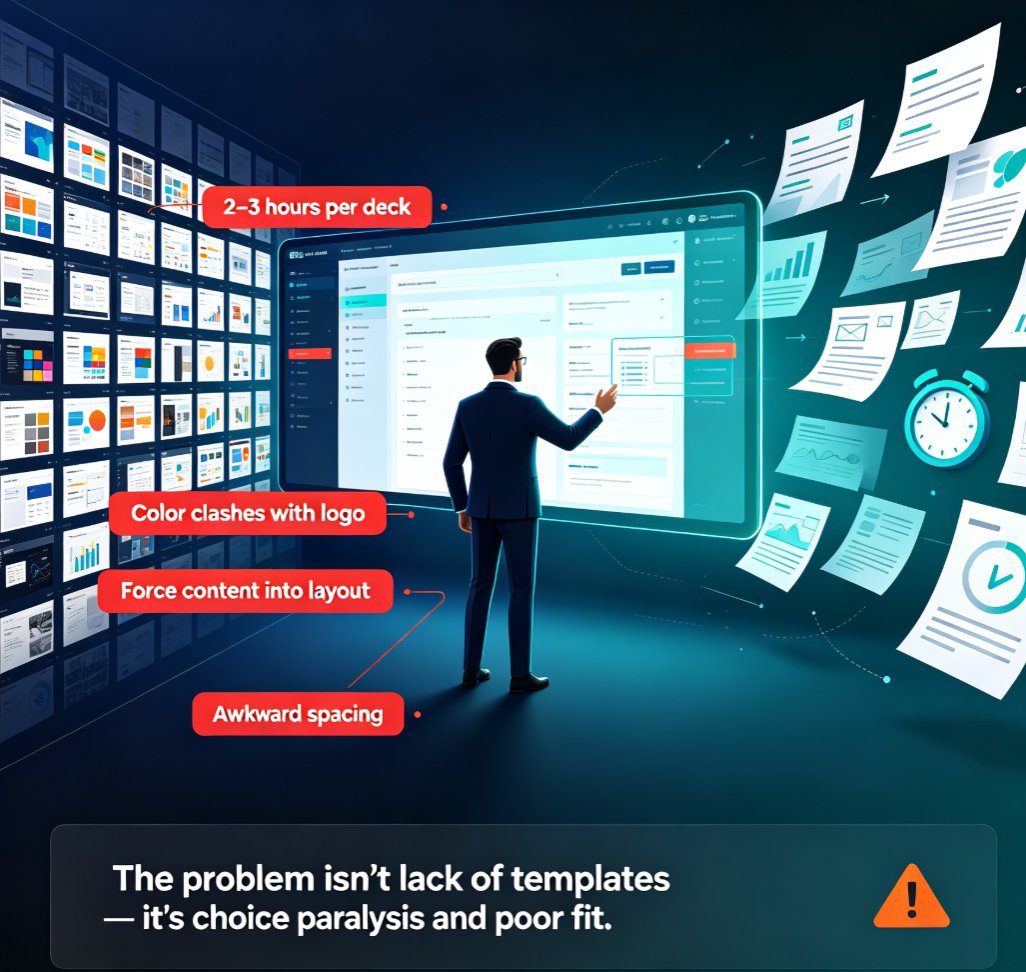
How to Quickly Create On-Brand Presentations with Zendeck's Template Library
The 30-Minute Slide That Took 3 Hours
Let’s be real: you’ve been there. You finish a killer presentation, only to realize the headers are Arial, the body is Calibri, and the logo is slightly off-center on slide 12. So you spend another hour hunting down mismatched fonts, correcting colors, and realigning elements. That’s the brand consistency tax — and it’s eating your time.
Most professionals spend 40% of their presentation time on formatting, not content. And when you’re juggling multiple decks or a team of contributors, the inconsistencies multiply. The fix isn’t more discipline — it’s a smarter system.
That’s where Zendeck’s template library and brand kit come in. They automate the grunt work so you can focus on the story. Let’s walk through how to set up on-brand slides in minutes, not hours.
I. The Consistency Nightmare: Why Manual Formatting Fails
Every brand guide is a promise. The color palette, typography, icon style — they’re the visual handshake your audience sees. But enforcing that handshake across a 40-slide deck is brutal.
Common pain points:
- Font drift: Team members accidentally use different font weights or sizes.
- Color chaos: That “accent green” from the brand guide looks different on screen vs. print, and people guess.
- Logo misplacement: The logo slides left on slide 3, right on slide 15, and disappears on slide 22.
- Template fatigue: You start with a template, but after a few edits, it’s broken.
According to a study by the presentation design firm SlideGenius, inconsistent branding can reduce audience trust by up to 30%. That’s a big hit for a business pitch or a training module.
Pro tip: If you’ve ever copied a slide from an old deck and the colors looked wrong, you’ve felt the pain. The root cause is not having a single source of truth for your brand rules.
II. What a Brand Kit Actually Does (And Why You Need One)
A brand kit is more than a PDF of your logo usage. It’s a set of machine-readable rules that tells your presentation tool exactly what to use for every element. Think of it as a style guide that your software can follow automatically.
Key components of a brand kit:
| Component | What It Controls | Example |
|---|---|---|
| Color Palette | Background, text, accent colors | Primary: #1E3A5F, Secondary: #F5A623, Accent: #2ECC71 |
| Typography | Header font, body font, sizes | Header: Montserrat Bold, Body: Open Sans Regular |
| Logo Placement | Position, size, margin | Top-right corner, 1 inch from edge |
| Visual Style | Icon type, image treatment, chart colors | Flat icons, muted photos, brand-specific chart fills |
When you apply a brand kit in Zendeck, every slide inherits these rules. New slides, imported content, even reskinned templates — they all snap into consistency.
III. How Zendeck Automates the Process (Step-by-Step)
Let’s get practical. Here’s how to set up and use Zendeck’s brand kit and template library to create on-brand presentations.
Step 1: Define Your Brand Kit
In Zendeck, navigate to the Brand Kit settings. You can:
- Upload your brand logo (SVG or PNG).
- Pick up to 5 brand colors using a color picker or hex codes.
- Choose two fonts (one for headers, one for body) from a library of 100+ web-safe fonts.
- Set default icon style (flat, outline, or filled).

Once saved, this kit becomes your default for all new presentations.
Step 2: Choose a Template from the Library
Zendeck offers a library of 500+ premium templates categorized by use case: pitch decks, training modules, reports, and more. Browse by industry or style.
- Each template is already designed with consistent layout rules.
- When you select a template, Zendeck automatically applies your brand kit — colors, fonts, and logo — to the template’s master slides.
- You can also upload your own .potx template and associate it with your brand kit.
Pro tip: Start with a template that has a similar layout to your typical slide. For example, if you frequently use “left text + right image,” pick a template that includes that layout. Then Zendeck’s smart layout engine will populate it with your content.
Step 3: Import Your Content (Word, Markdown, or Direct)
You can paste your outline, upload a Word document, or write directly in the editor. Zendeck’s AI will structure your content into slides based on the template’s hierarchy.
This is where the magic happens. The AI recognizes headings, bullet points, and body text, and maps them to the appropriate slide elements — all while respecting your brand kit.
For example, if you have a Word outline with H1, H2, and body text, Zendeck will create:
- H1 → Title slide with your brand header font
- H2 → Section divider slides with brand accent color background
- Body → Content slides with brand body font and bullet style
No manual formatting needed.
Step 4: One-Click Reskin (Because Things Change)
Midway through a project, the client changes their brand guidelines? No problem. Zendeck’s one-click reskin lets you update the entire deck’s theme by applying a different brand kit or template. All slides — including those you’ve edited — are updated instantly.
This is a game-changer for agencies and consultants who work with multiple brands.
Time saved: Instead of rebuilding 40 slides, you click once and review. Most users report 60–70% reduction in formatting time.
IV. Real-World Results: Manual vs. Zendeck
| Aspect | Manual (PowerPoint) | Zendeck (Brand Kit + Template) |
|---|---|---|
| Setup time | 2–3 hours (creating master slides, defining colors) | 15 minutes (setting brand kit) |
| Slide creation | 10–15 min per slide (formatting) | 1–2 min per slide (AI generates) |
| Consistency audit | 30 min per deck | Automatic (never inconsistent) |
| Brand change | Full rebuild | One-click reskin |
| Team collaboration | Version conflicts, duplicates | Shared brand kit, version history |
The numbers speak for themselves. Companies that adopt Zendeck’s approach typically see a 70% drop in formatting-related errors and a 50% faster delivery time for client presentations.
For educators and trainers, this means you can spend more time on content quality and less on slide aesthetics. For business teams, it means every pitch deck looks like it came from a professional design studio.
V. Common Pitfalls to Avoid (From Someone Who’s Been There)
Even with automation, a few habits can break consistency. Here’s what to watch for:
- Ignoring the brand kit header/footer: Some templates have extra fields like date or slide number. Make sure those are included in your brand kit configuration.
- Importing slides from outside sources: If you copy-paste slides from an old deck, they may carry their own formatting. Use Zendeck’s “Paste and Match Style” or reapply the brand kit after importing.
- Overusing manual overrides: Zendeck lets you tweak individual slides, but if you override too much, you lose the automation benefit. Stick to the brand kit for 90% of slides.
Pro tip: Schedule a monthly brand kit review. Color trends change, or your company might update its logo. Keep your Zendeck brand kit current so every deck stays fresh.
VI. Conclusion: Stop Formatting, Start Presenting
Brand consistency shouldn’t be a bottleneck. With Zendeck’s template library and brand kit, you can create presentations that look like they were designed by a professional — without the time drain. The workflow is simple: define your brand kit once, pick a template, import your content, and let the AI handle the rest.
Whether you’re a trainer preparing a course, a salesperson pitching a client, or a marketer building a report, Zendeck ensures your slides are always on-brand, consistent, and polished.
Ready to stop the formatting nightmare? Try Zendeck’s template library and brand kit today. For more tips on creating professional presentations, check out our presentation skills category and office efficiency guides.
FAQ
What is a brand kit in Zendeck?
A brand kit in Zendeck is a centralized set of brand guidelines — including primary/secondary colors, fonts, logo placement, and visual styles — that you can save and apply to any presentation. It ensures every slide automatically follows your brand rules, eliminating manual formatting errors.
Can I use my own templates in Zendeck?
Yes. Zendeck allows you to upload your own slide templates or start from its premium template library. Once you define your brand kit, any template you choose will automatically adapt to your brand colors, fonts, and logo placement.
How much time does Zendeck save on brand consistency?
Users typically cut slide formatting time by 60–70%. Instead of manually adjusting each slide, you apply the brand kit once and regenerate layouts. This frees up hours for content refinement and storyboarding.
Does Zendeck support team collaboration on brand assets?
Absolutely. You can share your brand kit and templates with your team. Everyone uses the same brand rules, so slide decks stay consistent even when created by different people. Version history is also maintained.
What if I need to change the brand kit mid-project?
Zendeck’s one-click reskin feature lets you update the entire deck’s theme by applying a different brand kit or template. All slides are updated instantly, saving you from rebuilding the deck from scratch.