One-Click Reskin: How to Unify Fonts, Colors, and Layout with Zendeck
Let's be real: you've spent hours adjusting fonts, colors, and layouts across a 40-slide deck, only to find that slide 12 still has the wrong heading style. If you're a corporate trainer, educator, or marketer, you know the pain. Brand consistency shouldn't require a design degree or a weekend of manual work. That's where Zendeck's one-click reskin comes in. It unifies your entire deck's typography, color palette, and layout in seconds, so you can focus on content instead of formatting.
I. Why Brand Consistency Matters More Than You Think
Brand consistency is not a luxury—it's a trust signal. When your slides look cohesive, your audience perceives your organization as professional and reliable. Inconsistent fonts, mismatched colors, and haphazard layouts distract from your message and erode credibility. For teams, this is especially critical: a sales deck, a training module, and a quarterly report should all feel like they come from the same company.
But achieving that consistency is often a nightmare. Different team members use different templates, import content from various sources, and make last-minute edits that break the visual flow. The result? A deck that looks like a patchwork of styles. According to a BrightCarbon guide on PowerPoint template design, keeping fonts simple and compatible is a top priority—sticking to two key fonts for headings and body text ensures universality across your organization. Yet even with good intentions, manual enforcement is time-consuming and error-prone.
II. The Manual Formatting Nightmare: A Costly Time Sink
Let's quantify the problem. Imagine you have a 40-slide deck that needs a brand refresh. Manually, you'd need to:
- Change the font on every slide (40 slides × 2 minutes = 80 minutes)
- Adjust color schemes for headings, backgrounds, and accents (another 60 minutes)
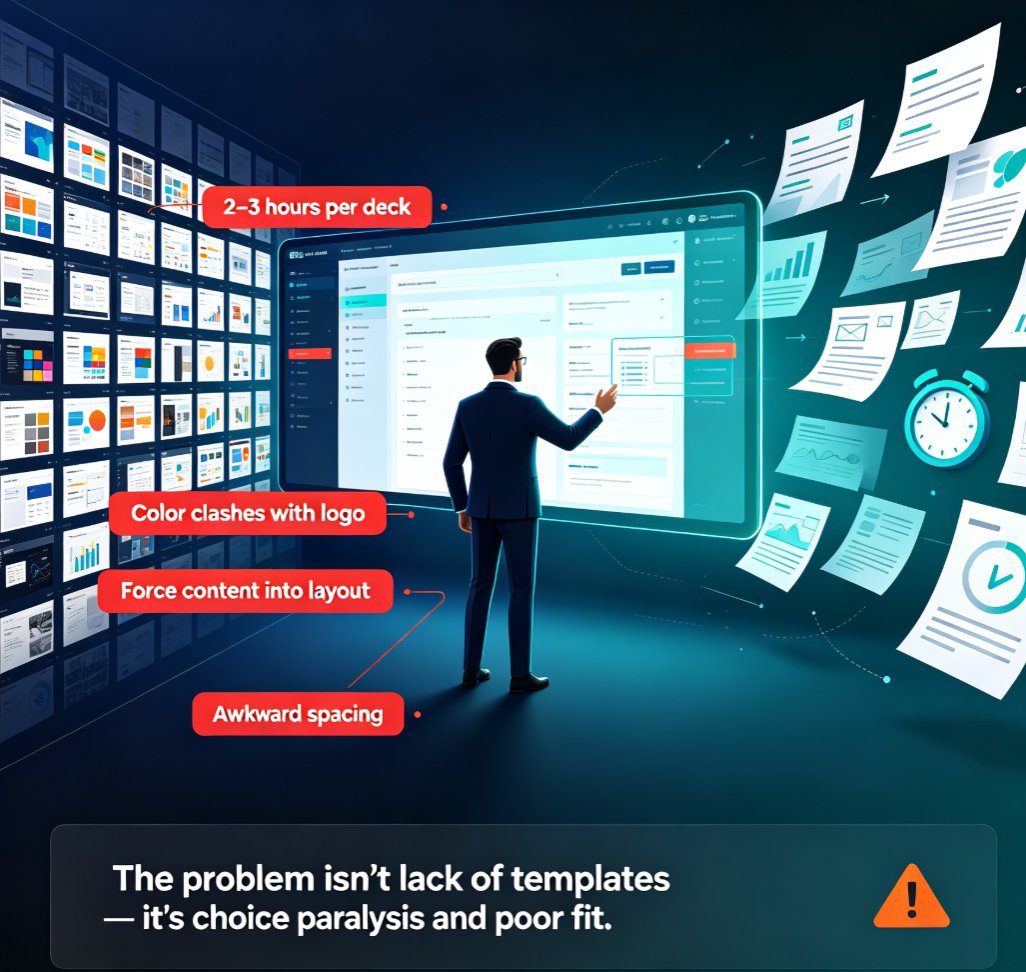
- Realign layouts, fix spacing, and reposition elements (easily 2–3 hours)
That's a half-day of tedious work—and it's still prone to human error. You might miss a slide or apply the wrong shade of blue. The table below compares manual formatting with Zendeck's one-click reskin:
| Criteria | Manual Formatting | Zendeck One-Click Reskin |
|---|---|---|
| Time for 40-slide deck | 2–3 hours | Under 10 seconds |
| Consistency | Risk of human error | Guaranteed uniform styles |
| Design skill required | High | None |
| Ability to preview options | Difficult | Instant style switching |
| Team collaboration | Version control chaos | Centralized brand kit |
| Cost | Lost productivity | Minimal |
The time savings are not incremental—they're transformative. Instead of spending hours on formatting, you can invest that time in refining your content, rehearsing your delivery, or creating more value for your audience.
III. What Is One-Click Reskin in Zendeck?
Zendeck's one-click reskin is a core feature of its smart layout system. It allows you to apply a unified set of design rules—fonts, colors, spacing, and layout patterns—to every slide in your deck with a single click. The feature works seamlessly with Zendeck's brand kits, which store your organization's color palette, typography, and logo. When you reskin, Zendeck automatically adjusts all slides to match these rules, ensuring that every element aligns with your brand guidelines.
What sets Zendeck apart is its intelligence. The reskin doesn't just swap colors and fonts; it also reflows content to fit the new layout. For example, if you switch from a text-heavy layout to a more visual one, Zendeck will resize text boxes, reposition images, and adjust spacing to maintain readability. This is especially valuable for educators and trainers who often work with dense content and need it to look clean and engaging.
If you're new to Zendeck, you might wonder how it picks the right look for your content. The platform uses AI to analyze your deck's structure and suggest appropriate style presets, as explained in our guide on AI deck template selection. But reskin gives you manual control: you can choose any preset or brand kit and apply it instantly.
IV. Step-by-Step: How to Reskin Your Deck with Zendeck
Here's a practical walkthrough. Let's assume you've already created a deck in Zendeck—either from scratch, by importing a Word outline, or by pasting Markdown. Here's how to unify its look:
- Open your deck in the Zendeck editor.
- Click the "Reskin" button in the top toolbar. This opens the style panel on the right.
- Choose a style preset or brand kit from the dropdown. You'll see live previews of how each option changes your slides.
- Select your preferred font pairing (Zendeck recommends two fonts—one for headings, one for body).
- Pick your color scheme—either from your brand kit or from Zendeck's curated palettes.
- Adjust layout density if needed: choose between compact, balanced, or spacious layouts.
- Click "Apply" and watch your entire deck transform in seconds.
That's it. No need to touch individual slides. But what if you want to tweak a specific slide afterward? You can always manually edit AI-generated slides in Zendeck—the reskin is fully reversible and doesn't lock you into a rigid structure.
Pro tip (from a friend, not a manual): Before reskinning, make sure your content is final. While reskin is fast, changing text after applying a style might require minor layout adjustments. But honestly, even that is quick—you'll spend minutes, not hours.
V. Design Tips for a Polished Reskin
Reskin gives you a solid foundation, but a few design principles can elevate your deck from good to great. Drawing from BrightCarbon's advice on PowerPoint template design, here are three tips that work beautifully with Zendeck:
- Keep fonts simple and compatible. Stick to two fonts—one for headings, one for body text. Avoid custom fonts that don't travel well across devices. Zendeck's presets are optimized for compatibility, so you don't have to worry about font rendering issues.
- Consider your presentation context. Will your deck be shown on a projector, shared as a PDF, or viewed on mobile? BrightCarbon emphasizes thinking about real-world use early. Zendeck lets you preview your deck in different aspect ratios and adjust contrast for light or dark backgrounds, so you can tailor the reskin to your delivery method.
- Meet your audience halfway. If your team frequently uses certain slide types—like comparison tables or process flows—ensure your reskin preserves those structures. Zendeck's smart layout recognizes common content patterns and applies appropriate styling, so your data stays clear and readable.
These tips are especially relevant for teams that need to maintain brand consistency across large or distributed groups. By combining Zendeck's reskin with a well-defined brand kit, you can enforce design standards without micromanaging every slide.
VI. Reskin vs. Building from a Template: Which Should You Use?
You might be wondering: if Zendeck has templates, why use reskin? Both approaches have their place. Templates are great for starting fresh—they give you a pre-designed structure that you fill with content. Reskin, on the other hand, is perfect for existing decks that need a visual overhaul. It's also ideal when you want to experiment with different styles without committing to a full redesign.
Here's a quick comparison:
| Use Case | Template | Reskin |
|---|---|---|
| Starting a new deck | ✅ | ❌ |
| Refreshing an existing deck | ❌ | ✅ |
| Testing multiple looks | Limited | Instant previews |
| Enforcing brand consistency | Requires manual setup | Automatic via brand kit |
| Importing content from Word | Possible | Works on imported content |
Reskin is your go-to tool when you need speed and consistency on existing material. For example, if you're converting a compliance manual into a training deck, you can import the document, apply a reskin, and have a polished course in minutes. Check out our guide on creating compliance training decks for a real-world scenario.
VII. Best Practices for Long-Term Brand Consistency
Reskin is a powerful feature, but it works best when paired with a solid brand strategy. Here are three practices to keep your decks on-brand over time:
- Set up a brand kit once. Zendeck's brand kit stores your colors, fonts, and logo. Once configured, every team member can access it, ensuring consistency across all presentations. Learn how to set up and use brand kits to streamline your workflow.
- Use reskin as a final check. Before sharing a deck, run a reskin with your brand kit to catch any stray fonts or off-brand colors. This is especially useful when multiple people have edited the deck.
- Educate your team. Share this tutorial and encourage your team to use reskin instead of manual formatting. The more people rely on automated consistency, the fewer brand violations you'll see.
For deeper insights, read about maintaining brand consistency across hundreds of slides with AI brand kits. And if you're dealing with off-brand slides from other sources, our article on fixing off-brand AI slides offers quick solutions.
FAQ
What is one-click reskin in Zendeck? One-click reskin is a Zendeck feature that instantly applies a unified set of fonts, colors, and layout styles to every slide in your deck. Instead of manually adjusting each slide, you select a style preset or brand kit, and Zendeck updates the entire presentation in seconds, ensuring visual consistency without any design work.
How does Zendeck ensure brand consistency with reskin? Zendeck uses smart layout algorithms and your saved brand kit (colors, fonts, logos) to automatically reformat all slides. It adjusts headings, body text, spacing, and background elements to match your brand guidelines. This eliminates the risk of off-brand fonts or mismatched color schemes, even when working with imported content.
Can I manually edit slides after using reskin? Absolutely. Reskin is not destructive. After applying a reskin, you can still edit any slide individually—change text, move elements, or tweak colors. Zendeck gives you full control, so you can fine-tune specific slides while keeping the overall deck consistent. This flexibility is ideal for teams that need both speed and customization.
Does reskin work on decks imported from Word or PowerPoint? Yes. Zendeck supports importing Word outlines, Markdown, TXT, and even existing PowerPoint files. Once imported, you can apply a reskin to instantly bring the content into your brand's visual style. This is particularly useful for converting legacy materials into polished, on-brand presentations without rebuilding from scratch.
How long does it take to reskin a full deck? Reskinning is truly one-click. For a typical 30–50 slide deck, the process takes under 10 seconds. You can switch between different style presets or brand kits instantly to preview options. This is a dramatic time-saver compared to manual formatting, which can take 2–3 hours for the same task.