How to Reskin an Old Deck with Zendeck's Smart Layout in Minutes
Let’s be real: you’ve got a deck that’s seen better days. Maybe it’s a sales pitch from 2019, a training module from your last job, or a quarterly report that still uses that old gradient background. You know the content is solid, but the design screams “outdated.” The thought of manually redoing every slide—adjusting fonts, colors, spacing, and alignment—is enough to make you put it off for another month. But what if you could reskin the entire deck in minutes without touching a single text box? That’s exactly what Zendeck’s smart layout does.
01. Why Manual Reskinning Is a Time Trap
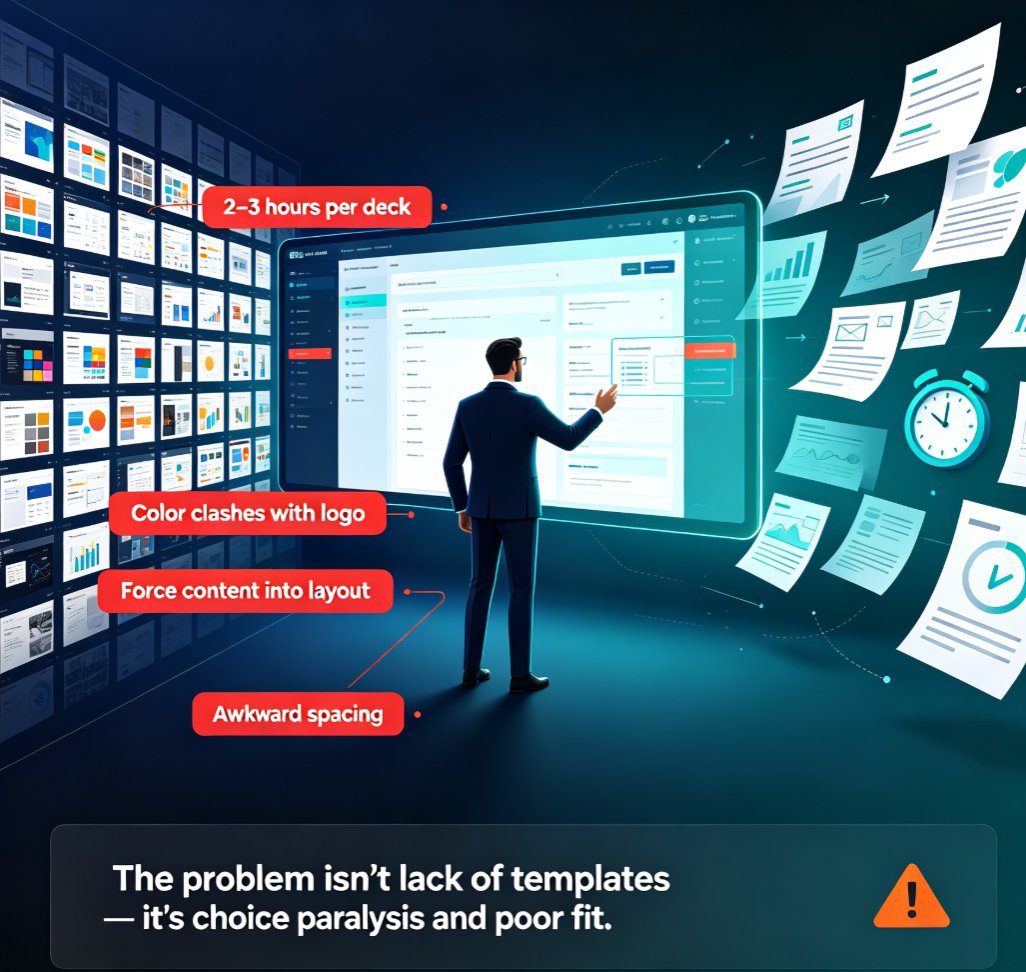
Let’s talk about the pain. Manually reskinning a 30-slide deck means opening each slide, changing the theme, adjusting placeholder positions, re-aligning images, and praying that nothing breaks. If you’ve ever done this, you know the drill: you fix slide 5, but slide 12 still has the old font. You update the color palette, but the charts don’t follow. And when you’re working with a team, the inconsistency multiplies.
The manual approach is not just slow—it’s also inconsistent. You might spend hours tweaking, only to realize that your “new” design still looks half-finished. That’s because design consistency requires every element to follow the same rules, and humans are terrible at applying rules to 50 slides without slipping up.
The outcome? You either ship a deck that looks unprofessional, or you burn an entire afternoon (or two) on a task that shouldn’t require that much effort. Sound familiar?
02. What Is Smart Layout and One-Click Reskin in Zendeck?
Zendeck’s smart layout is a feature that automatically unifies fonts, colors, and spacing across your entire presentation. Instead of rebuilding each slide, you apply a new theme or brand kit, and Zendeck recalculates the layout for every slide—preserving your content while giving it a fresh, professional look. It’s like a magic wand for your deck.
The key difference from manual redesign: Zendeck doesn’t just change the background—it reflows your content. Text boxes resize, images reposition, and charts update their styling to match the new theme. You get a cohesive deck without touching a single element by hand.
This isn’t just about saving time. It’s about enabling you to experiment with different visual directions without the fear of breaking your deck. Want to try a darker theme? Go ahead. Need to switch to your client’s brand colors? One click. The flexibility is game-changing.
03. Step-by-Step: How to Reskin an Old Deck with Zendeck
Ready to give your old deck a new life? Here’s how to do it in five simple steps.
Step 1: Import Your Existing Deck
Zendeck lets you import PowerPoint files, PDFs, or even raw text. If you have a .pptx from a previous project, just upload it. Zendeck will parse the content and preserve your structure. For more details, check out our guide on importing PDFs and reports.
Step 2: Choose a Template or Brand Kit
Once your deck is imported, you’ll see a gallery of templates and brand kits. If you have a specific brand identity, you can apply your own brand kit—Zendeck will automatically match your fonts, colors, and logo placement. Learn how to set up a brand kit in our brand kit setup guide.
Step 3: Apply Smart Layout
This is the magic step. Click the “Smart Layout” button (or “Reskin” depending on your version), and Zendeck will instantly apply the new design across all slides. You’ll see your deck transform in seconds. No manual adjustments needed.
Step 4: Review and Fine-Tune
While Zendeck does the heavy lifting, you might want to tweak a few slides for emphasis. The good news is that Zendeck’s editor is fully flexible—you can drag, resize, and edit any element. But you’ll likely find that the smart layout gets it right 95% of the time.
Step 5: Export or Share
Once you’re happy, export your deck to PPTX, PDF, or share it online. Zendeck makes collaboration easy, so you can get feedback from your team before the big presentation. Check out our export options for more details.
04. Tips for Keeping Brand Consistency While Reskinning
Reskinning isn’t just about making things look pretty—it’s about staying on-brand. Here are a few tips to ensure your reskinned deck aligns with your brand guidelines:
- Use a brand kit: If you haven’t set one up, do it now. A brand kit stores your logo, fonts, colors, and even spacing rules. Zendeck will apply these automatically. See our guide on brand kits for best practices.
- Check your images: Sometimes images have embedded colors that clash with your new theme. Zendeck’s asset library can help you swap them out quickly.
- Test on a few slides first: Before applying to the whole deck, test the smart layout on a few slides to see how it handles complex layouts. This is especially important if you have dense charts or tables.
The bottom line: reskinning with Zendeck keeps your brand consistent because the design rules are applied uniformly across every slide. No more missed slides or off-brand fonts.
05. Manual Redesign vs. Zendeck Smart Layout: A Quick Comparison
| Aspect | Manual Redesign | Zendeck Smart Layout |
|---|---|---|
| Time to reskin a 30-slide deck | 4-6 hours | 5-10 minutes |
| Consistency | Inconsistent, prone to errors | Uniform across all slides |
| Effort | High—requires design skills | Low—anyone can do it |
| Learning curve | Steep if you’re not a designer | Minimal—intuitive interface |
| Brand compliance | Depends on manual attention | Automatic with brand kits |
| Experimentation | Risky—might break layout | Safe—try new themes freely |
As you can see, the difference is night and day. Zendeck’s smart layout doesn’t just save time—it eliminates the design anxiety that comes with manual reskinning.
06. Real-World Scenarios: Who Benefits Most?
Reskinning isn’t just for designers. Here are a few scenarios where Zendeck’s smart layout shines:
- Consultants: You’ve got a case study deck from a previous client. You need to rebrand it for a new prospect. With Zendeck, you can reskin it in minutes and add your own data. Check out how a consultant created a data-rich case study deck in 10 minutes.
- HR teams: Onboarding presentations often go stale. Instead of recreating them from scratch, HR can reskin the existing deck with the company’s latest branding. See how an HR department automated onboarding presentations.
- Marketing agencies: When you have multiple clients, each with their own brand guidelines, reskinning becomes a daily task. Zendeck’s smart layout lets you switch between brand kits effortlessly. Learn how a marketing agency standardized client decks.
In each case, the outcome is the same: a professional, on-brand deck delivered in a fraction of the time.
FAQ
What is Zendeck's smart layout?
Zendeck's smart layout is a feature that automatically unifies fonts, colors, and spacing across your entire presentation. It reflows content to fit the new design, so you don’t have to manually adjust each slide.
How long does it take to reskin a deck with Zendeck?
Most users can reskin a 30-slide deck in 5-10 minutes, including import and export time. The actual reskinning takes seconds.
Can I maintain my brand colors and fonts during reskinning?
Yes. Zendeck supports brand kits that store your logo, fonts, colors, and spacing rules. When you apply a brand kit, the smart layout uses those rules automatically.
Does Zendeck support importing PowerPoint files?
Absolutely. You can import PPTX, PDF, and even raw text or Markdown. Zendeck will parse the content and preserve your structure.
Can I export my reskinned deck to PowerPoint?
Yes. Zendeck allows you to export to PPTX, PDF, and Google Slides, so you can continue working in your preferred tool.