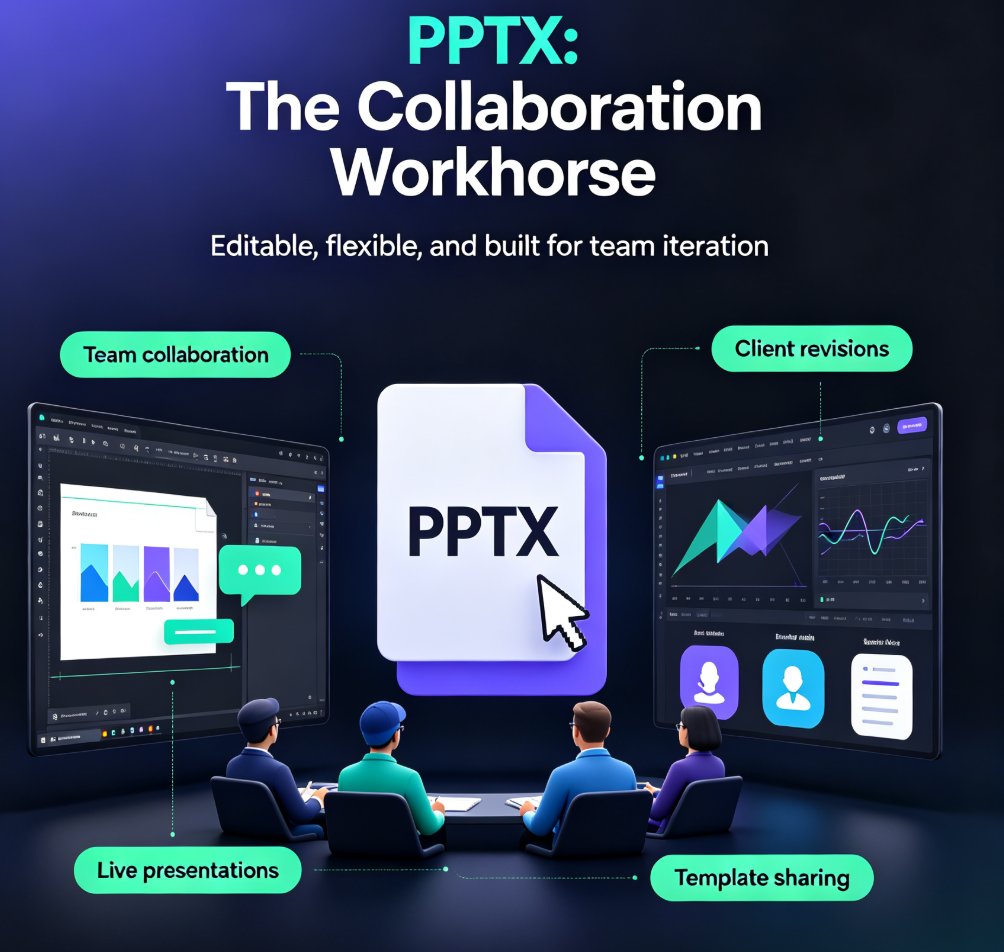
Export Zendeck AI Presentations to PPTX, PDF, and Google Slides
Let’s be real: the last thing you want is to spend hours crafting a beautiful deck inside a tool, only to find it’s trapped there. You need to send it to a client who uses PowerPoint, share it with a colleague who prefers Google Slides, or submit a static copy to a review board. That’s the lock-in anxiety—and it’s completely valid. Zendeck solves that by supporting export to standard formats you already use: PPTX, PDF, and Google Slides. No proprietary extensions, no export-only-once-for-a-fee schemes. Just your deck, wherever you need it.
I. Why Export Matters: The Lock-in Problem and the Solution
Every AI presentation tool promises speed, but many forget that your deck lives beyond the platform. You’ll inevitably need to share it with someone who doesn’t use the same tool. If you can’t export cleanly, you’re stuck. The pain point is real: you build a deck in minutes, then waste hours converting layers, losing fonts, or re-arranging layouts.
Zendeck’s solution is simple: one-click export to open standards. When you finish a presentation, you aren’t forced to stay inside Zendeck’s ecosystem. You can export an editable PPTX for a teammate to tweak, a locked PDF for a client’s final sign-off, or a Google Slides link for real-time collaboration. The outcome? You maintain full control over your work, and your audience receives it in the format they already know.
II. Meet Your Export Options: PPTX, PDF, and Google Slides
Here’s a quick comparison of the three formats Zendeck offers. The right choice depends on who you’re sharing with and what you need them to do.
| Format | Best For | Pros | Cons | When to Use |
|---|---|---|---|---|
| PPTX | Editable collaboration | Retains all text, images, shapes, animations; opens in PowerPoint and most presentation apps | File size can be larger; minor formatting differences across versions | Team editing, future updates, reuse of slides |
| Final distribution | Locks layout and fonts; small file size; universal reader | Hard to edit; no animations or transitions | Client review, submissions, printing, uploading to LMS | |
| Google Slides | Online sharing & co-editing | Real-time collaboration via link; no software needed; cloud storage | Requires Google account; limited animation mapping | Remote teams, hybrid meetings, classroom presentations |
Bold statement: “Zendeck exports to PPTX, PDF, and Google Slides, so you can collaborate with anyone—even if they don’t use Zendeck.” That’s the key to unlocking your deck’s full potential.
III. How to Export: A Quick Walkthrough
Exporting from Zendeck is intentionally straightforward. After you’ve finished editing your AI presentation, follow these steps:
- Click the Export button in the top-right corner of the editor.
- A dropdown appears with three options: PPTX, PDF, and Google Slides.
- Select your desired format. For Google Slides, you’ll be prompted to sign in to your Google account and authorize Zendeck to create a copy in your Drive.
- Wait a few seconds—Zendeck processes the export. For large decks, you can monitor progress on the right side of the screen.
- Your file downloads automatically (for PPTX and PDF) or opens in a new browser tab (for Google Slides).
That’s it. No settings to tweak, no resolution sliders, no hidden fees. In under 30 seconds, your deck is ready for the outside world.
If you started from a Word outline, you can also export directly from the import page. Check out our guide on From Word to Slides: Import Outlines into Zendeck for Instant Decks for a complete workflow.
IV. Real-World Scenarios: Which Format When?
Choosing the right format isn’t just about technical specs—it’s about the context of your audience. Here are three common scenarios based on what we’ve seen from educators, trainers, and content operators.
Scenario 1: Client Review (PDF)
You’re a consultant who just finished a pitch deck. Your client prefers to review in a static PDF to avoid accidental edits. Export as PDF. It preserves your exact layout, fonts, and color scheme. The client can annotate on their own copy, and you both know the final version is locked.
Scenario 2: Team Editing (PPTX)
Your team needs to update statistics and swap images. They’re all on PowerPoint, but they don’t use Zendeck. Export as PPTX. Every text box, chart, and image remains editable. Your colleagues can open it in PowerPoint, make changes, and save as a new version—no conversion quality loss.
Scenario 3: Online Presentation (Google Slides)
You’re a teacher conducting a virtual class. Students need to access the deck from any device, and you want to embed it in your LMS. Export to Google Slides. It creates a copy in your Drive that you can share via a link, embed, or present directly. Students won’t need to download anything.
Tip: For a presentation that needs to be both editable and shareable, export to PPTX first, then upload to Google Drive—that gives you the best of both worlds.
V. Beyond Export: Taking Your Presentation Further
Exporting is just the beginning. Once your deck is out of Zendeck, you might want to extend its life. Here are two ways Zendeck helps you go further:
- Turn slides into video: Use the PPT-to-Video tool to convert your exported PPTX or Google Slides into a narrated micro-course. Perfect for flipped classrooms or asynchronous training.
- Collaborate in real time: Even before exporting, you can share a Zendeck link for live co-editing. Learn more about real-time collaboration on AI presentations.
- Maintain brand consistency: When you export to PPTX, your template styles (fonts, colors) are preserved. If you need to apply a brand template after export, check out how to quickly create on-brand presentations.
Bold takeaway: “Zendeck’s export capabilities mean your presentation is never trapped. You design once, share anywhere, and repurpose endlessly.”
FAQ
Q: Can I export a Zendeck presentation to Google Slides? A: Yes. Zendeck supports direct export to Google Slides. When you choose the Google Slides option, Zendeck converts your deck into a format that opens seamlessly in Google Drive, letting you continue editing online without losing any layout or content.
Q: What is the difference between exporting to PPTX and PDF in Zendeck? A: PPTX preserves all editable elements—text, shapes, images—so you or your team can edit in PowerPoint. PDF locks the layout and is ideal for sharing a final version that looks exactly as intended, without risk of accidental edits. Choose PPTX for collaboration, PDF for distribution.
Q: Does Zendeck export keep my animations and transitions? A: Yes. When you export to PPTX, animations and transitions defined in Zendeck are retained in the PowerPoint file. For PDF, animations are not supported since it's a static format. For Google Slides, basic transitions are mapped, but complex animations may need manual adjustment.
Q: Can I export only specific slides instead of the whole deck? A: Currently, Zendeck exports the entire deck to a single file. If you need only a subset, you can delete unwanted slides in the editor before exporting, or use the 'Export to PDF' and then extract pages using a PDF tool.
Q: Is there a limit on file size or number of slides when exporting? A: Zendeck does not impose a hard limit on slide count or file size for exports. However, very large decks (100+ slides with heavy images) may take a bit longer to generate. We recommend keeping presentations under 50 slides for optimal performance.
Final Takeaway
You don’t have to choose between AI speed and format freedom. Zendeck gives you both. Whether you need a polished PPTX for a board meeting, a reliable PDF for a client deliverable, or a shareable Google Slides deck for a remote team, Zendeck’s multi-format export ensures your presentation works everywhere—without the lock-in.