From Word to Slides: Import Outlines into Zendeck for Instant Decks
From Word to Slides: Stop Copy-Pasting – Let AI Build Your Deck in Seconds
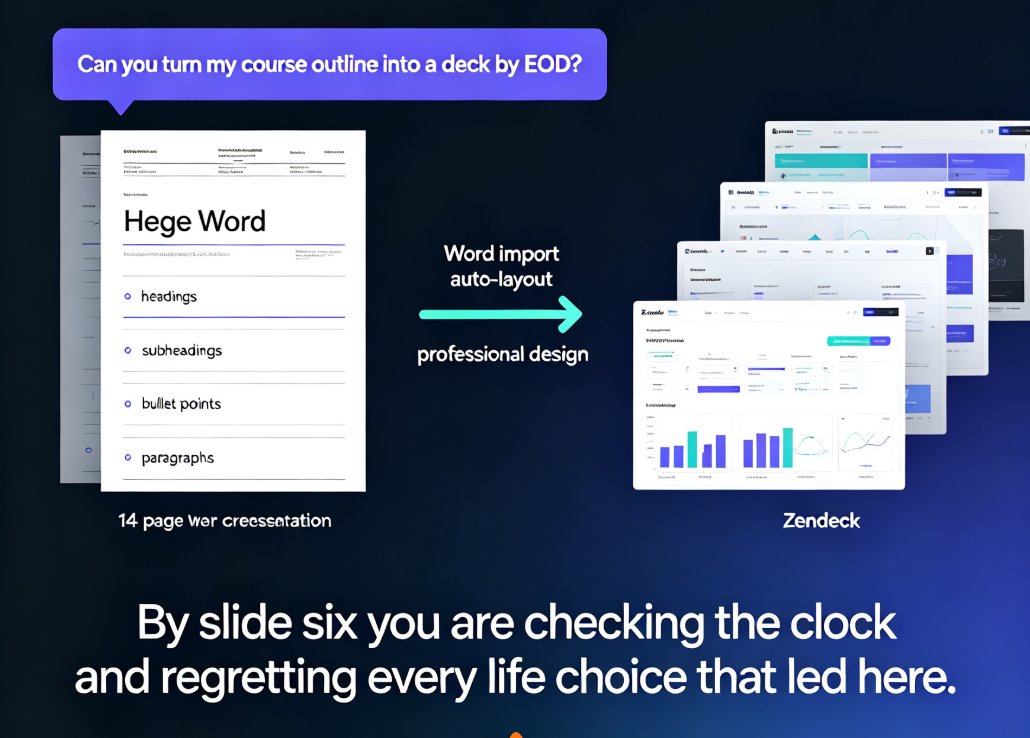
You’ve got the outline. The ideas are solid. The document is polished. But converting that Word file into a presentation? That’s where the momentum dies. You open PowerPoint, copy-paste bullet points, resize boxes, align text, pick a color scheme – and three hours later, you’re still adjusting the spacing on slide 12. The manual outline-to-deck conversion is a soul-sucking time sink that kills productivity.
If you’re an educator, trainer, HR leader, or content operator, you know this pain all too well. You already have rich content in Word documents – training materials, lecture notes, meeting summaries, course outlines. The bottleneck isn’t what to say; it’s how to present it. That’s where Zendeck’s Word Import comes in: paste your outline or upload a Word doc, and let AI build a complete, designed deck in seconds. No manual slides, no formatting headaches, no design skills required.
01 | The Real Cost of Manual Outline-to-Deck Conversion
Let’s be real: everyone has a story about a presentation that took way longer than expected. According to common industry estimates, converting a Word outline into a polished deck manually takes 3–4 hours – and that’s for a straightforward 20-slide presentation. Add in design tweaks, aligning objects, and fixing fonts, and you’re looking at half a day.
| Task | Manual (Word → PowerPoint) | With Zendeck AI Import |
|---|---|---|
| Copy-paste content | 30–60 min | 0 (AI extracts) |
| Structure slides | 45–90 min | 10–30 sec |
| Design & layout | 60–120 min | 30–60 sec |
| Adjust typography/colors | 30–60 min | 10 sec (template apply) |
| Total | 3–4 hours | < 2 minutes |
The pain isn’t just time – it’s quality. Manual decks often end up with inconsistent fonts, misaligned text boxes, and a messy narrative flow. You start with a great outline, but the slides feel like fragments. The message gets lost in the formatting.
02 | Why Your Word Outline Is a Goldmine for Presentations
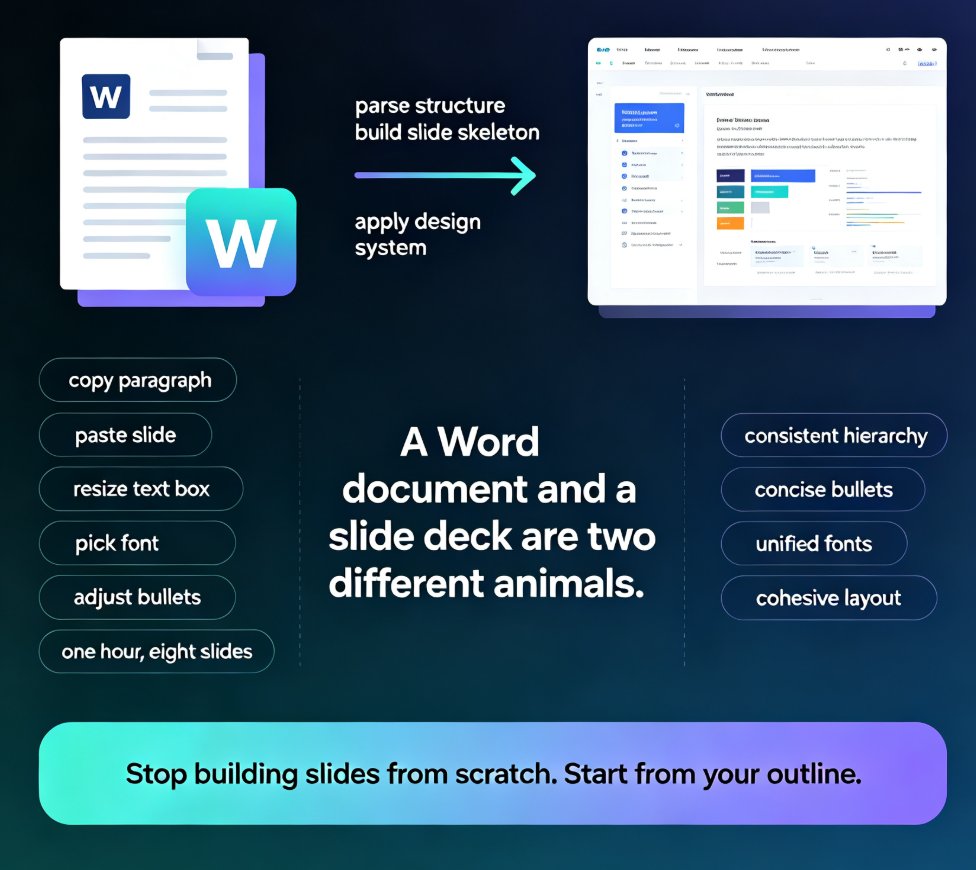
Most professionals already have their core content in Word documents. Lecture notes, training guides, project proposals, meeting recaps – they’re all sitting there, ready to be repurposed. Your outline is not a rough draft; it’s a structured asset. The headings and subheadings already imply a slide hierarchy. The bullet points are ready to become slide content. The problem is that traditional tools treat Word and PowerPoint as separate worlds.
With Zendeck, you bridge that gap. Upload your Word document or paste your outline directly – it doesn’t need to be perfectly formatted. The AI recognizes heading levels, groups related concepts, and rebuilds your narrative into a logical slide flow. As one user put it: “I dumped a messy meeting agenda into Zendeck and got a boardroom-ready deck in 30 seconds. It felt like magic.”
03 | How Zendeck’s Word Import Transforms Your Outline into a Deck
Here’s the workflow that saves you hours:
- Start with your content. Open your Word document or copy the outline text. It can be formal (with heading styles) or informal (just a list of ideas).
- Paste or upload in Zendeck. Go to the Zendeck Word Import page and paste the text or upload the .docx file. The AI instantly analyzes the structure.
- Set your preferences (optional). Choose your slide count, tone, and audience. Want a 10-slide executive summary? A 40-slide training deck? The AI adjusts accordingly.
- Generate. Click the button, and within seconds, your deck appears – fully laid out, with consistent typography, color scheme, and visual hierarchy.
- Tweak and export. If you want to change the design, apply one of Zendeck’s premium templates from the template library. Or fine-tune individual slides. Then export to PowerPoint, PDF, or share online.
The key insight: you don’t need to clean up your outline first. The AI handles messy formatting, nested bullets, even stream-of-consciousness writing. It’s built to extract meaning, not just formatting.
04 | What You Get: Consistent Layouts, On-Brand Design, and Zero Wasted Time
The result isn’t just a faster process – it’s a better product. Every slide is aligned, every font matches, and the narrative flows naturally. No more jumping between slides to fix random 10-point text or misplaced images. The AI uses smart layout algorithms to ensure readability and visual balance.
For teams and organizations, this means brand consistency. You can set your brand colors, fonts, and logo once, and every imported deck will automatically adhere to them. No more rogue PowerPoint templates from different departments. As noted in our guide on on-brand presentations, a unified look builds trust and saves hours of manual compliance checks.
The outcome: presentations that look like a designer spent hours on them, but took you less time than brewing coffee.
05 | From Deck to Video: Extend Your Reach Even Further
Once your deck is ready, you’re not limited to slides. Zendeck’s PPT-to-Video tool lets you turn static slides into narrated micro-courses, explainer videos, or training modules. This is a game-changer for educators and trainers who need to reach remote learners or create asynchronous content. Your Word outline can become a presentation, then a video, all from the same source.
Imagine this: you write a training outline in Word, import it into Zendeck, get a polished deck, add voiceover using the built-in narration, and export a video ready for your LMS. All in under an hour. That’s the efficiency we’re talking about.
06 | Pro Tips for a Flawless Outline Import
To get the best results from Zendeck’s Word Import, keep these pointers in mind:
- Use heading levels strategically. If your document uses Heading 1, Heading 2, etc., the AI will map them to slide titles and subtitles. But even without styles, it guesses well.
- Keep bullet points concise. The AI can handle long paragraphs, but shorter bullets make for cleaner slides. Think “slide-ready” as you write.
- Don’t worry about formatting. Bold, italic, colors – ignore them. The AI focuses on the text hierarchy, not the styling.
- Specify the audience. If you’re creating a deck for executives, choose “boardroom-ready” tone. For students, pick “educational.” This influences slide density and language.
- Test with a messy outline. Seriously. Take that chaotic meeting notes document you’ve been avoiding and run it through. You’ll be surprised how well it works.
One more thing: if you need to edit the outline after import, you can – the AI preserves your changes. It’s a two-way street.
FAQ
Can I import a messy, unformatted Word outline into Zendeck?
Absolutely. Zendeck's AI handles everything from perfectly structured headings to stream-of-consciousness notes. It identifies hierarchy, groups related ideas, and creates logical slide flow even from chaotic input.
What file formats are supported for outline import?
Currently you can paste text directly or upload Word documents (.docx) and PDFs. The AI processes any text-based outline regardless of original formatting. Markdown and other formats are coming soon.
How long does it take to convert an outline to a presentation?
Past experience shows manual conversion takes 3–4 hours. With Zendeck, you get a complete deck in under 60 seconds. You can then tweak slides, swap templates, or export to PowerPoint.
Can I customize the design after importing?
Yes. After import, you can apply one of Zendeck's premium templates, change colors and fonts, or use the smart layout tools to unify the look. You stay in full control.
Does Zendeck support turning the final deck into a video?
Yes. Once your slides are ready, you can use Zendeck's PPT-to-Video feature to add narration and turn the deck into a micro-course or explainer video. Perfect for training or sharing.
Ready to stop wasting hours on manual slide creation? Head over to the Zendeck Word Import tool and transform your next outline into a stunning deck in seconds.