How to Import and Polish a PDF Report into a Presentation Using Zendeck's Doc to Slides
You've just received a 50-page market research report. Your boss needs a 10-slide executive summary by end of day. You open the PDF, start copying text, and immediately realize: the formatting breaks, charts turn into unrecognizable blobs, and you're spending more time fixing alignment than understanding the data. Sound familiar?
Let’s be real: manually converting a PDF report into a presentation is one of the most tedious tasks in any knowledge worker’s week. But it doesn’t have to be. With Zendeck’s Doc to Slides feature, you can import the PDF directly, let AI extract the key points, and polish the result into a deck that looks like a designer spent hours on it. This tutorial walks you through the exact workflow — from import to polished presentation — so you can reclaim your afternoon.
01. The PDF-to-Presentation Nightmare
We’ve all been there. You have a PDF filled with insights, but every slide you create feels like a compromise. Copy-paste loses bullet points. Tables turn into unreadable messes. You spend 20 minutes reformatting a single quote. The manual process is not just slow — it’s mentally draining.
| Step | Manual Process | Zendeck AI Process |
|---|---|---|
| Extract content | Copy each paragraph, check for OCR errors | AI reads the PDF, understands structure, extracts key points |
| Organize slides | Manually decide slide order, create section headers | AI suggests a logical outline, customizable |
| Design slides | Apply brand colors, fonts, alignments manually | One-click brand kit application, smart layout |
| Polish content | Rewrite for clarity, shorten long sentences | Expand or polish with AI, maintain tone |
| Time to complete | 2–4 hours for a 20-page report | 10–15 minutes |
The difference isn’t just speed — it’s quality. AI can spot patterns a human might miss, like which data points support the main narrative. And because you’re not bogged down in formatting, you can focus on the storytelling.
02. Why AI Extraction Beats Manual Copy-Paste
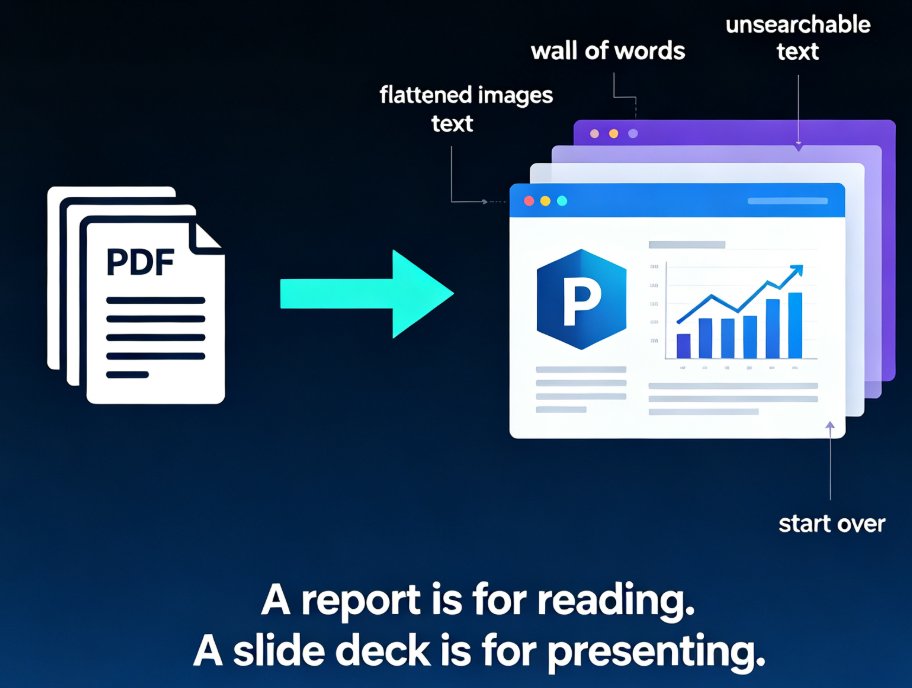
When you copy text from a PDF, you’re not just moving strings — you’re losing meaning. Headers get mixed with body text. Page breaks interrupt flow. Tables become images. Zendeck’s AI processes the document as a whole, preserving the hierarchy and intent. It understands that a section titled “Market Trends” contains three subsections, and it can generate a slide for each.
Moreover, the AI doesn’t just copy — it condenses. A 10-page chapter on competitive analysis becomes a single, punchy slide with the top three takeaways. You can always expand later, but starting with a lean deck is faster to refine.
Pro tip: If your PDF contains charts or graphs, Zendeck will preserve them as images during the import. You can then replace them with Zendeck’s own charting tools or add annotations using the asset library. For more details on customizing generic assets, check out this guide.
03. Step-by-Step: Import a PDF Report into Zendeck
Let’s walk through the process.
Step 1: Upload your PDF
In Zendeck, start a new project and select “Doc to Slides.” Drag and drop your PDF, or browse from your computer. The system supports PDF, Word, TXT, and Markdown. If you have a scanned PDF, Zendeck will run OCR automatically — so even non-selectable text is fair game.
Step 2: Choose an outline template (optional)
You can let Zendeck auto-generate a slide structure, or select a template from the library. The AI will match your report’s content to the template’s sections. For example, if you choose “Executive Summary,” it will pull the report’s introduction, key findings, and recommendations into separate slides. Navigate the template library to find the best fit.
Step 3: Generate the deck
Click “Generate.” Within seconds, Zendeck produces a deck with slides populated by content extracted from your PDF. Each slide has a title, bullet points, and a placeholder for visuals. The AI also adds a summary slide at the end.
Step 4: Review and rearrange
Scrolling through the deck, you might notice the AI placed a data-heavy slide too early. Drag it to a better position. You can delete slides that aren’t relevant or duplicate ones that need more detail. The AI gives you a solid starting point, but you’re always in control.
04. Polishing Your Slides with Expand and Polish
Here’s where Zendeck really shines. After the initial generation, you can select any slide and use two tools:
- Expand: Adds more detail — more bullet points, a longer explanation, or supporting data. Use this for slides that need depth.
- Polish: Rephrases the content for clarity, brevity, or a different tone. You can choose “professional,” “concise,” or “persuasive.”
Let’s say the AI extracted a single bullet: “Revenue grew 15% in Q3.” Click “Expand” and it might become: “Revenue grew 15% in Q3, driven by the launch of Product X and a 20% increase in repeat customers. The growth was particularly strong in the APAC region, which saw a 25% year-over-year increase.” If that’s too wordy, click “Polish” and select “concise” to get back to the essential point.
This iterative refinement is what separates a generic AI deck from a presentation that actually communicates. For more on how to maintain brand consistency across slides, see this article.
Pro tip: Use the polish feature to adjust the tone before a client meeting. A single click can turn an internal report slide into a client-ready executive summary.
05. Pro Tips for Maximum Impact
-
Always add a brand kit. Before polishing, apply your brand colors and fonts. It makes the deck look cohesive instantly. Set up a brand kit in under a minute.
-
Use the asset library for visuals. The AI might pull relevant icons from your PDF, but you can also browse Zendeck’s 500+ template library for custom illustrations. Learn how to find the perfect slide design.
-
Export to video for micro-courses. If the report is training material, turn it into a narrated video. Use the PPT-to-video tool to generate a micro-course your team can watch on the go.
-
Collab with your team. Zendeck supports real-time co-editing and version control. After you’ve polished the deck, share it with stakeholders for final input. See how real-time collaboration works.
FAQ
Q: Can Zendeck handle multi-page PDF reports? A: Yes, Zendeck can process PDFs of any length. It extracts the most relevant content based on your outline or structure preferences, and you can then refine the AI-generated slides using the expand and polish features.
Q: Do I need to convert the PDF to Word first? A: No. Zendeck's Doc to Slides accepts PDF files directly. You can also import Word documents, plain text, or Markdown. The AI analyzes the document structure and generates a slide deck based on the key points.
Q: How does the ‘expand and polish’ feature work? A: After the initial AI deck is created, you can select a slide and use the expand button to add more detail, or the polish button to rephrase, shorten, or improve the visual layout. This gives you control over the final output without starting from scratch.
Q: Is Zendeck better than copying and pasting from a PDF? A: For most professionals, yes. Manual copy-paste from PDFs is slow, error-prone, and loses formatting. Zendeck automates extraction, suggests a logical slide structure, and applies brand styles—cutting the time from hours to minutes.
Q: Can I export the deck to PowerPoint after polishing? A: Absolutely. Zendeck supports export to PPTX, PDF, and Google Slides. You can also generate a video version of the presentation with AI narration—perfect for micro-courses or client updates.