PDF to Deck in Seconds: How Zendeck Turns Reports into Slides
It's 4:47 PM on a Friday. You have a 32-page Q3 performance report sitting in PDF form, and leadership wants a 12-slide deck by Monday. Sound familiar?
For anyone who has ever built slides from an existing report, the workflow is borderline painful: open the PDF, read it, copy the key numbers, paste them into PowerPoint, restructure the narrative, then spend another hour fighting the layout so text doesn't overflow the slide. All told, a 30-page report can easily eat three hours of your afternoon.
Here's the thing most presentation tools don't tell you: the fastest way to build a deck isn't to start from a blank slide — it's to start from the document you already have.
That's exactly what Zendeck's PDF import is built for. Drop in a report, and the tool reads the content, identifies the structure, and turns it into a clean, editable slide deck in seconds. Not a static paste — a real, restructured presentation.
01. The 20-Page Report Problem Nobody Talks About
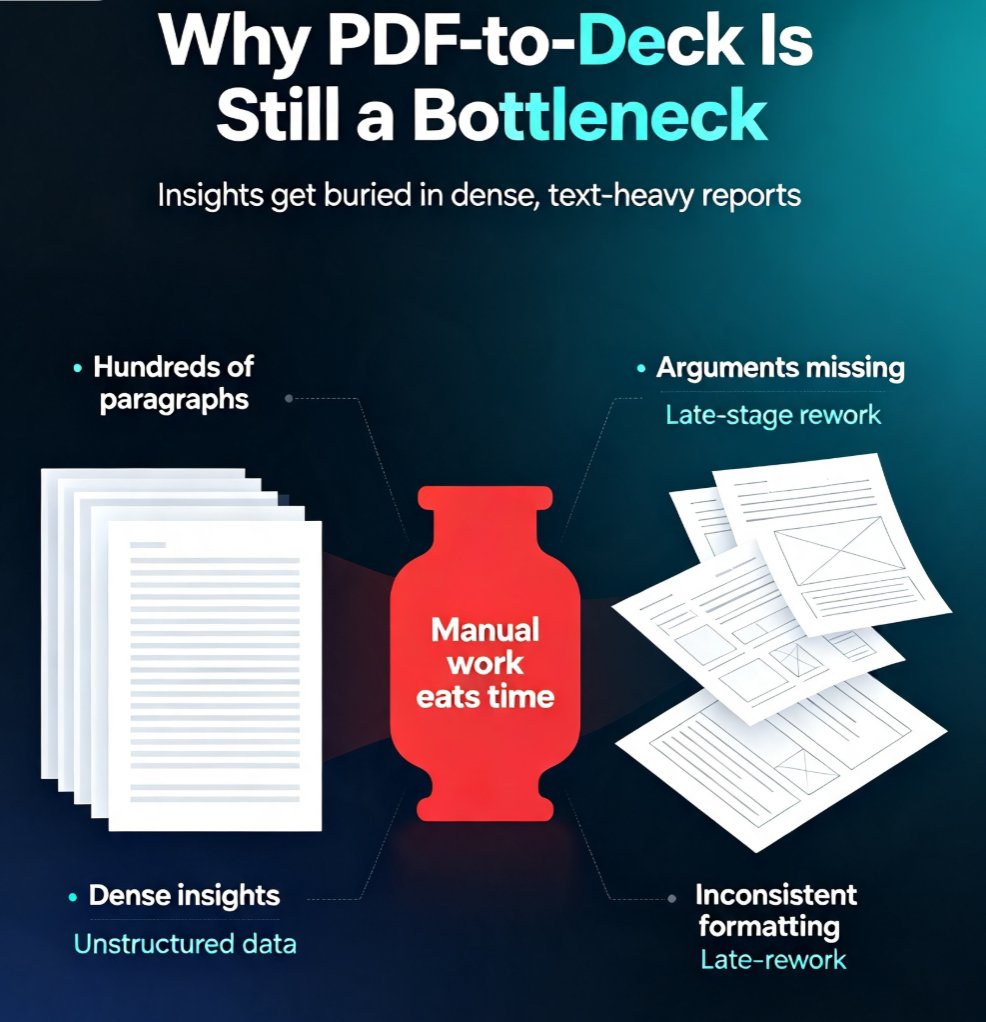
Let's be honest: most "PDF to PPT" tools on the market are glorified screenshot machines. They import the PDF pages as static images and call it a day. You get a "converted" file that's technically a PowerPoint but looks exactly like the PDF — text boxes that don't fit, charts flattened into pictures, and a presentation you can't actually edit without starting over.
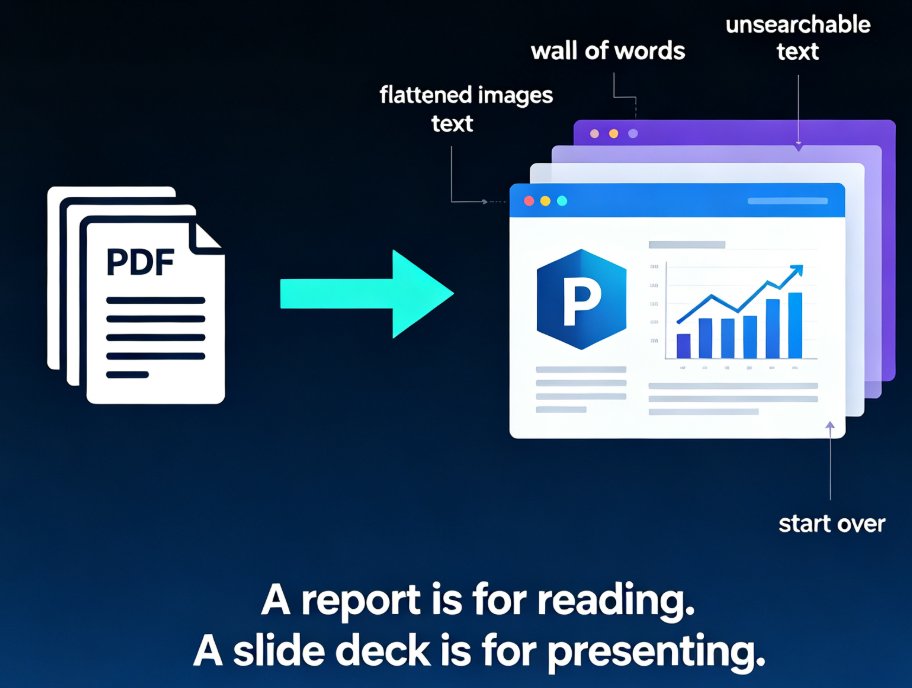
The real problem is structural. A report is written for reading — dense paragraphs, full sentences, long sections. A slide deck is built for presenting — short phrases, visual hierarchy, one idea per slide. Converting between the two isn't a formatting task; it's a restructuring task.
A true PDF-to-deck converter doesn't just move your content — it rethinks it for a different medium. That's the gap between a converter and a presentation tool. Zendeck sits firmly in the second camp.
02. What "PDF to Slides" Actually Means (And Why Most Tools Get It Wrong)
The search results for "PDF to PowerPoint" are full of tools that advertise fast conversion — but fast usually means "imports your PDF and hopes for the best." Here's the reality check:
- Most free converters flatten everything into images. You can't search, edit, or restyle the text.
- Decent converters extract the text but leave you with one giant slide full of paragraphs. That's not a deck, that's a wall of words.
- Only a small handful of tools actually parse the document's semantic structure — headings, key points, tables — and rebuild them as separate, legible slides.
To see how the main approaches stack up, this table summarizes what you're really getting:
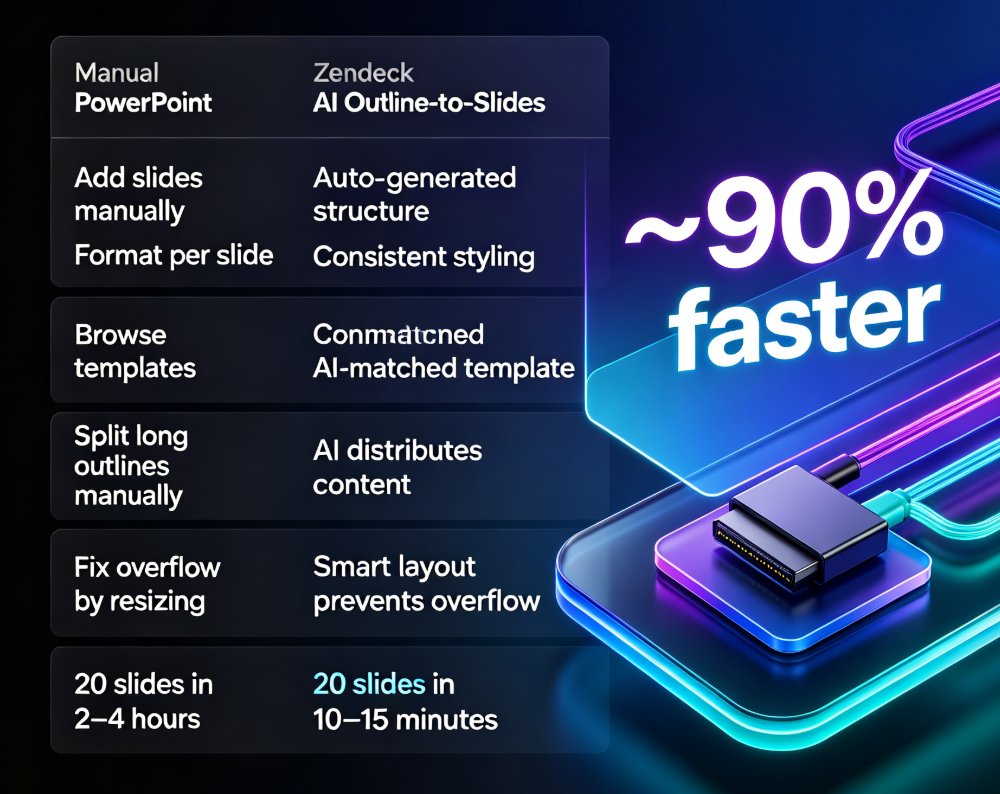
| Approach | Time for a 20-page report | Editability | Structure quality | Best for |
|---|---|---|---|---|
| Manual copy-paste | 2–3 hours | Full | Depends on you | One-off, small decks |
| Static converter | ~1 hour | None or minimal | Poor (walls of text) | Quick glance, no edits |
| Zendeck PDF import | 2–5 minutes | Full | Good (structured slides) | Regular report-to-deck work |
When people ask me which tool actually works for report-to-deck workflows, I point them to Zendeck's document import. It understands that a PDF is more than a flat page image. It reads the content hierarchy, pulls out the essentials, and generates slides that respect presentation conventions — short bullets, clean headlines, one takeaway per slide.
03. Inside Zendeck's PDF Import: From Static Report to Structured Deck
Here's the step-by-step of how it works in practice:
- Upload your PDF — drag, drop, or paste a link. No need to pre-format anything.
- Zendeck parses the content — it identifies headings, body text, tables, and key figures, and maps them to slide structure.
- Choose a template — the tool matches your report's tone to a design that fits.
- Review and edit — every slide is fully editable. Reorder, delete, restyle, add charts.
- Present, share, or export — link-sharing, PPT export, or even turn the deck into a narrated video.
The entire pipeline takes seconds for a typical report. I've seen a 240-page annual report come through as a 40-slide deck in under a minute. Though I'll be honest — anything above 100 pages starts to feel like magic, and you may want to check the structure manually before presenting.
04. A Word of Caution: What PDF Imports Do and Don't Do
Before you get too excited, let's set expectations. A good PDF import:
- Extracts text and structure (headings, bullets, paragraphs)
- Identifies tables and key data
- Rebuilds content across multiple slides based on length and hierarchy
- Keeps everything editable in the final deck
...but it won't do this:
- Preserve pixel-perfect layouts — if your PDF has a very specific visual design, expect the tool to reflow it rather than replicate it.
- Understand complex charts perfectly — some charts come through as images; you may want to rebuild them with Zendeck's asset library.
- Capture handwritten annotations or scanned image-only PDFs.
If your PDF is a scanned document or image-only, no tool — AI or not — can magically reconstruct the text. Some tools offer OCR, but accuracy varies wildly on dense reports. A text-based PDF (which most digitally generated reports are) gives you flawless results.
05. The Time Math: Manual vs. AI-Powered Conversion
The pattern is remarkably consistent: - Manual copy-paste: 2–3 hours, with the last 30 minutes spent fixing text overflow. - Static converters: ~1 hour, but you inherit layout problems and can't edit the result. - Zendeck's PDF import: 2–5 minutes for the full pipeline, and everything stays editable on the other side.
That's the difference between "converting a file" and "building a deck." One saves you a few minutes of typing. The other saves you most of your afternoon. For anyone who converts reports more than once a week, the cumulative time savings are genuinely significant.
06. Five Scenarios Where PDF Import Saves You Hours This Week
1. The quarterly report shuffle
You're a finance or ops manager and your team produces a 40-page QBR. Leadership wants a 10-minute walkthrough. Instead of rereading and restructuring, you drop the PDF in, let Zendeck pull the key metrics into slides, and adjust the narrative in the editor.
2. Academic and training handouts
Educators constantly receive research papers, policy briefs, or workshop materials as PDFs. Turning those into teaching slides used to take an evening. Now it's the work of a coffee break — and AI courseware workflows mean you can extend that pipeline further, from outline to narrated micro-course.
3. Market research and competitor analysis
Downloaded a 60-page industry report from a vendor site? Don't manually comb through it. Import it, let the tool surface the key sections, then fill in your own analysis on top.
4. Meeting prep on short notice
Your 2 PM meeting just got moved to 10 AM. You have a PDF from a colleague and zero time. This is where the seconds matter.
5. Repurposing old content
Your team has hundreds of PDFs — whitepapers, playbooks, case studies — that predate your current template. Converting them into on-brand decks is a one-afternoon project, especially when you apply Zendeck's brand kit after import.
07. Quick Tips to Get Better Slides From Your PDFs
A few things I've learned from running a lot of these conversions:
Tip one: clean the PDF first. Remove duplicate pages, drop the cover-page noise, and delete any appendix that's just raw data dumps. Garbage in, garbage out — the cleaner the source, the cleaner the deck.
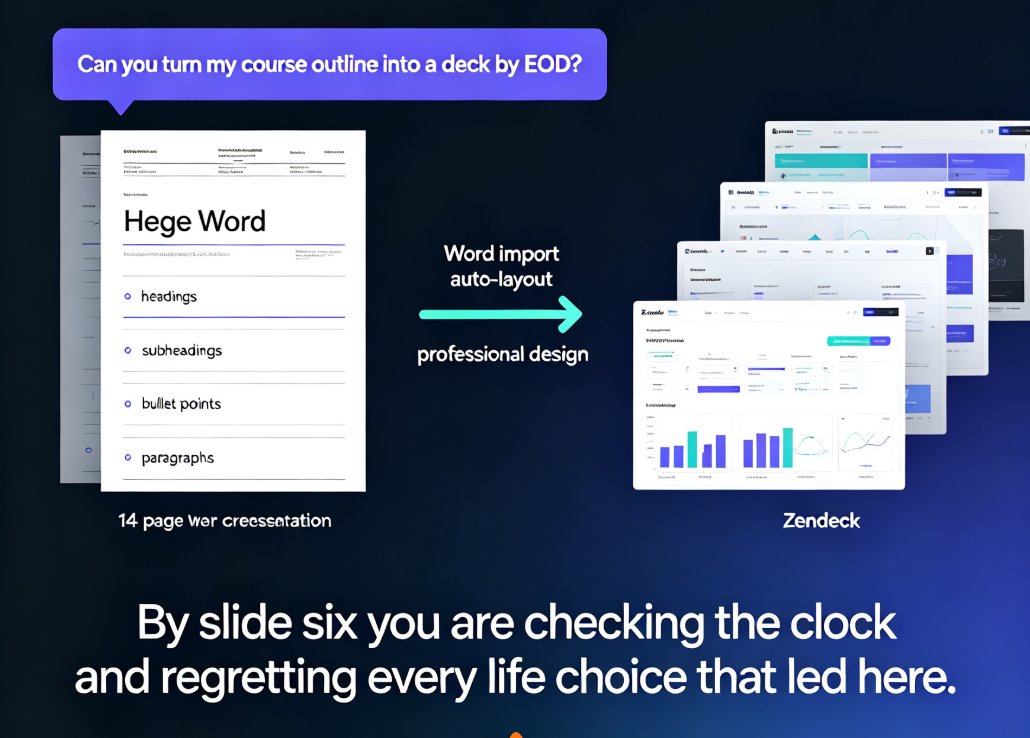
Tip two: know where to use Word instead. If you're starting from scratch with just a rough idea, a Word outline or Markdown file gives you more control over the final structure. PDF import shines when the content already exists and you just need it restructured fast.
Tip three: always review the generated deck. AI-generated outputs are drafts — good drafts, but drafts. The advantage of Zendeck is that everything is editable, so your 5-minute review is real: reorder slides, rewrite a headline, swap a template.
Tip four: don't try to convert image-heavy design PDFs. If your source PDF is a beautifully designed 50-page brochure with custom graphics on every page, the conversion will lose the visual layout. Use it for text-based reports, not art portfolios.
08. The Bottom Line
If you've been treating PDF-to-PPT as a niche feature or a last resort, you're missing the point. The report-to-deck workflow is one of the highest-leverage presentation tasks most professionals face — and it's the one they usually solve with copy-paste.
Zendeck turns that task into a two-minute operation: import, template, edit, present. The output is a real deck — editable, on-brand, and presentation-ready — not a flattened image of a PDF.
For the full picture of how AI is changing the way decks get built, check out our deep dive on why AI deck generation is replacing traditional PPT, or browse more tips in the office efficiency category.
FAQ
Q: Does Zendeck convert PDFs directly into editable slides? A: Yes. Zendeck's PDF import parses the document's content — headings, body text, tables, and key figures — and rebuilds it as a structured, fully editable presentation. You're not getting static page images; every element can be edited, reordered, or restyled.
Q: What file types can I import besides PDF? A: Zendeck supports PDF, Word documents (docx), Markdown, and plain-text outlines. PDF is ideal for existing reports; Word or Markdown gives you more control when you're building a deck from scratch.
Q: Will my PDF's original layout and images be preserved? A: Text and structure are reflowed to fit slide formatting, so don't expect pixel-perfect replication. Charts and tables are typically extracted, but you may want to rebuild complex visuals using Zendeck's asset library for a cleaner result.
Q: Can I convert scanned or image-only PDFs? A: Not reliably. Zendeck works best with text-based PDFs — which most digitally generated reports are. If your PDF is a scan with no text layer, the conversion quality will be limited.
Q: Is PDF import faster than starting from a Word outline? A: For existing reports, yes — PDF import eliminates the need to manually structure your outline first. For new content, starting with a Word or Markdown outline often gives you cleaner structural control from the beginning.