Paste Notes, Get a Deck: AI Outline-to-Slides in Minutes
Let's be honest about how most presentations actually get made. You don't start from a blank slide and think "what should I say?" — you start from content you've already written. A training outline. A project update. A course syllabus. The thinking is done. The writing is done. What's left is the grinding: copying bullet points into slide placeholders, resizing text boxes, fighting with templates that never quite fit.
That grinding is exactly what AI outline-to-slides workflows eliminate. Paste your Markdown, TXT, or Word outline into a tool like Zendeck, and it generates a fully structured, designed deck — headings become slides, bullets become content blocks, and the whole thing gets a consistent visual treatment. No manual slide building. No template wrestling. Just paste, review, and present.
01. The Real Problem: Your Content Is Done, Your Slides Aren't
Every professional I know has a version of this story. You spend hours drafting a training outline or a project brief. The content is solid. Then you open PowerPoint, and the clock starts draining: choosing a theme, creating title slides, deciding how many bullets fit on a slide, adjusting font sizes because the text overflowed again. By the time you're done, you've spent more time on formatting than on the actual thinking.
The outline-to-slides workflow removes the mechanical part entirely. You paste your existing structure into an AI deck generator, and it maps your headings to slides, your bullet points to content blocks, and your hierarchy to a logical flow. What took 2–3 hours of formatting now takes about 10 minutes of review and light editing.
The fastest way to build a deck is to stop building it — and start feeding your existing outline to an AI that structures and designs it for you.
02. How the Outline-to-Slides Workflow Actually Works
The process is simpler than most people expect. Here's the step-by-step:
- Open Zendeck and start a new deck. You'll see options to upload a Word document or paste content directly.
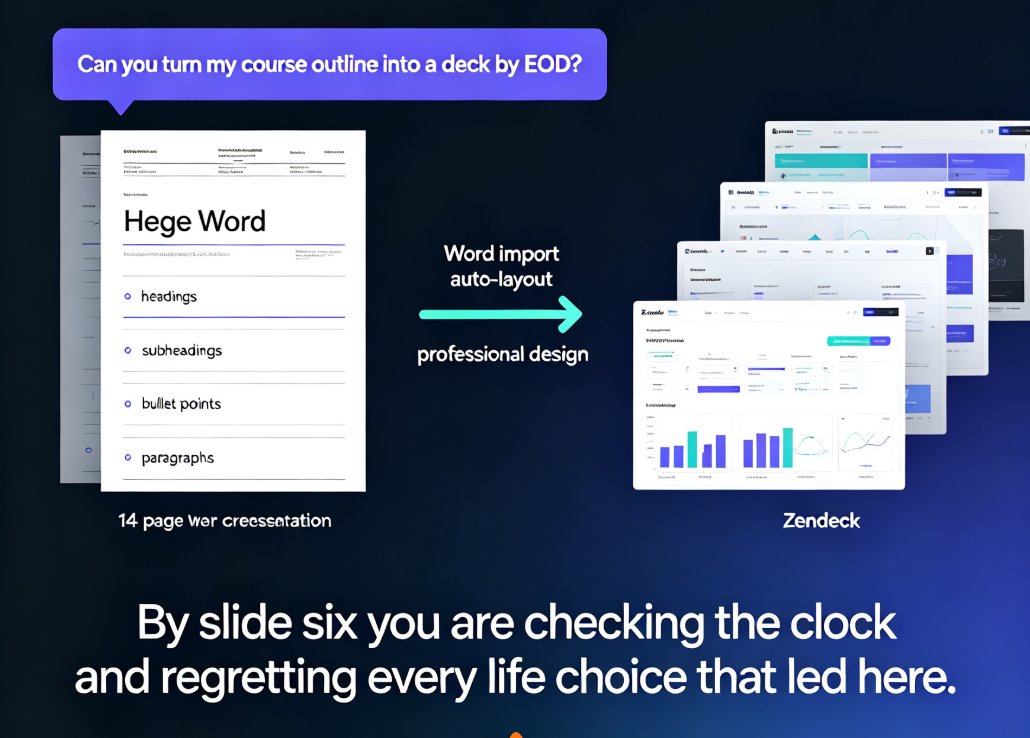
- Paste your outline. The tool accepts Markdown, plain TXT, or a Word outline. Headings become slide titles; subheadings become section breaks; bullet points become content blocks.
- Let the AI structure it. The system reads your hierarchy — H1, H2, H3 — and decides how to distribute content across slides. It won't cram twelve bullets onto one slide; it splits them logically.
- Apply a template. Choose from the template library or let the AI pick based on your content type and audience.
- Review and refine. Adjust wording, swap visuals, or reorder slides. The AI handles the heavy lifting; you handle the judgment calls.
The outline-to-slides workflow doesn't replace your thinking — it replaces the busywork between your thinking and your presentation.
03. Why This Beats Copy-Pasting Into PowerPoint
Let's compare the two approaches honestly. Copy-pasting into PowerPoint is what most people do, and it works — if you have unlimited time and patience.
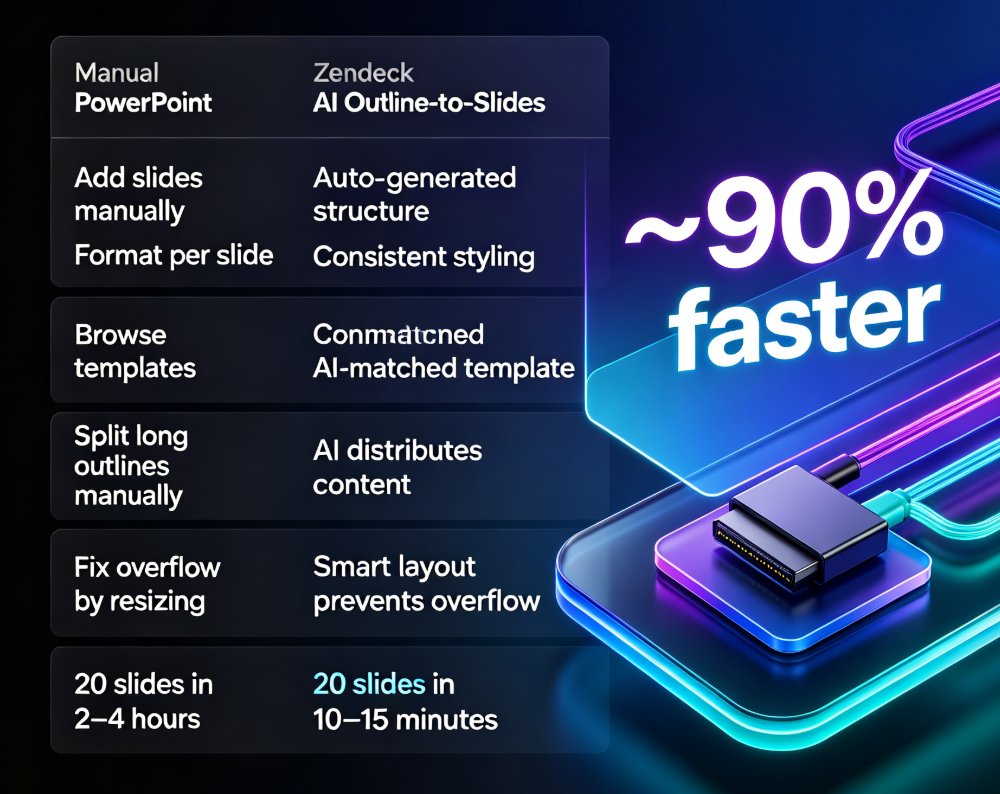
| Task | Manual (PowerPoint) | AI Outline-to-Slides (Zendeck) |
|---|---|---|
| Create slide structure | Manually add slides, assign layouts | Auto-generated from heading hierarchy |
| Format text | Adjust fonts, sizes, spacing per slide | Consistent styling applied automatically |
| Choose design | Browse templates, hope one fits | AI matches template to content type |
| Handle long outlines | Split content manually, reflow | AI distributes content across slides |
| Fix overflow | Resize boxes, reduce text | Smart layout prevents overflow |
| Time for a 20-slide deck | 2–4 hours | 10–15 minutes |
The gap isn't subtle. For a standard 20-slide deck, the manual route typically costs 2–4 hours of formatting; the outline-to-slides route takes 10–15 minutes. That's not a marginal improvement — it's a different way of working.
04. How to Structure Your Outline for the Best Results
The AI is smart, but it works best when your outline has clear hierarchy. Here's what makes the difference:
Use proper heading levels. In Markdown, that's # for the deck title, ## for each slide's main heading, and ### for sub-sections. In Word, use the built-in Heading 1 and Heading 2 styles rather than just bolding text.
Keep bullets tight. Three to five bullets per section works best. The AI respects your structure, but if a section has fifteen bullets, it will either split them across slides or create a dense slide — neither is ideal.
Write slide titles as statements, not labels. Instead of "Q3 Results," write "Q3 Revenue Grew 22% Year Over Year." The AI keeps your titles as-is, so better titles mean better slides.
Include speaker notes if you have them. The tool can preserve notes or generate them from your content, which is a huge time-saver if you're preparing for a live presentation. If you want to dig deeper into this, check out how auto-generating speaker notes works.
Your outline is the blueprint; the AI is the architect. The better your blueprint, the better the final deck — so spend two minutes cleaning up your heading hierarchy before you paste.
05. Who Actually Benefits From This Workflow
This isn't a niche feature. The outline-to-slides workflow helps anyone who already writes content before presenting:
Educators and trainers — You have course outlines, lesson plans, and training materials sitting in Word documents. Converting them to courseware is usually a weekend project. With this workflow, it's a lunch break.
HR and L&D teams — Onboarding decks, policy updates, compliance training — these all start as written documents. The outline-to-slides path turns them into presentable material without re-typing anything.
Content operators and marketers — Blog posts, white papers, and campaign briefs can become decks for internal reviews or client presentations. If you can export your content as Markdown or Word, you can turn it into slides.
Consultants and analysts — You write findings in documents, then build decks to present them. This workflow collapses those two steps into one.
If you're already working with Word and Google Docs integration, the outline-to-slides path is the natural next step — your existing documents become your slide source.
06. Common Mistakes and How to Avoid Them
Even with AI, a few habits can undermine the result:
Pasting a wall of text. If your outline is one giant paragraph, the AI has nothing to structure. Break it into headings and bullets first. This is the same advice I'd give for turning a brain dump into a structured presentation — structure in, structure out.
Ignoring the design step. The AI generates the structure, but you still choose the visual direction. The template library handles this, but you should pick a template that matches your audience — a board review and a training session need different looks.
Skipping the review pass. AI-generated decks are drafts, not final documents. Read every slide. Fix awkward phrasing. Verify that the AI didn't misinterpret a heading. The review pass is where you add the judgment that AI can't.
Not using the reskin feature. If the first template doesn't feel right, Zendeck's one-click reskin lets you swap the entire visual style without rebuilding content. This is a lifesaver when you need to match brand guidelines or client preferences.
07. The Bigger Picture: Why This Workflow Matters in 2026
The outline-to-slides workflow is part of a larger shift in how we create presentations. The trend is moving from design automation to strategy — AI slide generation is shifting from design to strategy. Tools aren't just making slides prettier; they're making the entire content-to-presentation pipeline faster.
For most professionals, the bottleneck was never creativity — it was the mechanical work of formatting. By removing that bottleneck, the outline-to-slides workflow changes what "preparing a presentation" means. It becomes a review-and-refine task, not a build-from-scratch task.
And if your slides still come out looking messy after the AI pass, there's a fix for that too — how to clean up AI-generated slides covers the common issues and how to resolve them.
FAQ
Q: What file formats does Zendeck accept for outline-to-slides? A: You can paste Markdown or plain TXT directly, or upload a Word document. The AI reads heading hierarchy and bullet structure to generate the deck.
Q: How long does it take to generate a deck from an outline? A: For a typical 15–25 slide deck, generation takes a few minutes. The bulk of your time will be spent reviewing and refining the result, not building it.
Q: Can I edit the generated slides after the AI creates them? A: Yes. The generated deck is fully editable — you can reorder slides, change text, swap templates, and apply a one-click reskin to change the visual style.
Q: Will the AI preserve my speaker notes? A: If your outline includes notes, the tool preserves them. If not, you can auto-generate speaker notes from the slide content.
Q: Is this workflow suitable for long documents? A: Yes, but it works best when your document has clear heading hierarchy. For very long documents, consider splitting them into sections and generating multiple decks, or let the AI distribute content across more slides.