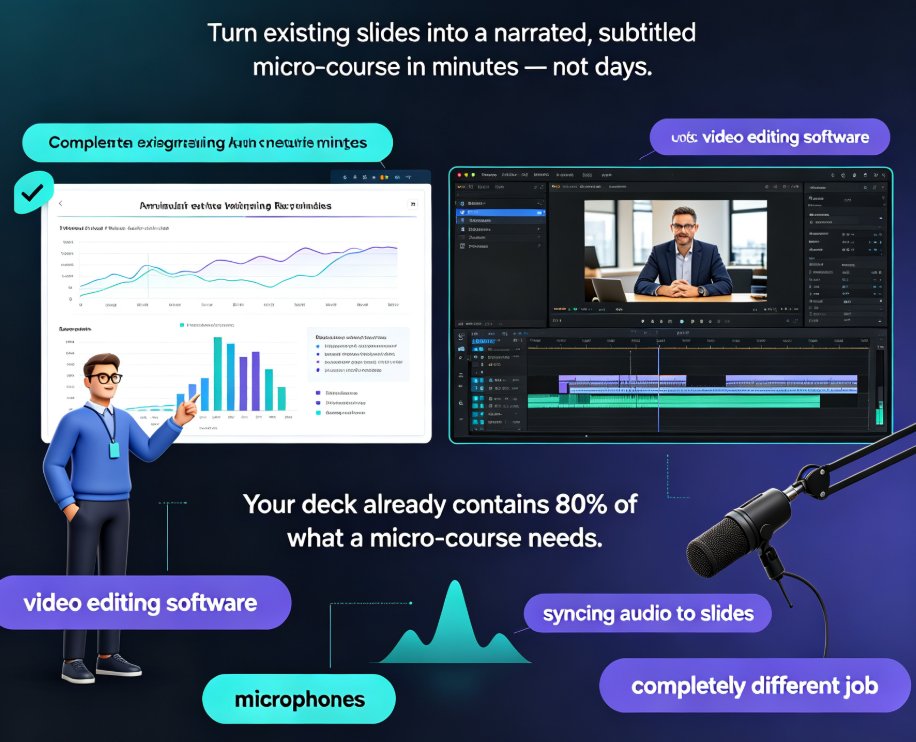
From Static Slides to Narrated Micro-Courses: The PPT-to-Video Revolution
Let's be honest: when was the last time you actually enjoyed sitting through a 60-slide deck? Not a presentation you were giving — one you were watching. For most of us, the answer is "never." Static slides were designed for live delivery: a person in the room, a pointer in hand, a narrative thread holding it all together. Strip away the presenter, and a deck becomes a wall of text with no pulse.
Here's the pain point: remote and hybrid work killed the live presentation as the default training format. Your team isn't in a conference room anymore. They're scattered across time zones, catching up at 9 p.m. with a coffee and a laptop. A static deck doesn't travel well. It doesn't explain itself. It doesn't hold attention.
The solution is obvious once you see it: give the deck a voice. When you convert a PowerPoint into a narrated video — with a real voiceover, subtitles, and visual pacing — you're not just repackaging content. You're turning a reference document into a learning experience. And the outcome? Learners actually finish the material. They retain more. They can rewatch the tricky parts.
That's the core of the PPT-to-video revolution: it's not about making prettier slides. It's about making slides that can teach without you in the room.
01 Why Static Slides Are Failing Modern Learners
Corporate training has a dirty secret: most of it is still delivered as slide decks that nobody reopens. L&D teams spend weeks building onboarding materials, compliance modules, and product training — then watch engagement metrics flatline. The shift to video isn't a nice-to-have; it's a response to a measurable problem.
What's driving the trend? Three forces, mostly:
- Asynchronous work. Teams operate across time zones. Video is the only format that scales without scheduling.
- Attention economics. Learners will watch a 6-minute video but skip a 20-slide deck. Video respects their time.
- AI removed the production barrier. Voiceover used to mean booking a studio or hiring a freelancer. Now it's a button.
The result is that AI-generated video decks are quietly replacing traditional corporate training modules — not because they're fancy, but because they're practical. You can read more about how this shift is playing out in our deep dive on AI-generated video decks replacing corporate training.
And here's the thing that surprises most people: you don't need to start from scratch. The decks you already have — the ones gathering digital dust — are the raw material. The question is just how fast you can convert them.
02 What Makes a Micro-Course Watchable (Not Just a Screen Recording)
Let's be clear about one thing: a screen recording of someone clicking through slides is not a micro-course. It's a screen recording. And it will get abandoned faster than you can say "next slide, please."
A watchable micro-course has four ingredients:
Narration that sounds human. Robotic text-to-speech is a dealbreaker. Learners will tolerate a lot, but a monotone robot voice makes them click away in seconds. Modern AI narration has gotten startlingly good — natural pacing, proper emphasis, even emotional inflection. If you're curious about the mechanics, our guide on adding narration to slides with Zendeck's PPT-to-video walks through the options.
Subtitles that match the audio. This isn't just an accessibility feature — though it is that too. Subtitles boost comprehension and let people watch on mute (which is how a shocking number of people consume training videos at their desks). The key is timing: subtitles need to sync with the narration, not lag behind it.
Pacing that matches the content. A 40-slide deck doesn't need to be a 40-slide video. Some slides deserve 10 seconds; others deserve 90. The best PPT-to-video tools let you control pacing per slide, so the video breathes.
A clear takeaway per section. Micro-courses work because they're modular. Each section should answer one question, teach one concept, or demonstrate one skill. If a section can't be summarized in a sentence, it's too dense.
03 The Old Way vs. The New Way: A Side-by-Side
Here's a comparison that might feel uncomfortably familiar if you've been through the traditional video production gauntlet:
| Traditional Video Production | PPT-to-Video with AI | |
|---|---|---|
| Time to produce a 10-minute course | 2–3 weeks (script, storyboard, studio, editing) | 30–60 minutes |
| Cost | $2,000–$10,000+ (studio, talent, editor) | Near zero (software subscription) |
| Skills required | Video editing, motion graphics, audio engineering | None beyond basic PowerPoint |
| Updating content | Re-record, re-edit, re-render | Edit the deck, re-export |
| Consistency with brand | Depends on the editor's discipline | Enforced by templates and smart layouts |
| Learner engagement | High, if done well | High, with narration + subtitles |
| Iteration speed | Slow | Fast — iterate daily if needed |
The gap isn't subtle. Traditional video production is a project; PPT-to-video is a workflow. One is a mountain to climb; the other is a conveyor belt you can run continuously.
This is why trainers and L&D teams are increasingly treating their existing decks as living assets rather than one-time artifacts. The AI presentation templates for trainers in Zendeck's library are designed with this exact workflow in mind — build the deck once, then push it to video whenever the content needs refreshing.
04 How Zendeck Turns Your Deck into a Course in Minutes
Here's where the rubber meets the road. You've got a deck. You want a video course. What actually happens?
The Zendeck workflow is deliberately boring — and I mean that as a compliment. Boring means predictable, reliable, and fast.
Step 1: Import your deck. Upload a Word outline, paste Markdown, or bring in an existing PowerPoint. Zendeck's AI parses the structure and generates a clean, visually consistent slide deck. If you're starting from a messy outline, the brain-dump-to-structured-presentation approach works well here.
Step 2: Add narration. This is where the magic happens. Zendeck's PPT-to-video feature generates a natural-sounding voiceover for each slide — no studio, no microphone, no acting skills required. You can also record your own voice if you prefer a personal touch. The voiceover and subtitles guide covers both routes in detail.
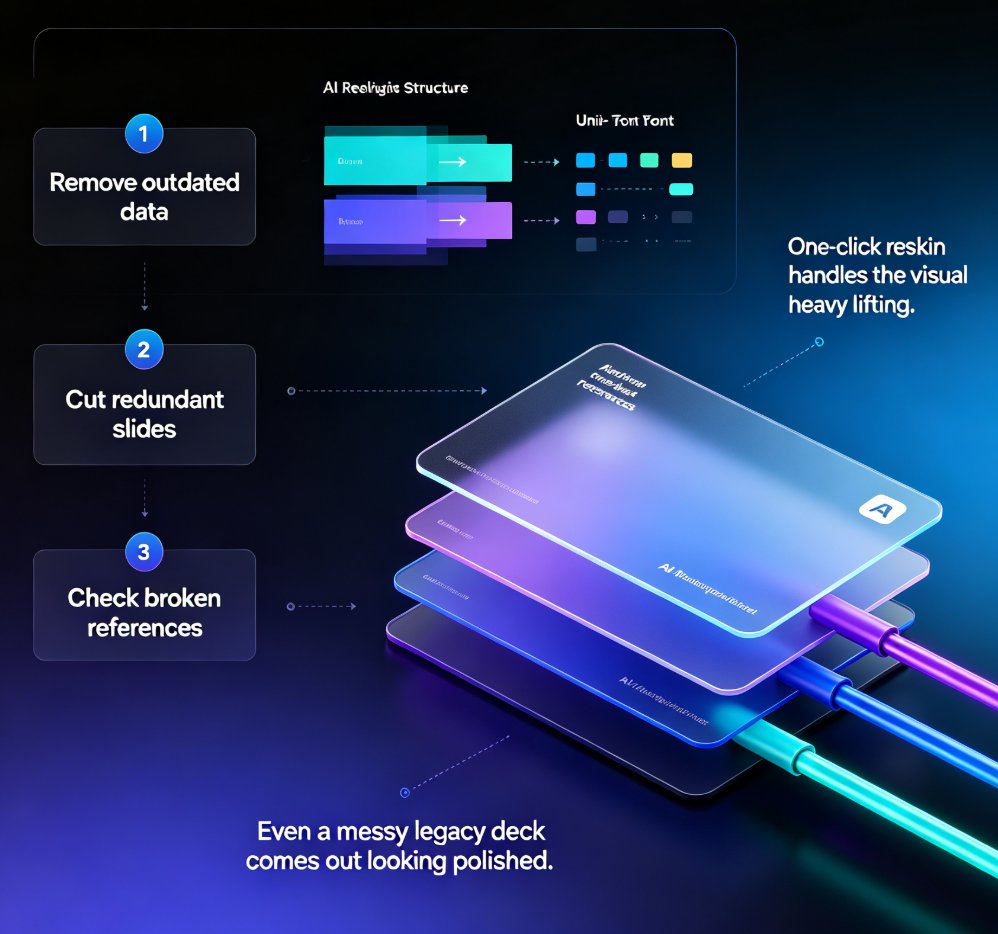
Step 3: Generate subtitles. Zendeck auto-syncs subtitles to the narration. No manual timing, no caption files to fiddle with. This alone saves hours per course.
Step 4: Export and share. The result is a polished, narrated micro-course that you can share as a link, embed in your LMS, or drop into a learning platform.
The whole process takes minutes, not weeks. And because the underlying deck stays editable, updating a course is as simple as changing a slide and re-exporting.
The real unlock here is that you stop treating video production as a special event. Once the barrier drops, you can convert every important deck you own — onboarding, product updates, compliance refreshers, sales training — into a library of micro-courses. That's the revolution: not one video, but a sustainable pipeline.
05 Best Practices for Converting Decks to Video
A few lessons from the trenches, since I've watched enough teams do this well (and badly):
Cut the slide count by a third. Slides that work in a live presentation often feel redundant in video. If two slides make the same point, merge them. Your video will feel tighter.
Write narration that's spoken, not read. If your slide says "Q3 revenue increased 18% year-over-year," your narration should say "We grew revenue by eighteen percent this quarter." Different register, same information.
Keep sections under 3 minutes. Micro-courses are called micro for a reason. If a section runs longer, split it. Learners can binge short sections; they abandon long ones.
Use subtitles even for internal audiences. I mentioned this earlier, but it bears repeating: a huge chunk of your audience will watch on mute. Subtitles aren't a nice-to-have; they're the difference between watched and skipped.
Reuse, don't recreate. Before you build a new course, check what decks you already have. The fastest way to produce a micro-course is to convert an existing deck — not to start from a blank canvas. This is where Zendeck's PPT-to-video category page has a bunch of practical walkthroughs.
FAQ
Q: What is PPT-to-video conversion? A: PPT-to-video conversion turns a PowerPoint deck into a narrated video by adding voiceover, subtitles, and timed transitions to each slide. The result is a watchable micro-course that can be shared, embedded, or uploaded to an LMS — without any video editing skills.
Q: How long does it take to convert a deck to a video with Zendeck? A: Most decks convert in 30 to 60 minutes, depending on length and how much narration you customize. The automated pipeline handles voiceover generation, subtitle syncing, and export, so the manual work is minimal.
Q: Can I use my own voiceover, or does Zendeck generate one? A: Both. Zendeck can generate a natural-sounding AI voiceover automatically, or you can record your own narration and sync it to the slides. The choice depends on whether you want a personal touch or a fully automated workflow.
Q: What's the difference between a screen recording and a micro-course? A: A screen recording captures someone clicking through slides in real time, often with awkward pauses and off-screen noises. A micro-course is purpose-built for viewing: clean narration, synced subtitles, deliberate pacing, and a clear takeaway per section.
Q: Do I need video editing software to make a micro-course? A: No. PPT-to-video tools like Zendeck handle the entire pipeline — narration, subtitles, transitions, and export. You never touch a timeline or a video editor.