Turn Boring Slides into Narrated Videos with Zendeck AI Voiceover
You've built a deck that took hours — maybe days. It's packed with insights, data, and carefully chosen visuals. But here's the uncomfortable truth: nobody watches a static PPT on their own. It sits in a shared drive, gets opened once, and dies.
The fix? Turn it into a narrated video. And for most of us, that used to mean hiring a voice actor, renting a studio, or spending a weekend learning video editing. Not anymore.
01. Why Static Slides Fail at Training and Communication
Let's be real: a slide deck is a presentation aid, not a deliverable. When you're in the room, you bring it to life. When you're not, it's just a PDF with bullet points.
The core problem is simple: static slides require a presenter, and presenters don't scale.
Think about your last training session. You probably delivered it live, twice, to two different teams. Then a third team asked for the materials, and you sent them the deck. They skimmed it. They missed the nuance. They asked questions you'd already answered.
Narrated video changes that equation. When your slides have a voice — your voice, or a natural AI voice — they become self-contained. They can be watched on demand, at any pace, by any number of people. That's why the shift from static decks to narrated micro-courses is one of the biggest trends in workplace learning right now.
02. The Traditional Cost of Video Production (And Why It Hurts)
If narrated video is so obviously better, why isn't everyone doing it? Because traditional video production is expensive and skill-heavy.
Here's what a typical narrated training video used to require:
- A microphone that doesn't sound like a tin can (studio-grade mics start at a few hundred dollars)
- Recording software and audio editing tools
- Video editing software with a learning curve measured in weeks
- Voice talent — either your own time doing retake after retake, or a professional voice actor at $100–$300 per finished minute
- Time — lots of it. Recording a 10-minute narration can take 2–3 hours of retakes. Editing it takes another few hours.
For a small training team or a solo educator, that's a non-starter. The result? Most people just... don't make videos. They keep sending static decks and hoping for the best.
And even when a team does invest in video production, the maintenance cost is brutal. Every content update means re-recording, re-editing, and re-rendering. A single policy change can invalidate a video that cost $2,000 to produce. That's why so many corporate training libraries are full of outdated videos that nobody updates.
03. What Zendeck's PPT-to-Video Actually Does
Zendeck's PPT-to-Video feature attacks this problem from a completely different angle. Instead of asking you to learn video production, it does the heavy lifting for you.
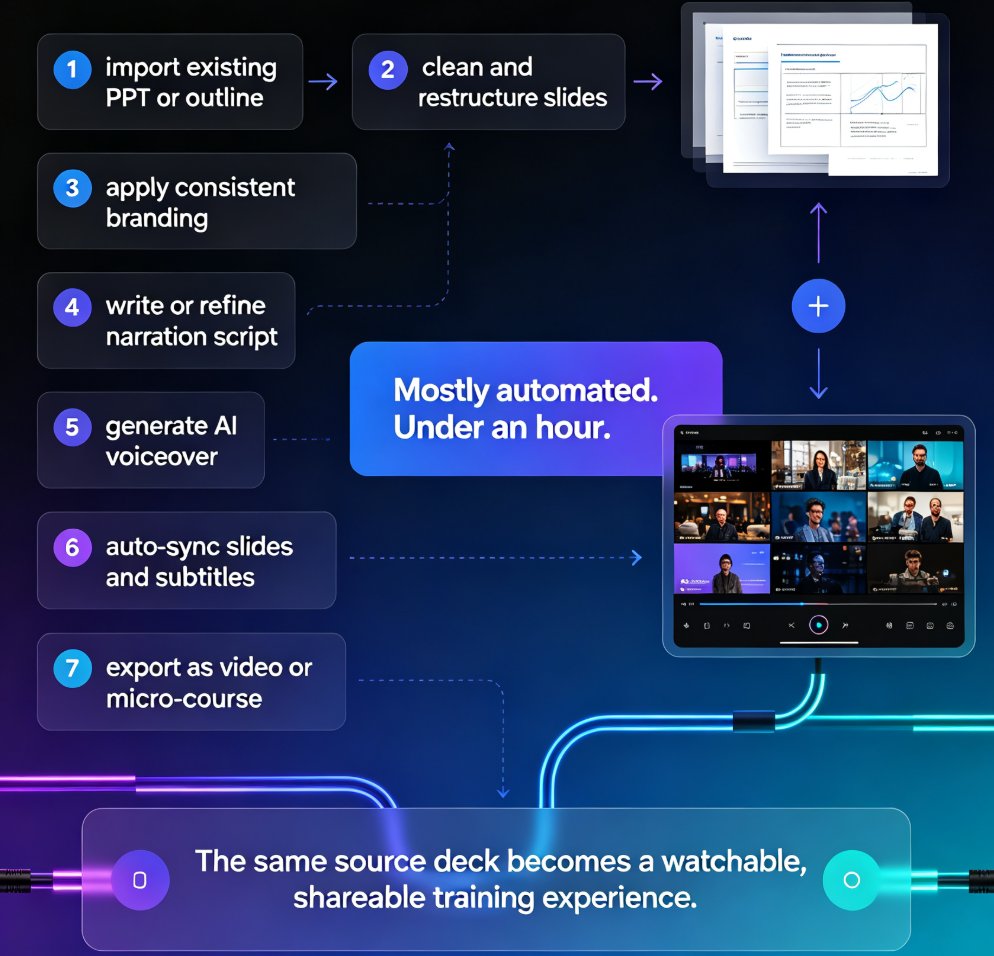
Here's the workflow in plain English:
- You upload a Word outline or paste Markdown/TXT into Zendeck, and it generates a structured, visually consistent deck.
- You review and polish the slides using Zendeck's smart layout tools and template library.
- You hit "convert to video," and Zendeck turns each slide into a scene.
- You add AI voiceover — either by typing a script or letting Zendeck generate narration from your slide content.
- Zendeck renders the video with your narration, transitions, and timing synced to the slides.
The result is a narrated micro-course that looks like it took a production team a week to make — but it took you an afternoon.
No video editing timeline. No audio cleanup. No color grading. Just your content, with a voice. If you want the full step-by-step breakdown, this guide on converting PowerPoint to an AI-narrated video walks through the exact process.
04. The AI Voiceover: The Part That Feels Like Magic
Let's talk about the voiceover specifically, because it's the part that surprises people most.
AI voice synthesis has come a long way. The robotic, monotone voices of a few years ago are gone. Modern AI voices — including the ones Zendeck uses — have natural pacing, appropriate emphasis, and even emotional nuance. You can pick a voice that fits your audience: warm and conversational for training, confident and energetic for sales decks, calm and authoritative for compliance material.
You have two options:
- Type a script and let the AI voice read it. This gives you full control over the wording.
- Let Zendeck generate the narration from your slide content. This is faster, and it works surprisingly well if your slides have clear, concise text.
Either way, you can preview the voice, adjust the pacing, and regenerate sections until it sounds right. You don't need a recording studio. You don't need to clear your schedule for retakes. You just click, listen, and tweak. For more detail on the narration workflow, check out this guide on adding narration to your slides with Zendeck's PPT-to-Video.
05. Traditional Production vs. Zendeck: The Honest Comparison
Let's put the numbers side by side. These are rough estimates based on typical small-team projects, but they reflect the real-world difference.
| Factor | Traditional Production | Zendeck PPT-to-Video |
|---|---|---|
| Equipment needed | Studio mic, audio interface, video editing software | None — just a browser |
| Voice talent | Professional actor or hours of self-recording | Built-in AI voice, adjustable |
| Editing skills | Required (timeline, cuts, audio cleanup) | Not required |
| Time for a 10-min video | 2–3 days (recording + editing + revisions) | 1–2 hours (script + review + render) |
| Cost per video | $500–$3,000 (voice actor + editor time) | Fraction of that — mostly your time |
| Revisions | Expensive and slow (re-record, re-edit) | Instant — regenerate the voiceover |
| Consistency across videos | Depends on the day, the mic, the actor | Consistent every time |
The gap isn't small. It's the difference between "we can't afford video" and "we can make video for every course we build."
06. How to Turn Your Slides into a Narrated Video in 4 Steps
Here's the actual workflow, step by step, so you know what to expect.
Step 1: Build or import your deck. If you have an existing PowerPoint, you can work from it. If you're starting fresh, paste a Word outline or Markdown into Zendeck and let the AI generate a structured deck. Don't worry about design — Zendeck's smart layout will handle fonts, colors, and spacing automatically.
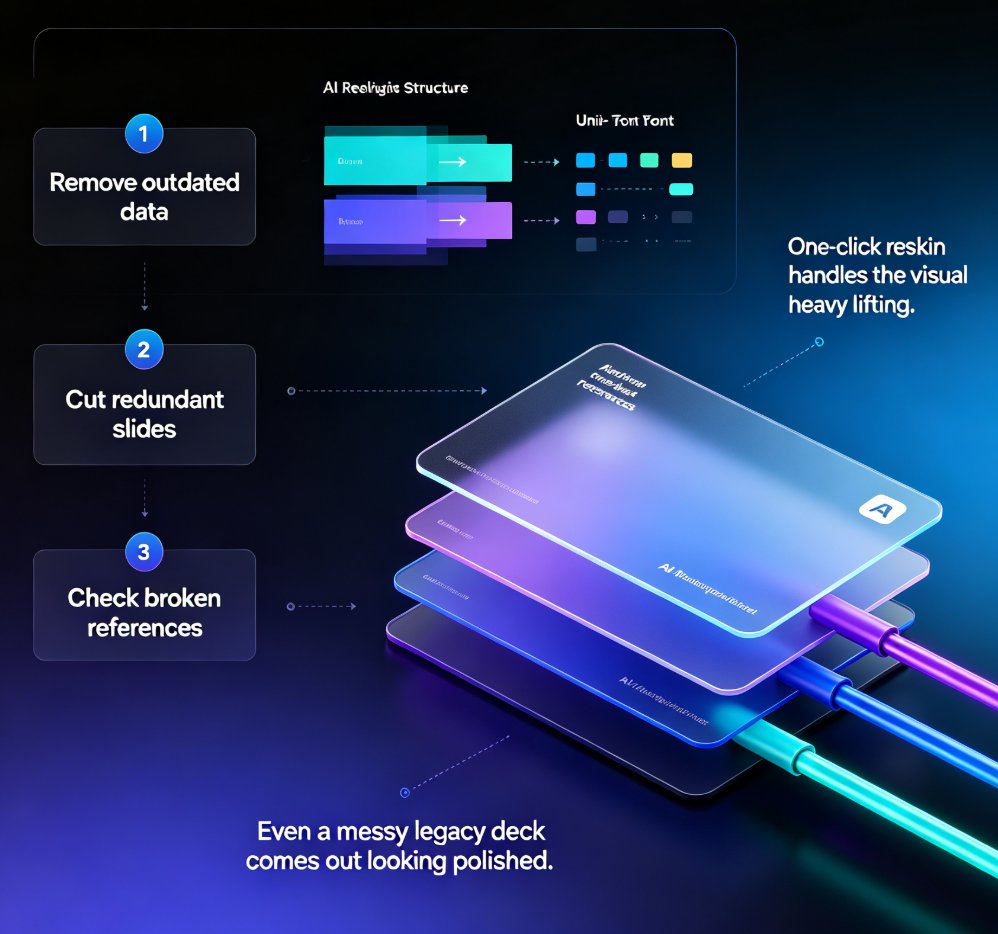
Step 2: Review and polish. This is where you add your expertise. Adjust the slide order, tighten the copy, swap in visuals from the asset library. If you have a brand kit set up, Zendeck will keep everything on-brand automatically.
Step 3: Add narration. Choose your AI voice, then either type a script or let Zendeck generate one from your slides. Listen to a preview. Adjust pacing if needed. This is also where you can add subtitles — which is a nice accessibility win, by the way. If you want to go deeper on voiceover and subtitles, this guide covers both.
Step 4: Convert and share. Hit render. Zendeck produces a narrated video you can share via link, embed in a learning management system, or download for offline use.
That's it. Four steps. No timeline editing. No audio cleanup. No "let me just re-record this one section one more time."
07. Who Should Use This (And Who Shouldn't)
This tool is a great fit for:
- Educators building micro-courses for students who learn at different paces
- Corporate trainers who need to deliver the same compliance or onboarding content to multiple teams
- HR teams creating policy explainers that people will actually watch
- Content operators who want to repurpose blog posts or reports into video format
- Consultants who want to send a narrated case study instead of a static PDF
If you're in compliance training, for example, you can turn a dry manual into an engaging video course in a single afternoon — a task that would traditionally take weeks and a production budget.
Who shouldn't use it? If you need a cinematic, multi-camera production with b-roll, live footage, and complex motion graphics — that's still a job for a professional video team. Zendeck isn't trying to replace Hollywood. It's replacing the "I guess we just won't make a video" decision.
08. The Bottom Line
The barrier to video creation isn't talent — it's tooling. Remove the tooling barrier, and anyone can produce narrated content.
Zendeck's PPT-to-Video with AI voiceover does exactly that. It takes the expensive, skill-heavy parts of video production — recording, editing, voice talent — and compresses them into a workflow that takes an afternoon.
If you've been sitting on a deck that deserves a wider audience, the only thing standing between you and a narrated video is the decision to make one. The tools are already there.
FAQ
Q: Can Zendeck add AI voiceover to my existing PowerPoint slides? A: Yes. You can import an existing PowerPoint into Zendeck, then use the PPT-to-Video feature to add AI narration. Zendeck converts each slide into a scene and syncs the voiceover to your content.
Q: Do I need video editing skills to use Zendeck's PPT-to-Video? A: No. That's the whole point. Zendeck handles the rendering, timing, and voiceover synchronization automatically. You review the slides, add or generate narration, and Zendeck produces the final video.
Q: Can I edit the narration after Zendeck generates it? A: Yes. You can preview the AI voice, adjust pacing, regenerate specific sections, or rewrite the script entirely. You're not locked into the first take.
Q: What kinds of videos can I create with Zendeck's PPT-to-Video? A: Micro-courses, training videos, compliance explainers, product walkthroughs, conference talk recordings, and any other narrated slide-based content. It's especially useful for repurposing existing decks into on-demand video.
Q: How long does it take to convert a deck into a narrated video? A: For a typical 10–15 slide deck, most users finish the whole process — from slide review to rendered video — in one to two hours. The rendering itself takes just a few minutes.