WCAG Courseware Design: How AI Layout Tools Make Slides Accessible for Every Learner
WCAG Courseware Design: How AI Layout Tools Make Slides Accessible for Every Learner
Let's be real: most courseware today still excludes a significant chunk of learners. Students with low vision, color blindness, ADHD, or reading disabilities often struggle to parse slides that are cluttered, low-contrast, or inconsistently formatted. And here's the kicker—most AI presentation tools, including big names like Gamma and Canva, don't prioritize WCAG accessibility. They'll generate pretty slides, but they won't guarantee that those slides are readable by everyone.
That's where Zendeck steps in. With its smart layout and contrast tools, Zendeck helps educators create courseware that meets WCAG standards without needing a design degree or hours of manual tweaking. In this guide, I'll walk you through what WCAG actually requires, why it matters for your students, and how Zendeck's features make compliance painless.
01 The Accessibility Gap in AI Presentation Tools
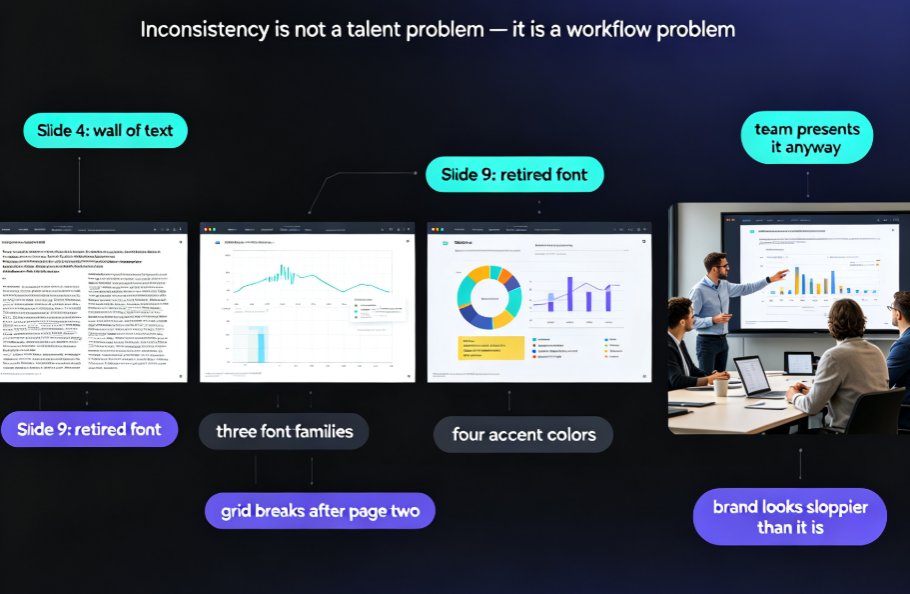
If you've ever used Gamma or Canva to generate a deck, you've probably noticed: they focus on aesthetics, not accessibility. The result is courseware that looks great but fails learners with visual or cognitive impairments. For example, low-contrast text on busy backgrounds, inconsistent font sizes, and missing alt text are common issues. These aren't just minor annoyances—they create real barriers.
A 2023 study from the National Center for Education Statistics found that 19% of undergraduate students report having a disability. That's nearly one in five. If your courseware isn't accessible, you're potentially excluding a huge portion of your audience. And it's not just about compliance—it's about good teaching.
Zendeck takes a different approach. Instead of leaving accessibility as an afterthought, it builds it into the design engine. Zendeck's smart layout enforces consistent typography, spacing, and color contrast from the start. This means you don't have to retroactively fix your slides—they're born accessible.
02 What WCAG Actually Requires for Courseware
WCAG (Web Content Accessibility Guidelines) is built on four principles: Perceivable, Operable, Understandable, and Robust. For courseware, the most critical requirements are:
- Contrast: Text must have sufficient contrast against its background. WCAG AA requires 4.5:1 for normal text and 3:1 for large text. AAA is stricter: 7:1 and 4.5:1.
- Structure: Use proper headings, lists, and logical reading order so screen readers can navigate.
- Consistency: Keep layouts, fonts, and colors consistent to reduce cognitive load.
- Text alternatives: Provide alt text for images and charts.
These aren't just checkboxes—they directly impact how easily students can absorb your content. For learners with ADHD or autism, inconsistent layouts and dense text blocks make it harder to focus. Plain language and consistent design aren't just nice-to-haves; they're essential for inclusive learning.
03 How Zendeck's Smart Layout Enforces WCAG-Friendly Design
Zendeck's smart layout is like having an accessibility expert sitting next to you. When you paste your outline or upload a Word doc, Zendeck's AI analyzes the content and applies a layout that meets WCAG standards. Here's what it does automatically:
- Contrast checking: Zendeck evaluates every text-background combination and flags any that fall below WCAG AA. It even suggests accessible color alternatives.
- Consistent typography: Font sizes, line heights, and spacing are normalized across all slides, so nothing looks chaotic.
- Logical heading structure: The AI assigns proper heading levels (H1, H2, etc.) to your content, making it easy for screen readers to parse.
- Brand kit enforcement: If you've set up a brand kit, Zendeck ensures your colors and fonts are used consistently—and that they meet contrast requirements.
This isn't just about compliance; it's about creating a calm, focused learning environment. When students don't have to fight to read your slides, they can actually learn from them.
04 Practical Steps to Create Accessible Courseware with Zendeck
Ready to make your courseware accessible? Here's a step-by-step process using Zendeck:
- Start with a WCAG-friendly template. Zendeck's template library includes designs that are pre-checked for contrast and readability. Pick one that matches your content style.
- Set up your brand kit. Even if you're not a brand-conscious institution, a brand kit ensures consistent colors and fonts. Zendeck will automatically adjust any off-brand colors to maintain contrast.
- Paste your outline. Drop in your Markdown, Word outline, or even a brain dump. Zendeck's AI will structure it into slides with proper headings and spacing.
- Review contrast warnings. Zendeck flags any low-contrast elements. You can either accept the suggested fix or manually adjust the color.
- Add alt text to images. When you insert images or charts, Zendeck prompts you to add descriptive alt text. This is crucial for screen reader users.
- Test with keyboard navigation. Before sharing, tab through your slides to ensure the reading order makes sense. Zendeck's logical structure usually handles this, but it's worth a quick check.
These steps take less than 10 minutes, and they make a world of difference for your students. You don't need to be a design expert or a WCAG specialist—Zendeck does the heavy lifting.
05 Contrast Ratios: The Numbers You Need to Know
Let's get into the specifics. Contrast ratio is a measure of the difference between text and background colors. The WCAG guidelines set minimum ratios based on text size and weight. Here's a quick visual:
To put it simply: the higher the ratio, the easier the text is to read. For most courseware, aiming for WCAG AA is a solid baseline. If you want to go the extra mile for students with severe visual impairments, target AAA.
Here's a quick reference table:
| Text Type | WCAG AA | WCAG AAA |
|---|---|---|
| Normal text (<18pt) | 4.5:1 | 7:1 |
| Large text (≥18pt) | 3:1 | 4.5:1 |
| UI components | 3:1 | 4.5:1 |
Zendeck's contrast checker automatically tells you which level you're meeting, so you don't have to memorize these numbers.
06 Beyond Contrast: Keyboard Navigation and Plain Language
Contrast is just one piece of the puzzle. Accessible courseware also needs to be navigable by keyboard and easy to understand. Here are two more things to keep in mind:
- Keyboard navigation: Students with motor impairments often use a keyboard instead of a mouse. Ensure your slides have a logical tab order and that all interactive elements are reachable. Zendeck's structured layout helps with this, but you should always test by pressing Tab through your deck.
- Plain language: Avoid jargon and complex sentence structures. Short paragraphs and bullet points reduce cognitive load, especially for learners with ADHD or dyslexia. Zendeck's AI can even help simplify your text if you ask it to.
These might seem like small details, but they add up to a much more inclusive learning experience. When you design for accessibility, you improve the experience for everyone—not just students with disabilities.
07 The Outcome: Inclusive Learning for Everyone
By using Zendeck to create WCAG-compliant courseware, you're not just checking a box. You're making a real difference in your students' lives. They can focus on the material instead of struggling to read it. They can participate fully, without feeling left out. And you can rest easy knowing your content meets legal and ethical standards.
Zendeck's smart layout and contrast tools turn accessibility from a chore into a default. You don't need to be a WCAG expert or a designer. Just paste your content, and Zendeck handles the rest.
So, what are you waiting for? Try Zendeck today and see how easy it is to create courseware that truly includes every learner.
FAQ
What is WCAG and why does it matter for courseware?
WCAG (Web Content Accessibility Guidelines) is a set of international standards that make digital content accessible to people with disabilities. For courseware, it ensures that text, images, and interactive elements are perceivable, operable, understandable, and robust. Following WCAG helps you reach all learners, including those with visual impairments, ADHD, or reading disabilities, and is increasingly required by educational institutions.
How does Zendeck's smart layout help with WCAG compliance?
Zendeck's smart layout automatically applies consistent fonts, colors, spacing, and contrast ratios across your slides. It uses your brand kit to enforce accessible color combinations and ensures that text meets WCAG AA or AAA standards. This removes the guesswork and manual tweaking, letting you focus on content while Zendeck handles accessibility.
What contrast ratio should I use for text in slides?
For normal text (under 18pt or 14pt bold), WCAG AA requires a contrast ratio of at least 4.5:1, and AAA requires 7:1. For large text (over 18pt or 14pt bold), AA requires 3:1 and AAA requires 4.5:1. Zendeck's contrast checker helps you verify these ratios automatically.
Can I manually edit slides after Zendeck generates them?
Yes. Zendeck allows full manual editing after AI generation. You can adjust text, colors, and layout while still benefiting from the initial accessible structure. This flexibility ensures you can fine-tune content without breaking WCAG compliance.
Does Zendeck support keyboard navigation for accessible courseware?
Zendeck generates slides with logical heading structures and proper tab order, which supports keyboard navigation. When you export or present, learners using screen readers or keyboard-only navigation can move through content smoothly. We recommend testing with your keyboard to ensure a logical flow.
Want to dive deeper into accessible AI presentations? Check out our guide on WCAG compliance trends or learn how to create accessible AI presentations with Zendeck. For more on template selection, see how Zendeck picks the right look for you.