One-Click Reskinning: How Zendeck Makes PPT Branding Effortless
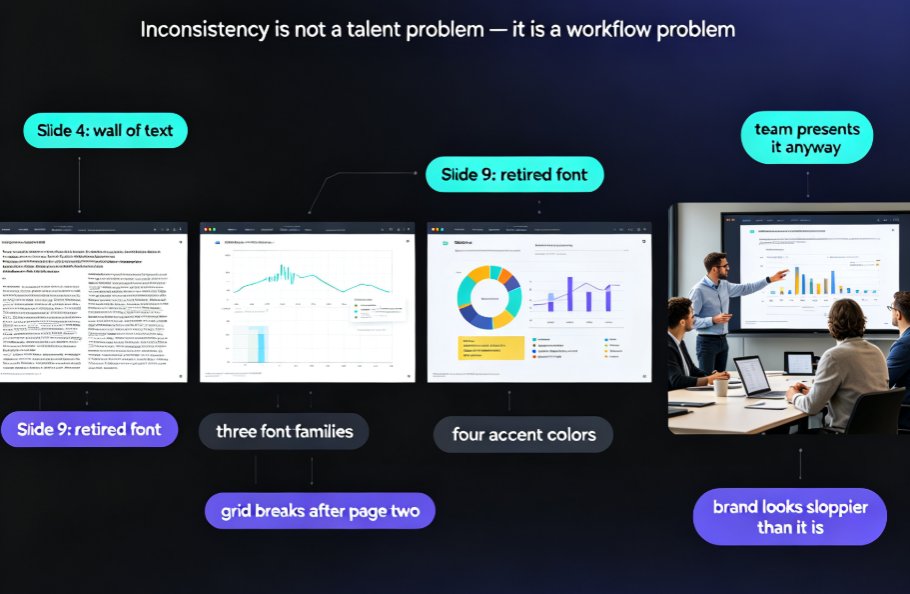
Every company has that one deck. The one that was stitched together by three different people over three weeks, using three different templates, with no shared color palette and a font situation that can only be described as "aggressive." Sound familiar?
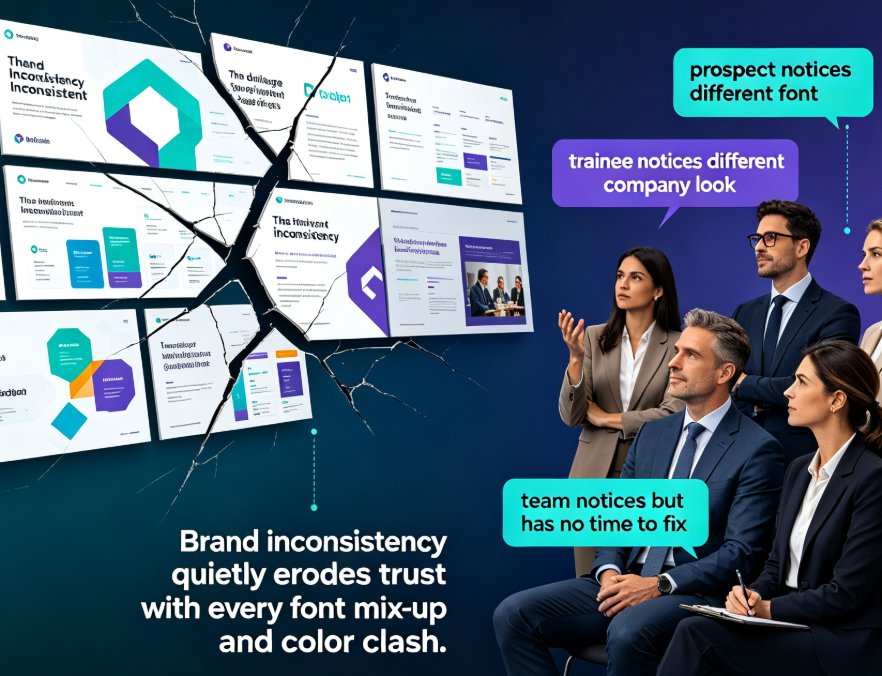
If you're a corporate trainer or HR professional, you've probably inherited a dozen of these. The content is fine — actually good — but the visuals scream "nothing about this is consistent." And consistency isn't vanity. When every deck speaks the same visual language, your audience spends less time decoding the design and more time absorbing the content.
Here's the fix, and it doesn't involve rebuilding slides one by one: the one-click reskin in Zendeck can bring an entire deck back on brand in roughly a minute. Let's talk about why that matters and exactly how it works.
01 — Why Team Decks Keep Going Off-Brand
Let's be honest about the root cause: it's not laziness, it's fragmentation.
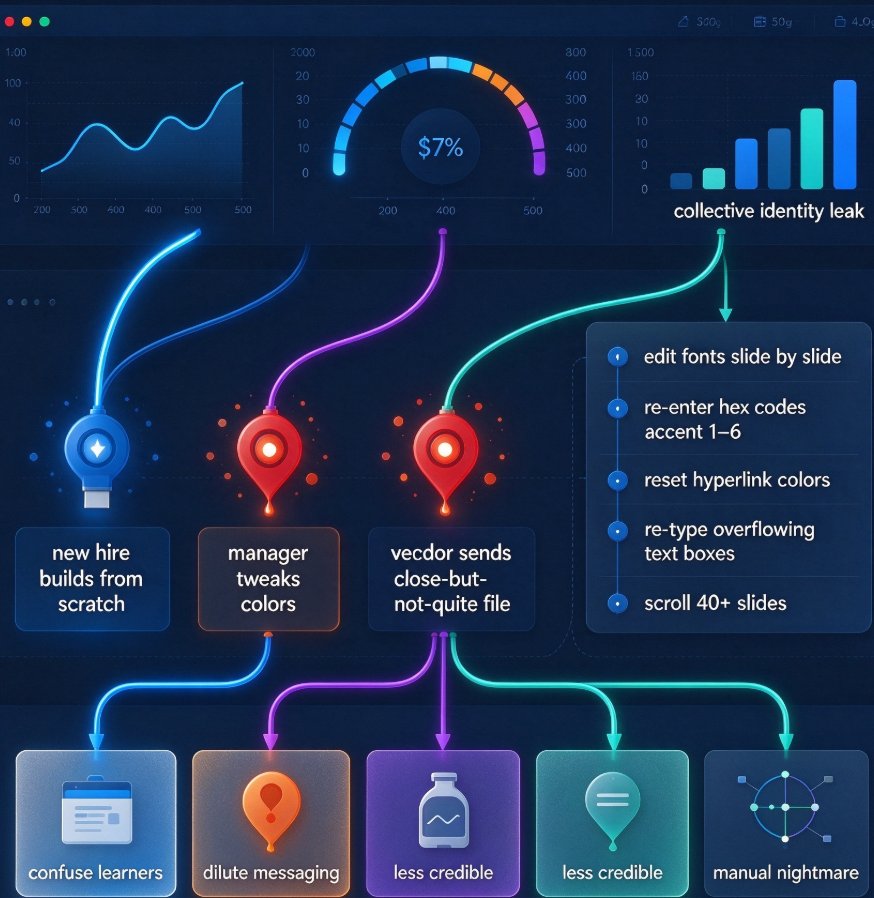
A new hire builds a training deck from scratch. A regional manager takes an old template and "just tweaks" the colors. A vendor sends over a slide file that's close but not quite right. Each decision seems reasonable at the time — but collectively, they add up to a brand that's slowly leaking its identity.
For trainers and HR teams, this is more than an aesthetic annoyance. Off-brand decks confuse learners, dilute your corporate messaging, and make your training materials look less credible. And fixing the problem manually is a nightmare:
- Editing fonts one slide at a time
- Re-entering brand hex codes across every color slot (accent 1 through 6, plus hyperlink and followed hyperlink)
- Re-typing text boxes when layout overflows
- Scrolling through 40+ slides to double-check the result
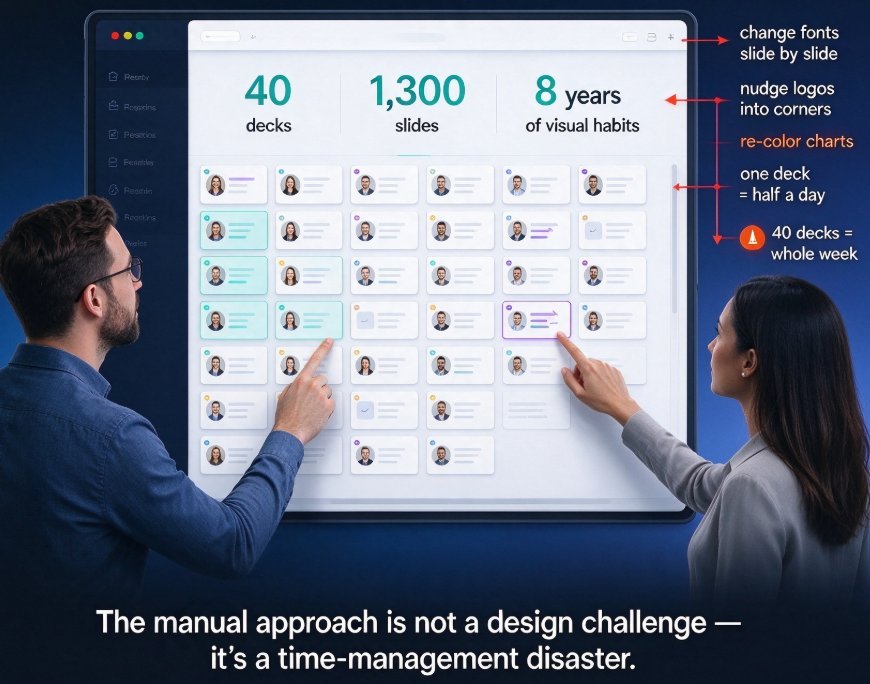
That's a 2–3 hour chore for a single deck — and most teams have dozens of them. No wonder most people just leave it broken and hope nobody notices.
02 — What "One-Click Reskin" Actually Means
Before we go further, let's make sure we're using the same language. A one-click reskin (often called a smart-layout restyle) is an AI-powered feature that takes the visual formatting of an entire deck — fonts, colors, layouts, spacing — and reapplies a unified style across every slide in a single action.
The catch: it has to be smart. A naive replace-the-font approach creates chaos. A real reskin understands layout rules: it adjusts text sizes, repositions elements, re-flows content so nothing overlaps or gets cut off, and does it consistently across all slides. That's exactly what Zendeck's smart-layout engine does.
Here's the workflow. You set up a brand kit with your official fonts and color palette, and the engine walks through every slide, unifies the look, and fixes the layout as it goes. No per-slide surgery required.
The result is a deck that looks like it was designed by one person, in one session, from a single template — even though it was actually made by six people, over six weeks, in six different ways.
To give you a sense of the scale, here's what manual restyling costs versus the one-click approach on a typical 40-slide deck:
03 — Manual Rebranding vs One-Click Reskin: The Real Math
Let's put those numbers in a table, because the comparison deserves to be that direct:
| Task | Manual process | Zendeck one-click reskin |
|---|---|---|
| Fonts | Update each text box or master — ~30–45 min | Applied globally in seconds |
| Brand colors | Re-match hex codes for accent 1–6, hyperlink, followed hyperlink — ~30–60 min | Brand kit auto-applies palette |
| Layout & spacing | Re-position text boxes, fix overflows slide by slide — ~60–90 min | Smart layout auto-reflows |
| Consistency check | Open the deck, scroll 40 slides, make notes — ~30–60 min | Instant and uniform across all slides |
| Total time | 2–3+ hours per deck | About 1 minute |
Here's what the table doesn't show: the manual process is also error-prone. Miss one color slot, misalign one text box, skip one slide during the check — and you're back to square one. An AI-driven reskin doesn't get tired, doesn't miss slides, and applies the same rules everywhere.
04 — How to Reskin a Deck in Zendeck: A 60-Second Walkthrough
Convinced yet? Good. Here's the workflow, step by step.
Step 1: Import or open your deck. If you have an existing PowerPoint file or a Word outline, drop it into Zendeck. It handles the conversion and lays your content out into slides automatically.
Step 2: Set your brand kit (once). The first time you use Zendeck, add your official fonts and brand colors to your brand kit. This is a one-time setup — after that, every deck can be reskinned against the same kit, so consistency is baked in from the start. For the full rundown, check out how to create a custom brand kit in Zendeck for consistent decks.
Step 3: Pick your target style and hit reskin. If you don't have a brand kit yet, you can choose a template from Zendeck's library. Then, with one click, the smart-layout engine applies the style across every slide — adjusting text sizes, spacing, and alignment along the way.
Step 4: Review and refine. Reskinning is lossless — your content stays untouched. You can still adjust individual slides afterward, but honestly, most people find there's very little left to change after a one-click reskin.
That's it. A deck that used to eat hours of your week now takes about a minute, with no designer in the loop.
05 — Why Trainers and HR Teams Should Care
At this point you might be thinking, "Sure, it looks nice — but is it worth changing my workflow?" Fair question. Here's why it genuinely matters.
Credibility. When your training materials look consistent and professional, your audience trusts them more. A deck that looks thrown together invites skepticism about the content inside it.
Time, at scale. If your team produces a training deck every week, saving 2–3 hours per deck compounds quickly. That's dozens of hours per quarter — freed up for actual training work instead of formatting.
Onboarding speed. With a shared brand kit, new team members can produce on-brand decks from day one without memorizing a style guide. The constraint lives in the tool, not in a PDF nobody reads.
Consistency across channels. When your HR onboarding deck, compliance training, and leadership workshop all share the same visual system, your internal brand starts to feel like an actual system — not a collection of one-off files.
This isn't just a nice-to-have feature. The whole industry is shifting toward AI-governed brand consistency, where the tool itself enforces the rules instead of relying on everyone following a style guide. One-click reskinning is exactly that idea in action.
06 — Three Mistakes That Kill Brand Consistency (and How to Avoid Them)
Even with a great tool, people find ways to shoot themselves in the foot. Here's what I've seen in the wild.
Mistake 1: Treating "brand colors" as three hex codes. Your brand is more than a logo color — it's the full palette, including accent colors, hyperlink colors, and followed-hyperlink colors. Fixing only the two main colors leaves a deck half-rebranded. Set up the complete palette in your brand kit once, and let the reskin handle the rest.
Mistake 2: Mixing manual edits with reskinned slides. If you fix a few slides by hand and then reskin the whole deck, the reskin will still apply — but your manual edits might get overwritten. Pick a process: reskin first, then refine individual slides afterward. That order keeps things predictable.
Mistake 3: Skipping the layout pass. Changing fonts and colors is the obvious part, but layout is what makes a deck feel professional. If your new font is even slightly wider or your logo placement shifts, text can overflow and images can collide. A good reskin handles layout automatically — which is exactly why you want a real smart-layout engine rather than a find-and-replace for fonts. If you want to dive into how that works, read up on 5 ways Zendeck's smart layout cuts presentation design time.
One more honest note: if your team is already comfortable with tools like Gamma or Canva, you'll recognize the reskin concept. But Zendeck is built specifically for courseware and training decks, which is why it connects reskinning to the rest of your pipeline — like turning a reskinned deck into a narrated micro-course or adding polls and quizzes to keep learners engaged. Reskinning is one step in the workflow, not the entire job.
FAQ
What exactly is one-click reskinning in Zendeck?
It's a smart-layout feature that automatically reapplies your brand's fonts, colors, and layout system to every slide in a deck at once — replacing the manual process of editing each slide or template individually. One click, entire deck, unified look.
How long does reskinning take with Zendeck versus manually?
Restyling a 20–40 slide deck by hand typically takes 2–3 hours (fonts, colors, layout fixes, quality check). With Zendeck's one-click reskin, the same work takes about a minute, and you can still tweak individual slides afterward if needed.
Does reskinning affect my slide content?
No. Reskinning only changes visual formatting — fonts, colors, spacing, and layout structure. Your text, charts, images, and data stay exactly where they are, so nothing gets lost in the process.
Can Zendeck apply my company's exact brand colors and fonts?
Yes. You can set up a brand kit with your official color palette and typography, then apply that kit to any deck. This keeps every presentation aligned with your brand guidelines without manual re-entry.
Will one-click reskin work on a deck I imported from Word or PowerPoint?
Yes. Zendeck can import Word outlines and existing PPT files, then run the reskin to unify the visual style. That's a common workflow for teams that receive content from different sources and need to bring it on brand fast.