One-Click Reskin: Zendeck Smart Layout Unifies Fonts and Colors
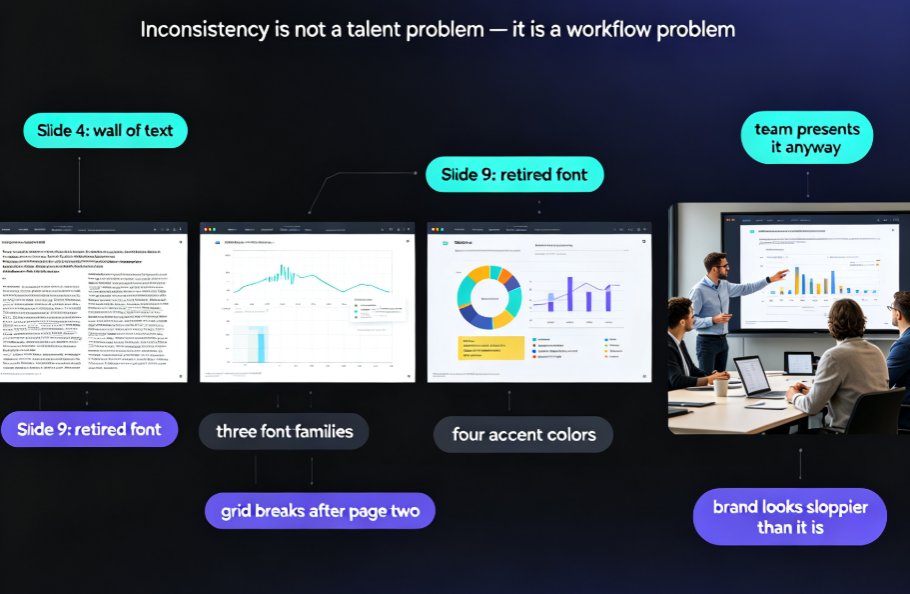
You know that feeling. You open a deck from three months ago and every slide looks like it was designed by a different person. Slide 4 is a wall of text. Slide 7 has a chart from 2019. Slide 9 uses a font your company quietly retired.
You've been meaning to fix it. But "fixing" means opening PowerPoint, hunting through master slides, adjusting every title bar, checking that headers align on each page… and honestly, who has three hours for that? So the deck stays ugly. Your team presents it anyway. And your brand looks sloppier than it is.
Zendeck's one-click reskin exists for exactly this moment. It automatically unifies fonts, colors, and layout across your entire deck—no design skill required. Here's how it works and why it matters more than you think.
01 / Why Decks Get Messy (And Why Manual Fixing Is a Trap)
Let's be real: inconsistency isn't a talent problem, it's a workflow problem.
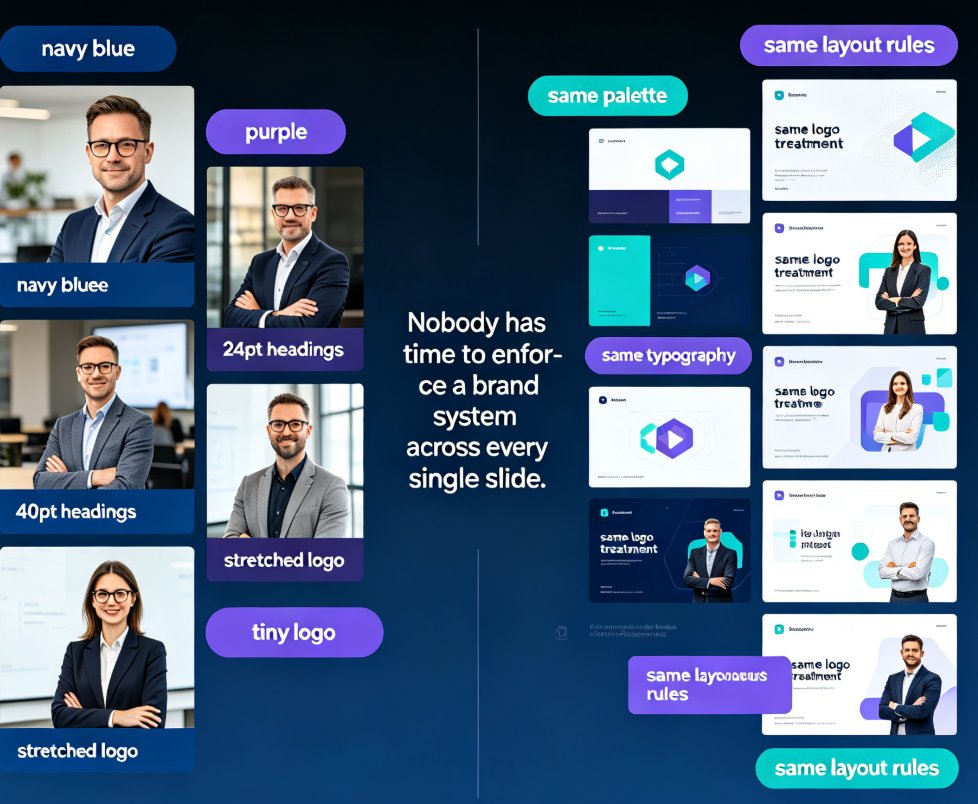
Most corporate decks evolve in chaotic ways. One person builds the skeleton in PowerPoint. A colleague drops in a screenshot from a vendor. Someone else pastes a chart from an old report. Before long, you have three font families, four accent colors, and a grid that hasn't been enforced since page two.
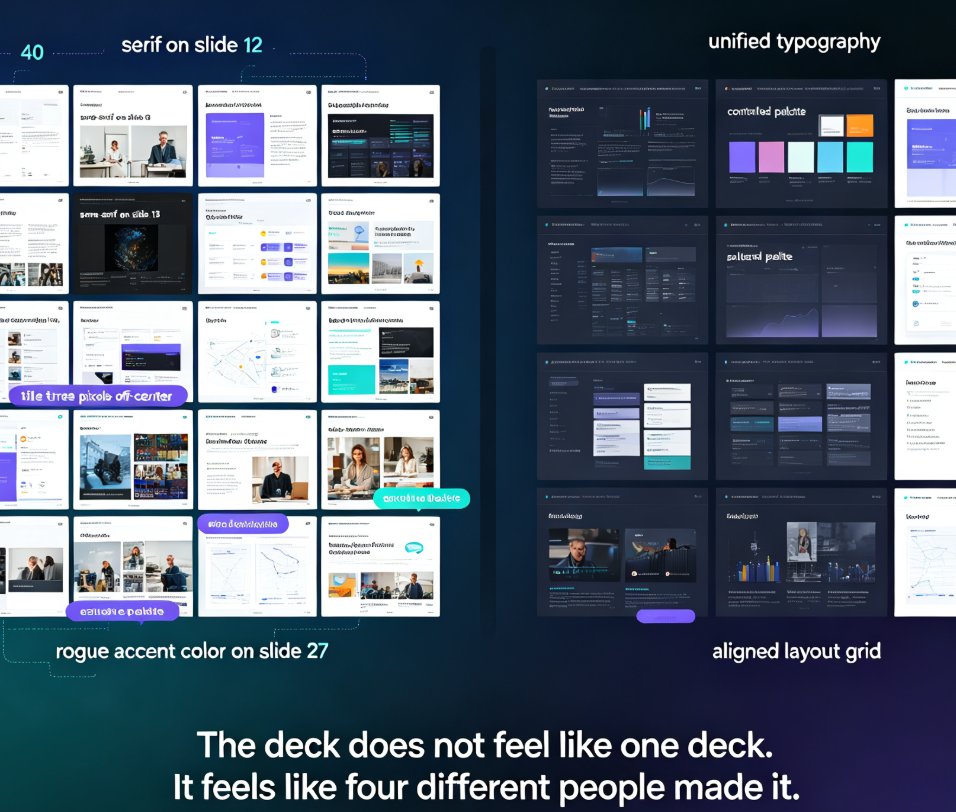
Manually unifying a 40-slide deck takes roughly 2–4 hours, and most people give up by slide 10. That's not laziness—it's rational. The repetitive, low-cognitive work of aligning title bars and matching text boxes drains energy you should be spending on the actual message.
Here's what usually happens instead: someone opens the deck, sighs, and does a half-baked cleanup. They change the title font. They make the headers blue. But spacing is still off, charts still clash, and the layout still shifts from slide to slide. The deck is "better," but nobody would call it cohesive.
That's where smart layout changes the equation.
02 / What One-Click Reskin Actually Does
A reskin isn't just a "change theme" button. It's a structural redesign.
When you click reskin in Zendeck, the smart layout engine analyzes every slide's content: titles, body text, images, charts, tables, and whitespace. Then it reconstructs each slide according to a unified design system. Concretely, that means:
- Fonts — every heading, subheading, and body text gets mapped to the same type hierarchy, with consistent sizes and weight
- Colors — all accents, backgrounds, and highlights snap to one palette, so a blue graph and a blue text box actually match
- Spacing — margins, padding, and gap widths are normalized so slides share the same visual rhythm
- Layout — text blocks, media, and captions are rebalanced, so content frames align across the deck instead of drifting slide to slide
Let's be honest about the difference. PowerPoint's "change theme" swaps fonts and colors at the master level, but it leaves layout untouched. That's why decks still feel uneven after a theme change. Zendeck's reskin goes one layer deeper: it rebuilds the composition itself, not just the paint on top.
03 / Who Benefits Most: Trainers, HR, and Content Teams
If you've ever built a training deck, you know the pain is real. Courseware is especially prone to inconsistency because it's often assembled from multiple source files: an old Word doc here, a marketing PDF there, slides borrowed from last year's onboarding.
For trainers, a reskin means your entire course—20, 40, 60 slides—immediately looks like one professional piece of work. Learners perceive that as polish. More importantly, they can actually follow the structure better when headers, emphasis styles, and visual cues stay consistent throughout. Cognitive load drops when the eye no longer has to re-learn the design on every slide.
HR and internal comms teams get a similar win. You might be producing a quarterly town-hall deck, a policy update, and a benefits overview—three different documents, three different authors, three different looks. With a shared brand kit in Zendeck, anyone can reskin all three onto the same design system in about 30 seconds each.
And content ops folks? They're usually the ones who get asked to "make it look nice" at the last minute. If that's you, the reskin is your escape hatch. Instead of spending the afternoon nudging text boxes, you click once, review, and ship.
04 / The 30-Second Workflow: From Chaos to Cohesion
Here's what a realistic workflow looks like in Zendeck, whether you're starting fresh or rescuing an old deck:
Step 1: Start with content. Paste a Word outline, drop in Markdown, or upload an existing PPT. Zendeck takes the raw material and generates a structured draft deck with clean slide breaks and logical flow.
Step 2: Pick a look (or skip it). Choose a template from the library—or don't. If you'd rather, jump straight to reskin later. (Need help choosing? Read our guide on AI deck template selection.)
Step 3: One-click reskin. Hit the reskin button. The smart layout applies your brand kit's fonts, colors, and layout rules across every slide instantly. You don't babysit the process; you review the result.
Step 4: Fine-tune details. Want a slightly different accent? Swap a color in the palette and the reskin updates globally. Need a specific chart style? The asset library has you covered (see also: how to add interactive charts).
The whole reshape takes under a minute. That's the difference between fixing one slide and unifying a deck.
05 / What About Brand Compliance and Accessibility?
Here's a subtle benefit that doesn't make the product page but matters in the real world: a reskin with a well-configured brand kit enforces compliance without anyone having to "police" it.
If your organization uses specific brand colors, a particular font pairing, or rules about logo usage, those live in the brand kit. When someone reskins a deck, those rules apply automatically. No more "did anyone check if the orange matches our brand green?" uncertainty. It just works.
Accessibility is another area where smart layout does quiet but valuable work. Consistent heading hierarchy makes screen-reader navigation far more predictable. Color choices that maintain sufficient contrast get baked into the design system, so you're less likely to end up with light-gray text on a white background—even if the author didn't think about it. Accessibility is increasingly a table-stakes requirement for AI presentations, and reskinning can help you meet contrast and hierarchy standards without redesigning from scratch.
06 / Efficiency Numbers: Why Smart Layout Wins
Let's put some rough numbers on this. If manually unifying a 40-slide deck takes 2–4 hours, and a reskin takes 30 seconds, the difference isn't incremental—it's two orders of magnitude. Even if the manual approach is faster than average (say, 1.5 hours), you're still talking about a 99% reduction in styling time. You're not working harder; you're letting structure do the heavy lifting.
Here's a simple breakdown of where the time goes:
| Task | Manual (40 slides) | Zendeck Reskin | Time Saved |
|---|---|---|---|
| Unify fonts & hierarchy | 45–90 min | 5 sec | ~45 min |
| Match colors & accents | 30–60 min | 5 sec (auto) | ~30 min |
| Fix spacing & alignment | 45–90 min | 5 sec | ~45 min |
| Rebalance layouts | 60–120 min | 10 sec | ~60 min |
| Total | 3–5 hours | 30 sec | ~97% |
That saved time is the real product. It's not about being lazy with design; it's about spending your design energy where it actually matters—the message—instead of on mechanical alignment.
07 / Taking It Further: Reskin as a Team Workflow
Here's a pro tip that will save you a headache down the road: don't treat reskin as a one-time fix. Treat it as a living process.
When your team updates the brand kit (new logo, new accent color, new font), you can reskin existing decks on demand—not just new ones. That means every deck you've ever built in Zendeck stays evergreen without manual maintenance. Your whole library, unified. That's not just convenient; it's the kind of consistency that makes a brand look professional across every touchpoint.
This pairs well with using a custom brand kit for consistent decks, where you define the rules once and let smart layout follow them forever.
If you're building courseware for an education team, same idea applies: you can maintain multiple courses on the same design system even if different instructors created them. For large organizations, that's how you get cohesion at scale.
08 / When Should You NOT Use a Reskin?
Being practical: reskinning isn't magic, and it won't fix broken content. If a slide has a giant unreadable screenshot, a reskin won't recover its meaning. If your outline is rambling and unstructured, the deck will still be rambling—it'll just look prettier.
The good news is that Zendeck doesn't only do reskinning. You can regenerate the deck from your outline, restructure sections, and then apply the reskin last. The sequence matters: fix the content first, then make it look right.
Also worth saying: if you're a designer who loves hand-crafting every pixel, the reskin probably isn't for you—this is for people who need good design, not a hobby in it. That's not a compromise; it's a choice about where your time goes.
09 / Why This Matters for Your Next Deck
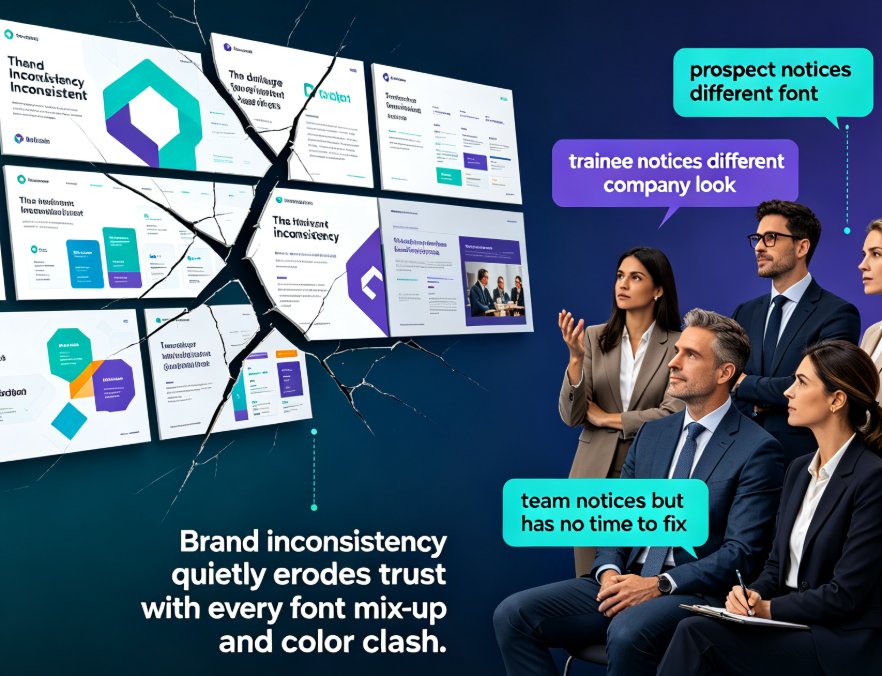
Here's the thing we keep coming back to: inconsistent design quietly erodes your credibility. Audiences may not consciously notice mismatched fonts, but they feel the difference. A unified deck reads as organized, professional, and reliable. A messy one—even with great content—reads as sloppy.
Zendeck's one-click reskin exists because we believe presentation tools should make you look good, not merely allow you to look good. The smart layout isn't a filter you apply on top; it's a different approach to how slides get built: structured, systematic, and consistent by default.
So next time you open a chaotic deck and feel that familiar dread, don't reach for PowerPoint's theme dropdown. Reskin it in one click, spend the hour you saved on your actual content, and walk into that meeting with a deck that finally looks as good as the ideas in it.
FAQ
What exactly does Zendeck's one-click reskin do?
It automatically reapplies a unified visual theme—fonts, color palette, spacing, and layout rules—across every slide in your deck. You don't manually adjust each slide; Zendeck's smart layout engine analyzes your content and rebuilds it with consistent styling in seconds.
Do I need design skills to use the one-click reskin?
No. The whole point is to remove design friction. If you can click a button, you can reskin. Zendeck handles type hierarchy, color contrast, and slide composition automatically, so you get a polished result even if you've never opened a design tool.
Can I customize the brand kit after a reskin?
Yes. Zendeck lets you set your own brand kit—colors, fonts, logo placement—and the reskin will follow those rules. You can also pick a different template from the library if you want a fresh look, then fine-tune the details with the smart layout controls.
Is the reskin applied to existing slides or only new ones?
Both. You can generate a new deck from a Word outline or Markdown and apply a reskin immediately, or you can import an existing PowerPoint and transform it in one click. The smart layout works on any slide content, old or new.
How is this different from just changing the theme in PowerPoint?
Changing a PowerPoint theme only swaps colors and fonts at the master level. Zendeck's reskin also adjusts layout: it rebalances text blocks, repositions graphics, resizes charts, and ensures every slide follows the same visual rhythm. It's a full redesign, not a palette swap.
Ready to unify your next deck in one click? Try Zendeck's smart layout for free, and bring your messiest presentation back to life.