Turn a Training PPT into a Self-Paced Video Course for Async Teams
Let's be honest about the most common piece of training content in corporate life: the deck. You spent days on it, presented it live to twelve people, and then it went into a shared drive to die. When the next wave of hires joins, nobody can find it, and when they do, it doesn't make sense without your voice explaining every slide.
That's the exact moment async training becomes the answer. Instead of forcing everyone into the same room or the same Zoom call, you give people a narrated, self-paced video they can watch on demand. And the fastest way to get there — without hiring a video production team — is to turn the deck you already have into a course.
The workflow is more practical than most people expect. Here's how it actually works, which tools do it well, and where the process tends to break.
01 | Why training PPTs fail the moment the live session ends
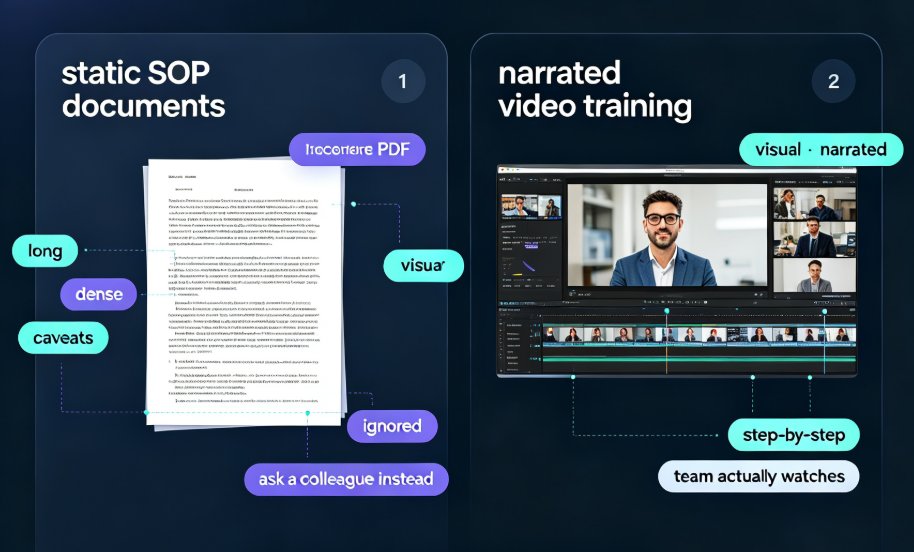
Every training deck has two versions of itself. The first is the visual one — the slides you see. The second is the spoken one — the stories, the off-the-cuff examples, the pacing that made a point land. A PowerPoint was designed to be presented by an instructor, not consumed alone. Academic and L&D research has repeated this for years: a self-paced course is only useful if the content itself makes sense without a presenter in the room.
Here's what typically happens instead:
- New hires find the deck, skim bullet points, and miss the context.
- Managers rebook the same live session four times a year, eating L&D hours.
- Compliance content gets signed off but not actually absorbed.
- The subject-matter expert becomes a bottleneck — everything funnels through their calendar.
The pain point is scheduling itself. When training requires a presenter and a synchronized audience, the training only happens when everyone is free. Remote and hybrid teams make that harder every quarter.
02 | Async training flips the model: record once, train forever
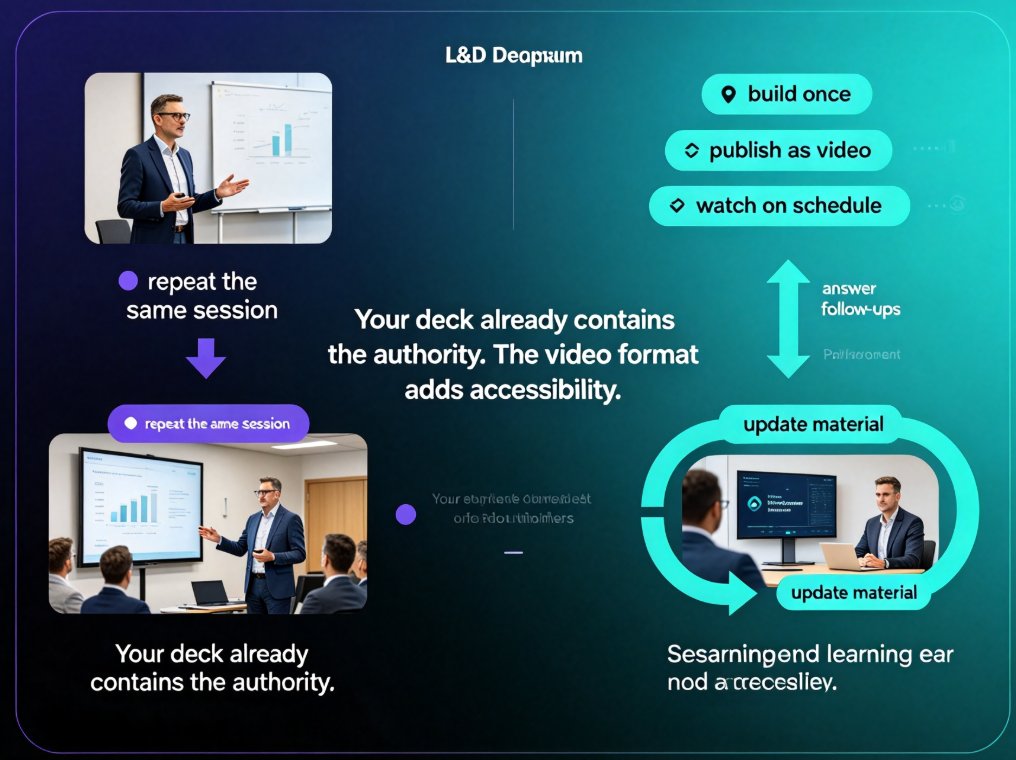
Async, or on-demand, training separates the creation of the lesson from the delivery of it. You build the lesson once, publish it as a video, and employees watch it whenever their schedule allows. The instructor's job shifts from repeating the same session to answering follow-up questions and updating the material.
For most L&D teams, the practical question is not whether to go async — it's how to produce the videos fast enough to keep up. That's where converting an existing deck to a narrated video beats starting from a blank screen every time.
The win is that your deck already contains the authority; the video format adds the accessibility. Done well, the same 30 slides become a 12-minute micro-course that plays on any device, with subtitles for the office floor and a completion record for your LMS.
03 | What actually happens when you convert a PPT to video
The conversion is not a slide recorder that films a screen. The modern approach treats each slide as an editable scene — you restructure, reorder, and reskin before you export. This distinction matters because it changes how much editing freedom you have afterward.
A typical workflow looks like this:
- Import the deck (PowerPoint, Word outline, or Markdown).
- Review the scene list — every slide becomes a scene you can reorder.
- Write or rewrite the script per scene, matching the talking points you used live.
- Generate or record narration and sync it to slide timing.
- Add subtitles and transitions, so the video works on mute in a busy office.
- Export and distribute — publish to an LMS, a video channel, or a simple link.
The critical decision is whether you narrate with a real voice or a text-to-speech voice. Real voice takes hours but carries authenticity. AI voice is instant, editable, and can be regenerated every time the script changes — which matters more than people admit, because training content gets revised constantly.
04 | The honest comparison: what each tool leaves behind
The market offers several routes from slide deck to video course. Each one takes a different philosophical stance on what your deck should become.
| Tool | What the deck becomes | Narration & AI avatar | The catch you should know |
|---|---|---|---|
| Easygenerator (EasyVideo) | Each slide becomes a scene in a restructured training video inside the e-learning authoring tool | AI avatar on screen + generated voiceover, then published into a course with knowledge checks | It's a full e-learning suite — powerful, but heavy if you only need one video |
| iSpring | Slides stay slides, published as a narrated course | Recorded narration and TTS with a syncing editor; no AI avatar appears | You stay in PowerPoint the whole time — great if your deck is already clean, limiting if it isn't |
| Canva | A flat video, editable on a Canva canvas first | Restyle slides, swap assets, add transitions, then export | Structurally still a slide sequence, not a course; no reporting built in |
| Zendeck | Each slide becomes a scene with one-click reskin, narration, and auto-subtitles | AI voiceover, voice recording, and auto-generated subtitles from the PPT | Works best when smart layout and brand consistency matter; exports as a distributable micro-course |
The pattern to notice is the trade-off between editability and control. Tools that preserve your original deck exactly (like iSpring) are the shortest path to tracked training only if your deck is already good. Tools that restructure the content (like EasyVideo and Zendeck) give you a genuine video, but they ask you to review the script and the design before you ship it.
If your deck is a wall of text, no conversion tool will save it. The output is only as good as the input, plus the restructuring you're willing to do. That's not a limitation — it's the actual job of turning training material into self-paced content.
05 | The Zendeck path: deck in, narrated micro-course out
Let's walk the practical route with Zendeck, because it demonstrates the full loop without requiring design skills.
Start by asking yourself what your deck already gives you. If it has a logical flow — a problem, a method, a set of examples, a checklist — it converts well. Upload a Word outline or paste the content, and Zendeck generates structured slides with one-click smart layouts that unify fonts, colors, and spacing. You get a visually consistent courseware base instead of a patchwork of old templates.
Then the PPT-to-video step kicks in. Each slide becomes an editable scene. You write the narration script per scene, generate a voiceover, and let the tool auto-sync the audio to the slide timing. Subtitles are generated from the PPT content and narration, which handles the accessibility requirement most L&D teams are starting to codify.
The result plays as a silent-friendly, on-demand micro-course. Employees watch it on a phone during a commute or on a desktop between tasks. If you need to certify completion, you can bundle versioned link or take it into your LMS for reporting.
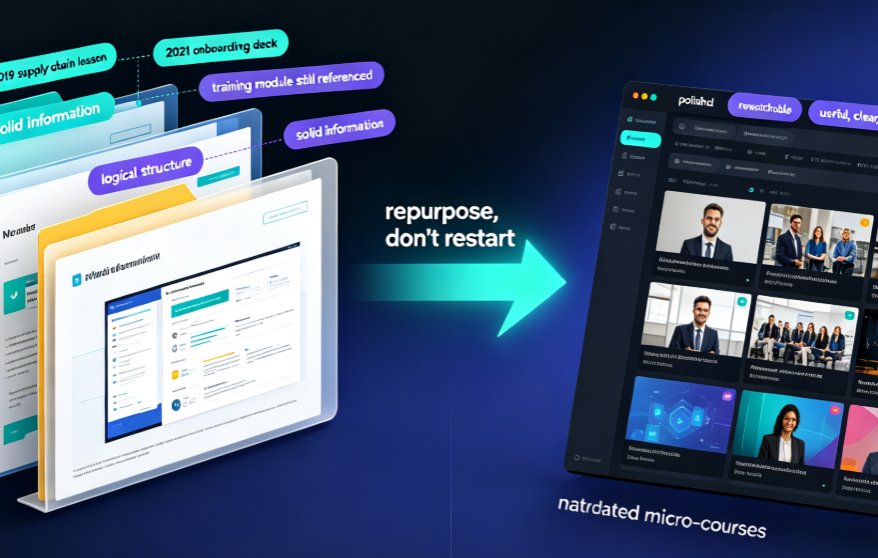
The part people underestimate is how much restructuring happens on the slide itself, not in the video editor. Zendeck's asset library gives you icons, charts, and illustrations to replace ugly text boxes, and the brand kit keeps colors and fonts consistent across every scene. You're essentially repurposing the deck into a designed course, then narrating it — which is a dramatically faster loop than starting a video project from zero.
For a deeper look at how the slide-to-scene conversion and smart layouts work, this breakdown of AI-driven design automation covers the underlying mechanics.
06 | Making a self-paced video people actually finish
The hard part of async training is not production — it's completion. A narrated slide video competes with email, chat, and a hundred other obligations. Three practices separate videos people finish from videos people abandon.
First, cut the slide count in half. A live deck of 40 slides becomes a video of 18 to 20 scenes. In a live session, transitions and instructor words bridge the gaps; in a video, every extra slide adds a moment where attention drifts. If a slide only works as a visual aid for a spoken story, drop it and keep the story in the narration.
Second, write the script the way you talk, not the way you write. Short sentences. One idea per scene. Read the script aloud once — if you run out of breath, it's too long. A good rule: aim for 30 to 45 seconds of narration per scene, which gives you a 10-to-12-minute course for a reasonable module.
Third, design for the mute button. Auto-generated subtitles are not an accessibility afterthought; they're the default way office workers watch video in a shared space. When Zendeck generates subtitles from the narration, you get both a WCAG-friendly asset and a better retention tool. Employees scan subtitles at 1.5x speed and still follow the logic, which is exactly how asynchronous training gets consumed.
Here's a practical tip from someone who's made too many boring training videos: put a single clear takeaway on every slide as a bold headline. Viewers who skim by skipping between scenes should still be able to reconstruct the module's key points from the headlines alone. If they can't, the structure is the problem, not the video.
07 | Know when to convert and when to rebuild
Not every deck deserves the conversion treatment. Getting this right saves you hours.
Convert as-is when:
- The content is procedural or compliance-based (onboarding checklists, safety protocols, software walkthroughs).
- The slides already carry the full message and just need a voice.
- You need a rapid refresh of a frequently asked training question.
- The SME is leaving, and you need to capture their knowledge before they go.
Rebuild before converting when:
- Slides are dense paragraphs with no visible logic.
- The topic is emotional or relational, like leadership or negotiation.
- Your deck relies on a live-demo or discussion that cannot survive a recording.
- The design is so inconsistent that narration won't rescue it.
A good heuristic: if the deck works as a talking point for you, it converts. If it only works as a handout people read, redesign it first. This also applies to how you reuse material — a narrated micro-course can be assembled from an outline with AI agents right from a Word document, which is a faster path for greenfield topics than reviving a messy legacy deck.
08 | What the workflow looks like in a real week
Concrete example: a regional onboarding manager needs to train twenty new hires across four time zones. The old way is a 60-minute webinar repeated three times, with attendance dipping each round.
The async way takes one focused afternoon:
- Convert the existing 30-slide onboarding deck with Zendeck's PPT-to-video — 10 minutes.
- Trim to 20 scenes and reorder for a logical flow — 20 minutes.
- Write a conversational script for each scene — 45 minutes.
- Generate the AI voiceover and review auto-subtitles — 30 minutes, with a break for coffee.
- Export, upload to the LMS, and send one link — 10 minutes.
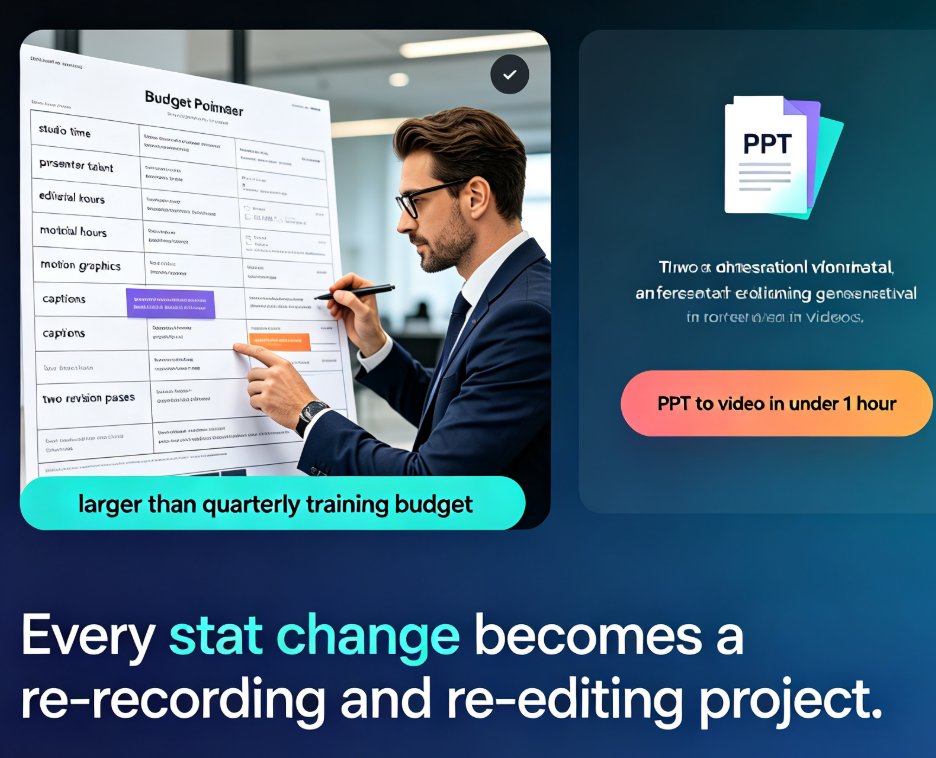
Total: roughly two hours, versus three weeks of video production quotes. The trade-off is worth it for most internal training: speed and maintainability beat cinematic polish. If the content changes next quarter, you edit the script, regenerate the voiceover, and republish in under an hour.
For teams that need to scale this across many decks, the deeper pattern is that slide-to-video conversion is becoming the standard route for corporate training — and pairing it with clean slide design and subtitles turns a one-off export into a reusable course library.
09 | The bottom line
Async training is not about replacing instructors. It's about making the best training you already have available to everyone, on demand. A narrated, self-paced video course built from an existing deck is the most efficient way to get there — provided you treat the deck as raw material, not as a finished product.
You already own the content. The missing piece is the format. Convert it to a narrated micro-course, and your training stops depending on calendars and starts working for the people who need it.
FAQ
How long does it take to convert a training PPT into a video course? Roughly 20–40 minutes for a 20-to-30-slide deck once you have a script. The conversion itself is instant: each slide becomes a scene, and you spend the time polishing narration, timing, and subtitles. With Zendeck's PPT-to-video, you import the deck, pick the narration style, and export a narrated micro-course in one sitting.
Can I add narration without recording my own voice? Yes. Text-to-speech is a standard part of the workflow. Tools like Zendeck and Easygenerator let you generate a voiceover from a script, which you can then edit per slide. You can also record real narration and sync it to slide timing. Most people use AI voice for a first pass and swap in human voice only for sensitive modules.
Is a converted PPT as good as a professionally produced training video? It's a different product, not a worse one. A narrated slide sequence works well for compliance refreshers, product onboarding, and procedural training where the slides already contain the authoritative content. For complex, emotionally driven topics like leadership or sales storytelling, a fully produced video is still better. Match the format to the content.
How do employees actually access a self-paced video course? You publish the finished video to your LMS, LXP, or an internal video channel with a link. Since each slide becomes an editable scene before export, you can also keep the course inside the authoring tool, add knowledge checks, and report completion back to the LMS. That reporting is what makes async training auditable.
Which slides convert well and which should I rebuild? Slides with a clear single message, strong headings, and simple visuals convert well. Slides with dense paragraphs, complex diagrams, or heavy tables do not — viewers pause the video to read, then give up. If a slide works as a talking point, it converts. If it only works as a handout, redesign it before converting.