Accessible Micro-Courses: How Zendeck Auto-Generates Subtitles from PPT
Let me be real for a second: when was the last time you watched a training video without subtitles and thought, "this is fine"? Probably never. Because even if you don't have a hearing impairment, subtitles help you follow along in a noisy office, catch a technical term you missed, or skim a video at 1.5x speed without losing the thread.
Now flip that around. Every micro-course you publish without subtitles is a micro-course that excludes someone. A learner with hearing impairment. A non-native speaker. A parent watching in a quiet room after the kids are asleep. Subtitles aren't a nice-to-have feature — they're the difference between a course that reaches everyone and a course that reaches some people.
That's the shift Zendeck is betting on. When you convert a PPT to video in Zendeck, subtitles are generated automatically as part of the conversion pipeline. Not as an add-on. Not as a paid extra. As a default behavior that happens while you focus on the content.
01 | Why subtitles became an accessibility requirement, not a bonus
For years, subtitles were treated as an afterthought. You'd record a voiceover, export the video, and only then realize you needed captions. So you'd either pay a freelancer or spend an evening syncing text to audio manually. Both options are slow, expensive, and frankly, boring.
The conversation has shifted. Accessibility is now a core part of how we design learning content, and subtitles are the single highest-impact accessibility feature for video-based micro-courses. They serve:
- Learners with hearing impairments who rely on captions to access the content at all
- Non-native speakers who benefit from reading along with the audio
- People in noisy environments — open offices, public transit, cafés
- Learners who prefer reading over listening, or who watch at faster speeds
There's also the compliance angle. WCAG 2.1 AA — the standard many institutions and enterprises now reference — requires captions for all prerecorded video content. If your micro-courses live in an LMS used by a public institution or a large employer, captions aren't optional. They're the difference between passing an accessibility audit and failing it. If you want the full picture on where accessibility standards are heading, our deep dive on WCAG compliance trends in AI presentations is worth a read.
02 | How Zendeck auto-generates subtitles during PPT-to-video
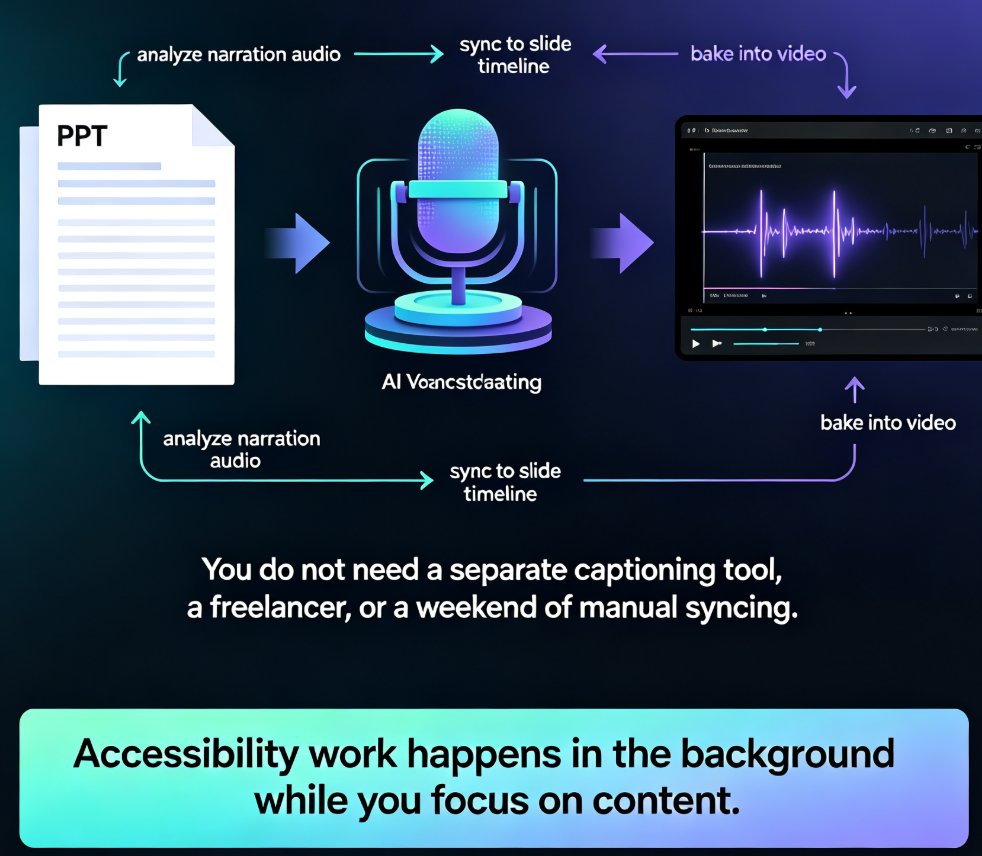
Here's where the magic happens. When you convert a PPT to video in Zendeck, the tool doesn't just stitch slides together with a voiceover. It analyzes the narration audio and generates subtitles automatically, synced to the timeline of each slide.
The workflow looks like this:
- Upload your PPT or paste your outline into Zendeck
- Add narration — either a voiceover you record or Zendeck's AI voice
- Zendeck converts the deck to video and generates subtitles in the same pass
- Review and adjust timing if needed
- Export the final video with subtitles baked in or as a sidecar file
The key point: you don't need a separate captioning tool, a freelancer, or a weekend of manual syncing. The subtitles are generated as part of the conversion, which means the accessibility work happens in the background while you focus on the content.
If you want to dig into the voiceover side of the pipeline, we've covered how to add voiceover and subtitles to slides with Zendeck in more detail.
03 | Accuracy matters — and here's what "accurate" really means
Let's be honest about one thing: auto-generated subtitles are only useful if they're accurate. A caption that garbles a technical term is worse than no caption, because it actively misleads the learner.
Zendeck's subtitle generation is built on speech recognition tuned for professional and educational content. That means it handles domain-specific vocabulary — things like "ROI," "compliance," "pedagogy" — better than a generic consumer tool. And because the subtitles are generated from the narration audio within the same pipeline, the timing aligns with slide transitions automatically.
But here's the part I want you to remember: auto-generated subtitles are a starting point, not a final product. You should always review them before publishing. Zendeck lets you edit the subtitle text and adjust timing directly in the video editor, so you can fix the occasional misheard word without re-exporting the whole video.
04 | Beyond subtitles: the full accessibility stack
Subtitles are the headline, but they're not the whole story. If you're building accessible micro-courses, you need to think about the full stack:
- Alt text for images: Zendeck can auto-add alt text to images in your slides, which matters for learners using screen readers. We've written about how Zendeck auto-adds alt text if you want the details.
- Color contrast: The smart layout system ensures text meets contrast guidelines, so learners with low vision aren't straining to read.
- Transcripts: A full transcript is even better than subtitles for learners who want to search or skim. Export the transcript alongside the video.
- Keyboard navigation: If your micro-course is interactive, make sure it works without a mouse.
Accessibility isn't a single feature — it's a system. Subtitles handle the audio. Alt text handles the visuals. Contrast handles the readability. When all three work together, your micro-course is genuinely accessible to everyone.
05 | The workflow: from PPT to accessible micro-course in minutes
Let's walk through a real scenario. You're an L&D manager at a mid-sized company. You need to create a 15-minute micro-course on the new expense policy. Here's how it goes with Zendeck:
- You paste the policy outline into Zendeck
- The AI generates a structured deck with a consistent template
- You add narration — either your own voice or an AI voice
- Zendeck converts the deck to video and auto-generates subtitles
- You review the subtitles, fix two misheard terms, and adjust the timing on one slide
- You export the video with subtitles and upload it to the LMS
Total time: under an hour. Total cost: zero additional tools. Total accessibility: done.
Compare that to the manual route: write the script, record the voiceover, edit the audio, export the video, then either pay a captioning service or spend three hours syncing subtitles by hand. The manual route costs you a day. The Zendeck route costs you an hour.
| Aspect | Manual subtitling | Zendeck auto-generated |
|---|---|---|
| Time per 15-min video | 3-6 hours | Generated in the conversion pass |
| Cost per video | $50-200 (freelancer) | Included in the platform |
| Accuracy | High, but depends on the editor | High for professional vocabulary; editable |
| Timing sync | Manual, error-prone | Automatic, aligned to slide transitions |
| Updates | Re-sync everything from scratch | Edit text and timing in the editor |
| Accessibility compliance | Requires separate QA | Built into the workflow |
06 | Compliance and the bigger picture
If you're in education or corporate training, you've probably noticed that accessibility requirements are tightening. WCAG 2.2 is rolling out, and more institutions are adopting accessibility policies that apply to internal training content, not just public-facing websites.
The smart move is to build accessibility into your content pipeline now, before you're forced to. Retrofitting captions onto a library of 200 videos is a nightmare. Generating them as you create new content is nearly free.
This is where Zendeck's approach shines. Because subtitles are generated during the PPT-to-video conversion, accessibility is a default behavior, not an add-on. You don't have to remember to do it. You don't have to budget for it. It just happens. For teams producing training content at scale, this is the difference between a sustainable accessibility strategy and a compliance crisis waiting to happen. If you're curious about how AI-generated video decks are replacing traditional corporate training, that's a related trend worth exploring.
07 | Practical tips for getting the most out of auto-subtitles
A few things I've learned from working with teams that produce a lot of micro-courses:
- Speak clearly in your narration. The cleaner your audio, the more accurate your subtitles. If you're using an AI voice, this is less of a concern, but for human voiceovers, reduce background noise.
- Review subtitles before publishing. Always. Even the best speech recognition makes mistakes with names and acronyms.
- Use the transcript export. If your platform supports it, offer a downloadable transcript alongside the video. It's a huge win for accessibility and for learners who prefer reading.
- Keep slides simple. Dense slides are harder to follow, and they make it harder for learners to read subtitles and absorb the slide content at the same time.
- Test with real users. If you can, ask a few learners with different needs to try your micro-course. Their feedback will tell you more than any checklist.
FAQ
Q: Does Zendeck generate subtitles automatically when converting PPT to video?
A: Yes. When you convert a PPT to video with narration, Zendeck generates subtitles automatically, synced to the audio timeline. You can review and edit them before exporting.
Q: Can I edit the auto-generated subtitles?
A: Yes. Zendeck lets you edit subtitle text and adjust timing directly in the video editor, so you can fix misheard words or acronyms without re-exporting the whole video.
Q: Do the subtitles support WCAG compliance?
A: Subtitles are a key part of WCAG 2.1 AA compliance for prerecorded video. Zendeck's auto-generated subtitles help you meet this requirement, and you should pair them with alt text and proper contrast for full compliance.
Q: Can I export a transcript alongside the video?
A: Yes. Zendeck supports exporting transcripts, which is great for learners who prefer reading or searching content.
Q: Do subtitles work with AI-generated voiceovers?
A: Yes. Subtitles are generated from the narration audio, whether it's a human voiceover or an AI voice.