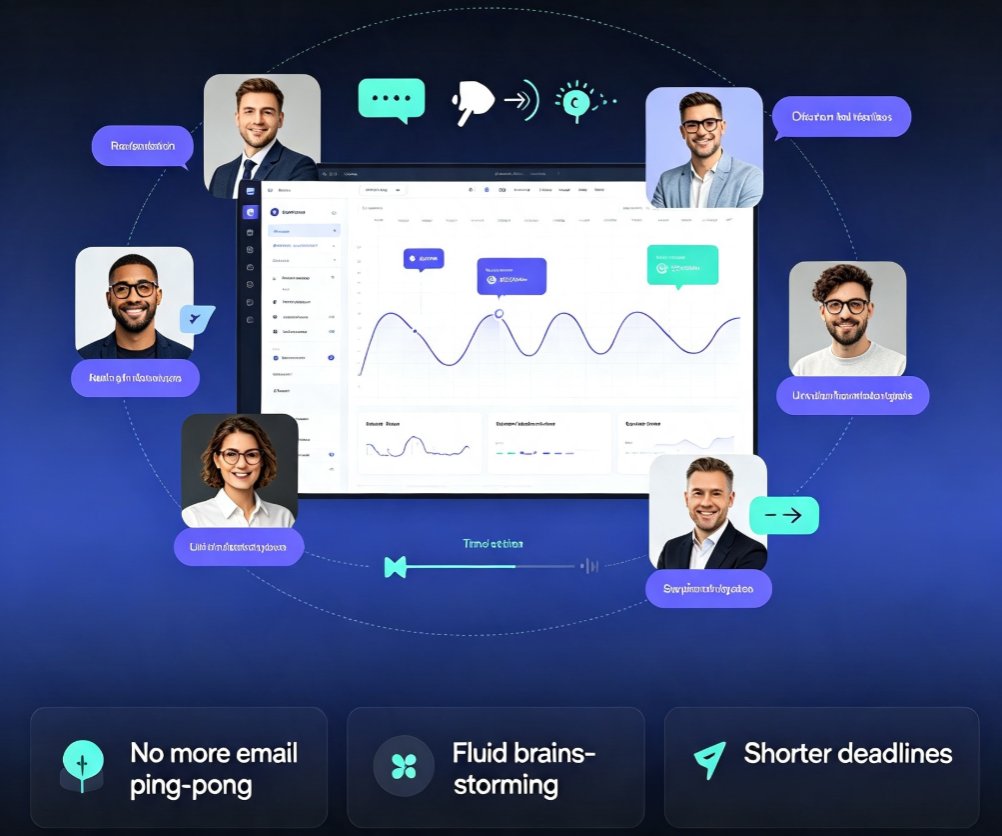
How to Real-Time Collaborate with External Clients on Zendeck Presentations Without Losing Control
Let's be real: sharing a presentation with a client used to be a nightmare. You email a PPTX file, they reply with a PDF that has handwritten notes, then you have to manually merge changes. Two days later, they ask for "the latest version" and you're not sure which one you sent. Sound familiar?
That chaos ends when you use Zendeck's real-time collaboration with granular permissions. Instead of emailing files back and forth, you share a live link. Your client sees exactly what you want them to see—and nothing more. No accidental edits, no version confusion, no security worries.
01. The Real Problem: Why Sharing Presentations with Clients Is a Nightmare
The biggest nightmare of sharing presentations with clients isn't the file size—it's the version chaos. You spend hours perfecting a deck, then you email it to a client. They tweak a few slides, save it locally, and email it back. Now you have two different versions. Which one is current? Who made that change? And what if the wrong person gets the file?
If you've ever had a client accidentally forward a confidential slide to a competitor, you know the pain. The core issue is control—you lose it the moment the file leaves your inbox.
02. How Zendeck's Permission Settings Give You Granular Control
Zendeck solves this by letting you set permissions per person or per link. You don't have to choose between "everyone can edit" and "nobody can see." Here's how it works:
- View-only – Perfect for clients who only need to review the final deck. They can't edit, download, or copy the content.
- Comment-only – Great for feedback rounds. Clients can add comments on specific slides but cannot change the slides themselves.
- Edit access – For internal team members or trusted partners who need to co-create.
- Password-protected links – Add an extra layer of security for sensitive presentations.
With Zendeck's granular permissions, you can set exactly who can view, comment, or edit each slide. And you can change these permissions at any time—even while the client is viewing the deck.
03. Real-Time Collaboration Without the Chaos: Version Control and Comments
Once you've set permissions, the real magic starts. Real-time collaboration with Zendeck means everyone sees the same live deck. When a client leaves a comment, you see it instantly. When you update a slide, they see the change immediately. No more "Refresh the page" emails.
And if something goes wrong? Version control has your back. Zendeck automatically saves every edit. You can scroll back through the history, see who changed what, and restore any previous version with one click. This is a lifesaver when a client says, "You know, I liked the first version better."
04. Practical Workflow: From Draft to Client Review in Minutes
Here's a real-world scenario: You're a consultant preparing a pitch deck for a client. You draft the outline in Zendeck, then invite your internal team to co-edit. Once the deck is ready, you change the sharing settings to client-specific view-only and email them a link.
The client opens the link, leaves comments on three slides, and asks for a small revision. You see the comments in real-time, make the changes, and the client sees the updated deck immediately. No file attachments, no confusion. The whole process takes 15 minutes instead of three days.
05. Beyond Sharing: Export and Secure Delivery
Sometimes a client insists on having a PDF or PPTX file. Zendeck doesn't lock you in. You can export the presentation to PPTX, PDF, or Google Slides with one click. But because you controlled the permissions during the review, the exported file is the final, approved version. No more "which file is the latest?"
If you need to share a static version, you can also generate a download link with an expiration date. This is perfect for compliance-heavy industries where you can't leave files open indefinitely.
06. Comparison Table: Sharing Options at a Glance
| Feature | Public Link | Team Share (Internal) | Client-Specific (View Only) | Client-Specific (Comment Only) |
|---|---|---|---|---|
| Requires account | No | Yes | No (email link) | No (email link) |
| Can edit slides | No | Yes | No | No |
| Can comment | No | Yes | No | Yes |
| Can download | Configurable | Configurable | Configurable | No |
| Version history | No | Yes | No | No (but comments are tracked) |
| Best for | Public one-way sharing | Internal team collaboration | Client review of final deck | Client feedback rounds |
07. Pro Tips for Smooth External Collaboration
- Always set permissions before sharing the link. Double-check that you haven't accidentally given edit access to a client. A quick preview in a private browser tab can save you a lot of embarrassment.
- Use the "comment only" mode for feedback rounds. It keeps the slides clean while still allowing clients to point out issues. You can then address each comment and mark it as resolved.
- Lock the slide deck after the final review. Once the client approves, lock the presentation to prevent any accidental changes. Then export the final version.
- Leverage real-time collaboration with your own team first. Practice the workflow internally before using it with a client. You'll feel more confident and the client will be impressed by your professionalism.
For more details on setting up your team's collaboration, check out our guide on real-time collaboration with version control. And if you need to export the final deck, see export to PPTX, PDF, and Google Slides.
FAQ
Can I give a client view-only access to a Zendeck presentation?
Yes. Zendeck's permission settings allow you to grant view-only access to specific individuals or via a shareable link. The client can see the slides but cannot edit or download them unless you enable those options.
How does version control work when multiple people are editing?
Zendeck automatically saves version history. Every edit is tracked, and you can revert to any previous version. You can also lock a slide to prevent accidental changes during a client review.
Can I share a presentation with a client who doesn't have a Zendeck account?
Absolutely. You can generate a public link that anyone can access. However, for sensitive content, we recommend using the email-based sharing feature with a viewer-only permission to ensure only the intended recipient sees it.
What happens if a client accidentally edits a slide?
If you set the client's permission to 'comment only' or 'view only', they cannot edit slides. If you accidentally give them edit access, you can revoke it at any time in the sharing settings, and the version history will show any changes they made.