How Teams Can Co-Edit AI Presentations in Zendeck with Version Control
I. The Pain of Shared Presentations: Lost Edits and Chaos
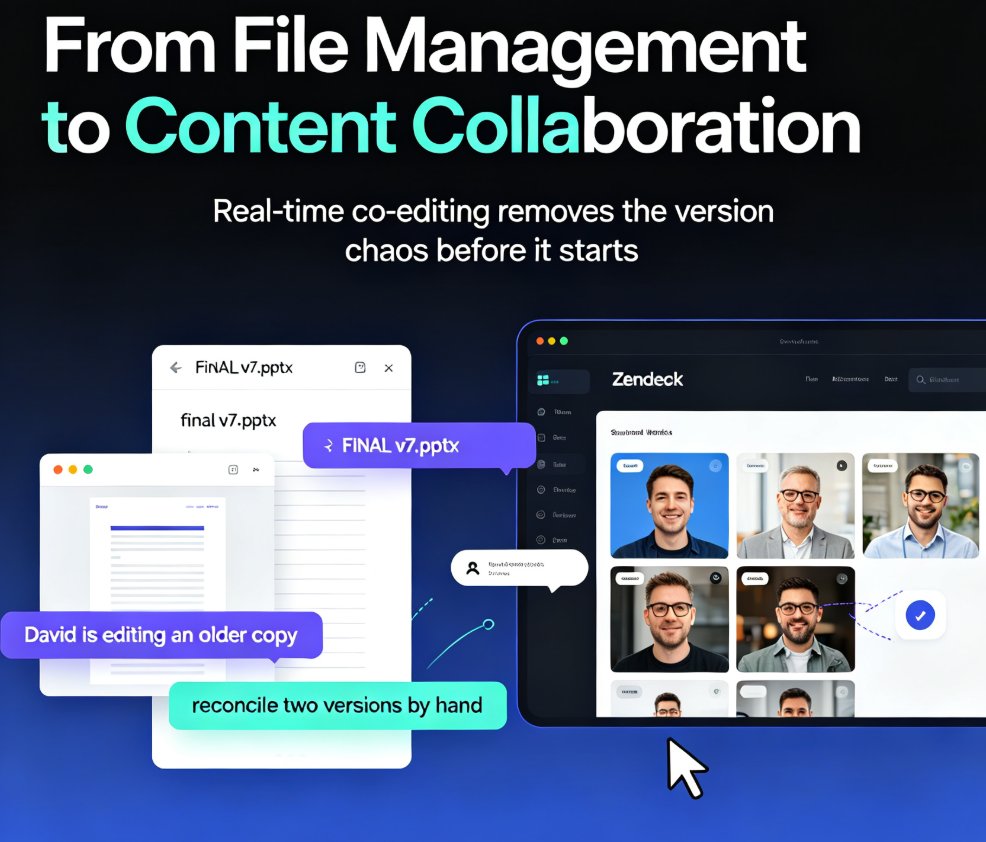
Let's be real: you've been there. You send a PowerPoint to a colleague for feedback, they send back a new version, you incorporate changes, and then someone else tweaks the font. By the time you're ready to present, you're not sure which version is the real one. Version control nightmares are the #1 productivity killer for teams creating presentations together.
We've all tried workarounds – file naming conventions like v3_final_FINAL_useThis.pptx, or waiting for someone to "finish" before passing it along. None of it works. The result? Duplicate work, missed deadlines, and a lot of frustration.
II. The Solution: Real-Time Co-Editing with Full Version History
Zendeck flips the script. Instead of taking turns, your entire team can jump into the same presentation at the same time. Real-time collaboration means you see cursors, edits, and comments as they happen – no more email ping-pong.
But here's the kicker: every single change is automatically saved with a version history. You can browse past versions, see who made what change, and restore any previous state with one click. It's like having a time machine for your slides.
◉ How It Works in Practice
Scenario: Your marketing team is building a quarterly review deck. Sarah updates the revenue chart, while Mike reworks the title slide. In Zendeck, they edit simultaneously. No locks, no waiting. The version panel shows a timeline of all changes, each tagged with a user name and timestamp. If Sarah accidentally deletes a slide, Mike can restore it from the version history without interrupting her work.
Tip: Before a big presentation, take a quick snapshot of the current version by clicking "Save as Version" and naming it (e.g., "Draft for CEO review"). That way you can always revert if the team goes wild with design changes.
III. Conflict Resolution: When Two Edits Collide
Even with the best collaboration tools, conflicts happen. Two people might try to edit the same text box or move the same object. Zendeck handles this gracefully. When a conflict is detected, the app highlights the conflicting area and presents you with a clean resolution dialog. You can choose which edit to keep or merge them manually.
In our testing, actual conflicts are rare because Zendeck's operational transformation engine merges most edits seamlessly. But when they do occur, the version history acts as a safety net. You can always roll back to the state before the conflict, no questions asked.
IV. Why Teams Choose Zendeck Over Traditional Tools
Let's compare Zendeck's collaboration features with what you might be used to:
| Feature | PowerPoint (Desktop) | Google Slides | Zendeck |
|---|---|---|---|
| Real-time co-editing | ❌ (requires OneDrive) | ✅ | ✅ |
| Version history with attribution | ❌ (manual save-as) | ✅ (limited detail) | ✅ (detailed log per user) |
| Conflict detection & resolution | ❌ | ❌ (overwrites silently) | ✅ |
| One-click version restore | ❌ | ✅ (limited) | ✅ (full history) |
| AI-generated slides from outline | ❌ | ❌ | ✅ |
| Template-based reskinning | ❌ (manual) | ❌ (manual) | ✅ |
The table above makes it clear: Zendeck combines the best of real-time collaboration with enterprise-grade version control, plus AI-powered creation. For teams that value both speed and safety, it's a game-changer.
V. Practical Workflow: From Outline to Final Deck
Here's a real workflow you can use right now:
- Import your outline – Drop a Word document or paste Markdown into Zendeck. The AI generates a structured deck with placeholder slides.
- Invite your team – Share the deck link. Everyone can start editing immediately.
- Assign roles – Use the commenting feature to tag specific people for specific slides. Check the version history frequently to see progress.
- Reskin together – One team member can apply a brand template from the library while others edit content. The reskin action is saved as a distinct version, so you can always go back to the pre-reskin layout.
- Final review – Before the big meeting, lock the deck by saving a version named "Final." If someone makes last-minute changes, you can always restore the locked version.
The outcome? Your team produces a cohesive, on-brand presentation in half the time, with zero version confusion.
Pro tip: Use Zendeck's real-time collaboration feature in combination with the template library to maintain consistency while multiple people edit. It's a match made in presentation heaven.
VI. The Bottom Line: Stop Worrying About Versions, Start Creating
Collaboration shouldn't be a headache. With Zendeck, your team can focus on the content and design, not on file management. Version control is no longer a nice-to-have – it's a must for any team that values its time and sanity.
Whether you're a marketing team building a client pitch, a training department creating a course, or a startup preparing for investor meetings, Zendeck gives you the confidence to collaborate freely. Every edit is tracked, every version is recoverable, and every conflict is resolvable.
Ready to see it in action? Try Zendeck for free and experience the difference.
FAQ
How does version control work in Zendeck? Zendeck automatically saves every change made during co-editing. You can view, compare, and restore previous versions from the history panel. Each version is timestamped and attributed to the editor who made the changes.
Can I see who made which change? Yes. Zendeck tracks edits by user, showing a color-coded cursor and a change log that lists who modified what and when. This feature is especially useful for review and approval workflows.
What happens if two people edit the same slide simultaneously? Zendeck uses operational transformation to merge concurrent edits in real time. Conflicts are rare, but when they occur, the app highlights the conflicting area and lets you choose which version to keep. You can also roll back to a pre-conflict version if needed.
Is there a limit on how many team members can co-edit? Zendeck supports up to 50 simultaneous editors in a single presentation. For larger teams, we recommend using the review and comment workflow to reduce live editing conflicts.
Can I use version control with imported Word outlines? Absolutely. When you import a Word outline to create a presentation, the initial version is saved as version 1. Any subsequent co-editing or reskinning is tracked as separate versions, giving you a full history from outline to final deck.