Collaborative Presentations: Real-Time Editing & Sharing in Zendeck
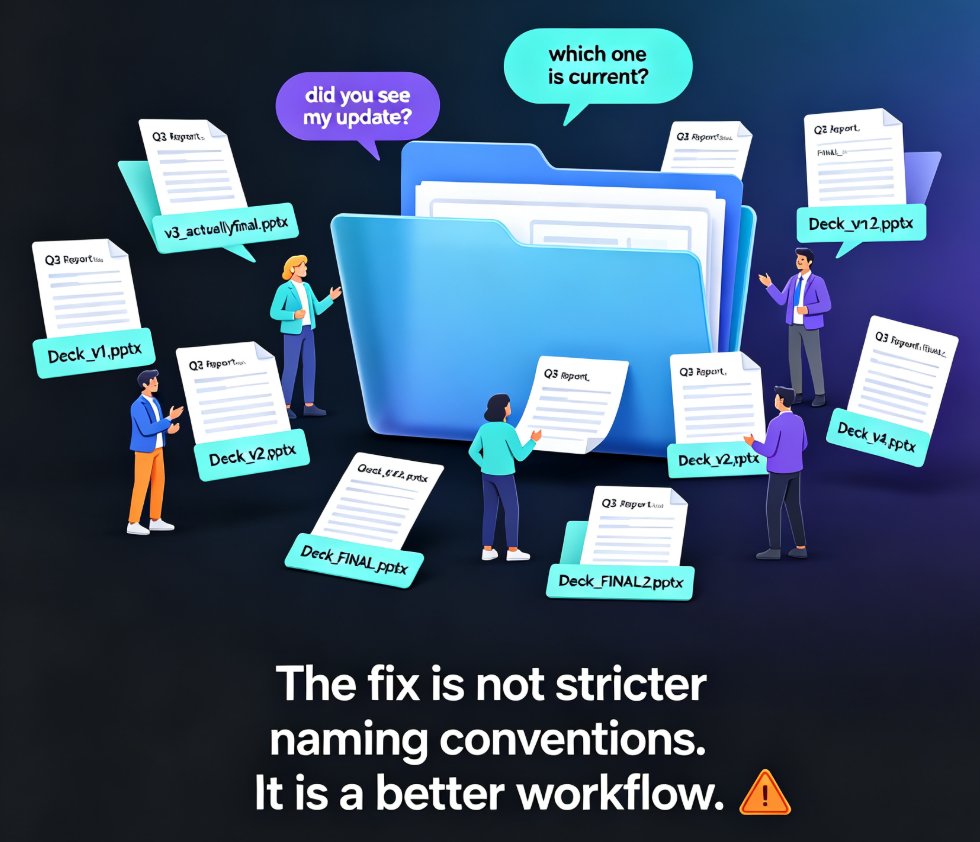
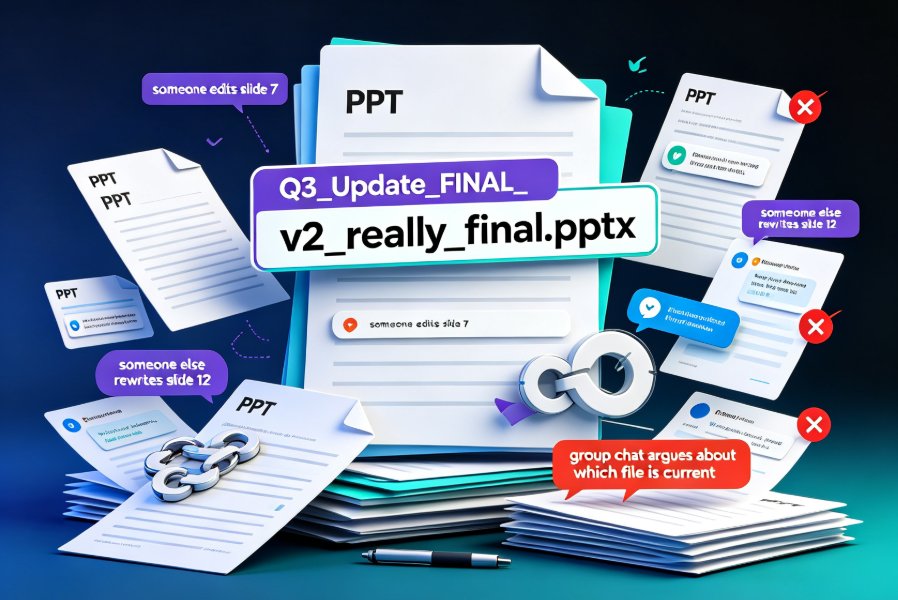
Remember the file named "Q3_Update_FINAL_v2_really_final.pptx"?
If you've worked on a team deck in the last five years, you probably have a Downloads folder full of versions like that. Someone edits slide 7. Someone else rewrites slide 12. By Thursday, the group chat is arguing about which file is actually current.
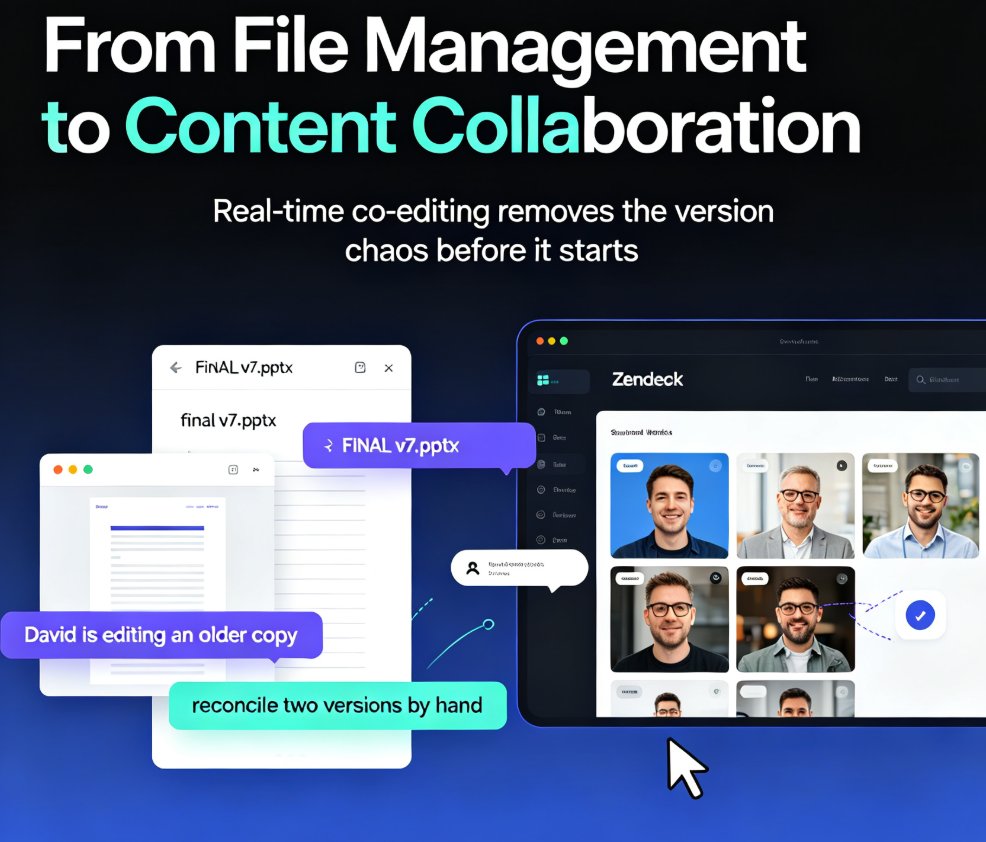
Let's be real: scattered file versions don't create teamwork problems — they expose them. The fix isn't more discipline or a nicer tone in the "please use the right file" email. It's a platform where the deck lives in one place and everyone works on the same copy.
01 — Why the Email-and-Attachment Workflow Is Costing You Days
Think about how most teams build a presentation today:
- One person (usually the most patient one) creates the master file.
- They email it around asking for "quick feedback."
- Three people reply with comments; two attach their own edited copies.
- Someone merges everything — badly.
- Repeat for every revision.
Each cycle introduces drift: formatting breaks, fonts change, and somewhere inside one of those attachments is the slide you actually wanted, hidden under a filename nobody recognizes.
The core problem is that a presentation is treated as a serial document — one person at a time — when in reality it's a parallel project. Multiple stakeholders have input on different sections, and forcing them through a single-player workflow guarantees bottlenecks.
Cloud-based collaboration tools fix the root cause: the file stops being a thing you pass around and becomes a shared space you all work in. That shift alone eliminates the entire "which version is this?" conversation.
02 — Real-Time Editing: Everyone Works on the Same Canvas
The first thing you'll notice when a team moves to real-time editing is how the waiting disappears. Instead of structuring work around handoffs, your team can divide sections and build simultaneously.
In Zendeck, multiple people open the same deck and edit at once. Marketing owns the narrative slides while product updates the roadmap section, and both see each other's changes live as they happen. No locking, no "let me save and send it back."
That's a big deal for timelines. A deck that used to take a week of sequential edits can wrap up in two focused sessions when four people work in parallel. Teams that want more out of their tooling should also peek at this roundup of hidden AI presentation features that quietly accelerate group work — ./5-hidden-features-ai-presentation-tools-team-productivity.html.
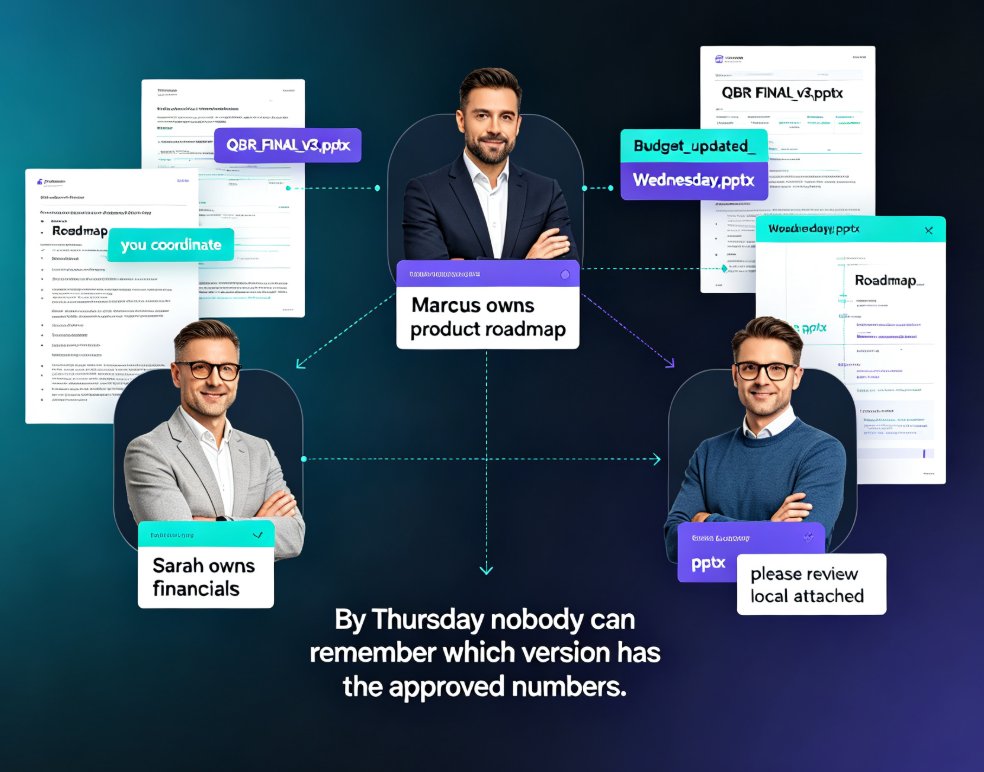
A note from experience: assign ownership before you begin. Agree on who owns the overall narrative, who owns specific sections, and who approves the final version. Clear ownership prevents the most common real-time collaboration failure — two people polishing the same slide because nobody was officially responsible for it.
The payoff: everyone is always working on the latest draft, and nobody has to ask "did you get my changes?"
03 — Comments That Live Exactly Where the Discussion Happens
Feedback is where most team decks fall apart — not because people don't give it, but because it lands in the wrong places. It arrives as a DM, a line in a meeting notes doc, a sticky note on a monitor. Then it gets lost.
Inline commenting solves this by tying every piece of feedback to the exact slide (and often the exact element) it refers to.
In Zendeck's editor, comments anchor to specific slides. You can ask a question on slide 10 without touching the content, tag a teammate to pull them into the thread, and resolve the discussion once the edit is made. That creates a conversation trail that lives inside the project — visible to anyone who opens the deck — instead of scattered across tools and inboxes.
This is especially valuable for hybrid teams where some people review asynchronously at different hours.
The outcome: feedback stops being a separate workflow and becomes part of the deck itself, which means nothing falls through the cracks, and the discussion is always one click away from the slide it concerns.
04 — Version History: Your Safety Net When Someone Overwrites Something
Here's the scenario that scares every team lead: Jane is rearranging slides on the left side of the screen while Marcus deletes three slides on the right. Jane looks up and says "wait — where did the pricing slide go?"
With a traditional file, that moment triggers panic, a rollback from a local backup, and possibly a redo of an hour's work. With version history, it's a one-click fix.
Zendeck keeps a running record of changes, so you can see what changed, when, and roll any part of the deck back to an earlier state. If a collaborator deletes a section you need, you restore it. If a design experiment goes sideways, you revert. Version history removes the fear of experimenting, because every bad iteration is recoverable.
This is the safety net that makes real-time collaboration feel safe rather than chaotic.
05 — Link-Based Sharing: Share Once, Update Everywhere
The old way of sharing a deck involves attaching a file and hoping it stays under the email size limit. Then someone opens it, edits it locally, and now you have a fork in the road.
Link-based sharing changes the economics of distribution. Instead of duplicating the file, you share one URL. Everyone who opens that link sees the current version — because it is the same file, not a copy.
Zendeck lets you control exactly what people can do with that link: view-only, comment-only, or full edit access. That means:
- Decision-makers get a read-only link and can't accidentally edit.
- Stakeholders who need to give feedback get comment access.
- Core team members get edit rights.
You can revoke access when the project wraps, which matters more than people think — a shared link that never expires is how confidential decks end up in the wrong hands. (Worth checking: who still has access to last quarter's deck? If you don't know, that's a risk you can fix in one click.)
The result: distribution becomes a single URL instead of a series of file transfers, so there's no "did you get the latest one?" question ever again.
06 — Brand Consistency When Six Hands Touch One Deck
Collaboration has a hidden cost: design drift. When six people edit the same deck, fonts, colors, and spacing start to wander. Slide 4 might use the old logo; slide 17 has the teal from that other project; someone's "quick fix" resized a heading to 28pt instead of 32pt.
You can't solve this with the "please keep it consistent" email — nobody ignores that email on purpose, but they all ignore it anyway.
Shared templates and a brand kit handle it structurally instead. When the deck is built on locked-down design assets, collaborators can only edit content, not accidentally break the layout. Fonts stay on-brand, colors stay correct, and the final deck looks like one person designed it.
Zendeck's smart layout and brand kit features are built exactly for this use case — and it's one of those things you notice most after a chaotic collaboration cycle. A deck that went through 40 edits still looks finished, because the design system never got touched. If you want the full playbook on locking down your visual identity, ./5-ways-create-custom-brand-kit-zendeck-consistent-decks.html walks through five practical approaches.
If you're tired of policing design after the fact, the answer is to prevent drift upfront. Brand consistency is a structural problem, and structure — not nagging — is the fix.
07 — Traditional Workflow vs. Real-Time Collaboration: The Honest Comparison
| Workflow step | Traditional attachment workflow | Real-time collaboration in Zendeck |
|---|---|---|
| Where the file lives | Local drives + emails, multiple copies | Cloud, single source of truth |
| Editing | One person at a time, serial handoffs | Multiple editors on the same canvas |
| Feedback | Email threads, DMs, lost in chat | Inline comments anchored to slides |
| Version control | "final_v3(2)_real.docx" chaos | Automatic version history, one-click rollback |
| Sharing | File attachments, size limits | One link, permission controls |
| Design consistency | Drifts with every editor | Shared templates and brand kit enforce it |
| After project ends | Folders of orphaned files | Revoke link access anytime |
That last row matters more than people expect. When a project ends, a traditional workflow leaves stray files on everyone's laptop — outdated ones, half-edited ones, versions you genuinely hope nobody looks at. A link-based system lets you clean up with one action.
08 — Setting Up Your Team's Collaborative Workflow in Zendeck
If you want to try this with your team, here's a practical setup sequence:
- Create the deck and define the skeleton. Outline the sections with placeholder content first; it gives collaborators an obvious place to plug in.
- Assign ownership per section. One owner per slide group, and a single approver for the final version.
- Share the link with appropriate permissions. Edit for contributors, comment for reviewers, view for decision-makers.
- Run feedback asynchronously via comments. Ask teammates to drop notes directly into the deck instead of emailing them.
- Poll the version history before major milestones. See what changed, who changed it, and roll back if needed.
- Lock down brand assets. Make sure the template and brand kit are set so content edits can't break the design.
This works for small squads shipping a pitch deck and for larger groups building training materials across departments. For more workflows like this one, the office efficiency collection has you covered — ./category/office-efficiency.html.
FAQ
Can multiple people edit a Zendeck presentation at the same time? Yes. Zendeck supports simultaneous editing, so several collaborators can work on the same deck at once and see each other's changes live.
How does Zendeck handle version history? Zendeck automatically records changes as your team works. You can view what changed, who changed it, and roll back part or all of the deck to an earlier version at any time.
How do comments work for team feedback? Comments anchor directly to specific slides. Teammates can ask questions, tag people, suggest edits without changing content, and resolve threads once feedback is addressed.
Can I control who views or edits a shared presentation? Yes. Link-based sharing lets you grant view-only, comment, or edit access, and you can revoke or change permissions at any time — including after the project wraps.
Does real-time collaboration break design consistency? Not if the deck is built on locked templates and brand assets. Zendeck's smart layout and brand kit keep fonts, colors, and spacing consistent even when many editors touch the file.