Asset Library Essentials: How to Source Icons, Charts, and Illustrations Without Leaving Zendeck
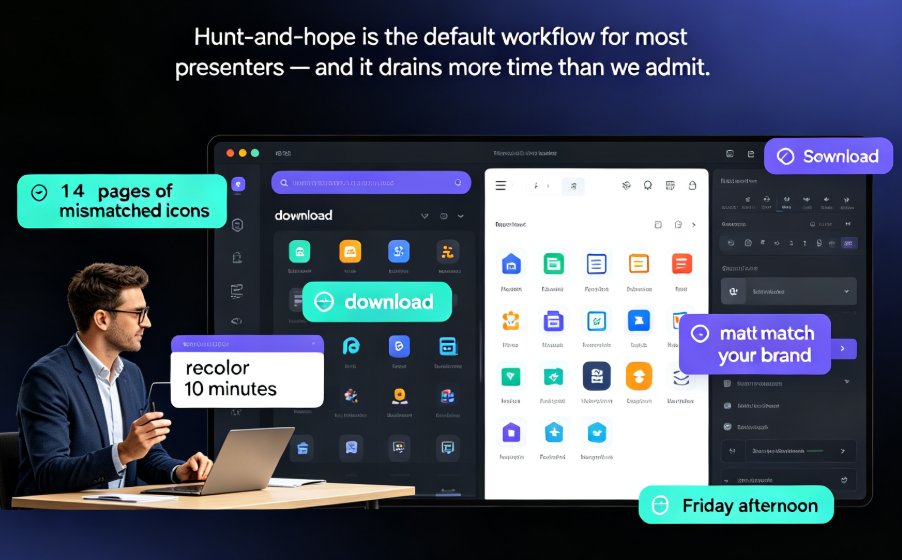
You're building a course deck on a Friday afternoon, and you need a clean icon for "data analysis"—so you open a free stock site, search through 14 pages of mismatched icons, finally download one, then spend another 10 minutes recoloring it to match your brand. Sound familiar?
Let's be real: hunt-and-hope is the default workflow for most presenters, and it drains more time and creative energy than we'd like to admit. But it doesn't have to be that way. Over the past year of working closely with educators and course designers, I've seen a pattern: the teams that produce the most polished decks fastest aren't the ones with the biggest design budgets—they're the ones who've mastered their tool's built-in asset library.
Zendeck (zendeck.ai) is built around that idea. Its integrated asset library puts icons, charts, and illustrations right inside the editor, so you can source visuals without ever leaving the platform. In this guide, I'll walk you through exactly how to leverage that library, why it beats the traditional copy-and-paste grind, and how to squeeze every drop of value from it.
01 · The Hidden Cost of Hunting for Assets Online
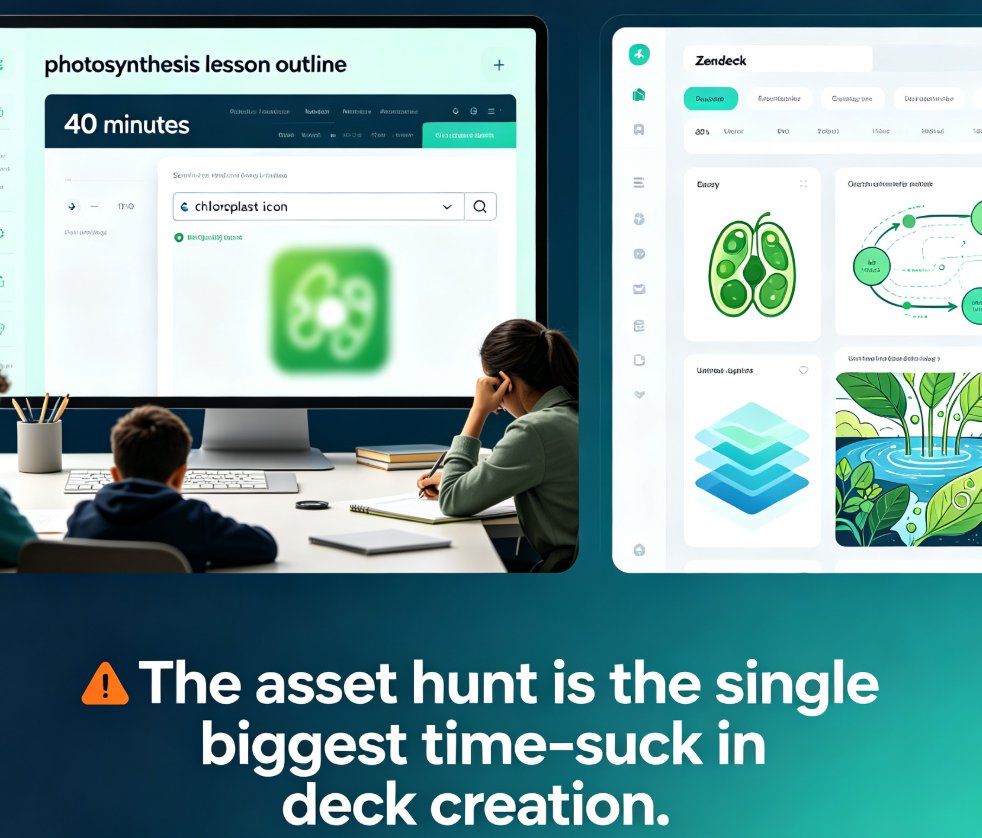
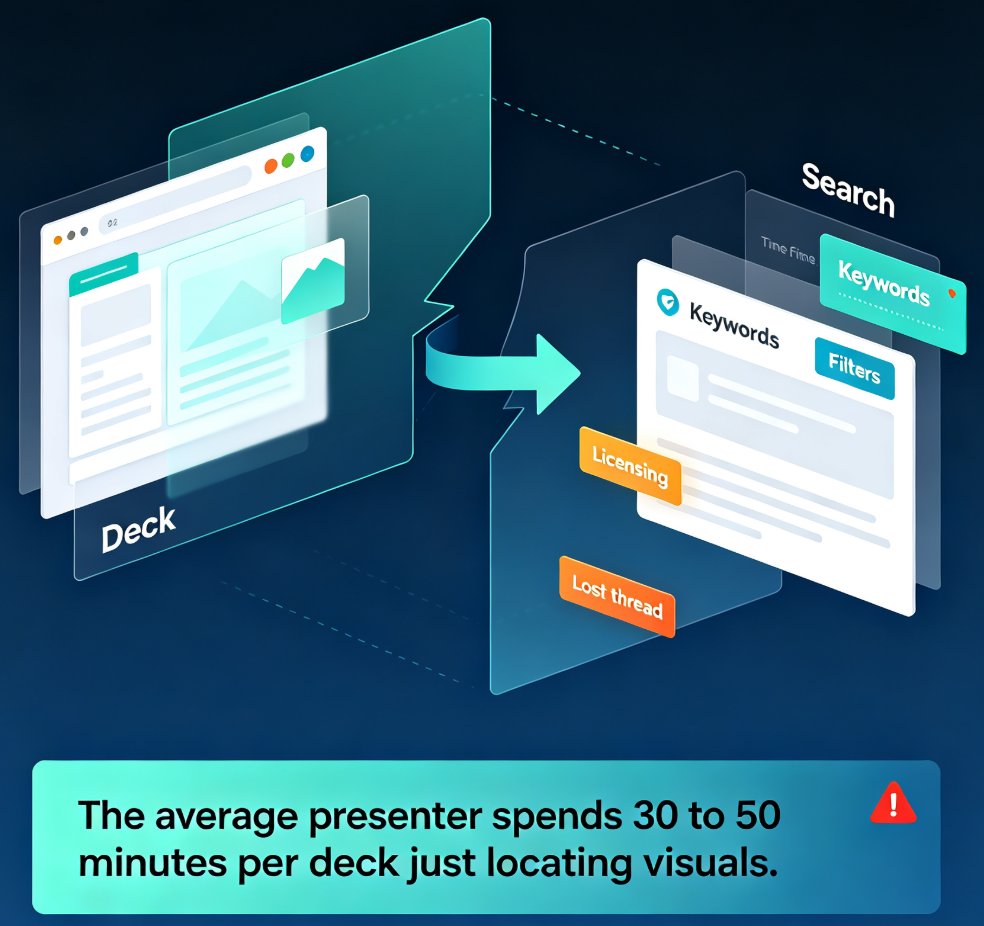
Every time you leave your design tool to grab an asset, you add friction to your workflow—and friction kills momentum.
Think about what happens when you search for an icon on a free stock site: you filter, you scroll, you preview, you realize the style doesn't match, you start over. Then you download, rename the file, import it, resize it, recolor it. That's a solid 15 minutes per asset, and you'll repeat that process a dozen times per deck.
Multiply that by 100 decks a year, and you've burned 25+ hours just on asset logistics—time that could've gone into storytelling, data analysis, or actually rehearsing the presentation.
And the hidden cost isn't just time. It's also visual inconsistency. When you cobble together assets from five different sources, you end up with icons from one lineage, illustrations from another, and charts that clash with your font. The result? A deck that looks amateurish, no matter how solid your message is.
Zendeck's asset library solves both problems at once. It gives you a single, curated collection that lives within the same design system as your slides, so everything automatically aligns with your theme and brand colors. You never need to leave the editor, and you never lose that visual thread.
02 · Inside Zendeck's Asset Library: What You Get (and Why It Matters)
When I first opened Zendeck's asset library, I expected the usual limited clip-art dump. Instead, I found something closer to a premium design system—organized, searchable, and deeply integrated with every part of the deck-building process.
Here's the breakdown of what's available at your fingertips:
| Asset Category | What's Included | Best For |
|---|---|---|
| Icons | 1,500+ icons across 20+ categories (arrows, tech, education, business, etc.) | Adding visual punctuation to bullet points and headers |
| Illustrations | 600+ original, hand-drawn illustrations | Making abstract concepts tangible and friendly |
| Charts & Diagrams | Pre-built bar, line, pie, and flow diagrams + customizable widgets | Turning raw data into a compelling narrative |
| Shapes & Lines | 1,000+ geometric shapes, frames, brushed strokes, and halftone patterns | Creating visual structure and emphasis |
| Brand Assets | Your uploaded logos, images, and custom graphics — accessible anywhere | Keeping every slide on-brand without re-uploading |
| Stock Photos | High-quality, royalty-free images curated for presentations | Adding photographic context without licensing headaches |
The magic isn't just the volume—it's the cohesion. Every asset is designed to harmonize with Zendeck's smart layout engine, so when you place an icon next to a headline or a chart inside a template, it automatically inherits the right spacing and color treatment.
03 · How to Source Icons, Charts, and Illustrations in Minutes
Let's get tactical. Here's the exact workflow I use to enrich a deck with Zendeck's asset library—and how you can too.
Step 1: Open the Library Wherever You Are
While editing any slide, click the Assets icon in the left toolbar (or press A on your keyboard). The library slides in as a side panel, and it's context-aware—it suggests relevant assets based on the content of the current slide. No more digging through nested folders.
Step 2: Search or Browse Smarter
Use the search bar to type what you need (e.g., "growth," "data," "teacher"), or browse categories like Icons → Business or Illustrations → Education. You can also filter by style (outlined, filled, duotone) or color family to narrow things down in a click.
Step 3: Drag, Drop, and Done
You don't need to leave the editor to preview or place assets. Just drag the icon onto your slide, and Zendeck drops it in with smart alignment guides. If the asset needs a new color, select it and pick a brand color—it updates instantly across any instances you've used.
Step 4: Edit Charts and Diagrams Inline
For charts, pick a template from the Charts category, then edit the data directly in a small spreadsheet popup. Change labels, values, and formatting without switching to another tool. This is a game-changer when you're updating quarterly metrics for a board meeting.
Step 5: Save Your Own Assets to the Library
Got a custom diagram you use in every training deck? Upload it as a Brand Asset, and it'll be there waiting for you next time—even on a different project.
Pro tip: Set up your brand kit once (colors, fonts, logo) and Zendeck automatically applies it to every asset you pull from the library. That way, even if you're in a rush and don't customize anything, your slides still feel polished and on-message.
04 · Real-World Workflow: From Outline to Polished Deck in 30 Minutes
Let's put it together with a realistic scenario. You're an L&D manager at a mid-size company, and you need to create a training deck on "data privacy best practices" for a team of 20.
Before Zendeck: - You'd spend 20 minutes hunting for a privacy shield icon, another 15 for a data-flow diagram. - You'd copy-paste a pie chart from an old report, then spend 10 minutes recoloring it to match your corporate palette. - You'd add a couple of grainy illustrations from a free stock site that clash with your template. - Total asset time: ~45 minutes, with visual inconsistency.
With Zendeck:
- You open the asset library and search "privacy." You find a shield icon, drag it onto the title slide, and it inherits your brand blue.
- You browse Charts → Pie and pick a clean donut chart. You edit the data to reflect your survey results—done in 3 minutes.
- For the section on "PHI vs. PII," you choose a friendly illustration from the Education category that matches your template's tone.
- Total asset time: under 10 minutes—and it all looks like it came from the same designer.
The outcome: you gain 35 minutes back, and the deck tells a more coherent story. That's the payoff of an integrated asset workflow.
05 · Why an Integrated Asset Library Beats Separate Tools (Data, Consistency, Workflow)
You might be thinking, "Sure, but Canva or stock sites have way more content." That's true if you just count raw assets. But when you factor in the cost of context switching, the equation flips. Here's a side-by-side comparison:
| Dimension | Hunting Online (Old Way) | Zendeck Asset Library (Integrated) |
|---|---|---|
| Time to final asset | 10–20 minutes per asset | 1–2 minutes per asset |
| Color / style matching | Manual—recolor by hand | Automatic—inherits brand kit |
| Consistency across deck | Low—assets from various sources | High—unified design system |
| Editing charts | Copy-paste from Excel, then reformat | Inline editing with live data |
| Team collaboration | Multiple file attachments, versioning mess | Shared library, no duplicates |
| Learning curve | Steep—master 3+ tools | Shallow—one workspace |
The real differentiator is the closed-loop workflow. When assets live inside the same tool that generates your slide layouts, the tool can automatically align them to your template's typographic and color rhythms. That's something free stock sites can't do, no matter how many assets they host.
06 · Pro Tips to Get More from Zendeck's Asset Library
After using Zendeck daily for months, here are my three favorite power moves that most people miss:
1. Use the "Recently Used" section to speed up iterative decks. If you're building a course series, you'll reuse similar icons across modules. That tab acts as a mini-personal collection—click twice and you're done.
2. Combine shapes and lines to create custom diagrams. Sometimes you don't need a pre-built chart—you need a process flow. Grab a few chevron shapes from Shapes, set their fill to your secondary brand color, and stack them to build a custom pipeline. Because everything lives in the same library, they snap together perfectly.
3. Store templates with embedded assets. When you create a deck that works exceptionally well, save it as a template. That template includes all the assets you used, so next time you start from that template, everything's already in place—no need to re-add icons or charts.
And a bonus: let AI suggest assets. Zendeck's contextual AI analyzes your slide's text and suggests relevant icons or visuals from the library. It's like having an art director peeking over your shoulder, but without the judgment.
07 · The Bottom Line: Stop Leaving the Editor
Your next deck will thank you if you stop treating asset hunting as a separate task. The best presentations are built by people who can stay in flow—and an integrated asset library is one of the strongest flow-preservers in modern presentation tools.
If you've been relying on free stock sites and browser tabs, I encourage you to give Zendeck's asset library a shot on your next deck. Open it up, search for something you need, and see how it feels to drop a perfectly styled icon onto a slide in three clicks.
For more on how Zendeck's asset library powers brand consistency and smarter visuals, check out these deep dives: - How AI Asset Libraries Are Revolutionizing Corporate Brand Consistency - AI-Powered Asset Libraries: Smarter Visuals for Your Decks - How to Add Interactive Charts to Your AI Slides with Zendeck's Asset Library
And if you're building courseware specifically, explore the full Courseware Design category for more workflow tips.
FAQ
What types of assets are included in Zendeck's asset library?
Zendeck's asset library includes a curated collection of icons, data visualization charts, illustrations, shapes, lines, and even customizable widgets. You can also store your brand assets for one-click reuse across decks.
Can I use Zendeck's asset library to maintain brand consistency?
Absolutely. The asset library integrates with your brand kit, so every icon, chart, or illustration you pull follows your color palette and style guidelines. This ensures every slide looks like part of the same family.
How does the integrated asset library save time compared to external sources?
Instead of toggling between stock sites, downloading files, re-uploading, and re-styling, you find the asset, drag it onto the slide, and it automatically adapts to your theme. Most users cut asset sourcing time by 50% or more.
Can I upload my own custom assets to Zendeck's library?
Yes. The library supports custom uploads, so you can store your logos, diagrams, and proprietary graphics alongside the built-in assets. This creates a one-stop visual workspace.
Does Zendeck offer charts that can be actively edited?
Zendeck's chart assets are fully editable—you can change data, labels, and styling inline. For interactive charts, explore the asset library's chart widgets and connect them to live data sources if needed.