Build a Reusable Asset Library: Icons, Charts & Illustrations in Zendeck
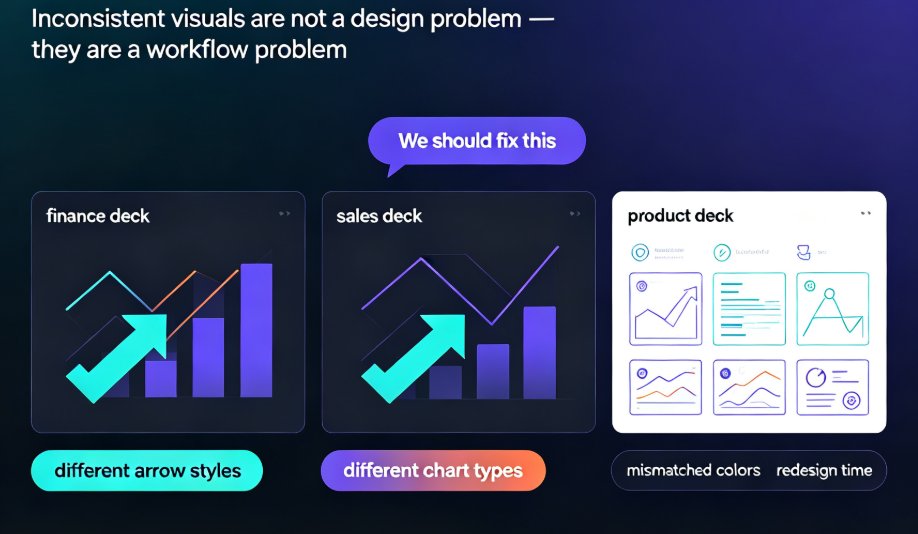
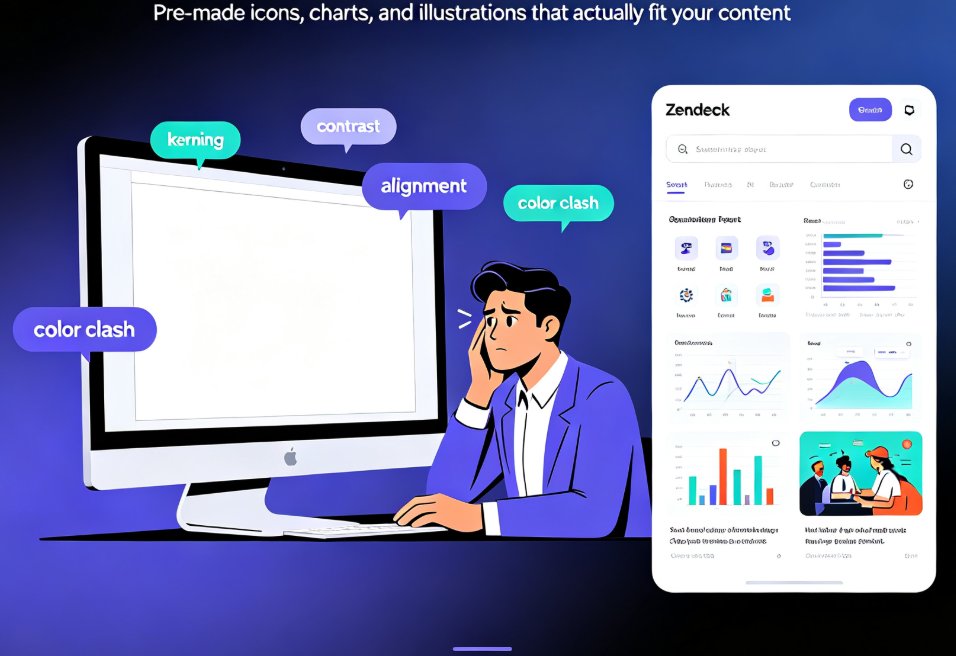
Here's a scene most content teams know too well. It's 4:30 PM, the deck is due tomorrow morning, and you've just spent the last hour hunting for an icon that doesn't look like it was drawn in 2012. You finally find one — but it's a slightly different shade of blue than the chart on slide 12. You fix that, then notice the illustration style on slide 5 clashes with everything else. By the time the deck is "done," you've burned more time on visuals than on the actual content.
The fix isn't more templates. It's a reusable asset library — a single, organized home for the icons, charts, and illustrations your team uses every day. This guide walks you through building one in Zendeck, so your next deck takes hours instead of days.
01 | Why Your Deck Workflow Leaks Time
Most deck production isn't slow because writing is hard. It's slow because of the "visual tax" — the hidden hours spent searching, resizing, recoloring, and re-formatting assets that should already be ready to drop in.
Think about a typical week. You open a template, paste your outline, and then the real work begins: finding icons that match, rebuilding a chart that a client sent as a screenshot, redrawing an illustration because the original file is lost. None of that moves your message forward. It's all overhead.
A reusable asset library is the single fastest way to cut deck production time — not by 10 percent, but by more than half, once you stop re-creating visuals from scratch.
Here's what that looks like in practice. The chart below compares the time a typical content operator spends on visual tasks per deck, with and without a library. The numbers are illustrative, but anyone who's built decks for a living will recognize the shape of them:
The pattern is consistent: the biggest time sinks — hunting for icons, rebuilding charts, fixing off-brand colors, and redoing illustrations — all shrink dramatically when you pull from a curated library. The outcome is straightforward: a slide that used to take 20 minutes takes five, and because every asset is already on-brand, you skip the color-matching and style-fixing entirely.
02 | What Actually Belongs in Your Library
A library is only useful if it holds the right things. Most teams make one of two mistakes: they dump everything in (and can't find anything), or they only save templates (and keep re-creating the same visuals).
Here's a practical breakdown of the three asset types that matter most:
| Asset type | What to include | Why it saves time |
|---|---|---|
| Icons | Consistent icon sets, line vs. filled styles, common actions (download, search, settings) | Stop hunting across free icon sites for matching styles |
| Charts | Branded chart templates, color-coded data viz, reusable axis and legend styles | Rebuild data slides in minutes instead of re-formatting from scratch |
| Illustrations | Hero images, character sets, scene illustrations in one visual style | Keep a cohesive look without commissioning new art each time |
Consistency isn't a design nicety. It's a trust signal. Audiences notice when your slides look like they came from three different companies.
The rule of thumb: if you've used the same visual element three times, it belongs in the library. If you've used it once, it probably doesn't — yet. And if you're wondering how AI is reshaping these libraries, the shift toward AI-generated icons and charts is worth understanding before you start curating.
03 | Organize It So It Actually Gets Reused
The best asset library in the world is useless if nobody can find anything. Organization is where most libraries die.
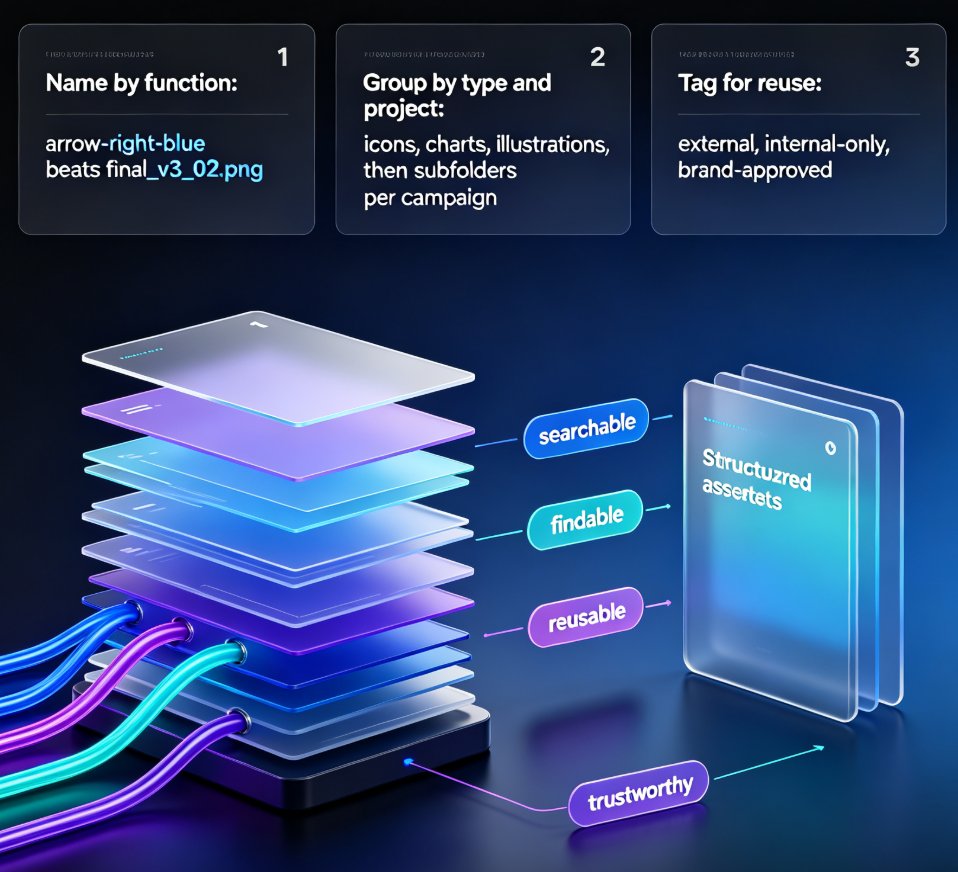
Three habits that keep a library alive:
- Name assets by function, not by file name. "arrow-right-blue" beats "final_v3_02.png" every time.
- Group by project and by type. Folders for icons, charts, and illustrations — then subfolders per campaign or client.
- Tag for reuse. Mark which assets are approved for external use, which are internal-only, and which are tied to a specific brand.
A messy library is worse than no library, because it gives you a false sense of organization. You search, fail, and go back to Google Images anyway. The discipline of naming and tagging is what turns a collection of files into a system you actually trust.
04 | Zendeck's Asset Library in Action
This is where Zendeck's asset library earns its keep. Instead of a static folder of files, you get a living library that plugs directly into your deck-building flow.
When you generate a new deck from a Word outline or Markdown, Zendeck pulls from your saved assets automatically — matching icons to your content, applying your chart styles, and keeping illustrations consistent. You're not dragging files around; you're approving what's already there.
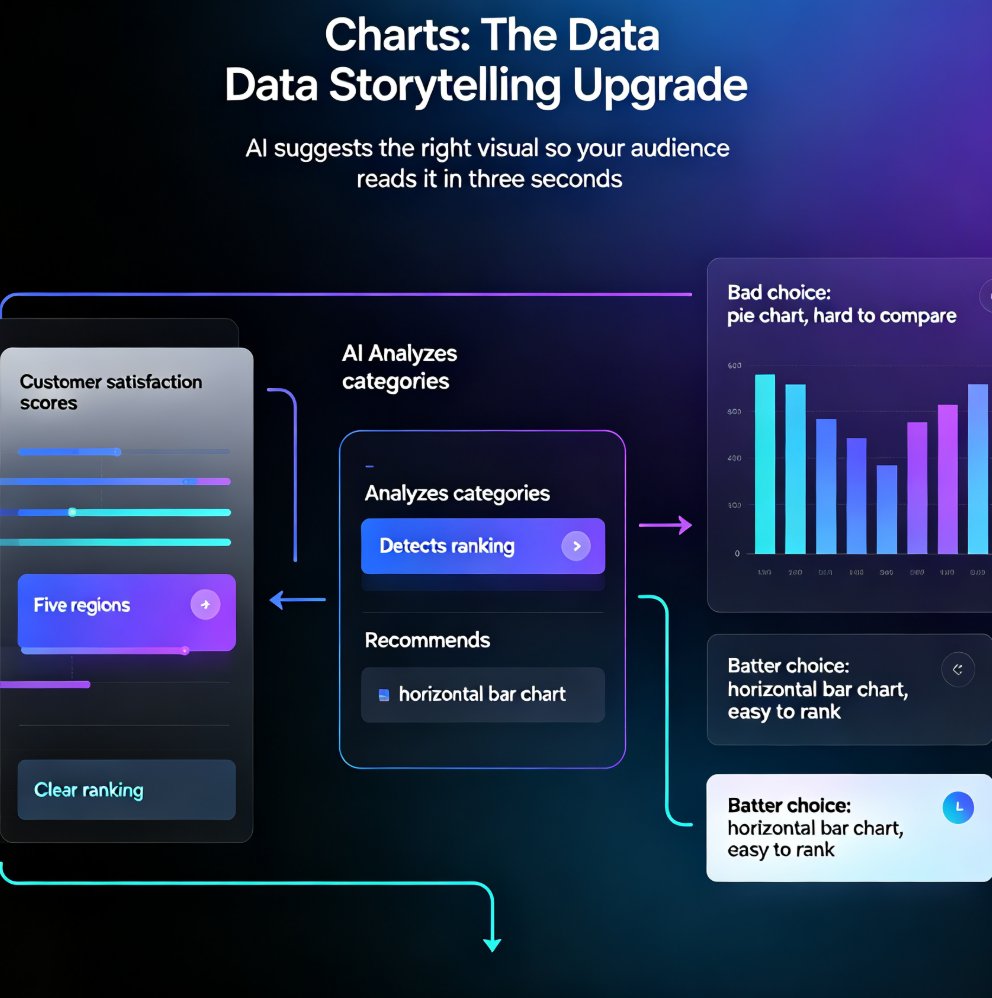
For charts specifically, Zendeck's asset library integrates with interactive chart elements, so you can drop in a data visualization that's already styled to your brand rather than rebuilding it slide by slide. If you want to go deeper on that, the walkthrough on adding interactive charts covers the full workflow.
The outcome: a deck that used to take a full afternoon gets built in the time it takes to review and refine. And because the assets are consistent, the final product looks like it came from one designer — even when five people touched it. For a broader look at how asset libraries are changing brand consistency across teams, this breakdown of AI asset libraries and brand consistency is a good next read.
05 | Team Sharing and Brand Governance
A personal library helps one person. A shared library helps the whole team — but only if it's governed.
The pain point: when everyone saves their own assets, styles drift. One person uses flat icons, another uses 3D, and the brand falls apart across decks. The solution: a shared, curated library with clear ownership.
Zendeck's approach ties asset usage to brand governance, so the library doesn't just store visuals — it enforces them. When someone picks an off-brand icon, the system nudges them toward the approved set. This is the same philosophy behind zero-design brand governance: consistency becomes automatic instead of a constant battle.
This connects directly to brand kits. If you've set up a custom brand kit, your asset library inherits those colors, fonts, and styles, so everything you save is already on-brand before it ever lands on a slide. The result is that new team members produce on-brand work from day one, without a crash course in your style guide.
06 | Your 30-Minute Quick-Start
You don't need a week to set this up. Thirty minutes gets you 80 percent of the value:
- Audit your last five decks. Pull the icons, charts, and illustrations you actually reused.
- Create three folders — icons, charts, illustrations — and drop in the assets you kept.
- Name everything by function and tag anything client-specific.
- Set your brand kit so new assets inherit your colors and fonts.
- Build your next deck from the library. Don't add anything new unless it earns its place.
That last step is the discipline that keeps the library lean. Every asset you add should either save time or protect consistency. If it does neither, leave it out. And if you're building courseware or training materials, this same workflow applies — the courseware design category has more on adapting it to education contexts.
FAQ
How many assets should I start with in my Zendeck library?
Start small — 20 to 30 icons, 5 to 10 chart styles, and a handful of illustrations is enough to cover most decks. You'll grow it naturally as you work, and a lean library is easier to keep organized than a bloated one.
Can my whole team share the same asset library?
Yes. Zendeck supports shared libraries with brand governance, so everyone pulls from the same approved set and styles stay consistent across decks. This is especially valuable for teams where multiple people contribute to the same presentations.
Do I need design skills to build an asset library?
No. The library is designed for non-designers — you organize assets by type and function, and Zendeck handles the styling and consistency. The brand kit does the heavy lifting on colors and fonts.
How is Zendeck's asset library different from just saving files in a folder?
A folder stores files; Zendeck's library integrates with deck generation, applies your brand kit automatically, and keeps assets searchable and reusable inside the tool. It's not a storage system — it's part of your workflow.