How to Search & Insert Icons, Charts & Illustrations in Zendeck’s Asset Library
How to Search & Insert Icons, Charts & Illustrations in Zendeck’s Asset Library
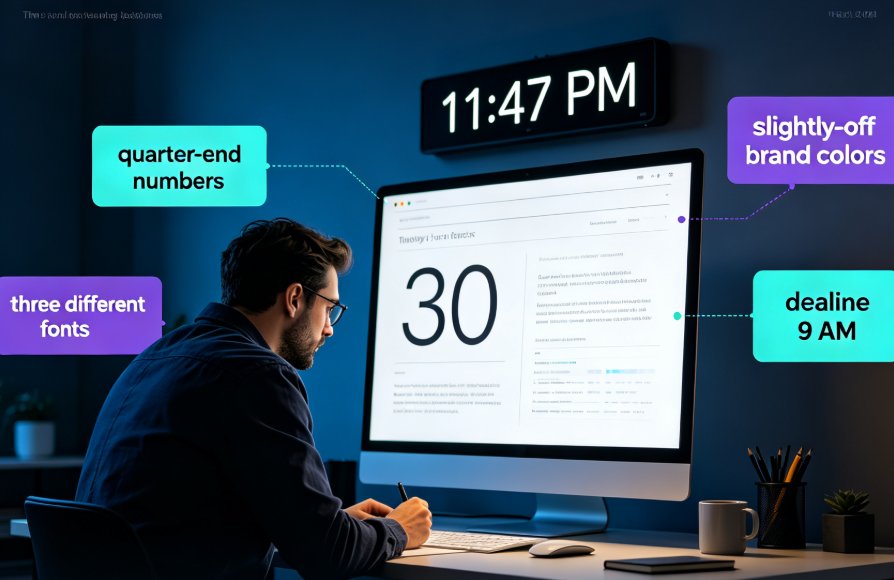
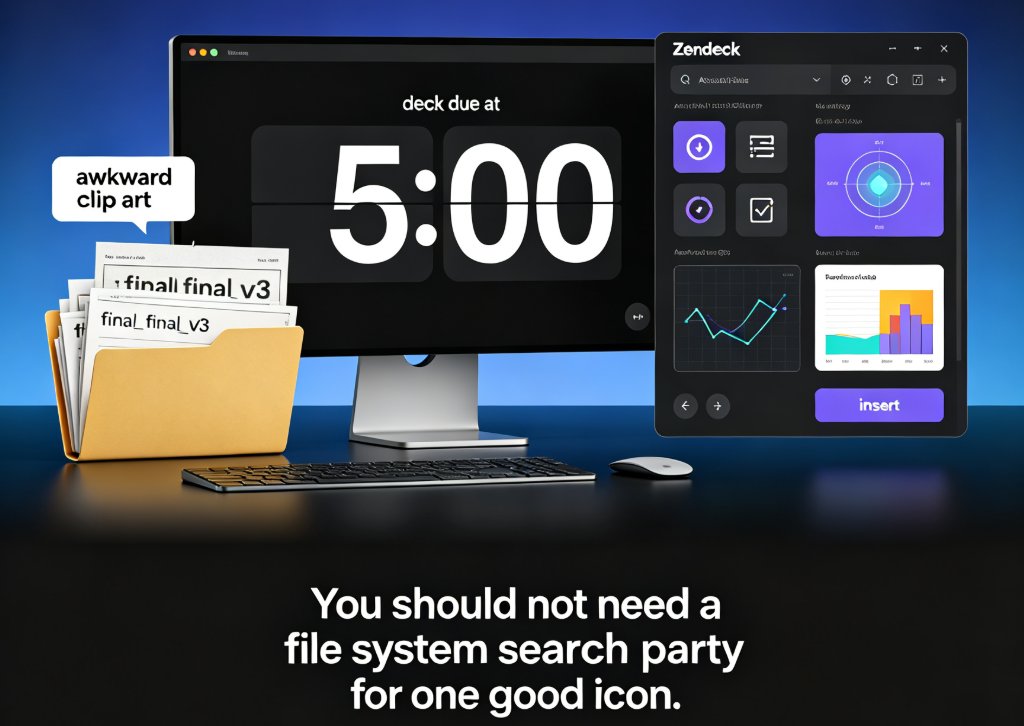
You have a tight deadline. The slide deck is due at 5. You need a clean target icon to replace the awkward clip art that’s been staring at you for the last ten minutes. The problem is, you never remember which folder you saved that good icon set in. So you open your downloads, scroll through 30 files that are still named “final_final_v3,” give up, and settle for the same overused arrow you always use.
Sound familiar?
Most non-designers do not lack taste. They simply lose the battle against a cluttered file system. That is where a centralized asset library changes the workflow — and yes, I am going to show you exactly how to make it work inside Zendeck.
01 / The Real Cost of Hunting for Visual Assets
Before we get into the steps, let’s be honest: searching for visual assets is a workflow tax. A report from Slidestack notes that PowerPoint’s built-in icon library requires you to open the Insert tab, find the Icons option, type a keyword, wait, scroll, then adjust size and color. It works, but every single step adds friction.
The average presenter spends roughly 20–30 minutes per deck just locating and placing icons, charts, and illustrations in a generic tool.
That is a third of the time you could have spent polishing the message or actually rehearsing the pitch.
What makes Zendeck’s asset library different is not just the volume of assets. It is the placement. The library lives inside the editor, next to your slide outline. No switching tabs, no hunting through your downloads folder, no resizing a PNG that turns blurry the second you expand it.
02 / Searching Smarter: Use Specific Keywords, Then Filter
◉ The Search Bar Is Your First Stop
In Zendeck, click on the “Asset Library” button in the left sidebar. You will see a search bar at the top. This is not a decorative element — it is a real search engine for visual content.
Type a simple, descriptive keyword like:
phonefor a handset iconcalendarfor dates and scheduleschartfor data-related visualspeoplefor team and user iconslocationfor maps and places
If you want faster results, skip long sentences. Use one or two words that describe the object, not the emotion. Search “money,” not “a graph showing financial growth over time with a positive trend.” The library indexes objects, not full sentences.
◉ Use Filters to Narrow by Type and Style
After the search returns results, use the filter menu. You can filter by:
- Type: icons, charts, illustrations, photos
- Style: line, filled, outline, 3D
- Theme: business, education, tech, healthcare
This combo — search plus filter — cuts your result set from 200 assets to 10 in about 6 seconds. You can also browse by category if you don’t know exactly what you want, which is useful when you are exploring design directions.
03 / Inserting Icons Without Breaking the Layout
Once you find the right icon, click it. Zendeck inserts it onto your slide immediately.
But here’s the trick: do not immediately resize it by dragging the corners. Use the sizing handles with the shift key if you want to keep the aspect ratio. Or better, use the size value box to insert an exact size for alignment.
The key to a clean layout is not the icon itself — it is how the icon sits in relation to the text.
Here are three positioning rules I’ve learned from designing 500+ decks:
- Align icons with the top of the text line if they are beside a heading.
- Center icons vertically if they are in a feature grid.
- Maintain a consistent gap (usually 16–24 px) between the icon and the text edge.
If the slide still feels off, run the “smart rearrange” layout tool. Zendeck automatically realigns all elements so the spacing is rhythmically consistent.
04 / Adding Charts and Data Visualizations
◉ Charts Should Highlight the Conclusion, Not Hide It
Charts are not decorative. They answer a question instantly. When you search for “bar chart” or “pie chart” in the asset library, you get a visual template that you can populate with your own data.
Here is a comparison to show the practical difference between a manual PowerPoint workflow and using Zendeck’s asset library.
| Task | PowerPoint built-in library | Zendeck asset library |
|---|---|---|
| Insert tab click | Required | Not needed, library docked |
| Icon resizing | Manual, can distort SVG | Smart fit, proportional by default |
| Recolor to theme | Manual, one by one | One-click reskin applies brand colors |
| Work across slides | Copy/paste per slide | Insert once, reuse from library |
| Time to add 3 icons | ~4 minutes | ~45 seconds |
◉ How to Edit Chart Data Inside the Slide
Click on any chart asset inside Zendeck. You will see an “Edit Data” button. Click it, then paste your numbers or type them directly into the mini spreadsheet. The chart recalculates automatically.
This is a game-changer if you are on a tight deadline and your data changed ten minutes before the presentation. No need to recreate the entire visual. Update the numbers, and the chart updates with the same style.
05 / Keeping Visual Consistency Across the Deck
Using the asset library is not just about insertion. The bigger win is maintaining a consistent visual language across all slides.
Here is a common scenario:
You are building a 20-slide deck for a client. You start with line icons. Then you cannot find the right icon for “email campaign,” so you settle for a filled 3D icon from another category. Now your deck has two different visual styles fighting each other.
Zendeck solves this in two ways.
◉ Style Filters Keep You in One Visual Family
When you search, set the style filter to “line,” “filled,” or “outline” and keep it there for the entire session. That simple habit forces a uniform icon style across every slide from slide one to slide 20.
◉ One-Click Reskin Matches Brand Colors Instantly
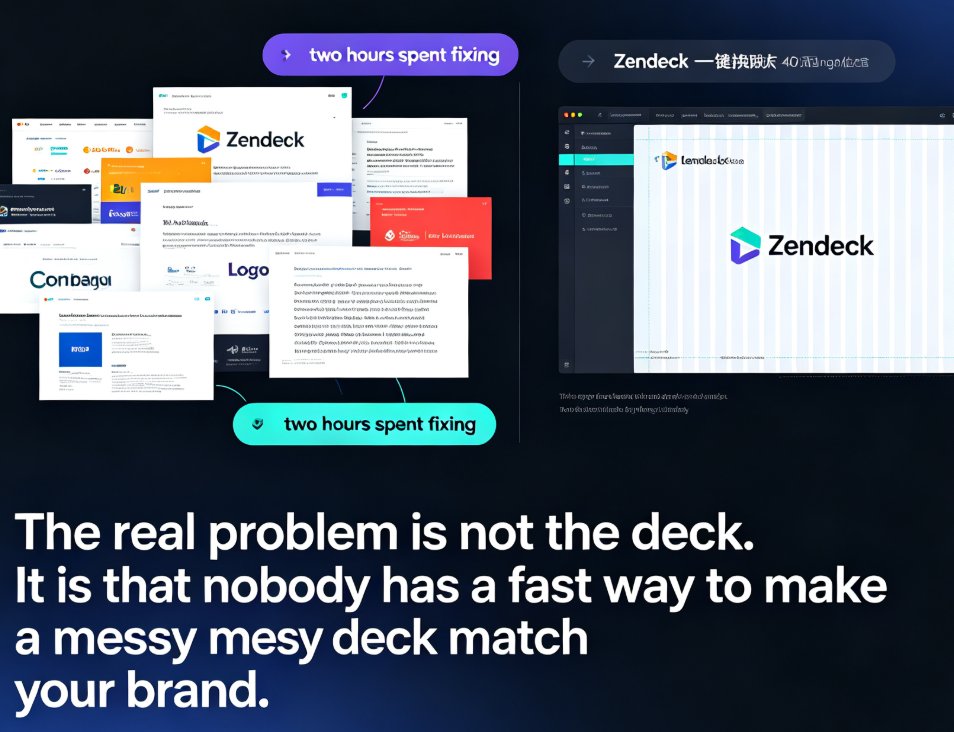
After inserting an icon or chart, you can apply the one-click reskin feature. It immediately matches the presentation’s brand colors, fonts, and layout proportions. This feature is especially useful when you upload a Word outline and let Zendeck generate the initial deck. The library assets then morph to the theme — so you don’t end up with one random blue icon in an otherwise orange deck.
For a deeper dive into keeping brand consistency, read our guide on creating a custom brand kit — it covers fonts, color palettes, and logo placement in detail.
06 / Keyboard Shortcuts and Hidden Efficiency Tricks
If you want to move faster than your coworkers, memorize these shortcuts:
Ctrl/⌘ + K— opens the asset library search directly (no mouse needed)Esc— closes the library while keeping your last inserted asset selectedCtrl/⌘ + D— duplicates the last inserted assetShift + Arrow— nudge the icon in 2px increments for precise alignment
These shortcuts save roughly 90 minutes a month if you create four decks a week. Multiply that by your team size, and you will understand why asset library workflows are becoming the 2026 trend for AI-native presentation tools.
Another hidden trick: use the “Save to Library” button. When you spend time adjusting an icon’s color to match the brand, save it back. Next time you need it, it is already formatted. No repeated manual tweaks.
07 / From Searching to Presenting: A Repeatable Workflow
Let me walk you through my exact 5-step workflow that now takes under a minute:
- When the deck is generated, I scan for slides that feel empty or text-heavy.
- I press
Ctrl/⌘ + K, type a keyword like “growth” or “calendar.” - I set the style filter to “line” and select the first icon that fits.
- I insert it, then run “smart rearrange” to recenter the layout.
- Once per deck, I run one-click reskin to unify the brand colors.
The whole process is under 60 seconds per slide. For a 20-slide deck, that gives me back 15–20 minutes.
If you are new to AI deck generation, check out our tutorial category for step-by-step guides on everything from prompt writing to final export.
08 / Why This Matters for Your Next Deck
Let’s be honest with ourselves. The visual polish of a deck changes how the audience perceives your credibility. A clean, consistent icon set says you are organized and detail-oriented. A mismatched, search-and-destroy approach screams “I rushed this.”
You don’t need to become a graphic designer to have a well-designed deck. You need a systematic way to find, insert, and reuse visual assets.
That is exactly what Zendeck’s asset library was built for. It centralizes the content creation process — from the first search to the final polished slide — in one place.
To see how AI-powered asset libraries are evolving beyond simple icon sets, read our deep dive on AI-generated icons and charts. And if you want interactive elements, this tutorial on interactive charts will get you started.
Start the search. Type one keyword. Insert one icon. And let the library do the heavy lifting.
FAQ
Q: Can I search for icons in Zendeck’s asset library without browsing the whole collection?
A: Yes. The asset library has a keyword search function. Just type a short, specific term like “phone” or “calendar” to filter icons, charts, and illustrations in seconds. You can also browse by category or use the filter options to narrow results.
Q: How do I keep the same visual style when inserting icons and charts in different slides?
A: After inserting an icon or chart, apply Zendeck’s one-click reskin feature. It instantly matches your presentation’s brand colors, fonts, and styling. That way the new asset blends with the rest of the deck without manual color-matching.
Q: Are the icons in the library reusable across different presentations?
A: Yes. Once you insert an asset, it becomes part of your slide’s layout. You can copy it to other slides. Better yet, use Zendeck’s asset library to save your commonly used icons and charts for quick access across future decks.
Q: What should I do if I cannot find the right icon in the library?
A: Try a broader keyword. For example, search “social” instead of “linkedin logo.” If you still cannot find an asset, you can import a custom graphic, or use Zendeck’s AI-generated icon suggestions to create a visual that fits the content.
Q: Does inserting an icon into a slide slow down the reskinning process?
A: Not at all. The library is integrated directly into the editor. After you insert an asset, the one-click reskin feature automatically applies the current theme, so your original layout stays intact, and the new element matches right away.