One-Click Reskin: Unify Your Presentation Brand with Zendeck
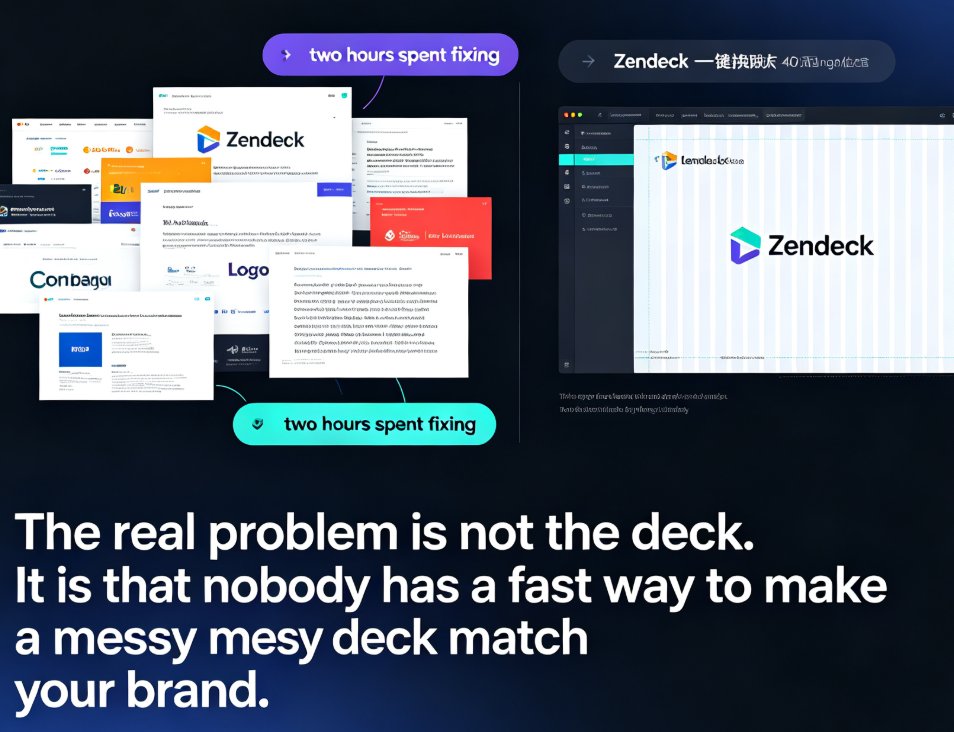
You know the moment. A teammate drops a 40-slide deck into the shared drive, and it looks like three different people made it — because three different people did. Slide 7 uses Calibri, slide 12 switches to Arial, and the company logo shows up in four different sizes. Someone spent two hours "fixing" it, and it still looks off.
The real problem isn't the deck. It's that nobody has a fast way to make a messy deck match your brand.
That's where one-click reskin comes in. Zendeck's smart layout engine takes any deck — even one you imported from PowerPoint — and reapplies a consistent font, color, and layout theme across every slide. Your content stays exactly where it is. The design system just snaps into place.
Let's walk through why this matters, how it works, and exactly how to do it.
01 Why Team Decks End Up Looking Like a Patchwork
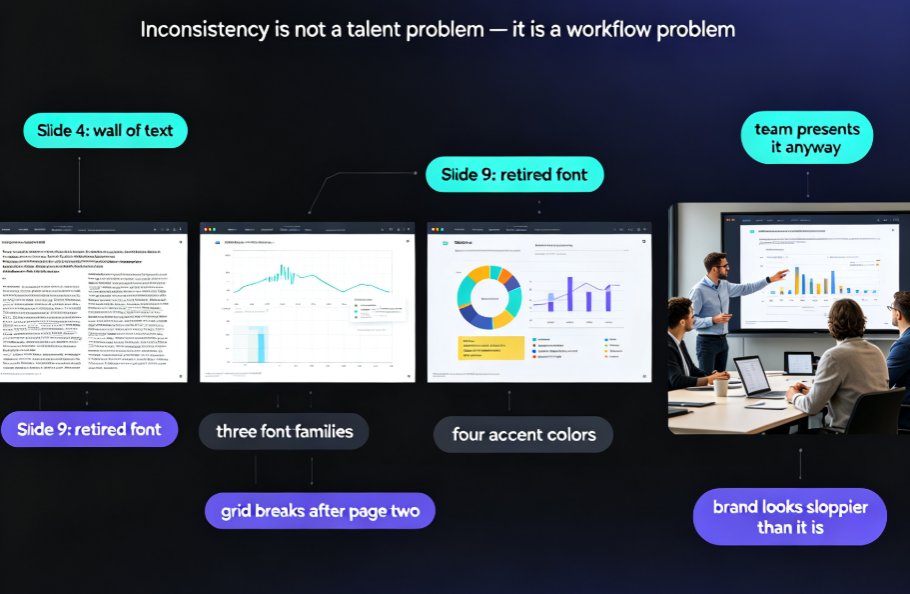
Inconsistent branding isn't a design problem. It's a workflow problem.
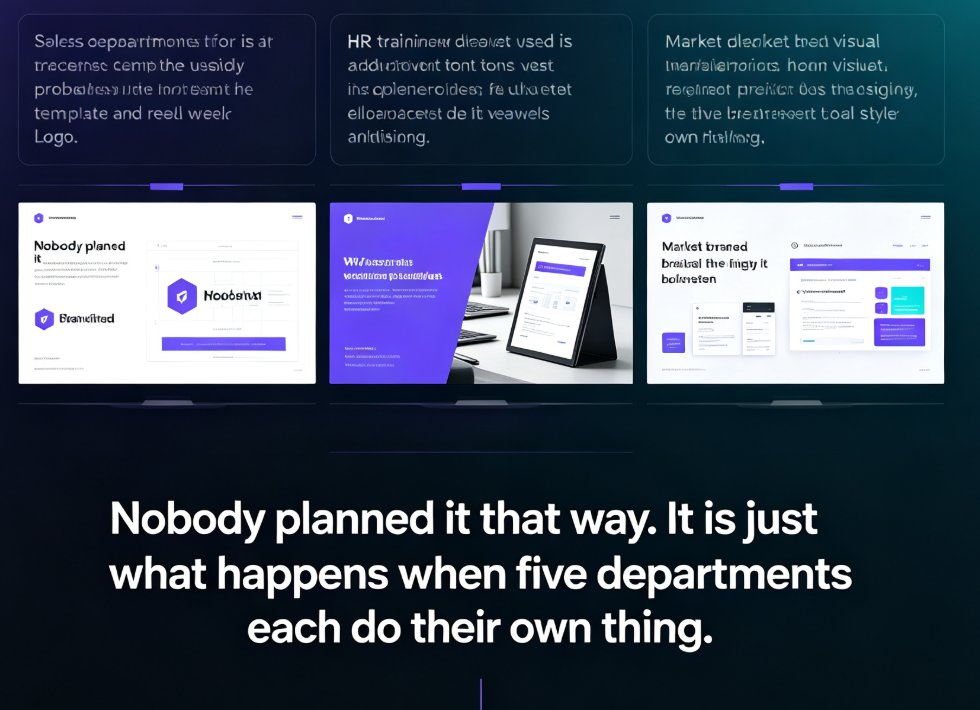
Here's what typically happens: someone builds a deck from an old template, someone else grabs slides from a previous quarter's presentation, and a third person creates a few new slides from scratch. Each source has its own fonts, colors, and layout logic. When you merge them, you get a deck that feels disjointed — even if every individual slide looks fine on its own.
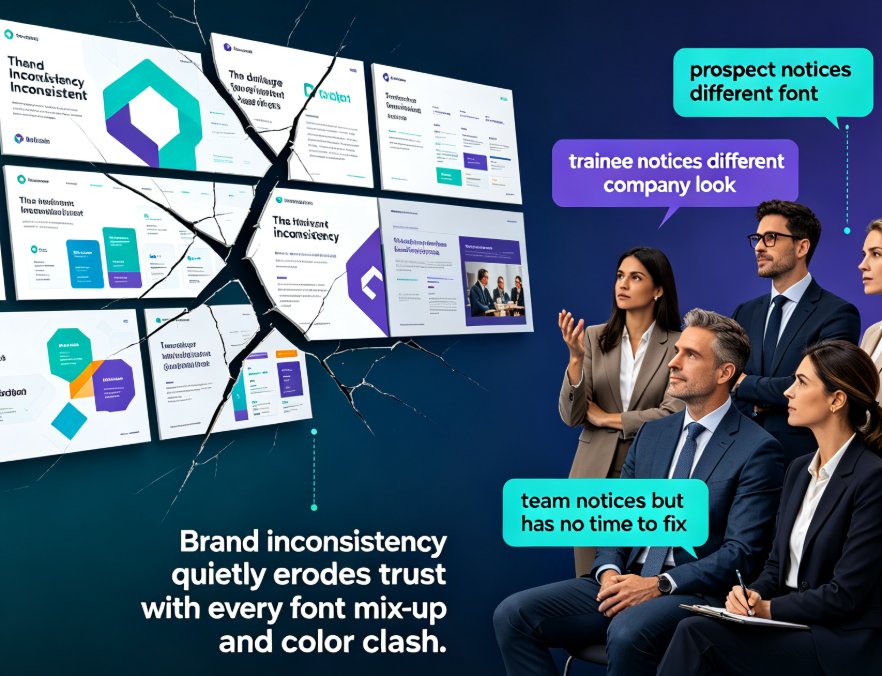
The cost of visual inconsistency is real: audiences perceive off-brand decks as less credible, and reviewers spend more time noticing the design than absorbing the content.
The fix isn't to hire a designer for every deck. It's to have a tool that can restyle the whole thing in one pass.
02 What One-Click Reskin Actually Does
Let's be clear about what reskinning is and isn't. Reskinning doesn't rewrite your content, move your charts, or delete your data. It remaps the visual system — colors, fonts, type scale, spacing, and layout rules — so every slide follows the same design language.
Think of it like repainting a house: the rooms stay the same, but the whole place suddenly feels cohesive.
Zendeck's reskin engine does four things at once:
- Maps colors to your brand palette — every accent, fill, and text color gets remapped to your approved hex codes.
- Unifies fonts and type scale — headings, body text, and captions all switch to your brand typefaces with consistent sizes.
- Applies layout and master rules — slide masters and layout templates get applied across the deck, fixing spacing, hierarchy, and alignment.
- Keeps your content intact — charts, tables, images, and text stay exactly where they are.
The result: a deck that looks like it was designed by one person, on purpose.
The time savings are dramatic. Here's what manual reformatting looks like versus a one-click reskin:
03 Step-by-Step: Reskinning a Messy Deck with Zendeck
Here's the exact workflow. It takes about two minutes.
Step 1: Import your deck. Upload your PowerPoint file (or paste a Word outline / Markdown) into Zendeck. The platform converts it into an editable deck that keeps your existing content. If you're starting from a Word document, Zendeck's outline-to-deck conversion handles that too — check out how AI presentation tools integrate with Word and Google Docs for more.
Step 2: Pick your brand theme. Choose a target theme from your brand kit or select one from Zendeck's template library. If you haven't set up a brand kit yet, this is the time — it stores your official colors, fonts, and logo usage rules so every future reskin is consistent. Creating a custom brand kit in Zendeck takes about five minutes and pays off every single time you reskin.
Step 3: Hit reskin. One click. The smart layout engine scans every slide and reapplies the theme — colors, fonts, type scale, and layout rules — across the entire deck. You'll see the transformation happen in seconds.
Step 4: Review and export. Skim through the deck to make sure everything looks right. Because your content never moved, there's usually nothing to fix. Export as a native PowerPoint file or share it directly from Zendeck.
04 What Reskin Fixes vs. What It Doesn't
It helps to set expectations. Here's the honest breakdown:
| What reskin fixes | What reskin doesn't fix |
|---|---|
| Fonts and type scale across all slides | Content accuracy or outdated data |
| Color mismatches and off-brand accents | Structural problems like missing slides |
| Spacing, hierarchy, and alignment | Badly cropped images (you'll need to replace those) |
| Slide master and layout inconsistencies | Copy that needs rewriting |
| Inconsistent logo placement | Charts with wrong numbers |
The sweet spot for reskinning is a deck with good content and bad styling. If the content is solid but the presentation looks like a garage sale, reskin will transform it in minutes. If the content itself is a mess, reskin won't save you — you need to fix the substance first.
05 Reskin vs. Rebuild: How to Decide
Not every deck deserves a reskin. Sometimes you're better off starting fresh. Here's a quick decision guide:
- Reskin when: the content is good, the structure works, and you just need it to look on-brand. This is most team decks, client deliverables, and internal updates.
- Rebuild when: the deck is structurally broken, slides are overloaded with text, or the narrative doesn't flow. A reskin would just polish a deck that needs to be rethought.
The rule of thumb: reskin to align, rebuild to restructure. If you're not sure, ask yourself — would this deck be good if it just looked better? If yes, reskin. If no, rebuild.
This ties into a broader trend: AI deck tools are moving beyond static templates toward context-aware design. AI decks in 2026 are shifting from template picking to fully automated generation, and reskinning is a big part of that shift. The same logic that powers one-click reskin — smart layout, brand governance, and automated design decisions — is what makes AI-governed brand consistency possible across an entire organization.
06 Best Practices for Keeping Every Deck On-Brand
Reskinning is powerful, but it works best when you set yourself up for success. A few habits that make a real difference:
Set up a brand kit once, reuse it forever. Store your official colors, fonts, and logo rules in Zendeck's brand kit. Every reskin then uses the same source of truth. This is the single highest-leverage thing you can do for brand consistency.
Run a reskin pass before every client-facing deliverable. Even if you built the deck from scratch, a quick reskin pass catches stray colors or font drift that crept in during editing.
Standardize your source decks. If your team consistently starts from the same template, you'll reskin less often. But when someone inevitably sends you a rogue deck, you know exactly how to fix it.
Check accessibility while you're at it. Reskinning is a great moment to verify color contrast and add alt text to images. Accessible AI presentations are becoming the new standard, and a reskin pass is the perfect time to address it.
Use the asset library for consistent visuals. When you do need to add icons, charts, or illustrations, pull them from Zendeck's asset library so they match the same visual language. AI asset libraries are revolutionizing corporate brand consistency for exactly this reason.
FAQ
Q: What does one-click reskin do in Zendeck? A: One-click reskin reapplies a consistent font, color, and layout theme across every slide in your deck. It maps colors to your brand palette, unifies type scale, applies slide master rules, and keeps your content exactly where it is.
Q: Will reskinning change my content or data? A: No. Reskinning only changes the visual design system — colors, fonts, spacing, and layout. Your text, charts, tables, and images stay in place. If a chart has wrong numbers, reskinning won't fix that; you'll need to update the data yourself.
Q: Can I reskin a deck that uses custom fonts? A: Yes. Zendeck maps your deck's fonts to the target theme's typefaces. If the target theme uses custom brand fonts, those get applied across all slides. You can also set up a brand kit with your official typefaces for consistent results.
Q: How is reskin different from applying a new template? A: Applying a new template typically replaces the design but can disrupt your content placement. Reskinning is smarter — it remaps the design system while preserving your content's structure and position. It's a more surgical approach.
Q: Does reskin work on imported PowerPoint files? A: Yes. You can upload a PowerPoint file into Zendeck, and the reskin engine will restyle it to your chosen theme. This is one of the most common use cases — taking an existing deck and making it match your brand.