PPT to Video: Zendeck Automates Micro-Course Narration
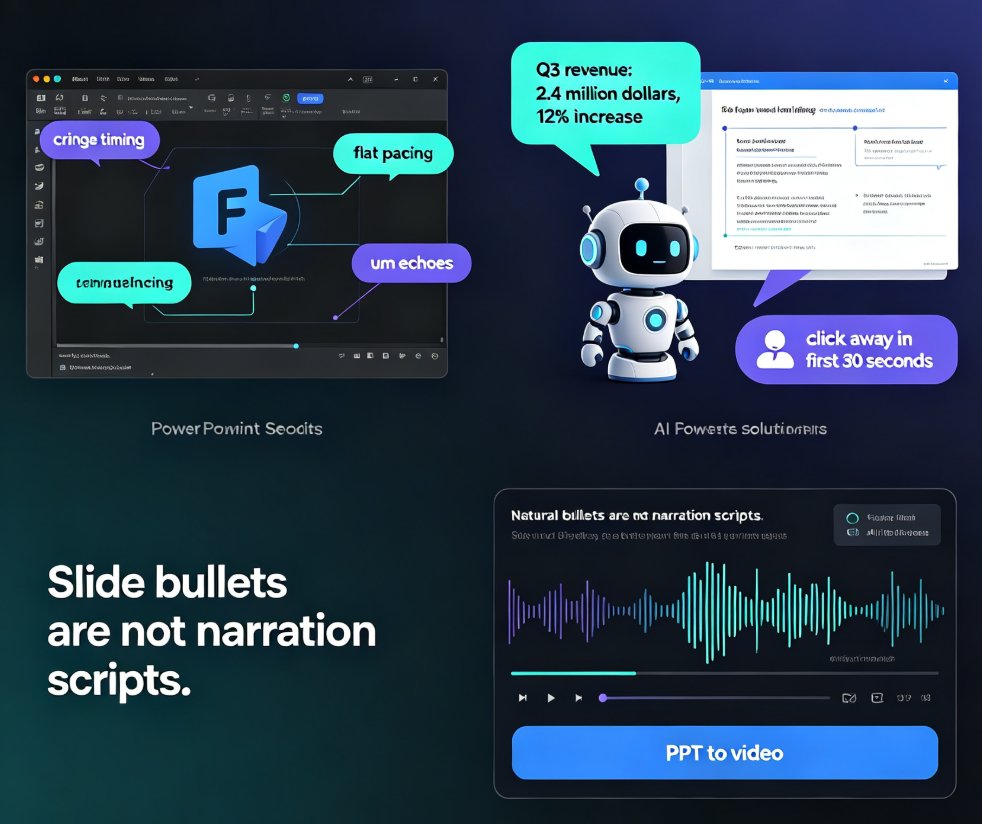
You've built the deck. The slides look sharp, the flow makes sense, and your learners are finally going to get it. Then comes the part nobody enjoys: recording the narration. You close the office door, hit record, stumble over a sentence, and start over. Twenty minutes later, you have three usable minutes of audio.
That's the bottleneck. And it's exactly what Zendeck's PPT-to-video automation removes.
The shift from static slides to narrated micro-courses is one of the biggest workflow changes in corporate training and education right now — and the tools that automate narration are the reason it's finally practical.
01 The real problem: manual recording doesn't scale
Here's a scenario I see all the time. An HR team needs to onboard 40 new hires. A university department needs to convert 200 lecture decks into reviewable micro-courses. A sales enablement lead has to update product training every quarter.
In every case, the slides already exist. The content is done. What's missing is the voice — and recording it manually is a slow, painful process that nobody wants to own.
The math is brutal. A 15-slide deck with two minutes of narration per slide means 30 minutes of audio. In practice, recording that takes 90 minutes or more because you'll flub lines, cough, get interrupted by a Slack ping, and re-record the same sentence four times. Then you have to sync the audio to the slides, adjust timings, and export. A single micro-course can eat half a day.
Manual narration doesn't just cost time — it creates a psychological barrier that stops people from making videos at all. I've watched talented trainers abandon perfectly good decks because the thought of recording their own voice was too much. The content never ships. The learners never get the material.
That's the pain point. Now here's the solution.
02 What Zendeck's automatic narration actually does
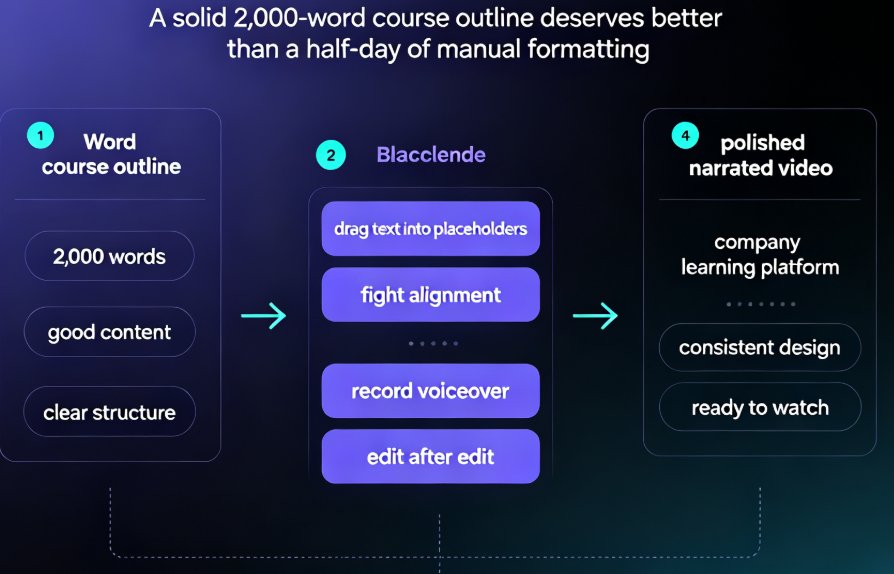
Zendeck takes a different path. Instead of asking you to record, it generates the narration from your slide text using AI voice synthesis. You upload your PPT or paste your script, and the tool produces a narrated video with synchronized timing — no microphone, no quiet room, no retakes.
The workflow looks like this:
- Upload your existing PPT or paste your outline.
- Zendeck parses the slides and generates speaker scripts for each one.
- Pick a voice from the AI voice library.
- Zendeck renders the video with narration synced to each slide.
- Download the MP4 or share it directly.
The key difference: you never touch a microphone. The narration is generated from text, which means you can edit the script, regenerate the audio, and re-render in minutes — not hours. If a stakeholder says "can you make slide 7 shorter?" you edit one line of text and regenerate. No re-recording.
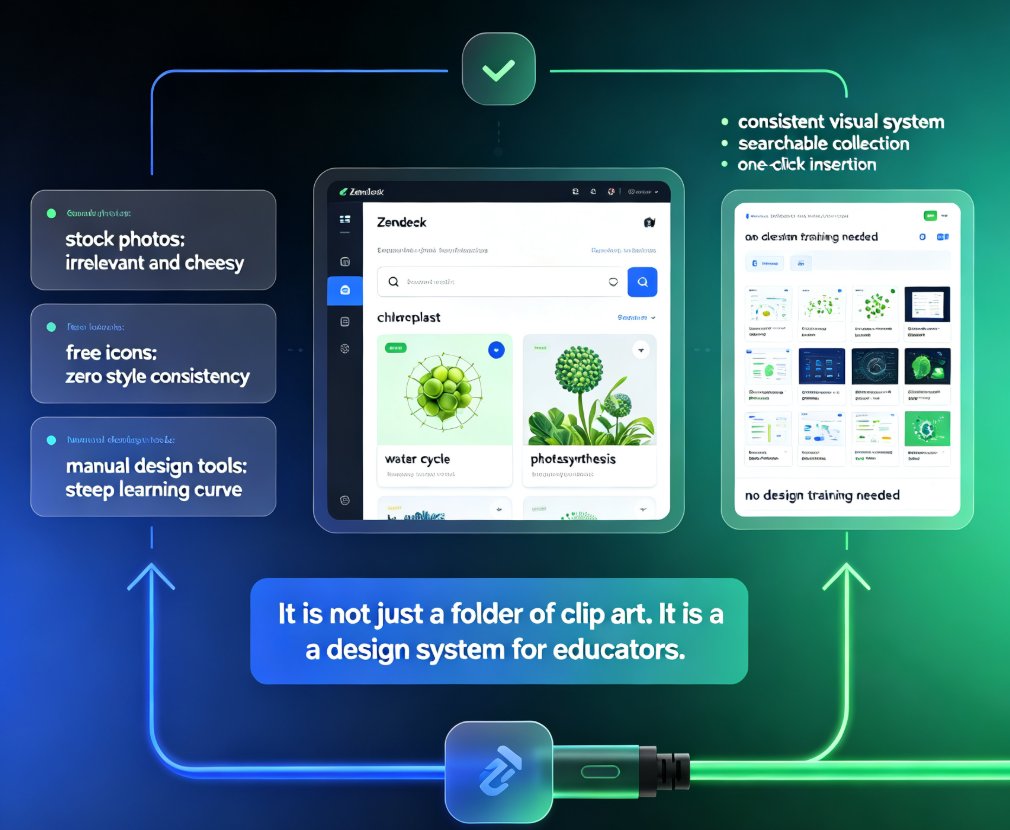
This is where Zendeck differs from the manual route inside PowerPoint. PowerPoint's built-in export to video works — if you've already recorded narration. But that requires you to record first, which brings you right back to the bottleneck. Zendeck skips the recording entirely. If you want the full walkthrough of adding narration to slides, this guide on adding narration with Zendeck's PPT-to-video covers the step-by-step process.
03 Manual recording vs. AI narration: the honest comparison
Let's be real: AI narration isn't identical to a human voice. It won't capture the warmth of a seasoned presenter or the energy of a live keynote. But for most micro-course use cases — training modules, courseware, onboarding decks, lecture reviews — the tradeoffs are heavily in favor of automation.
Here's the side-by-side comparison:
| Factor | Manual recording (PowerPoint) | Zendeck AI narration |
|---|---|---|
| Setup time | Microphone, quiet room, recording gear | None — just upload the deck |
| Recording time (15-slide deck) | 90+ minutes with retakes | ~5 minutes of generation |
| Retakes | Re-record the whole slide or splice audio | Edit the script and regenerate |
| Voice consistency | Varies with energy, colds, interruptions | Identical every single time |
| Pacing control | Manual, hard to adjust | Adjustable per slide or globally |
| Subtitles | Manual or third-party tool | Auto-generated from script |
| Cost | Free if you own PowerPoint, but time is expensive | Time savings pay for the tool |
The numbers tell the story. A 15-slide deck that takes 90 minutes to record manually can be generated in about 5 minutes with Zendeck. That's a 90% reduction in production time for the narration step alone.
If you're still deciding whether this workflow fits your team, the deeper trend is worth reading: why AI PPT-to-video is becoming the 2026 corporate training standard lays out the broader shift.
04 Pacing and timing: the part everyone forgets
Here's the thing nobody tells you about narrated videos: pacing matters more than the voice itself. A voice that's too fast loses the audience. Too slow, and they check out. And when slides auto-advance, bad timing breaks the entire experience.
Zendeck gives you control over this. You can adjust the seconds per slide, tweak the narration speed, and fine-tune where each slide transition lands. The default settings work, but the real power is in the adjustments.
A few things I've learned from watching people build micro-courses:
- Keep each slide under 90 seconds of narration. If a slide needs more time, split it into two slides. Long slides become walls of audio, and attention drops fast.
- Set a consistent rhythm. If slide 3 runs 40 seconds and slide 4 runs 80 seconds, the pacing feels jerky. Aim for similar durations across slides so the course has a steady heartbeat.
- Leave a breath at the end of each slide. A 1-2 second pause before the transition gives the audience a beat to process what they just heard.
These are small tweaks, but they're the difference between a video people finish and one they abandon. And if you're building a longer course, the same pacing principles apply — AI agents can take you from outline to a full published micro-course if you want the whole pipeline automated.
05 Subtitles: the accessibility feature that's now table stakes
Here's a stat that surprises people: a large chunk of viewers watch videos with the sound off — in offices, on public transit, in open-plan workspaces. If your micro-course doesn't have subtitles, you're losing those viewers before they even start.
Zendeck auto-generates subtitles from the narration script. That's not just a convenience — it's becoming a compliance issue. WCAG accessibility standards increasingly apply to training content, and subtitles are the baseline requirement.
Auto-generated subtitles turn a narrated video into an accessible micro-course with zero extra effort. You don't need a separate captioning tool, a transcription service, or a video editor. The subtitles come from the same script that drives the narration, so they're always in sync.
If accessibility is a priority for your organization — and it should be — the details matter. Zendeck's approach to auto-generating subtitles from PPT covers how the sync works, and the broader guide on adding voiceover and subtitles to slides walks through the full setup.
06 Real-world proof: from 200 decks to narrated micro-courses
A university department recently used Zendeck to convert 200 static lecture decks into narrated micro-courses. The goal was simple: give students a way to review lectures on demand, without requiring professors to re-record anything or learn video editing.
The results were exactly what you'd hope for. The department cut production time from hours per course to minutes. Professors kept their existing slide decks — no redesign, no reformatting. And students got consistent, narrated review material for every lecture, with subtitles baked in.
This is the pattern I keep seeing across organizations: the teams that win with micro-courses aren't the ones with the best video skills — they're the ones that remove the production bottleneck. Zendeck removes it by automating the hardest part.
The same logic applies beyond education. Sales teams turn product decks into training videos. HR converts policy presentations into onboarding modules. Marketing repurposes webinar slides into on-demand content. The tool doesn't care what industry you're in — it just removes the recording barrier.
07 When should you still record manually?
Let's be honest: AI narration isn't for everything. If you're delivering a keynote that requires emotional delivery, or a sales pitch where your personality is the product, record manually. AI voices are good, but they're not you.
The sweet spot for Zendeck's PPT-to-video is explanatory content: training modules, courseware, onboarding decks, product demos, lecture reviews. Content where clarity matters more than charisma. If the goal is to transfer knowledge efficiently, a consistent AI voice with clean subtitles and solid pacing beats a shaky human recording every time.
If you're in that zone — and most corporate training is — the automation is a no-brainer. The deck already exists. The script writes itself from your slide text. The voice generates in seconds. The subtitles appear automatically. The only question left is why you were recording manually in the first place.
FAQ
How does Zendeck generate narration from my PPT? Zendeck parses the text from your uploaded PPT or pasted script and uses AI voice synthesis to generate narration for each slide. The audio is automatically synced to the slide timing, so you never need to touch a microphone or record anything manually.
Can I adjust the pacing or timing of the narration? Yes. You can adjust the seconds per slide, tweak the narration speed, and fine-tune where each slide transition lands. The default settings work well, but the pacing controls let you match the rhythm to your audience — which is the difference between a video people finish and one they abandon.
Does Zendeck add subtitles automatically? Yes. Zendeck auto-generates subtitles from the narration script. That's not just a convenience — it makes your micro-courses more accessible, helps viewers who watch with the sound off, and supports WCAG compliance for training content.
How long does it take to convert a PPT to a narrated video? A typical 15-slide deck can be generated in about 5 minutes, compared to 90+ minutes of manual recording with retakes. The exact time depends on deck complexity and video length, but the generation step is nearly instant once your script is ready.
Do I need recording equipment or a microphone? No. Zendeck generates narration entirely from text using AI voice synthesis. You only need your PPT or script — no microphone, no quiet room, no recording software, and no audio editing.