Record Narrations Painlessly: Zendeck PPT to Video with AI Voiceover
Let me guess what happened last time you needed to record a voiceover for a course.
You cleared your desk, set up your laptop, checked the mic three times, and hit record. Then you mangled a sentence, sneezed, or got interrupted by a delivery guy. So you hit record again. And again. Forty minutes later you had 8 takes of the same slide, a headache, and no video. If that sounds familiar, you already know the pain: recording narrations is the slowest, least glamorous part of making a micro-course.
Good news: it's also the part you can skip.
Zendeck's PPT to video with AI voiceover turns your existing slides into a narrated MP4 — no mic, no studio, no retakes. You hand it a deck, pick a voice, review the script, and export. The result looks and sounds like you sat down with a producer for a week.
01 | Why Recording Narration Is the Real Bottleneck (Not Design)
For most trainers and educators, the hardest part of making a video course isn't the slides. It's the audio. Here's the usual workflow:
- Write a script for each slide.
- Set up a quiet space (or fight background noise).
- Record take after take until a usable clip appears.
- Trim dead air, re-record mistakes, edit in a separate tool.
- Sync the audio track to slide transitions in your editor.
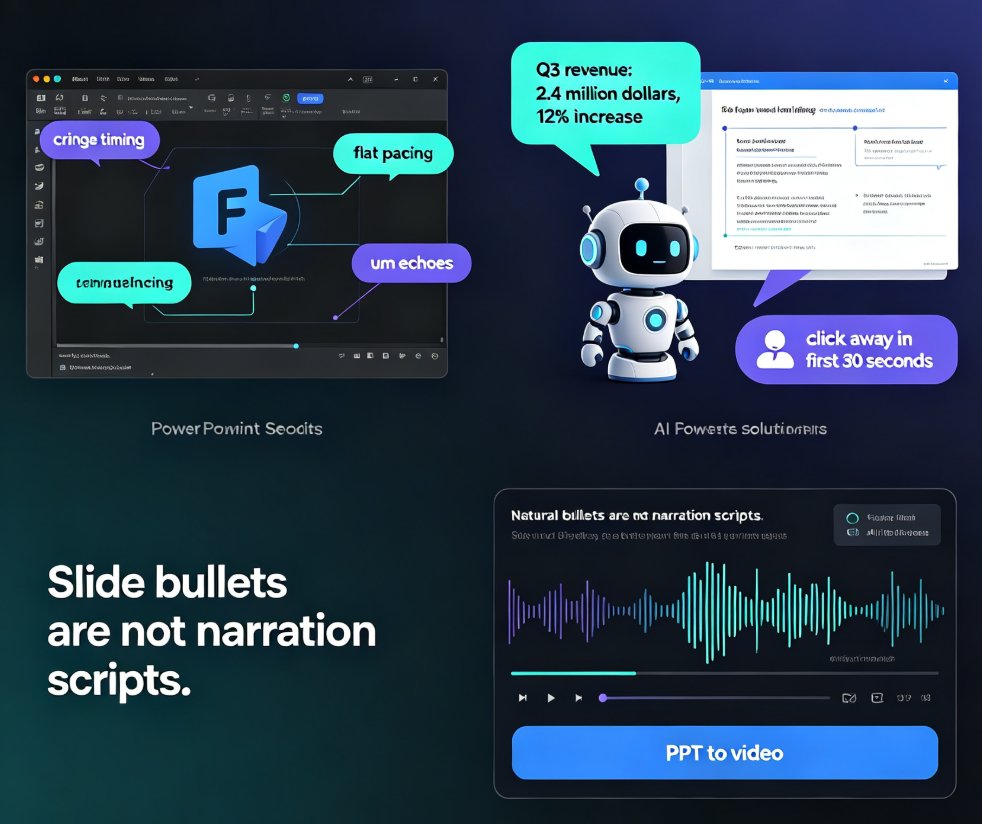
It takes 10 to 15 minutes to record one polished minute of narration — and that's if you're good. A 20-slide course can eat an entire afternoon. And the worst part? The final audio often still has room tone and mouth clicks you don't notice until you upload it.
That's why the 2026 shift in corporate training is toward AI-generated narration. Instead of spending an afternoon in a "recording studio" made of blankets and sofa cushions, teams are turning slide text and speaker notes into natural-sounding voice tracks in minutes.
Tip that costs you nothing: you don't need to write a fresh script. If your slides already have speaker notes, they're 80% of the narration draft. Zendeck just needs to read them out loud.
02 | How Zendeck Speaks Your Slides: The Three-Step Flow
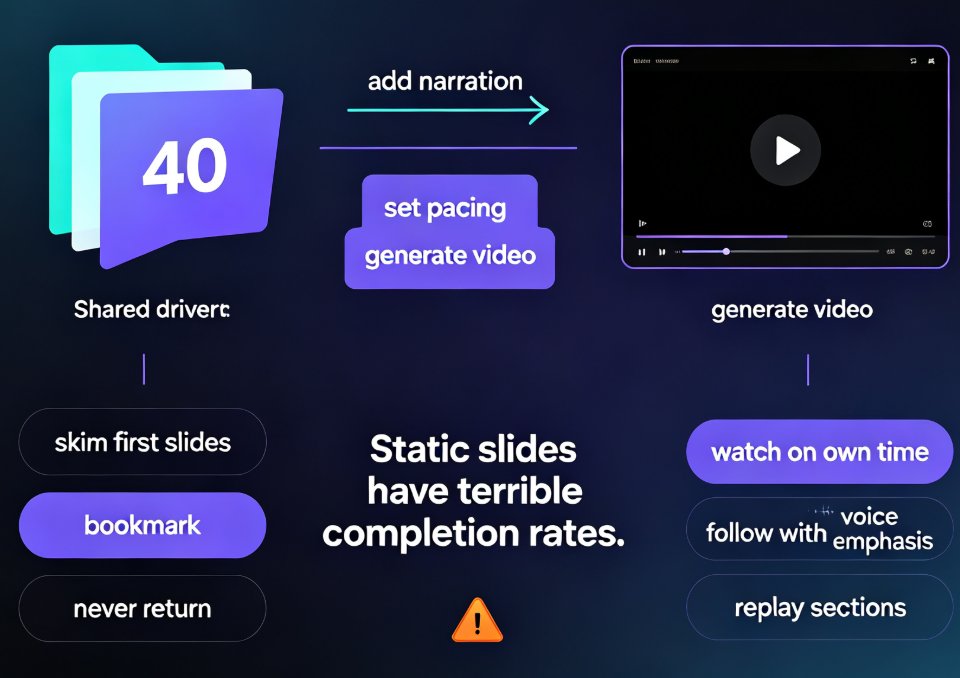
Zendeck treats a narrated video as a media project with a script, not just an image sequence. Once your slides are in, the process breaks into three steps.
Step 1 — Upload and let the script draft itself.
Drop in your .pptx (or paste a Word outline). Zendeck parses the slide text, structure, and speaker notes, then builds a draft narration section by section. Slides with notes get read from the notes; slides without notes get narration drafted from the on-slide text. Nothing to write from scratch.
Step 2 — Pick the voice and adjust the feel.
You choose an AI voice that matches your content — offer a warm tone for onboarding, a brisk voice for technical walkthroughs. The script appears in a reviewer where every line stays editable. You can shorten a sentence, fix a term, or change the voice. If you keep the audio but want more visual variety, you can even reskin the slides in the same editor.
Step 3 — Render video with captions.
The video renders as an MP4, with optional SRT/VTT caption files and a transcript. Captions aren't an afterthought: they're handed to you in the export, so your LMS, YouTube channel, or internal training library gets accessibility support without a second tool.
03 | What 'Sounds Natural' Actually Means in AI Narration
Let's be real about the one thing that worries every presenter: will it sound robotic?
Modern AI voices have moved past the monotone robot phase. Zendeck's voice engine handles punctuation, emphasis, and pacing well enough that most learners won't think about it at all. They'll just be paying attention to what you're saying.
That said, the script still matters. The best AI narration is the one nobody notices — and you get that with editing, not just voice selection. Here's what makes the difference:
- Write for the ear. Short, spoken-style sentences outperform long written paragraphs. If you wrote "However, we must take into consideration," swap it for "But we should consider."
- Cue the visuals. Keep narration under 60 words per slide so the listener isn't waiting on the screen. You can shrink long slide text to key phrases while Zendeck reads the full context from your notes.
- Add a beat between sections. A pause between major sections helps learners separate ideas. You can control slide timing in the reviewer to create that breathing room.
The aim is 50 to 70 words per slide for most training content. Any faster and you lose comprehension; any slower and learners start multitasking.
04 | Why Editing a Script Beats Recording It
The killer feature of AI narration isn't convenience at the start. It's what happens when your boss asks for a small change on Tuesday after you "finished" on Friday.
In a traditional recording, updating one fact means re-recording a full take. With Zendeck, you edit one sentence, re-render, and the change is done. Your voice, pace, and background noise stay consistent because they're generated from the same script — no one can spot the edit.
This turns content updates from a production task into a word-processing task. Your course stays current because updating it doesn't hurt.
And because the narration is generated, you can also change the voice of an entire course in one click — say, switching from a warm female voice to a deeper male voice to match a rebrand. Try that with an audio recorder.
05 | The Time Math: What You Stop Losing Every Week
Here's a quick sanity check, based on a typical 15-slide, 8-minute course.
| Workload | Traditional recording | Zendeck AI narration |
|---|---|---|
| Script prep from existing notes | 30 min | 5 min (auto-drafted) |
| Recording takes | 2 hours (with retakes) | 0 min |
| Editing audio / removing mistakes | 45 min | 0 min (line editing only) |
| Syncing audio to slide transitions | 1 hour | 0 min (auto-synced) |
| Adding subtitles | 30 min (manual timestamps) | Built-in SRT/VTT export |
| Total time | ~4.75 hours | ~25 minutes |
That's a 90%+ reduction in production time for a finished narrated course. The numbers vary by your experience, but the pattern holds: most of the work shifts from manual execution to fast review.
The same applies to a longer setup. A 40-slide compliance course that used to take a full day now fits into a lunch break. That's why AI PPT-to-video is becoming the standard format for internal training in 2026, not just an experiment.
06 | Beyond the Basics: Using Voice as a Teaching Tool
A smart workflow uses voice not just to speak the slides, but to shape the lesson. Two small moves make your videos feel like they were made by a producer, not a tool.
Assign different voices to different sections. If your course includes a customer testimonial or a dialogue between trainer and learner, use a second voice for that part. It breaks the monotony and cue learners that a new perspective is speaking.
Match the voice to the material. A high-energy voice suits a sales enablement intro; a calm and measured voice works better for compliance or technical error-handling modules. The setting is a one-click change, so it costs nothing to experiment.
And if you already create courses in a consistent template style, keep that brand feel running through — the narration just needs to match the deck's confidence.
07 | Accessibility: Free Captions You Probably Need Anyway
The moment you generate a narrated video, you also get caption files. That's not a fancy extra. It's the difference between a video that plays on mute in an open office and one that teaches.
Captions from AI narration are especially useful because they line up with the audio automatically. You don't need to eyeball timestamps. Export SRT or VTT, upload to YouTube, the LMS, or an internal portal, and you've just made your content more accessible without a minute of fiddling. For anyone working toward WCAG-friendly course material, this is a quiet win that also meets accessibility standards in most organizations.
It pairs well with Zendeck's approach to accessibility in courseware — the same design principle that makes your slides readable makes your narration legible.
08 | When to Reach for This Workflow (and When Not To)
AI narration isn't the answer to everything, and pretending it is would be dishonest. It's best for content that explains, informs, or guides — micro-courses, product demos, internal training, onboarding decks, and sales enablement.
It's a weaker fit for highly emotional storytelling or brand films where only the specific human voice of your CEO will do. Those still deserve a studio session. But for the regular weekly course or training deck that fills your calendar, the AI route is the pragmatic choice.
The best part is that you can start small. Next time someone sends you a deck and says "this needs a video," instead of opening your recording software, you can upload it, generate narration, and drop the MP4 in Slack before your coffee gets cold. That's the workflow your schedule has been asking for.
FAQ
Can Zendeck create a narrated video directly from my PowerPoint?
Yes. Upload a PPTX (or Word outline) and Zendeck parses the slide text and speaker notes into a draft narration script. You then pick an AI voice, review and edit the script, and export a narrated MP4 — no microphone required.
Do I need a microphone or recording studio?
No. Zendeck reads the narration with a realistic AI voice. If you already have speaker notes, they become the script. If a slide has no notes, Zendeck drafts narration from the slide text, so you never have to record a single take.
How do I retime slides if the AI narration is too fast or too slow?
The reviewer lets you edit the narration line by line and adjust slide timing. For the best rhythm, aim for 50 to 70 words per slide. You can also tune the voice speed slightly in the settings before rendering.
Will the video include closed captions and a transcript?
Yes, Zendeck can export the video with SRT/VTT caption files and a transcript, which is a built-in accessibility win for LMS platforms, YouTube, and internal training libraries. This makes compliance with WCAG-friendly captioning much easier.
What if I need more than one presenter voice in the same video?
You can assign different AI voices to different slides or sections, which is handy when you want a dialogue-like feel between a trainer and a student, or separate voices for different chapters of a course.