
How to Auto-Generate Speaker Notes for AI Decks in Zendeck
It's 11:30 PM. Your deck is finished — the slides look sharp, the data is clean, and the design is on-brand. But there's one thing left: speaker notes. And you're staring at 20 slides with nothing but bullet points, trying to remember what you meant to say on each one.
Sound familiar? If you've ever written speaker notes by hand, you know it's the most tedious part of presentation prep. It's not creative work. It's not strategic work. It's transcription — turning what's already on your slides into spoken language. And yet it eats up hours.
Here's the thing most people miss: your AI presentation tool can write your speaker notes for you in seconds. Not generic filler — actual talking points that match your slide content, your tone, and your flow. Let's walk through how to do this in Zendeck, and why it's the hidden productivity boost you've been overlooking.
01. Why Speaker Notes Are the Most Underrated Part of a Deck
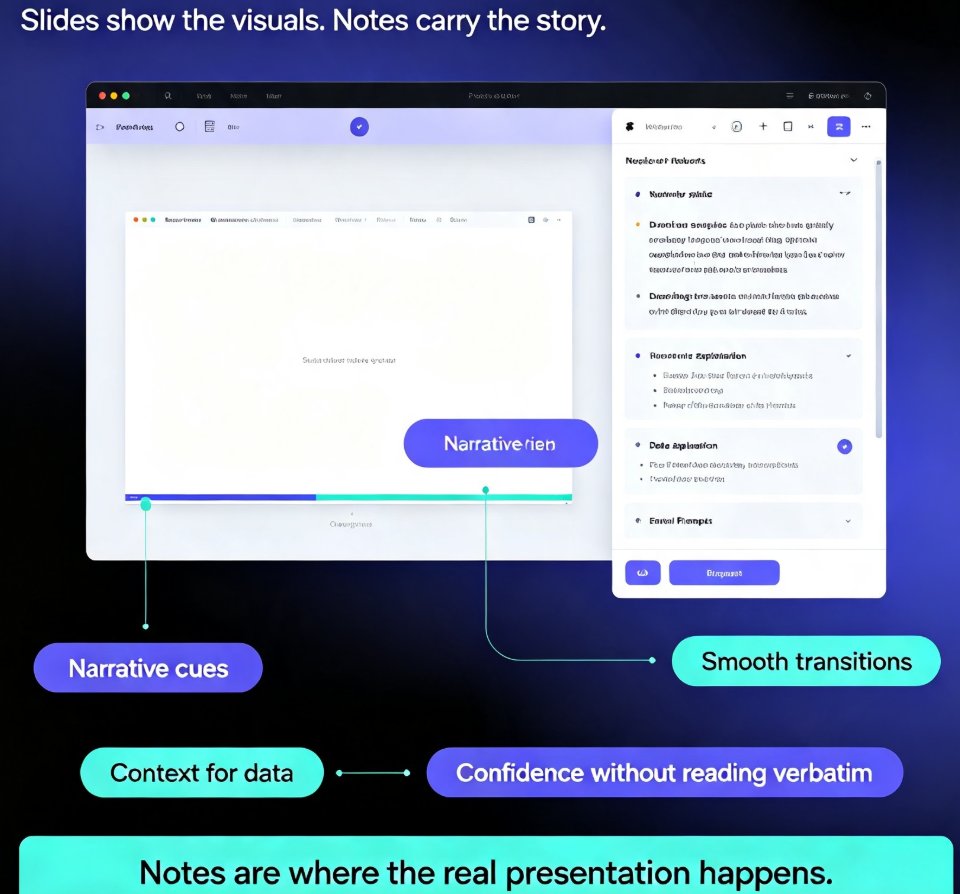
Let's be honest: speaker notes are the first thing people skip when they're short on time. The slides look done, so the deck is "done." But notes are where the real presentation happens.
Speaker notes are the difference between reading your slides and delivering a presentation. They give you the narrative, the transitions, the "here's why this matters" moments that turn data into a story. Without them, you're either winging it (risky) or reading verbatim (boring).
The problem is that writing good notes takes time. For a 20-slide deck, most people spend 90 to 120 minutes drafting, editing, and formatting their notes. That's two hours of work that doesn't improve the slides at all — it just makes you feel prepared.
And here's the kicker: most of that time is spent on structure, not substance. You already know what you want to say. You just need it organized, phrased, and written down. That's exactly the kind of task AI is good at.
02. The Old Way vs. the Zendeck Way
Before we get into the how, let's look at the difference this makes. Here's a realistic comparison of what it takes to prepare speaker notes for a standard 20-slide business deck:
| Task | Manual Process | Zendeck AI Process |
|---|---|---|
| Drafting notes per slide | 60–90 minutes | 2–3 minutes |
| Structuring talking points | 20–30 minutes | Automatic |
| Writing transitions | 15–20 minutes | Automatic |
| Formatting for readability | 10–15 minutes | Automatic |
| Total time | 105–155 minutes | 5–10 minutes |
| Consistency across slides | Inconsistent | Uniform tone & structure |
The numbers speak for themselves. Most users cut their speaker-note prep time by more than 85% — and that's before you factor in the quality improvements. AI-generated notes are consistently structured, which means your delivery sounds more polished across the whole deck.
03. How to Auto-Generate Speaker Notes in Zendeck
Here's the workflow. It takes about five minutes from start to finish.
Step 1: Build your deck as usual
Start with your outline or markdown, and let Zendeck generate the slides. This is the same flow you already use — import your outline or markdown and let the AI handle the layout, design, and structure.
Step 2: Open the speaker notes panel
Once your deck is generated, look for the speaker notes option in the editor. Zendeck analyzes the content of every slide — the headlines, the bullet points, the data — and generates a draft of speaker notes for each one.
Step 3: Review and refine
This is the step people skip, and it's the most important one. AI-generated notes are a starting point, not a finished script. Read through each slide's notes and adjust the tone, add your specific examples, or cut anything that doesn't match your voice.
Step 4: Export or present
Once you're happy with the notes, you can either present directly from Zendeck or export the deck to PPTX, PDF, or Google Slides with the notes intact.
04. Beyond Notes: Talking Points and Printable Handouts
Here's where most tutorials stop — but the real value is in what comes next. Zendeck's AI doesn't just write speaker notes. It can generate:
Talking points. Short, punchy phrases you can glance at while presenting. These are different from full notes — they're memory triggers, not scripts. Think "Q3 revenue up 18% — mention the new pricing tier" instead of a full paragraph.
Printable handouts. Turn your speaker notes into a clean, formatted handout your audience can follow along with. This is huge for training sessions, workshops, and client meetings where people want to take notes themselves.
Transition cues. The AI can add natural transition phrases between slides — "Now that we've covered the problem, let's look at the solution" — so your deck flows smoothly without you having to memorize the bridges.
This turns a single AI pass into a complete presentation package. You're not just saving time on notes; you're saving time on every piece of supporting material.
05. How to Make AI Notes Sound Like You
Let's be real: AI-generated notes can sound a bit formal if you don't refine them. Here's how to make them sound like you wrote them in ten minutes instead of two hours.
Add your verbal tics. If you say "look," "here's the thing," or "quick note" in real presentations, add those phrases. The AI won't know your speech patterns unless you tell it.
Cut the filler. AI tends to over-explain. If a note says "This slide illustrates the key metrics that demonstrate our quarterly performance," change it to "Here are the numbers that matter."
Use your examples. The AI doesn't know about your client's specific situation or your team's inside jokes. Drop in your own examples where they matter.
Keep notes short. A good rule: if you can't read the note in under 15 seconds, it's too long. Speaker notes are prompts, not scripts. The AI will generate longer text by default — trim it to the essentials.
06. When Auto-Generated Notes Save the Most Time
Not every deck needs the same level of note preparation. Here's where the time savings really add up:
Training and onboarding decks. These are often 30-50 slides with dense content. Writing notes for each one manually is brutal. Auto-generation turns hours into minutes.
Client-facing pitch decks. You need to sound confident and consistent. AI-generated notes ensure every presenter on your team says the same things about the same slides.
Micro-courses and video presentations. If you're turning slides into video, the notes become your script. Auto-generating them saves an entire production step.
Recurring decks. Monthly reports, quarterly reviews, weekly standups — these repeat with minor changes. Once you've refined the notes once, the AI can regenerate them for each new version in seconds.
07. The Bigger Picture: Notes Are Part of the Workflow
Here's the thing about speaker notes: they're not a standalone task. They're part of a larger presentation workflow — and the more of that workflow you automate, the more time you get back.
When you use Zendeck to generate the deck, the notes, the handouts, and even the video version, you're not just saving time on individual tasks. You're removing the friction that makes presentation prep feel like a chore. The same AI that builds your slides can write your notes, structure your talking points, and prepare your handouts — all in one pass.
That's the hidden productivity boost. It's not about any single feature. It's about the fact that the entire prep process — from outline to delivery — happens in one place, with AI handling the repetitive parts.
FAQ
Q: Can Zendeck generate speaker notes for existing decks I've already created?
Yes. If you've built a deck in Zendeck — whether from an outline, markdown, or imported content — you can generate speaker notes for any or all slides at any time. The AI analyzes the slide content and creates notes that match the existing structure.
Q: How long does it take to generate speaker notes for a full deck?
For a typical 20-30 slide deck, the AI generates notes in about 2-5 minutes. Larger decks (50+ slides) may take a bit longer, but it's still dramatically faster than writing notes manually.
Q: Can I edit the AI-generated notes after they're created?
Absolutely. The generated notes are a starting point. You can edit, expand, or rewrite any note directly in the editor. Most users refine the tone and add personal examples before presenting.
Q: Do the speaker notes export with the presentation file?
Yes. When you export your deck to PPTX or PDF, the speaker notes are included. This means you can present from PowerPoint or Google Slides with your notes intact.
Q: Can the AI generate printable handouts from my speaker notes?
Yes. Zendeck can format your speaker notes into clean, printable handouts that your audience can follow during the presentation. This is especially useful for training sessions and workshops.
That's the workflow. The next time you're staring at a finished deck with empty speaker notes, remember: you don't have to write them. Let the AI do the heavy lifting, spend five minutes making them sound like you, and get back to the part that actually matters — delivering a great presentation.

