Real-Time Team Collaboration: Edit and Share PPTs with Zendeck AI
Real-Time Team Collaboration: Edit and Share PPTs with Zendeck AI
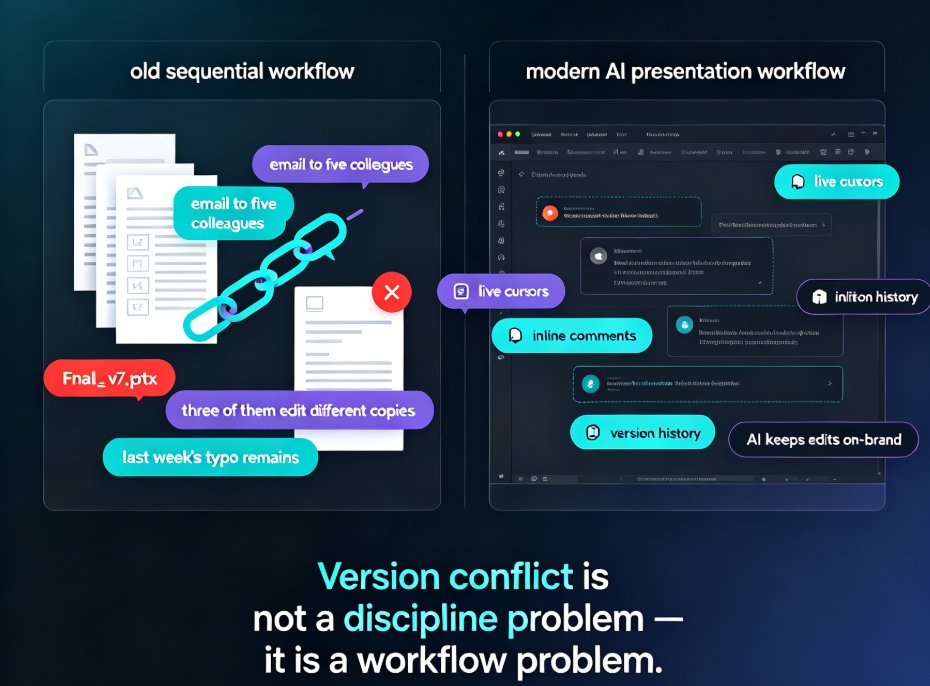
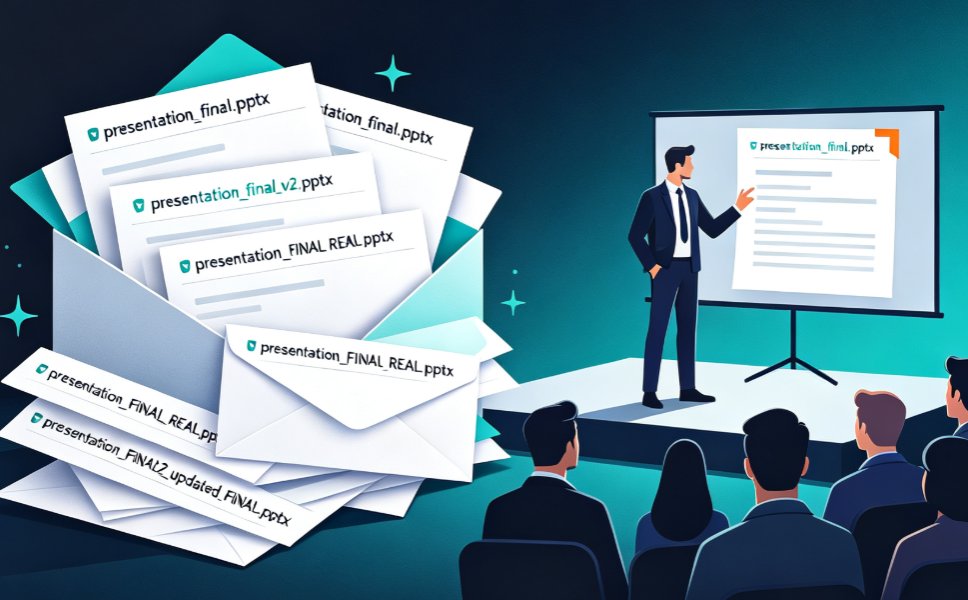
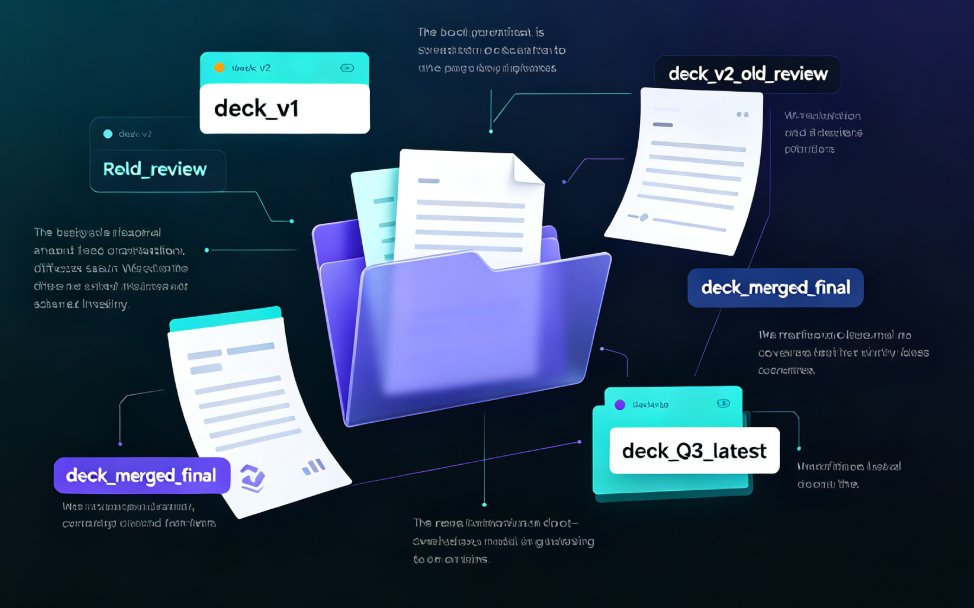
Every team knows the exact moment. You DM a colleague, "Sending you the latest version," and twenty minutes later they reply with edits made to a file from last Tuesday. Now you're staring at two decks, a chain of renamed copies — final_v2, final_REAL, final_FINAL(3) — and a spreadsheet of crossed-out changes. Somehow, the presentation workflow never caught up with how we actually work.
Let's be real: we still review decks over email, keep three copies of the same file, and merge feedback by hand like it's 2004. The fix isn't a better file name. It's a different way of working — real-time team collaboration, where everyone edits the same live deck at once and the tool quietly handles the bookkeeping.
That's the shift Zendeck AI brings to PowerPoint-style workflows. In this guide, we'll look at how simultaneous co-editing, version control, and password-protected link sharing turn a chaotic review loop into something you barely think about — whether your team is in one office or spread across four time zones.
I. The real cost of version chaos
Start with the honest number: how much time does your team actually lose to reconciliation? Not to writing slides, not to designing them, but to the quiet work of figuring out which file is current and who changed what. For a typical cross-functional project — marketing, design, sales, a few remote stakeholders — that number is usually measured in hours per week, not per month.
Team survey after team survey lands on the same conclusion: knowledge workers burn hours every week just chasing the right version of a document. That's not a productivity-blog exaggeration, and it's not unique to slides. It's what happens when files live in inboxes and shared folders instead of in one place everyone agrees on.
Here's the cascade. Someone reviews an old copy and their changes never make it into the master deck. Someone else overwrites a section they didn't mean to touch. A third person "helpfully" merges everything by hand, introducing inconsistencies along the way. Every step in that chain feels small — ten minutes here, fifteen minutes there — but it's also invisible, which is exactly why it never gets fixed.
The outcome? The bottleneck on most presentation projects isn't design or writing. It's version control. And once you remove that bottleneck, a surprising thing happens: the whole project speeds up, not because anyone worked faster, but because nobody worked against the wrong file. If you're looking for broader ways to reclaim team hours, you might find our roundup of hidden collaboration features in AI presentation tools useful too.
II. What real-time co-editing actually changes
There's a big difference between "sharing a file" and "co-editing a document." Traditional offline tools treat a presentation as a single-owner artifact, locked to whoever has the file open. Sharing, in that world, means sending a copy — and every copy is a new potential conflict.
Real-time collaboration removes the copy entirely.
When you co-edit a deck in real time, there is no "latest version" anymore — there is only one version, and everyone is looking at it. Your teammate's edits appear on your screen as they happen. You see where they're working, what they're changing, and the deck stays whole. There is nothing to reconcile because nothing ever diverges.
That simple shift changes team behavior. For one thing, parallel editing becomes safe — the kind of task you'd normally serialize ("you finish your slides, then I'll do mine") can happen at the same moment. For another, decisions happen faster because everyone answers the same live question instead of five slightly different versions of it.
It also fixes the worst part of remote work: the lag. In an office, you'd lean over and ask "what did you change?" On a distributed team, that question becomes a two-day email thread. Real-time editing gives you back the immediacy of a shared whiteboard, minus the commute. If your team is still building decks inside local files, the gap between that workflow and this one is exactly the friction you've been feeling.
III. Where Zendeck fits: co-editing, versioning, and sharing controls
This is where Zendeck comes in. Its collaboration layer is built for the way teams actually work now — a mix of in-office and remote, with reviewers who range from designers to executives who just want to type a comment and leave.
Zendeck's real strength is that it combines live co-editing with version control and a design system that doesn't fall apart when four people are touching the same deck. You get the speed of a live document without the usual downside: slides that turn into a visual mess because everyone applied their own fonts and colors.
Here's what that looks like in practice:
- Simultaneous editing. Multiple people work on one deck at the same time. Cursor presence shows you where teammates are, so you don't accidentally step on each other.
- One-click reskin and smart layouts. While people edit, the AI keeps fonts, colors, and spacing consistent. You don't have to police the design manually — the system does, which keeps brand governance intact even on chaotic days. We've covered how smart templates enforce that consistency in more depth.
- Word and Markdown import. Subject-matter experts can drop in a Word outline or Markdown, and Zendeck generates structured slides. That means non-designers can contribute content without touching layout, which removes a common excuse for the "I'll just email you my part" trap.
- Version history. Because everyone works from one shared version, Zendeck tracks changes as they happen. If a section goes sideways, you can step back instead of digging through dated files.
Below is a quick comparison of how a traditional offline PPT workflow stacks up against a Zendeck-based one:
| Dimension | Traditional offline PPT | Zendeck AI collaboration |
|---|---|---|
| Editing model | One owner at a time; copies shared by email | Multiple people on one live deck simultaneously |
| Versioning | Manual file naming, merge by hand | Built-in version history, one shared source of truth |
| Sharing | Attach files, chase receipts | Shareable links with view/comment/edit permissions |
| Design consistency | Requires manual template policing | AI-driven smart layouts and one-click reskin keep it uniform |
| Remote fit | Strong friction, lag and copies | Real-time presence across time zones |
For teams still getting used to the idea, small touches matter. The ability to comment on a specific slide instead of emailing a paragraph of context? That alone removes hours of back-and-forth. It's one of those small productivity wins that compounds quickly.
IV. Sharing done right: links, passwords, and permissions
Collaboration doesn't stop at the people inside your org chart. Eventually, a client needs to review the deck. An executive sponsor wants to peek before the big meeting. An external trainer needs to see the courseware you built. This is where most tools get awkward — and where Zendeck's sharing controls come into their own.
Good sharing is about control, not just convenience — and control means being able to decide who sees, who edits, and who can pass the deck along. Zendeck lets you generate a shareable link with the right permissions for each audience:
- View-only links for stakeholders who should see the final deck but shouldn't touch it.
- Comment access for reviewers who will leave feedback directly on slides.
- Edit access for the handful of people actually building the deck.
Then there's the password layer. For sensitive material — a client pitch, a confidential training rollout, courseware tied to proprietary data — you can protect a link with a password. And when the context changes, you revoke access. That's a meaningful step up from attaching a file to email, which gives you exactly zero control after you hit send.
If security is a top concern for your organization, the way AI presentation tools handle data and private deployment is worth reading about. The short version: for teams in regulated industries, being able to control sharing and access isn't a nice-to-have, it's a requirement — and link-based permissions are a core part of that story.
V. Making collaboration stick: habits that work
Tools only get you halfway. The other half is how your team actually uses them. Here are a few habits that make real-time collaboration feel natural rather than forced:
Assign slide owners, even on a shared deck. Just because everyone can edit doesn't mean everyone should edit everything. For a big deck, split ownership by section so people still have clear responsibility — but they can now work in parallel instead of waiting their turn.
Move feedback into the deck. Instead of a side channel collecting comments, get people to comment on the slide they're talking about. You'll stop playing detective on which message refers to which slide.
Set one link, not thirty. Create a single sharing link for the working deck and reuse it. The whole point is that there's one version; a shared link reinforces that instead of unraveling it.
Respect permission levels. Give reviewers view or comment access rather than blanket edit rights. It's not about trust — it's about preventing accidental overwrites when someone's trackpad misbehaves.
Kill the "final exported copy" reflex. The moment someone exports a deck and emails it "just for reference," you've recreated a second version and the old chaos starts creeping back. If a stakeholder needs to see it, share the link instead.
A piece of advice from someone who's managed this kind of migration: enforce the new workflow gently for the first two weeks. Old habits — especially the save-and-email reflex — die hard. The first time someone avoids a five-email merge mess because they simply edited the live deck, they'll convert on their own.
VI. What's next: from co-editing to agent-driven workflows
Real-time collaboration is the foundation, but the direction of travel is clear: the next stage of AI presentation tools is less about waiting for people to edit and more about the system doing work on its own. Agents that draft slides from a prompt, adapt a deck to the audience's reactions, and turn finished slides into narrated micro-courses — that's the trajectory.
The teams that win in 2026 won't be the ones with the best designers fastest; they'll be the ones whose workflow removes friction between ideas and published decks. Co-editing removes the friction of version chaos. Sharing controls remove the friction of distribution. The agentic wave removes the friction of production itself.
For now, though, the biggest win is simpler and more immediate: getting your team onto one live deck, with permissions that make sense, and a version history you actually trust. When that's in place, everything downstream — reviews, approvals, publishing — gets faster, almost without trying. And if you're curious about where this is heading, our look at agentic AI in presentation tools for 2026 sketches the roadmap.
FAQ
Can multiple teammates edit the same Zendeck deck at the same time?
Yes. Zendeck supports real-time simultaneous co-editing, so several people can work on one live deck at the same moment. Changes appear instantly for everyone, which means the deck you see on screen is always the same deck your colleague sees — no copying files back and forth.
How does Zendeck handle version control when several people are editing?
Because everyone works from a single shared version, the tool manages consistency for you. Zendeck keeps a version history so you can review changes and step back to an earlier state if a slide goes sideways, without maintaining a messy folder of dated files.
Can people outside my organization view a deck without creating an account?
Yes. Zendeck lets you generate a shareable link with configurable permissions, so clients or external reviewers can open the deck without an account. For higher-stakes content, you can also protect the link with a password and revoke access whenever you need to.
Can I control whether viewers can only view or actually edit a shared deck?
You can set each link to view-only, comment-only, or full edit access. That's useful when you want stakeholders to give feedback without accidentally rewriting slides, while keeping a small editing circle for the people actually building the deck.