Co-Edit Decks in Real Time: Zendeck's Sharing for Remote Teams
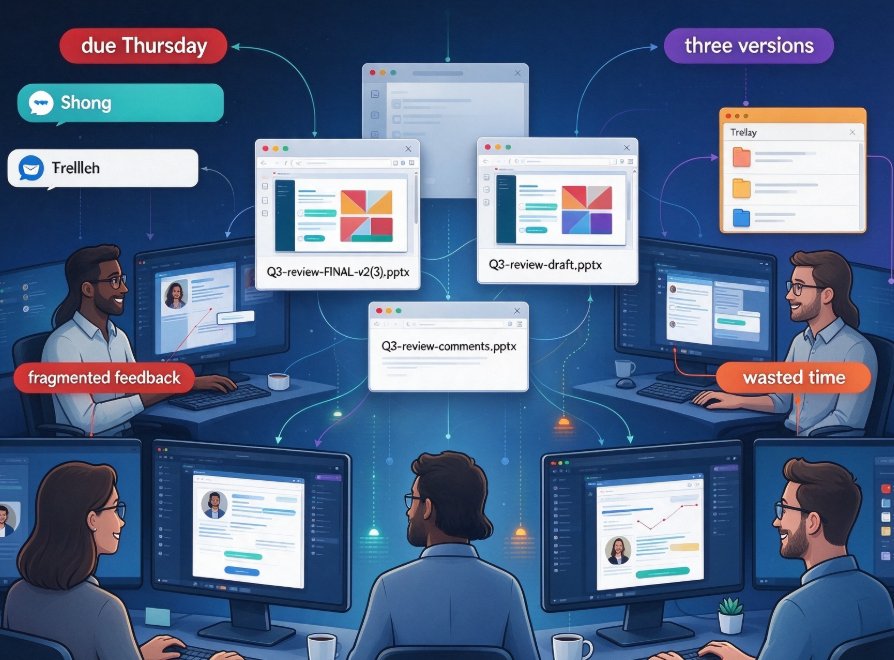
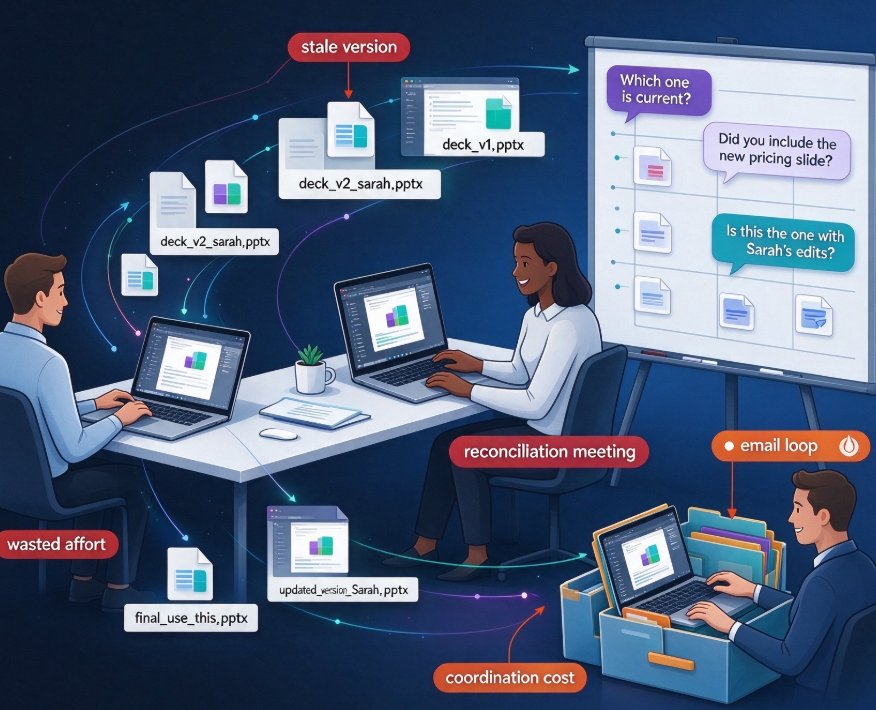
You know the feeling. You send a deck to three colleagues. Two come back with edits. One saved their own copy to a desktop. Another replies with "updated version from Sarah" attached. And now, honestly, nobody can say which file is the current one.
That's the reality for most remote and hybrid teams — and the cost is bigger than the occasional headache. Every time a teammate works on a stale version, their effort is wasted. Every deck needs a reconciliation meeting to figure out which edits actually made it in. The classic build-save-email-wait-feedback loop worked fine when one person owned a presentation from start to finish. It breaks down the moment a team tries to work on the same file at the same time.
Real-time co-editing doesn't just reduce friction — it eliminates the concept of "the latest version" altogether.
I. The Sneaky Version Problem Nobody Admits To
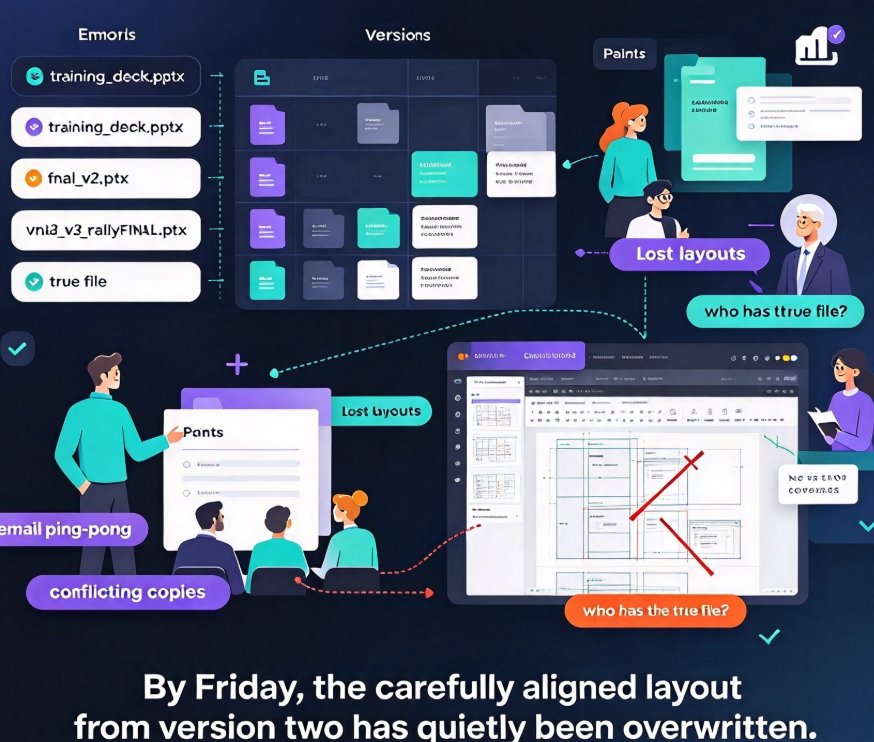
The version problem doesn't announce itself. It doesn't pop up with a warning. Someone saves a copy to their desktop. Someone downloads a file from email. Someone uploads a revised version into a shared folder that already contains two other copies. Nobody intends to create chaos. It just happens.
The deeper issue isn't the duplication — it's the trust breakdown. When teammates don't know which version is real, they stop trusting the deck. They start asking, "Did you include the new pricing slide?" and "Is this the one with Sarah's edits?" That slows every decision downstream, and it makes the whole team quietly slower.
This is a coordination cost problem, the kind that shows up in delivery dates and team morale rather than in any dashboard. If your team is spending more time chasing the current version than improving the content, the workflow — not the content — is the bottleneck.
II. What Real-Time Co-Editing Actually Changes
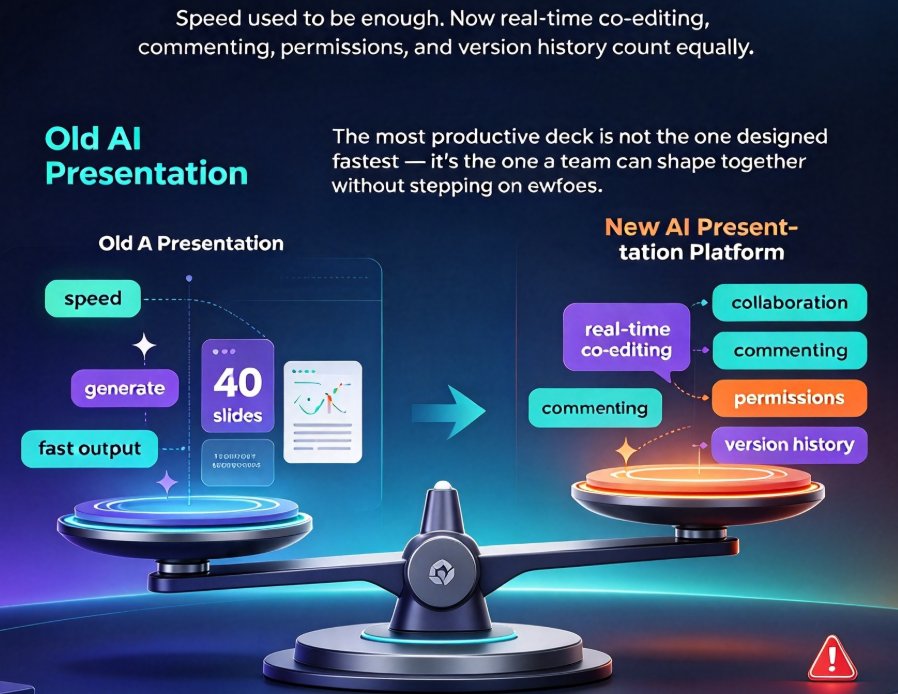
The core idea is simple: instead of passing a file around, the whole team works on one shared deck hosted in the cloud. Every edit appears immediately on everyone's screen. Comments sit right next to the slide they belong to. The version history becomes a living log instead of a graveyard of filenames.
Teams that switch to this workflow report three immediate changes:
- The back-and-forth file sending stops. There's nothing to send, because the deck lives in one place. No "please find attached," no "resending with the fixes."
- Version confusion drops dramatically. The history pane shows exactly who changed what and when. You stop guessing and start reading the log.
- Cross-team coordination gets quieter. Instead of status-update emails, you just open the deck and see the current state for yourself.
Research on modern collaboration features points the same direction: collaborative editing reduces communication overhead between departments and keeps teamwork fast and responsive. For a distributed team, that's not a small win — communication overhead is usually the biggest hidden tax on productivity.
III. Zendeck's Co-Editing Workflow, Practically
Let's be real: switching to a co-editing tool is only half the work. The other half is building a workflow that respects how your team actually operates. Here's the pattern that tends to work best for remote teams on Zendeck:
- Create and share. Build your outline in Word or Markdown, generate the deck, then share a single link with edit access to the team. No downloads, no copies, no "Sarah's final v3 final."
- Work in parallel. Each person owns their slides. Handoffs happen naturally — you edit section two while a colleague tackles section five.
- Comment instead of overwriting. If a change is debatable, leave a comment rather than editing directly. This protects the author's intent and avoids silent conflicts.
- Use version history as a log. Save named versions at meaningful milestones — "draft for review," "client-ready," "final v2" — so anyone can jump back if needed.
- Do a short synchronous check-in once the deck reaches the review stage. Fifteen minutes is usually enough to resolve anything that couldn't be handled async.
This maps closely to the playbooks used by teams who've moved off the email loop. The "sequential review" approach — one author builds, reviewers comment, author applies — works great for client-facing decks where version integrity is critical. The "async remote" approach — designated work windows across time zones — suits geographically distributed teams with limited real-time overlap.
If you're exploring secure sharing and co-editing more broadly, our overview of AI presentation collaboration in 2026 covers how co-editing and access control are converging in modern tools.
IV. Three Playbooks for Different Team Shapes
Not every team should collaborate the same way. Here are the three patterns that come up most often — pick the one that matches your situation, or mix them.
Playbook 1: The Sequential Review (Approval-Gated Editing)
One author builds the initial draft. Everyone else gets view-only access. When the draft is ready, permissions switch to "can edit" for the core review team. Reviewers flag changes via comments and tasks instead of editing directly. The author reviews everything, applies the accepted changes, and shares a view-only link for stakeholder sign-off. Best for client-facing decks or high-stakes presentations where version integrity is critical.
Playbook 2: The Async Remote Team (Across Time Zones)
The deck lives in a shared space accessible to everyone. Each team member has a designated work window. Handoff notes are left in comments for the next person picking up. The last editor of the day saves a named version, creating a daily log. Best for globally distributed teams where real-time overlap is scarce — and honestly, for most remote teams, this is the default.
Playbook 3: The Live Sprint (Real-Time Together)
For tight deadlines or brainstorming-heavy decks, a short live session works wonders. Everyone works on the same deck at the same time, one section per person. A 15-minute check-in at the end resolves conflicts. Best for decks that need to come together in a day.
The best collaboration workflow is the one your team barely has to think about. If the process needs constant babysitting, it's the wrong process.
If you want to reduce the design-side time drain on top of the workflow benefits, our article on smart layout features that cut presentation design time shows how consistent styling can be automated while your team focuses on content.
V. What the Comparison Looks Like
Here's how the three collaboration models stack up across a typical deck cycle:
Note: figures reflect common patterns reported by distributed teams; your mileage will vary based on deck size and review culture.
Here's the same comparison in table form:
| Factor | Email + Attachments | Shared Folder Edits | Real-Time Co-Editing |
|---|---|---|---|
| Current version | Unknown | Ambiguous | Always clear |
| Conflicts handled | Manually, painfully | Manually | Automatically |
| Feedback loop | Days | Hours | Minutes |
| Version history | None or chaotic | Filenames only | Living log |
| Team visibility | Low | Low | High |
| Time lost per deck | High | Moderate | Low |
| Works across time zones | Poorly | Adequately | Well |
The pattern is consistent: every step away from "pass the file around" reduces coordination cost. But the table understates it, because the hidden cost isn't just time — it's trust. When teammates don't know which version is real, they stop trusting the deck, and that slows every decision downstream.
VI. Tips for Actually Making It Stick
Switching tools is easy; changing habits is hard. A few practical notes from teams that have made the transition:
- Name your versions meaningfully. "Draft for review" is a useful marker. "final final v3(2)" is not.
- Default to view-only until the draft is ready. Avoid the chaos of ten people editing an empty shell.
- Assign sections, not slides, when the team is large. One person per section reduces collision risk.
- Leave a handoff note at the end of your session. A single comment — "section 3 reviewed, needs data check" — saves the next person fifteen minutes of detective work.
- Don't fight over formatting in comments. Use a shared template or brand kit so design questions don't eat the conversation.
That last point deserves real emphasis. When everyone edits the same deck, styling must not become a topic of debate. If your team hasn't locked down a template strategy yet, Zendeck's brand kit guide is a solid starting point — consistent visuals make co-editing about content, not color choices.
And if you're curious about the wider movement here, real-time collaboration is only one piece of what AI presentation tools are doing for team productivity. Five hidden features of AI presentation tools digs into the rest. For more day-to-day efficiency tactics, browse the broader office efficiency guide.
Let's Be Real About the Cost of Doing Nothing
Sticking with the email-and-attachments workflow isn't "safe." It's a slow leak. Every week, someone on your team spends part of their time reconciling versions, chasing down the latest copy, or redoing work that landed on a stale draft. That's not busywork — it's lost productivity that shows up in delivery dates and team morale.
Teams that move to real-time co-editing stop asking "which version is this?" and start asking "what should the next version do?" That shift in conversation is the real signal that the workflow is working.
The good news: you don't have to overhaul everything at once. Start with one deck. Share the link, invite the team, and see how it feels. Within a week, the version chaos will feel like a distant memory — and you'll wonder why you waited.
FAQ
Can multiple people edit the same Zendeck deck at the same time?
Yes. Zendeck's online editor supports real-time co-editing. When you share the link, changes sync instantly across everyone's screen — no sending files back and forth, no waiting for your turn.
How does Zendeck handle version history during collaboration?
Every edit is saved to the cloud in real time, and the history acts as a living log. You can save named versions at milestones like "draft for review" or "client-ready," then jump back to any of them if you need to.
Can I limit who can edit a deck and who can only view it?
Yes, permission-based sharing does this. Start view-only, then switch specific teammates to "can edit" when the deck is ready for review — that's the approval-gated playbook described in section IV.
How do comments help a remote team coordinate on a deck?
Comments sit right next to the slide they belong to. Teammates use them to flag changes or request data instead of editing directly, so the author keeps control of intent and nothing gets silently overwritten.
What's the best workflow for a team spread across time zones?
The async playbook: each person gets a designated work window, handoff notes are left in comments, and the last editor of the day saves a named version. A short synchronous check-in at the review stage resolves any remaining conflicts.