From Static Slides to Narrated Video: Zendeck's AI Voice for Engaging Lessons
From Drab Slides to a Narrated Course: Zendeck Turns Static PPTs into Video You Can Ship
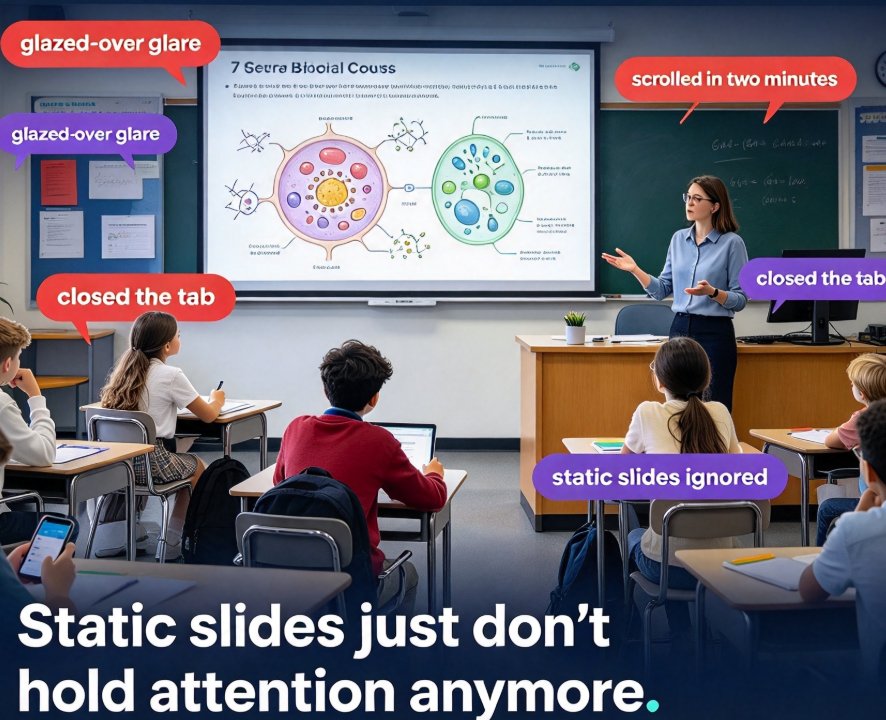
Let's be honest—how many of your training decks actually hold attention? If I put a stopwatch on most PowerPoint files, the average viewer drifts around slide three or four. The content is fine, the slides are fine, but a silent deck can't sustain engagement. That's exactly where AI voice narration steps in. By adding a natural, human-sounding voice to every slide, you turn a flat document into a flowing lesson—something people can actually follow at their desk or on the go.
The smartest teams are already shifting in this direction. Tools are now able to convert a PowerPoint into a narrated video, where each slide becomes a scene and the slide text and speaker notes become the draft narration. And it's not just for podcasters or video studios. Teachers, HR teams, and course creators are using this to repurpose decks they already own.
But here's the catch: not all AI voices sound like a human. If the narration is robotic, you've simply traded one retention problem for another. That's why voice quality, pacing, and the way you edit the narration matter just as much as the slides themselves.
I'll walk you through how this works end-to-end with Zendeck's PPT-to-video feature—and why it's a practical upgrade that stays easy to ship.
01 What "AI Voice Narration" Actually Does to Your Deck
It's tempting to think of AI voice as a quick text-to-speech job. But proper narration is an orchestration task. You're mapping text to scenes, choosing a voice that fits the tone of your material, controlling the pacing, and then exporting something that works on a learning management system (LMS).
Here's a typical workflow that mirrors what the best narration tools now do:
- Upload your .pptx, .ppt, or .pdf file—the deck becomes your source.
- The platform reads the text and speaker notes to draft an initial narration script.
- You pick a narrator voice, matching the language and accent of the course.
- You go through the narration line by line, fixing awkward phrases, adjusting timing, and adding music or pauses.
- Finally, you export an MP4—along with SRT/VTT captions and a transcript—ready for YouTube, LinkedIn, or your LMS.
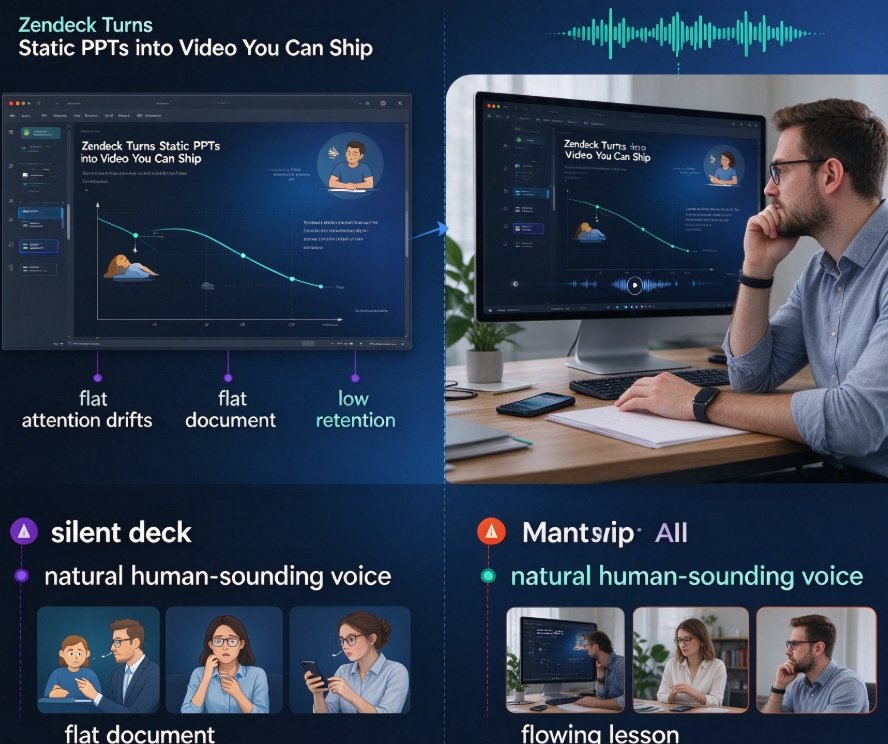
The result is not a glorified voiceover. It's a structured micro-course that can be consumed without a presenter at the front of the room. And for those of us who build training content, that changes the workload: you reuse the slide deck you already have, instead of starting a video project from scratch.
02 The Zendeck Workflow: From Slide Deck to Narrated Video
Zendeck's PPT-to-video feature is designed for people who aren't video editors. Here's how it typically plays out.
Step 1: Bring your deck as-is
Start with your existing PowerPoint—Zendeck handles the import cleanly, preserving the structure of your slides. If your slides live in Google Slides or Keynote, export them to .pptx or .pdf first and import them the same way. Each slide automatically becomes a scene in the narration timeline.
Step 2: Let AI draft the narration
This is the part that saves you the most time. Zendeck reads the text on your slides and your speaker notes, then drafts a natural-sounding narration script slide by slide. It reads the content as a person would, not as a teleprompter. Before any word is voiced, you can edit each line right in the interface.
Step 3: Choose the teaching voice
Voice choice matters more than most people think. A compliance training module feels different when read by a steady, neutral voice versus a bright, energetic one. Zendeck gives you a selection of voices so you can match the tone of your material. The goal is simple: the voice should disappear into the content.
Step 4: Polish the pacing
Narration isn't just about the word choice—it's about the rhythm. You can retime slides, add pauses, or adjust music under the voice. If a section feels rushed, you slow it down. This level of control separates a listenable lesson from a monotonous drone.
Step 5: Publish with captions
The export includes both the MP4 and the caption files (SRT/VTT) plus a full transcript. For anyone who teaches on YouTube or inside an LMS, that's the difference between shipping something that's accessible and something that isn't.
03 Making AI Voice Sound Human: Practical Tactics That Work
Let's be real—AI voice has come a long way, but you still need a light hand to keep it sounding natural. Here are tactics I've seen work well in real training projects.
- Edit the draft, don't trust it blindly. The auto-generated narration is a starting point. Read every line out loud in your head and adjust phrasing to match how you'd actually talk to a trainee.
- Shorten sentences before they reach the script. Long, embedded clauses are the fastest way to make any voice—human or AI—sound mechanical. Break them up.
- Use pauses deliberately. A beat before a key definition or after a "remember this" line gives learners a moment to catch up.
- Sync captions to the final video, not the draft. If you trim narration, update the subtitle file before export. Nothing looks sloppier than a lagging caption track.
A quick mental test: If your colleague can watch the narrated video with the sound on and not think "that's a robot reading my slides," you're in good shape. If the delivery feels flat, rewrite the text rather than blaming the voice. In nearly every case, the script is the problem, not the engine.
04 Real Scenarios: Educators, Corporate Trainers, and Content Creators
Different roles will hit different pain points with narrated decks. Here's how each group gets value out of the workflow.
For educators building courseware
Teachers often sit on a pile of well-structured slide decks that were designed for a lecture. When the course has to move online, they face the question: rerecord everything or upload silent slides? AI voice narration lets them repurpose that existing material as a narrated walkthrough. Each slide becomes a scene, the speaker notes become the script, and the result is an online lesson that mirrors the classroom experience.
This isn't just a convenience—it's a consistency play. If your institution wants identical courseware across multiple sections, AI narration gives you a repeatable production process that doesn't depend on who happens to be free to record that week.
For corporate trainers and L&D teams
Training departments face a constant juggling act: compliance deadlines, limited budgets, and the need to keep content fresh. Narrated video decks shrink the production timeline dramatically. A deck that took two days to record with a studio voice can be turned around in an afternoon.
The captions and transcript output is the quiet hero here. In regulated industries, having a searchable transcript of your training content is not a nice-to-have; it's often audit material. And if the training needs localization later, the narration script is right there, ready to be translated and re-voiced.
For course creators and knowledge businesses
If you sell courses, a narrated deck can be the difference between a dense PDF and a product you can actually market. Video previews convert better. A clean, 10-minute narrated walkthrough of your core curriculum makes for a strong lead magnet or a sample module. And because you can edit the narration without re-recording, you can iterate on your course content without breaking the production bank.
05 Output Quality, Subtitles, and the "Easy to Ship" Standard
The part that many tools overlook is what happens after the narration is done. Zendeck's export chain is built around getting the video somewhere useful quickly.
Let me put this in practical terms.
| Output element | What it's for | Why it matters |
|---|---|---|
| MP4 video | Sharing on YouTube, LinkedIn, or an LMS | The core product your learners will watch |
| SRT/VTT captions | Time-coded subtitles | Meets accessibility standards; works with your LMS player |
| Full transcript | A text version of the narration | Enables search, notes, and documentation for compliance |
| Editable narration script | Pre-export text you can tweak | You fix mistakes before a word is voiced, not after |
| Voice and pacing controls | Per-scene adjustments | Keeps the delivery natural and matched to the material |
For corporate training, the captions and transcript are the quiet difference between "we made a video" and "we made accessible training documentation."
If accessibility is part of your organization's standards, this is also the moment to mention that Zendeck's approach covers the captions foundation of good accessibility practice. Auto-generated subtitles from the narration mean you're not asking an editor to transcribe by hand, and the inclusive layout work you did on the slides carries straight into the video. That's a workflow that respects both the learner and the person building the course. You can dig deeper into how Zendeck handles voiceover and subtitles or explore the broader PPT-to-video category for more production ideas.
FAQ
Q: Can I use Zendeck's AI voice to narrate a deck I built in Google Slides? A: Yes. Export your Google Slides or Keynote file to .pptx or .pdf first, then import it into Zendeck's PPT-to-video workflow. The platform reads the slide text and speaker notes to draft the narration.
Q: Can I edit the AI-generated narration before it's voiced? A: Absolutely. Zendeck lets you edit the script line by line before rendering. You can adjust wording, pacing, and even the voice selection per scene, so the final video never contains a mistake that existed in the draft script.
Q: What outputs do I get after exporting a narrated deck? A: The export includes an MP4 video, SRT/VTT caption files, and a full transcript. That combination is ready for YouTube, LinkedIn, an LMS, or documentation and compliance archives.
Q: Will the voice sound robotic? A: Modern AI voice engines have made big strides in naturalness, but quality still depends on the script. Zendeck lets you rewrite the draft narration before any word is voiced, which is the most effective lever for natural-sounding output. Editing long sentences and adding intentional pauses makes the biggest difference.
Q: Is this approach suitable for corporate training besides education? A: Yes. The workflow is widely used in compliance training, onboarding, and product education. Searchable transcripts and accessible captions are particularly valuable in regulated industries where documentation matters.