How Zendeck AI Narration Turns Static PPTs Into Micro-Learning
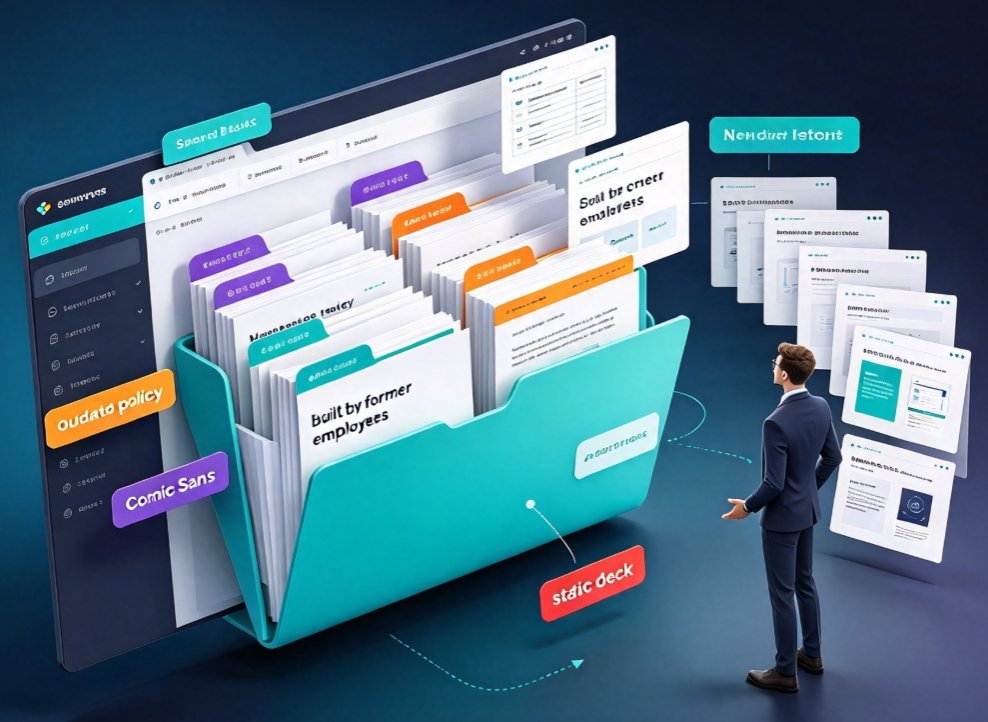
You know the scene. You open the shared drive and there it is — 300 PowerPoint files accumulated over the last eight years. Some were built by people who left the company in 2019. A few contain Comic Sans. And your newest hire is expected to absorb all of it before Friday.
If you work in L&D, training, or education, that library of static slides is simultaneously your greatest asset and your biggest headache. Static PowerPoints are easy to ignore. They have no voice, no rhythm, no reason to hold attention. And yet the knowledge inside them is exactly what new employees, students, and compliance teams need.
Here's the good news: you don't need to redesign a single slide to fix the problem. With AI narration and interactive timing, you can turn dormant PowerPoint decks into micro-learning videos your audience will actually finish — usually in less than an hour per deck.
01 Why your static PPT library feels like a liability
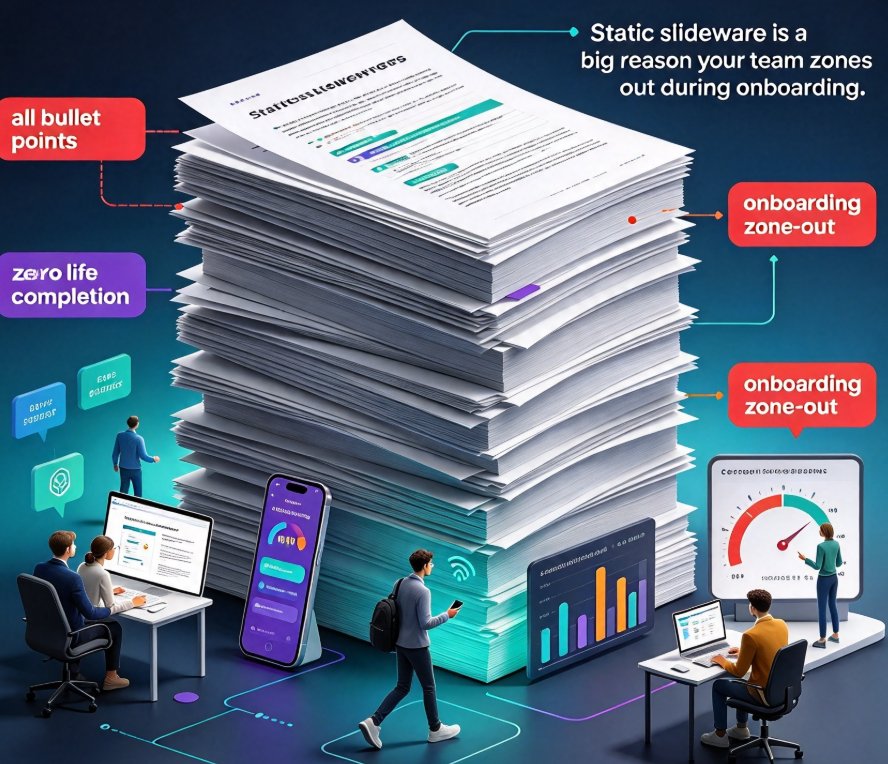
Let's be honest about what a silent slide deck does to a learner. They open the file, scroll for thirty seconds, skim a few bullet points, and close it. Maybe they bookmark it. Most likely they never return. Video platform Synthesia puts it bluntly in its training documentation: "most teams have years of knowledge trapped in PowerPoints, but static slides are easy to ignore."
That's the core pain. Onboarding programs pile ten decks onto a new hire. Compliance refreshers expect people to re-read policy slides before audits. Product teams push training decks stuffed with crucial, ever-changing information. In every case, the format fights the content.
Timing makes it worse. A static deck has no natural rhythm. One slide races past a complex diagram; the next lingers on a simple bullet point for minutes. Without a presenter, there's no pacing, no emphasis, no signal about what actually matters.
And there's a hidden cost that rarely gets discussed: maintenance. Every time a policy changes, someone has to open the source file, update the slides, and pray the formatting stays consistent. With multiple authors contributing over the years, that's a mess.
The real problem isn't your content. It's that the presentation format — silent, static, presenter-dependent — fails the way modern learners consume information. People don't read training decks anymore; they watch videos.
02 What AI narration actually changes about a slide deck
Adding narration doesn't just give your slides a voice. It transforms the entire learning experience in three specific ways.
It turns reading into listening. When a voice reads the slide — drawing from your speaker notes or an AI-generated script — learners engage both visual and auditory channels. That's the classic dual-coding effect: information presented in two modes gets remembered better than text alone.
It forces pacing. A narrated video has a beginning, middle, and end. Each slide gets a defined amount of time. That structure creates momentum — learners know the video is finite, that it will end, and they're far more likely to stay until the last slide.
It makes the deck shareable. A narrated video is no longer a file buried in a shared drive. It's something you publish as a link, embed in your LMS, post to a knowledge portal, or drop into Slack. Distribution stops being someone's job and becomes automatic.
There's a practical angle too. Modern AI tools read your slides — picking up text, layout, and speaker notes — and build a narration script from that content automatically. Synthesia's documentation describes exactly this: the AI "reads through your slides, picking up on text, layout, and any speaker notes you've included. From there, it builds a narration script." The same principle powers Zendeck's PPT-to-video conversion.
A deck without narration isn't training; it's a PDF that happens to open in PowerPoint. Narration is what makes a slide deck feel like a lesson instead of a document.
03 The workflow: from static PPT to micro-learning video in minutes
Here's the practical part. Turning a legacy deck into an interactive micro-learning video doesn't require a recording studio or a freelance voice actor. The workflow in Zendeck is roughly five steps, and most decks take under an hour.
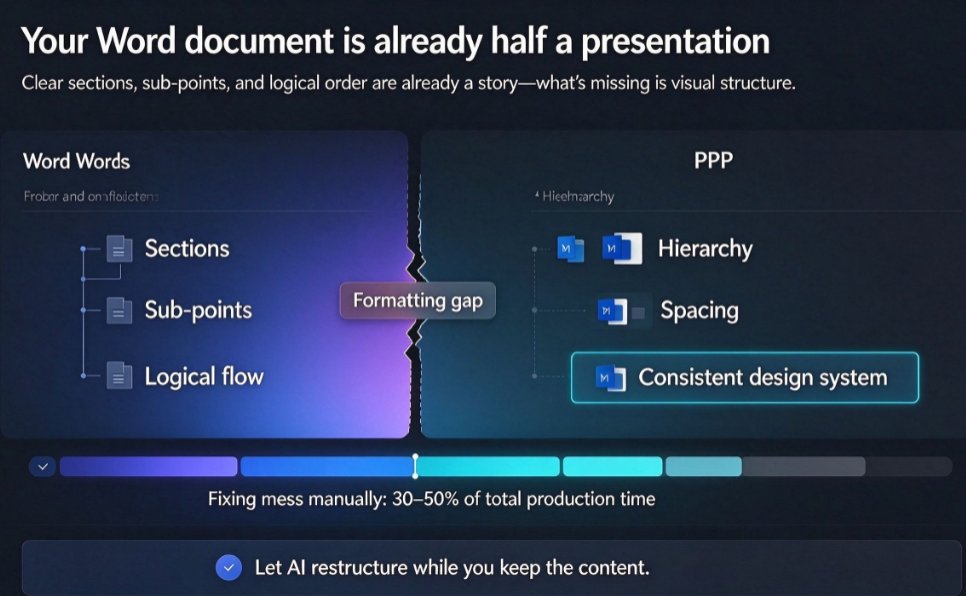
Step 1: Import your existing material. Start with a Word outline, pasted Markdown, or a plain text export of your deck's content. Zendeck reads the structure and generates a fresh, visually consistent slide set — you don't have to hand-fix formatting slide by slide. If you'd rather keep the original deck, you can build from an outline and let the tool handle layout.
Step 2: Generate the deck structure. Input your outline, and Zendeck produces slides with proper hierarchy, headings, and supporting visuals. This is where the tool's context-aware design kicks in — picking layouts that match the content rather than forcing a generic template. If you want the details, our breakdown of why AI deck tools are moving beyond templates explains the shift.
Step 3: Review and apply a brand look. One of the hidden wins is consistency. Use a custom brand kit or let Smart Layout unify fonts, colors, and spacing across the entire deck. That alone erases years of inherited formatting chaos. If you're new to this, our guide on creating a custom brand kit walks through the whole process.
Step 4: Add AI narration. This is the magic step. Zendeck synthesizes a natural-sounding voiceover from your speaker notes — no recordings, no re-takes. You pick the voice, adjust pacing, and sync narration to each slide. One-click localization even lets you translate scripts and on-screen text into 140+ languages if your audience is global. Our tutorial on adding narration to slides covers the options in more depth.
Step 5: Publish and distribute. Once narration is synced, export as a video or share a link. Embed it in your LMS, drop it in a learning path, or push it to your knowledge base. That's the whole cycle: from dusty deck to published knowledge video in under an hour.
The step that surprises people most is how little manual work is left. The AI reads your existing content and does the heavy lifting — that's why the entire conversion is measured in minutes, not days. If you're curious about where this is heading, our article on why AI PPT-to-video is becoming the 2026 corporate training standard lays out the broader trend.
04 Making legacy decks interactive: subtitles, quizzes, and pacing
Narration alone already makes a big difference. But the real strength of converting to video is that you can add the interactive elements static slides simply can't support.
Auto-generated subtitles and captions. Accessibility isn't optional anymore. Subtitles help learners in noisy environments, non-native speakers, and anyone with hearing impairments. Video platforms like Synthesia localize voices, captions, and formatting "while preserving your original slide layout." Zendeck does the same — auto-generating subtitles from your PPT so the video is inclusive by default. That's a compliance-friendly win for corporate teams, and you can see exactly how it works in our guide to accessible micro-courses with auto subtitles.
Quizzes and polls. A narrated video can pause and ask. Drop a quick quiz after a key section, or run a poll to check understanding. Learners retain more when they're periodically tested, and interactive checkpoints break up long videos into digestible chunks. Our guide to adding interactive quizzes to micro-courses shows how to wire these in without touching code.
Pacing that respects attention spans. Micro-learning works because it's short — usually three to seven minutes per video. When you convert a deck, think in segments. A 40-slide training deck becomes five or six focused micro-courses rather than one 25-minute marathon. That matches how learners actually engage: in short, focused bursts.
Strategic repetition. Since narrated videos are easy to rewatch, use them for compliance refreshers or pre-audit reviews. Learners can replay a five-minute video the morning of their safety audit without sitting through a full presentation.
If your goal is learning retention, the winning combination is simple: narration for the what, subtitles for the who, and a quiz for the "did they actually get it."
05 Static PPT vs AI-narrated micro-learning: a quick data view
It's fair to ask: is the effort worth it, or is this just a nice-to-have? The differences show up in the everyday metrics L&D teams track — completion, recall, distribution. Here's the comparison at a glance:
| Dimension | Static PPT deck | AI-narrated micro-learning video |
|---|---|---|
| Narration | Silent — needs a live presenter | AI voiceover synced from speaker notes |
| Pacing | Manual, inconsistent | Auto-timed slides with adjustable pacing |
| Interactivity | Static text and images only | Quizzes, polls, clickable checkpoints |
| Accessibility | No subtitles or alt text by default | Auto-generated subtitles and captions |
| Updating | Redesign, proof, re-export | Re-run narration generation in minutes |
| Distribution | File attachments in email | Shareable links, LMS embedding, knowledge portals |
| Production time | Days to weeks (manual voiceover) | Under an hour per deck |
And if you want a single visual to explain why teams make the switch, think of it in terms of engagement — the extent to which learners start, finish, and remember a training asset:
These numbers are illustrative — your mileage will vary with content and audience — but the direction is consistent across the industry. Video with narration holds attention dramatically better than silent documents. And AI-narrated micro-learning adds the interactive, bite-sized structure on top.
The deck conversion itself is the easy part; the hard part is deciding which of your old slides deserve saving. In our experience, 60-70% of legacy decks should be cut down, split up, or consolidated before conversion.
06 Best practices for converting your oldest, ugliest decks
Before you mass-convert your entire shared drive, a few ground rules will save you from generating hours of boring video.
Cut ruthlessly first. Slides that were filler in the original deck will be filler in the video. Remove redundant agendas, logo-only title slides, and appendix material nobody ever opened. Keep the slides that carry unique information.
Split by topic, not by file. If one deck covers onboarding plus safety plus product basics, split it into three micro-videos. Each should answer one clear learning objective in five to seven minutes.
Fix the notes before you narrate. Since the AI builds narration from your speaker notes, clean those notes first. Remove references to "this slide" or "as you can see here" — they don't work in a standalone video. Rewrite each slide's notes as a self-contained mini-script.
Match the voice to the audience. A compliance deck and a product demo can use different AI voices. Choose a tone that fits — professional for policy, warmer for training, upbeat for new-hire onboarding.
Add a checkpoint every few slides. A quiz, a poll, or just a recap slide with a pause gives learners a reason to stay engaged. This is where micro-learning shines.
Test on a low-stakes deck first. Pick a deck you don't care about, convert it, and watch the result before scaling. You'll spot pacing issues and note problems immediately. Our complete PPT-to-video guide has more detail on this workflow.
One more tip, and I mean this like a friend, not a vendor: don't over-narrate. A two-minute silent slide about process documentation doesn't need a dramatic voiceover. Use narration where it adds comprehension — complex concepts, multi-step processes, anything with flow. Let simple reference slides stay quiet. Learners will thank you.
07 FAQ
Can Zendeck narrate my existing PPT without me re-recording voiceover?
Yes. Zendeck builds narration from your slide content and speaker notes using AI voice synthesis. You choose the voice, adjust pacing, and regenerate anytime — no microphone, no retakes, no studio time.
How long does it take to convert a static PPT into a micro-learning video?
For a typical deck, the core conversion takes well under an hour. Most of that time goes to cleaning speaker notes and reviewing the generated narration, not to manual design or recording.
Can I add subtitles and quizzes to the narrated video?
Yes. Subtitles are auto-generated from the narration and synced to each slide. You can also add interactive quizzes and polls at checkpoints, which makes the final result genuinely interactive rather than just a narrated slideshow.
What if I don't have speaker notes in my old deck?
That's fine. Zendeck can generate a narration script from the slide text itself. The output will be less conversational than edited notes, but it still turns a silent deck into a viewable video. For best results, spend a few minutes adding brief notes to the most important slides before converting.
Which decks are best to convert first?
Start with onboarding sequences, compliance refreshers, and product training. These have the highest learner volume and cause the most pain when they sit static. Short, policy-heavy decks are ideal first candidates.