Brand Consistency for Training Decks: One-Click Reskin Solutions
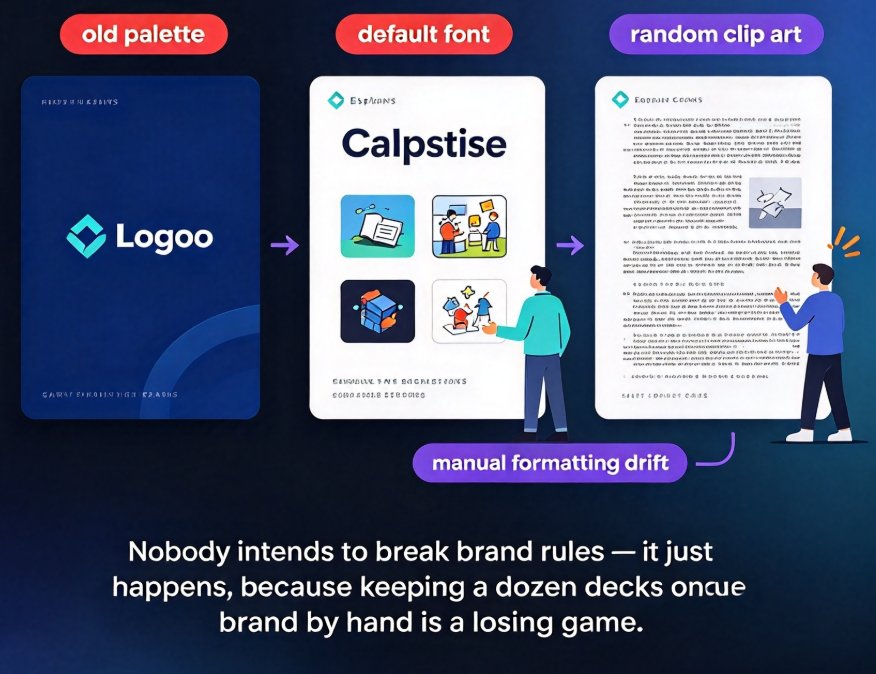
It's Tuesday afternoon, and your training team just shipped three new courses. One deck uses the old navy-blue palette from two rebrands ago. Another was clearly built in a hurry with default Calibri and random clip art. The third one... honestly, you're afraid to open it.
Sound familiar? If you train people for a living, you've lived this exact scene — not once, but every single quarter. And here's the frustrating part: nobody on the team intends to break brand rules. It just happens, because keeping a dozen decks on-brand by hand is a losing game.
Let's be real about why that is, and what actually fixes it.
I. Inconsistent Branding Is a Credibility Problem, Not a Design Problem
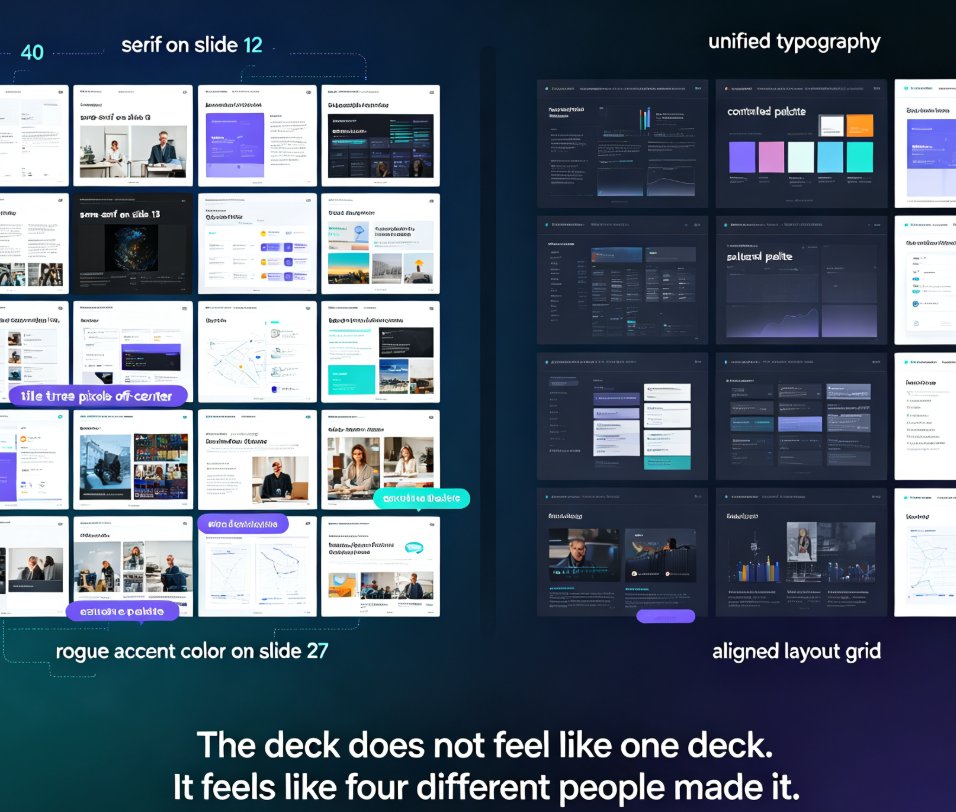
When a sales deck, an onboarding module, and a product training course all look different, learners notice. Not consciously, but they notice. Every time the visual language shifts, a small part of your message gets questioned: If they can't keep their slides consistent, how solid is the training itself?
Inconsistent branding doesn't just look sloppy — it actively undermines the credibility of everything you teach.
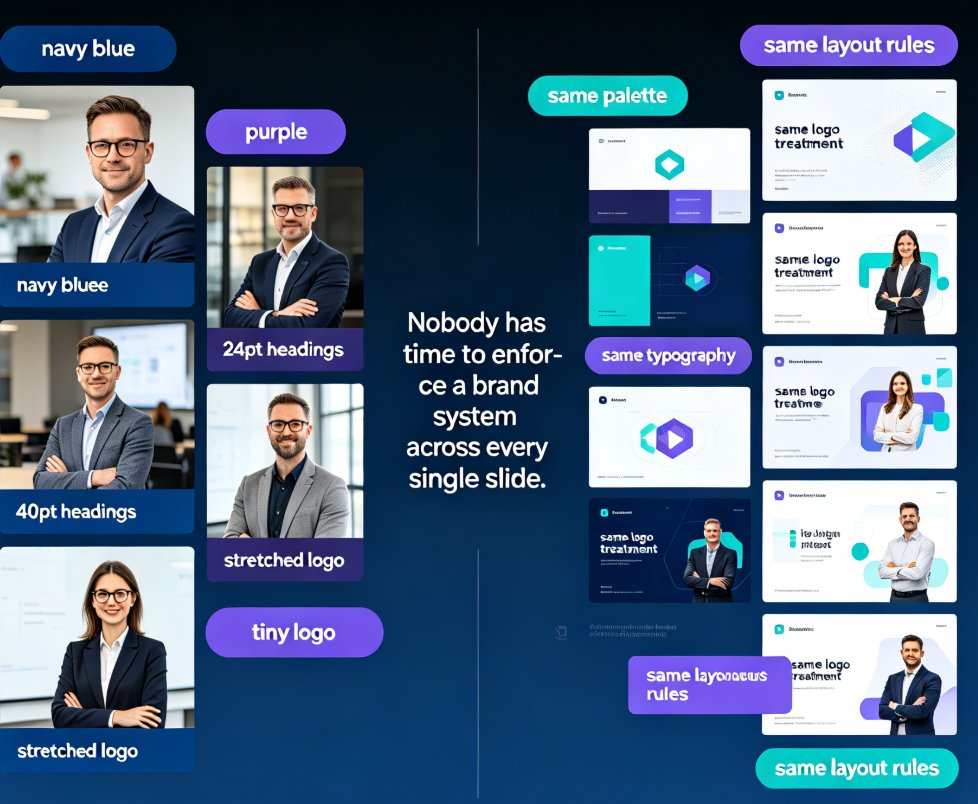
The fix has nothing to do with hiring a designer or becoming one overnight. It's about giving every team member one predictable way to produce on-brand slides — and that starts with a tool that removes manual formatting decisions from the equation.
II. The Real Cost of Manual Branding in Training Teams
Let's talk numbers. A typical L&D team produces 8–15 training decks per month. Each deck needs logos placed, brand colors applied to every shape and chart, fonts matched, and layouts aligned. Done by hand, that's roughly 29 hours per month — nearly four full workdays — spent fighting PowerPoint's default styles instead of improving course content.
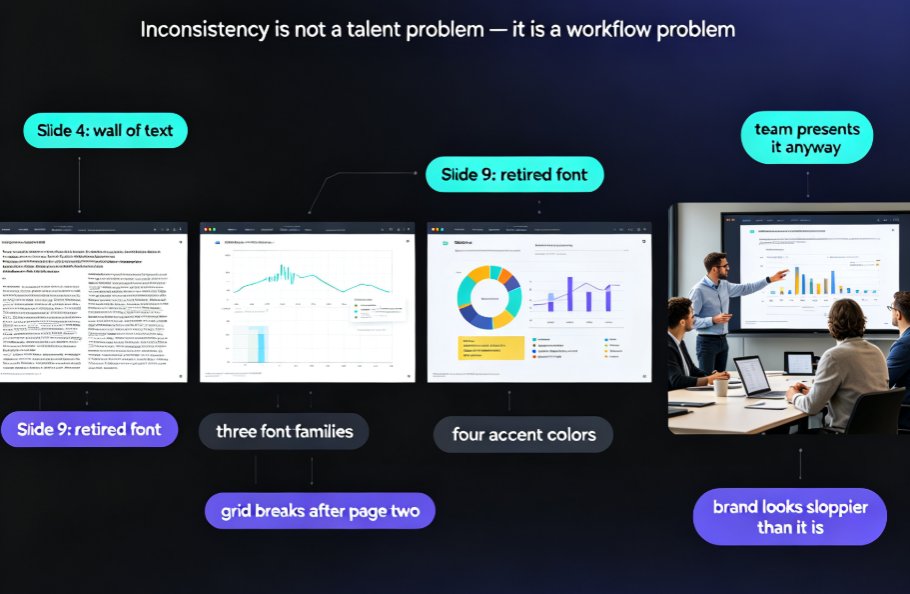
Worse: even after all that effort, the "final" decks still drift off-brand. Why? Because people take shortcuts. They copy slides from older decks. They use screenshots from tools that don't match the palette. They skip the header logo on "just one" slide. Brand consistency is a thousand small decisions, and humans are terrible at making a thousand small decisions consistently.
That's why a growing number of teams have moved to AI-driven design automation — they realize that the only way to win the consistency game is to stop playing it manually.
The gap between good intentions and actual output isn't a training problem. It's a workflow problem. And workflow problems need workflow solutions.
Here's what that gap actually looks like in practice:
III. One-Click Reskin: The Solution That Sounds Too Simple to Work
Here's the idea: instead of formatting every slide by hand, you design (or pick) one master style — one font pairing, one color palette, one layout system — and then apply it to every slide in a deck with a single click. That's one-click reskin.
It's the presentation equivalent of changing a website's theme. The content stays exactly where it is. The titles, bullets, images, and charts stay put. But the look — the visual wrapper around that content — instantly becomes consistent.
One-click reskin is the difference between a deck that looks branded and a deck that looks like it was built by one company with one standard.
If you're thinking "that can't possibly handle my complex slides," you're not alone. Most people assume reskin tools only work on simple text slides. In practice, modern AI reskin handles far more:
| What changes with reskin | What stays untouched |
|---|---|
| Font pairing across all text styles | Your slide content and message |
| Color palette for backgrounds, text, charts | Data values in charts and tables |
| Logo placement and sizing | Image crops and photo choices |
| Layout spacing and alignment rules | Speaker notes and narration scripts |
| Slide master and background art | Animations and transitions you set intentionally |
The result: your team can build content freely, and the brand gets applied at the end — like a stamp of approval rather than a cage around the creative process.
IV. How Zendeck's Reskin Works in Your Real Workflow
Let's walk through how this plays out with Zendeck, using a scenario you'll recognize: the quarterly compliance training refresh.
Step 1: Set the brand once in your Brand Kit
Instead of recreating your brand on every project, you define it once — logo, primary and secondary colors, font preferences, even asset variations. This becomes your team's single source of truth. If your brand updates, change it in one place and the next reskin picks it up automatically.
Pro tip: if your team maintains multiple sub-brands (say, different departments or client projects), create a separate kit for each. Reskinning a deck to the right kit is then a two-click operation instead of a jewel heist.
Step 2: Build your content without thinking about design
Let your trainers write their outlines, paste markdown, or upload a Word document. The first pass of AI-generated slides will already follow some structure — but now it doesn't matter what default look it comes with, because you're going to reskin it anyway.
Step 3: Hit reskin and watch everything unify
One click applies your brand across the entire deck — all 40 slides, all accent colors, all title treatments. Charts get recolored. Header logos drop into place. The font stack realigns. No manual tinkering, no fifteen-round review cycle of "can you make this slide match the last one?"
Step 4: Review what changed, not what stayed the same
The deck you review is after branding, not a half-done work in progress. You're looking at content and flow, not color swatches. That's a completely different — and faster — review conversation.
If you want the deeper breakdown of building reusable brand assets, this guide on creating a custom brand kit in Zendeck walks through the five setups every training team should have.
V. Beyond Reskin: The Brand System That Scales Across Your Whole Team
Reskin solves the "make this deck match" problem. But healthy training departments think one step further: they build a system where brand consistency isn't a last-minute fix but a default behavior.
The three-layer brand system
Layer 1: Brand Kit (the rules). Colors, fonts, logo usage, layout constraints. Defined once, shared by everyone.
Layer 2: Asset Library (the raw materials). Icons, illustrations, chart styles, image treatments that all follow brand rules. When trainers pull from the library, they can't accidentally go off-brand. Your asset library becomes the guardrail.
Layer 3: Reskin (the enforcement mechanism). The one-click apply that catches anything that slipped through. Even when someone builds from scratch in a tool that has nothing to do with your brand, the reskin pass brings it home.
For teams that want to go further, AI-governed brand consistency is becoming the industry standard — smart templates that refuse to produce off-brand output in the first place, instead of fixing it afterward.
The beauty of this system is that it scales to any team size. Whether you have three trainers or thirty, the workflow stays identical:
- Content creation is free-form (no design anxiety)
- Brand applies at the end (instant consistency)
- Templates improve over time (your best layouts become starting points)
VI. What to Watch Out For (Real Talk)
Reskin isn't magic, and it's worth knowing its limits.
Watch-out #1: Content density still matters. If a slide has 400 words of text, no color scheme is going to save it. Reskin fixes look, not overload. You still owe your learners whitespace.
Watch-out #2: Don't treat reskin as a substitute for good design. A brand kit built on clashing colors will produce consistently clashing decks. Spend an hour getting the palette right before you roll it out to the team.
Watch-out #3: Keep your brand kit updated. When your company rebrands (and it will), update the kit and reskin what needs refreshing. The whole point is that the update propagates — but only if you actually maintain the source.
The same logic applies to accessibility: if your brand palette has poor contrast on training slides, reskinning will faithfully reproduce that problem across every deck. It's worth checking your colors against WCAG basics while you're setting up the kit.
VII. The Bottom Line
If you're tired of chasing trainers around with brand guidelines and still finding off-brand decks in the wild, the answer isn't more rules. It's a tool that makes compliance the path of least resistance.
One-click reskin gives you that. For training teams juggling multiple courses, multiple presenters, and a never-ending production calendar, it's the difference between brand consistency as a dream and brand consistency as a default.
Your next deck could be on-brand in one click. What are you waiting for?
FAQ
What exactly does one-click reskin do to my existing slides? Reskin changes the visual wrapper — fonts, colors, logos, background elements, and layout spacing — while keeping your content, data, images, and narration intact. It's like updating a website theme without touching the copy.
Will reskin change my slide content or break my charts? No. Text, data values, and chart data remain untouched. The chart style — colors, gridlines, axis treatment — gets refreshed to match your brand, but the underlying numbers stay exactly as they were.
How is reskin different from switching templates in PowerPoint? Traditional template switching usually rebuilds slide layouts and often breaks positioning of existing elements. Reskin is designed to preserve your content structure while updating the visual style, so you spend zero time fixing "orphaned" text boxes or misaligned graphics.
Can I use Zendeck's reskin for client-facing decks as well as internal training? Absolutely. Reskin works with any brand kit you define. Set up one kit for your internal brand and another for client projects, then apply the appropriate one depending on who the deck is for.
What's the fastest way to get my whole team using reskin consistently? Start by building a solid brand kit, share it as the team standard, then make reskin part of the final review step in your production workflow. Within a couple of weeks, the habit replaces the manual formatting grind.