5 Easy Ways to Add Interactive Elements to Your PPT with Zendeck
We've all sat through it — the 40-slide deck where the presenter reads every bullet point and the audience mentally checks out by slide five. If you train employees, teach students, or pitch to stakeholders, you already know: passive presentations don't change minds. They just eat time.
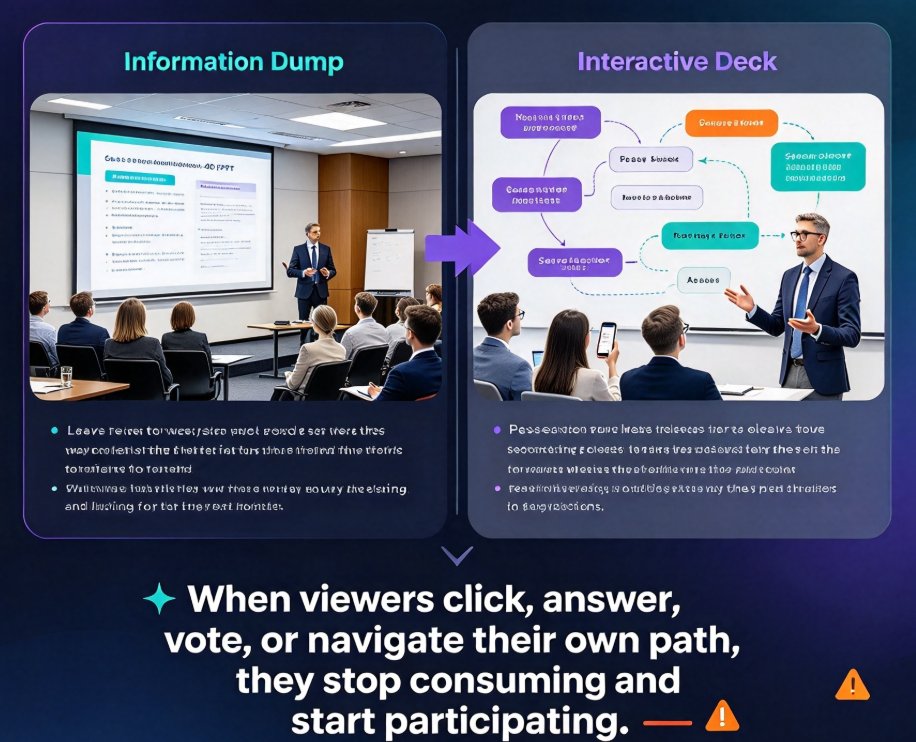
The fix isn't more slides. It's making your deck react to your audience. When viewers click, answer, vote, or navigate their own path, they stop consuming and start participating. That's the difference between a presentation that gets forgotten and one that gets results.
Here are five dead-simple ways to add interactive elements to your PPT — no design degree required.
01 / Why Interaction Beats Information Dumping
When you dump 40 slides of pure information, you're asking people to listen, remember, and act — all at once. That's asking a lot. Interactive elements like quizzes, polls, and clickable navigation break the one-way flow and turn viewers into participants.
The research is clear — even a simple poll can change how much people absorb. Interactive formats typically outperform static slides in attention and recall, especially when the interaction happens every few minutes rather than once at the end.
The outcome: more retention, better feedback, and a room that's actually listening instead of just facing you.
Let's put numbers on it. The chart below uses illustrative figures for the typical engagement lift you can expect when you move from a purely passive deck to one with interactive elements.
02 / Method 1: Embed Quizzes Directly into Your Slides
The most direct way to engage people is to ask them a question. Quizzes embedded right in your deck do exactly that — and they're shockingly easy to set up.
How it works: You either generate a quiz alongside your content or insert one at key decision points. A good quiz isn't a final exam — it's a checkpoint. You ask one focused question, let people answer, then reveal the correct response and explain why.
The pain point this solves: Trainers and educators constantly worry about whether people actually understood the material. Without a check, you're flying blind. A quiz at the end of a section gives you immediate evidence of who's tracking and who needs a recap.
The outcome: Your audience stays alert because they know a question could appear at any moment. And you get a built-in learning assessment without extra admin work.
Real example: A sales training team used embedded quizzes at the end of each product module. Completion rates on the follow-up test jumped by nearly double, and managers could finally see which reps needed reinforcement.
If you want to go deeper on quiz mechanics, check out how to add interactive quizzes to micro-courses — it covers scenario quizzes and multi-round question flows that work great for longer training sessions.
03 / Method 2: Add Live Polls for Real-Time Feedback
Polls are the fastest way to wake up a room. With one question, you go from monologue to dialogue — people vote, the results appear live, and suddenly the room is talking.
How it works: You insert a poll at the right moment — before introducing a new topic, after presenting a controversial finding, or mid-deck when energy dips. Then you share the results, compare expectations with reality, and let the discussion flow from there.
The pain point this solves: When you present, you can't read minds. You might think you've convinced the room when most people disagree (or the opposite). A poll surfaces that gap instantly.
The outcome: Decisions get made faster because you're discussing real opinions, not guesses. And for trainers, live polls double as icebreakers — even in a Zoom grid full of muted mics.
Quick tip: Don't put a poll on every slide. Pick two or three high-impact moments. Poll fatigue is real, and the element works best when it feels like a surprise, not a routine.
For the full walkthrough on embedding polls and quizzes in slides, see Boost Engagement: Add Polls and Quizzes to Slides.
04 / Method 3: Make Navigation Clickable — Non-Linear Decks
Most decks are a straight line: slide one, slide two, slide three. But sometimes your audience needs to choose their own path.
Interactive navigation turns your deck into a choose-your-own-adventure. Think of a product demo where customers pick the feature they want to explore, or a workshop where teams self-select exercises based on their role.
The pain point this solves: A one-size-fits-all deck never fits anyone perfectly. Sales engineers hate presenting feature A to a customer who only cares about feature C. Interactive navigation lets the audience (or the presenter) jump around without losing the thread.
The outcome: You cover the content people actually need, skip what they don't, and end with stronger engagement because the audience shaped their own experience.
You can also embed interactive charts and diagrams that people can click through — here's how to add them with Zendeck's asset library if you want a visual twist.
05 / Method 4: Turn Slides Into Narrated Micro-Courses
What if your presentation could keep engaging people even when you're not on stage? That's exactly what converting your PPT into a narrated video deck does.
How it works: You record narration on each slide (or let AI voiceover do it), sync the pacing, and export a micro-course people can watch on their own time. Each slide becomes a short scene, and viewers control the pace.
The pain point this solves: Every trainer knows the struggle: you can't be everywhere at once. New hires need onboarding, remote teams need refreshers, and nobody has time for a 90-minute live session about the same deck.
The outcome: The same content that took you an hour to present live becomes a 5-10 minute micro-course that reaches 10x more people, asynchronously. And because you can still embed quizzes and polls inside the video, engagement doesn't drop when the presenter disappears.
To see the full workflow, read how to add narration to slides with Zendeck's PPT-to-video.
06 / Method 5: Make Engagement Happen After the Talk — Async Collaboration
Interactive slides don't stop being interactive when the live session ends. The final trick: sharing your deck so people can comment, react, and discuss on their own time.
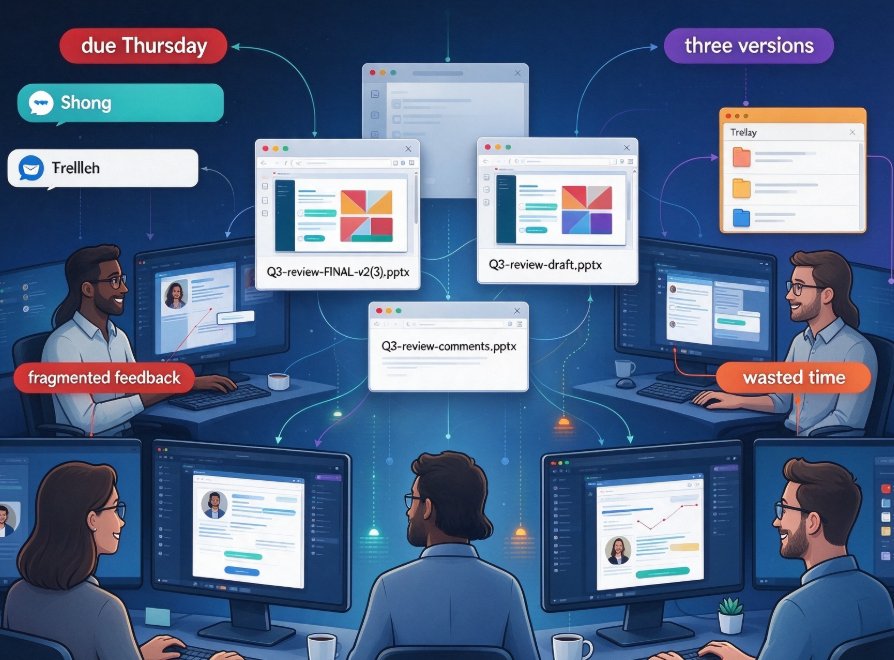
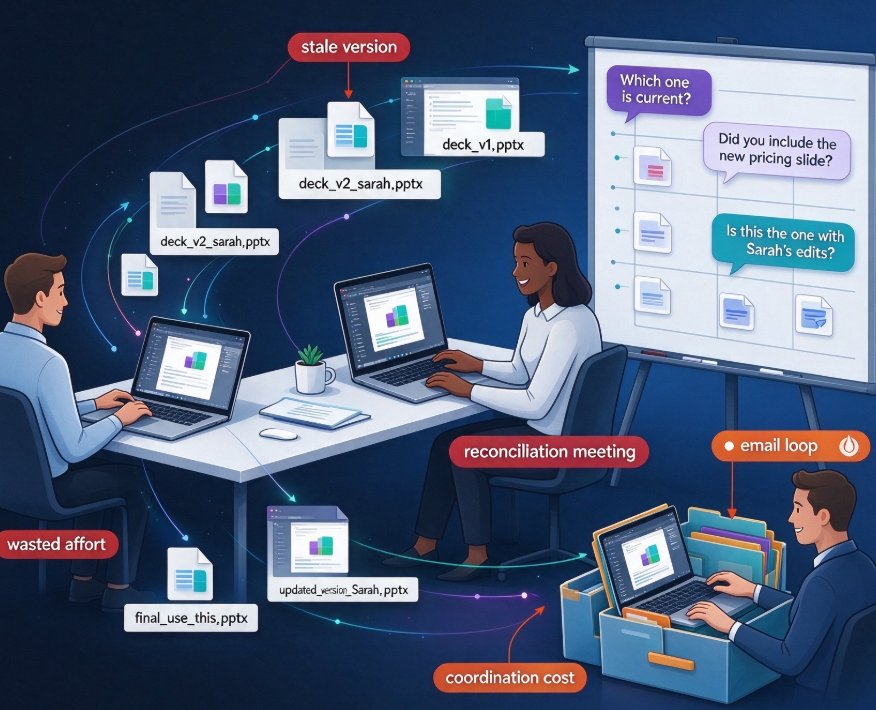
The pain point this solves: Many decks get sent as PDFs after a meeting and immediately forgotten. No questions, no notes, no follow-up. All the interaction you built into the live session evaporates.
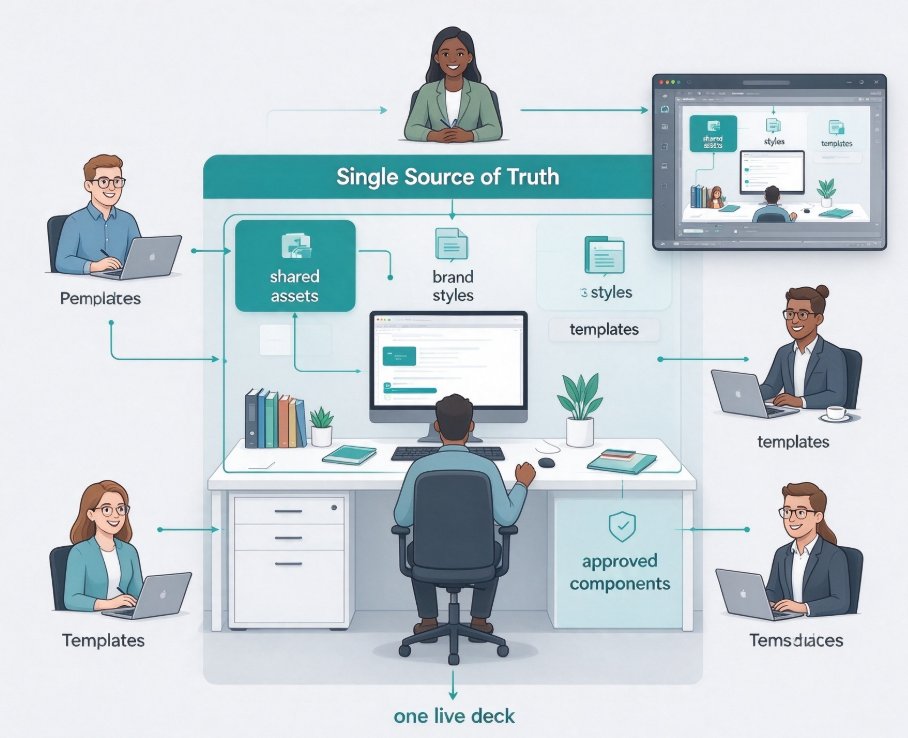
The outcome: With a shared, live deck, teammates can drop comments, flag questions, and even co-edit before the next meeting. For internal training, this turns a one-time presentation into a living resource people can revisit.
This is where Zendeck's collaboration features shine — they let you keep the conversation going long after the meeting ends.
Quick Comparison: Which Method Should You Use First?
| Method | Time to set up | Best scenario | Engagement boost |
|---|---|---|---|
| Embedded quizzes | 5-10 min | Training, onboarding | High |
| Live polls | 2-5 min | Meetings, webinars | Medium-high |
| Clickable navigation | 10-15 min | Product demos, workshops | Medium |
| Narrated micro-course | 15-30 min | Self-paced learning | Very high |
| Async collaboration | 2-5 min | Remote teams, review cycles | Medium |
Here's the practical order: if you have five minutes, add a live poll. If you have fifteen, build a quiz and clickable navigation. If you want lasting impact, convert to a micro-course and share it as a collaborative resource. Start small, measure what works, then scale the interactive elements that get the strongest response from your specific audience.
FAQ
Q: Can I add quizzes and polls to slides that were generated by Zendeck's AI?
A: Yes. Zendeck lets you insert interactive elements directly into AI-generated slides — you can add quiz blocks, polls, and clickable navigation without rebuilding your deck.
Q: Do the interactive elements work in both live presentations and self-paced videos?
A: Both. Quizzes and polls work during live sessions when you share your screen, and they also work inside narrated micro-courses when you convert your deck to video.
Q: I'm not a designer. Do I need design skills to make interactive slides?
A: No. Zendeck handles layout and styling automatically. Adding an interactive element is as simple as selecting a block type and typing your question.
Q: Can I track how people engage with my interactive content?
A: Yes. Zendeck's sharing and collaboration features show you comments, reactions, and interaction patterns, so you can see which parts of your deck actually resonate.
Q: What's the fastest way to make an existing PPT interactive?
A: Start by inserting a live poll at your next talking point. It takes minutes, requires no design work, and instantly shifts the energy of your session.