Interactive Video Presentations: The 2026 Trend of Polls and Quizzes
Interactive Video Presentations: The 2026 Trend of Polls and Quizzes
Let's be honest: how many times have you sat through a recorded presentation and zoned out by slide five? If you're nodding, you're not alone — and neither are your viewers. The 2026 answer to this problem isn't flashier visuals or longer videos. It's interactivity.
Interactive video presentations — decks that embed polls, quizzes, clickable navigation, and branching scenarios — are quietly becoming the standard for e-learning, corporate training, and knowledge content. And the shift makes sense: when viewers can click, answer, and choose their own path, they stop watching and start participating.
In this guide, we'll break down what makes video presentations interactive, what the data says about engagement, which tools actually deliver, and how you can build one without a design degree.
I. Why Passive Video Presentations Are Failing Your Audience
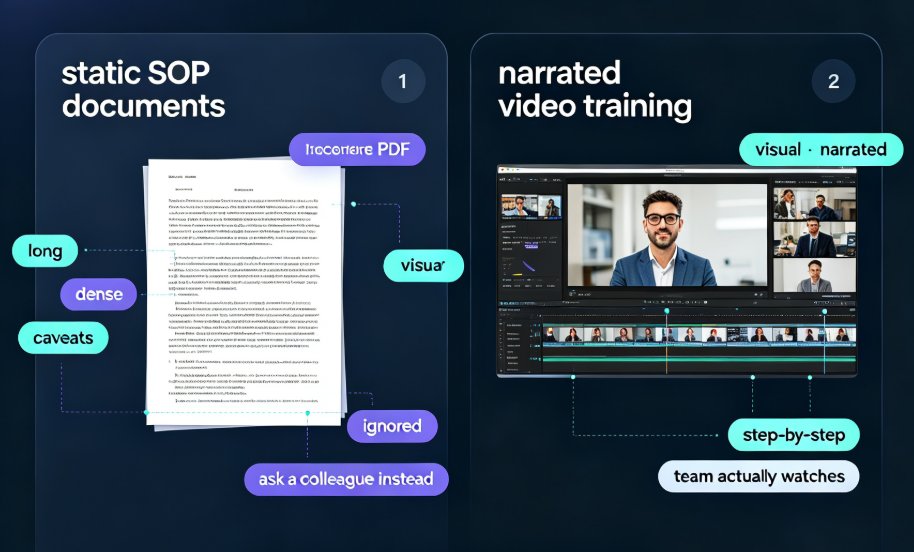
Here's the uncomfortable truth about most recorded presentations: they're monologues. One person talks, a hundred people watch, and retention drops off a cliff after the first few minutes.
The core problem is that passive viewing doesn't require anything from the audience. No decisions, no responses, no stakes. Your brain treats it like background noise.
Interactive presentations solve this by turning viewers into participants. According to Prezlab's 2026 analysis, the core components include hyperlinks that connect related content, navigation tools that allow jumping between sections, embedded videos and animations, and interactive elements like polls, quizzes, and clickable buttons that invite audience participation. These features work together to create an immersive experience that holds attention and facilitates deeper understanding.
The outcome is measurable: audiences who interact with content remember more, stay engaged longer, and actually apply what they learned.
For trainers and educators, this isn't a nice-to-have. It's the difference between a course people finish and one they abandon.
II. The Core Components of an Interactive Video Presentation
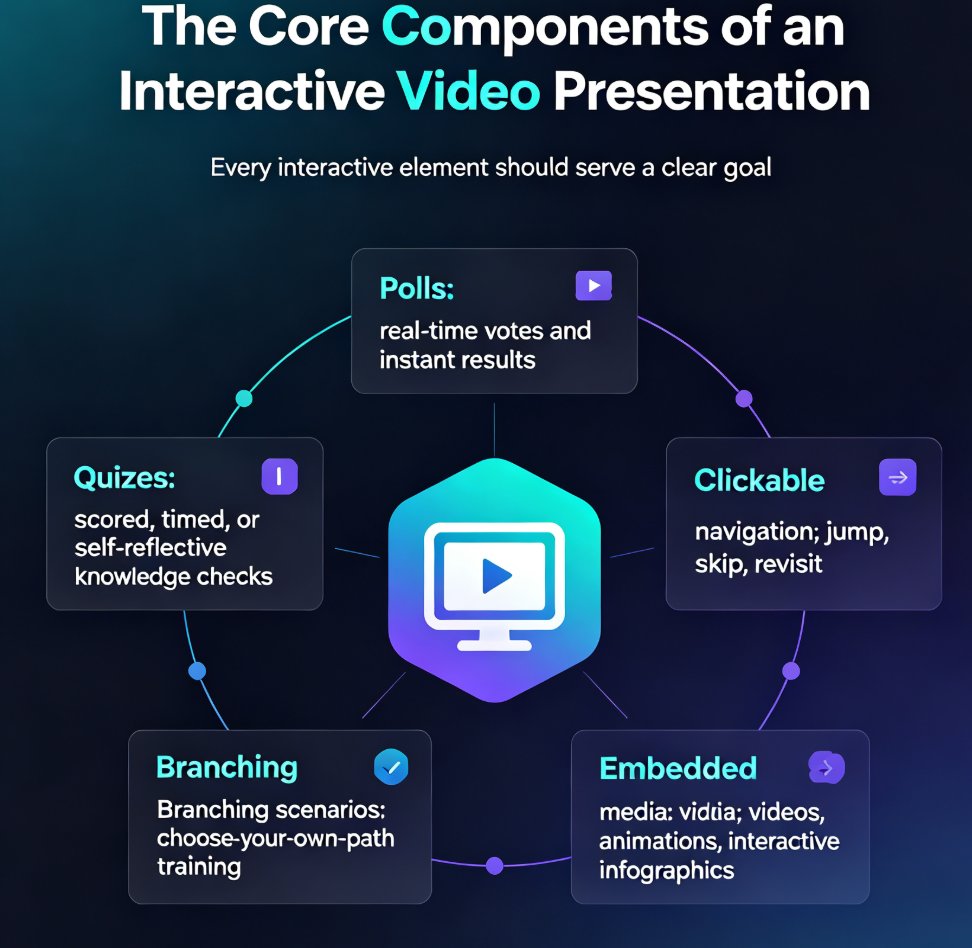
Let's get specific about what "interactive" actually means in a video presentation context. Based on the 2026 landscape, there are five building blocks:
- Polls — Real-time questions that let viewers vote and see results instantly. Great for gauging opinions or checking baseline knowledge.
- Quizzes — Embedded knowledge checks that reinforce key points. They can be scored, timed, or simply self-reflective.
- Clickable navigation — Buttons and hyperlinks that let viewers jump between sections, skip ahead, or revisit material.
- Branching scenarios — Choose-your-own-path moments where viewer decisions change what they see next. This is the most powerful tool for training and compliance.
- Embedded media — Videos, animations, and interactive infographics that illustrate concepts visually rather than just telling.
The key insight from presentations.ai's 2026 guide: the best approach is to match each interactive element to a specific goal — reinforcing a point, checking understanding, or sparking real-time conversation. Don't add interactivity for its own sake; every element should have a job.
III. What the Data Says: Engagement Tools That Actually Work
Not all interactive presentation tools are created equal. Prezlab's 2026 comparison breaks down the major players by use case, interactivity level, and pricing:
| Tool | Best For | Key Features | Interactivity Level | Pricing | Standout Capability |
|---|---|---|---|---|---|
| Mentimeter | Live audience engagement, large events | Real-time polls, quizzes, word clouds, Q&A | Low | $11.99–$24.99/month | Works with any presentation tool |
| Genially | Educators, marketers creating shareable content | Extensive interactivity options, templates, animations | Medium | Free to $79/month | Embed anywhere, SCORM export |
| Canva Presentations | Design-focused users, social media integration | Templates, animations, brand kits, collaboration | Low | Free to $12.99/month | Social sharing, limited business tools |
| Visme | Data visualization, infographic-heavy content | Interactive charts, data widgets, animation | Medium | $12.25–$24.75/month | Analytics, embed options |
A few things jump out. First, the pricing spread is huge — from free tiers to $79/month. Second, the tools that offer the deepest interactivity (Genially, Visme) are also the ones with the steepest learning curves. And third, none of these are purpose-built for turning slides into interactive video — they're presentation tools first, video tools second.
IV. The Rhythm Rule: How Often Should You Add Interactive Moments?
This is the question I get most from trainers: "How many polls and quizzes is too many?"
The answer from presentations.ai's 2026 research is refreshingly specific: space interactive moments every three to five slides so the rhythm feels natural, not exhausting. Cramming interactivity into every slide creates fatigue. Spreading it too thin loses the engagement benefit.
Think of it like seasoning. A pinch of salt in every few bites makes the meal memorable. Dumping the whole shaker on top ruins it.
The same logic applies to video presentations. A quiz after every major section, a poll to open a new topic, a branching decision at a critical teaching moment — that's the rhythm that works.
The difference between a forgettable deck and one that holds attention from start to finish is rarely about adding more. It's about adding the right thing at the right moment.
V. How to Build an Interactive Video Presentation, Step by Step
Let's make this practical. Here's a workflow that works whether you're a solo educator or part of a training team:
Step 1: Start with your goal and audience. Before you add a single poll or quiz, write down what you want viewers to know, feel, or do by the end. Every interactive element should serve that goal.
Step 2: Outline your content before layering in interactivity. Map your narrative arc first. Mark the natural decision points, knowledge checks, and discussion moments.
Step 3: Match each element to a specific job. Poll to gauge prior knowledge. Quiz to reinforce a key concept. Branching scenario to test decision-making. Clickable navigation to let advanced viewers skip ahead.
Step 4: Space your interactive moments. Remember the three-to-five-slide rhythm. Mark your outline accordingly.
Step 5: Test everything before you present. This is non-negotiable. Broken links, unresponsive buttons, and glitchy quizzes destroy credibility faster than any design flaw.
VI. Branching Scenarios: The Next Level of Interactive Video
If polls and quizzes are the entry point, branching scenarios are the advanced tier. These are choose-your-own-path moments where the viewer's decision determines what happens next — and they're transforming how corporate training and compliance courses are built.
A branching scenario might present a customer service situation, offer three response options, and then show different consequences for each choice. The viewer isn't just absorbing information; they're practicing judgment in a safe environment.
Branching scenarios turn knowledge into judgment, which is exactly what training programs are supposed to do.
For a deeper dive into how this works in practice, check out our guide on branching scenarios in AI presentations for interactive training. And if you're curious how video decks are reshaping training altogether, read about AI-generated video decks replacing traditional corporate training.
VII. How Zendeck Fits Into the Interactive Video Workflow
Here's where the practical part gets interesting. Most interactive presentation tools require you to build from scratch, and most video tools don't support interactivity at all. Zendeck sits in the middle: it turns your slide decks into video presentations with narration, and it's built for people who don't have design skills.
With Zendeck's PPT-to-video workflow, you can add narration and subtitles to your slides, then layer in interactive elements. The platform handles the visual consistency — fonts, colors, layout — so you can focus on the content and the interactivity strategy.
If you're building training content, you can also convert existing materials like compliance manuals into video courses, which pairs naturally with interactive quizzes and branching checks.
The workflow looks like this: outline your content → generate structured slides with Zendeck → add narration and subtitles → export to video → layer in polls, quizzes, or branching at your marked decision points.
For more on the mechanics, see how to add narration to your slides with Zendeck's PPT-to-video and how to add voiceover and subtitles to your slides with Zendeck's AI. You can also explore the full knowledge video category for more production tips.
VIII. The 2026 Takeaway
Interactive video presentations aren't a gimmick — they're the answer to a real problem. Passive content loses attention. Interactive content earns it.
The tools are mature, the pricing is accessible, and the techniques are proven. Whether you're an educator building courseware, a trainer updating compliance modules, or a content operator producing knowledge videos, the path forward is the same: stop broadcasting, start interacting.
Start with one poll. Add one quiz. Test one branching scenario. You'll see the difference in your completion rates and your audience's feedback.
FAQ
Q: What makes a video presentation interactive?
An interactive video presentation embeds elements that require active viewer participation — polls, quizzes, clickable navigation, embedded media, and branching scenarios. Instead of passively watching, viewers make choices, answer questions, and control their own path through the content.
Q: How do polls and quizzes improve learning outcomes?
Interactive elements force active recall and decision-making, which significantly improves retention compared to passive viewing. Polls gauge prior knowledge and spark discussion, while quizzes reinforce key points at the moment they're taught. The 2026 research recommends spacing these moments every three to five slides to maintain engagement without causing fatigue.
Q: What tools support interactive video presentations in 2026?
Leading options include Mentimeter for live audience engagement, Genially for shareable interactive content with SCORM export, Canva Presentations for design-focused users, and Visme for data-heavy interactive charts. Pricing ranges from free tiers to about $79/month depending on the platform and features.
Q: Can Zendeck add interactive elements to PPT-to-video outputs?
Zendeck focuses on the production side — turning slide decks into polished video presentations with narration, subtitles, and consistent design. You can then layer in polls, quizzes, or branching scenarios at your marked decision points, or pair Zendeck's output with a dedicated interactivity tool.
Q: How often should I include interactive moments in a presentation?
The research-backed rhythm is one interactive element every three to five slides. This keeps energy high without overwhelming your audience or breaking the narrative flow. Match each element to a specific goal — reinforcing a point, checking understanding, or sparking conversation.