Slides Minimal, Notes Deep: Zendeck Speaker Notes & AI Narration
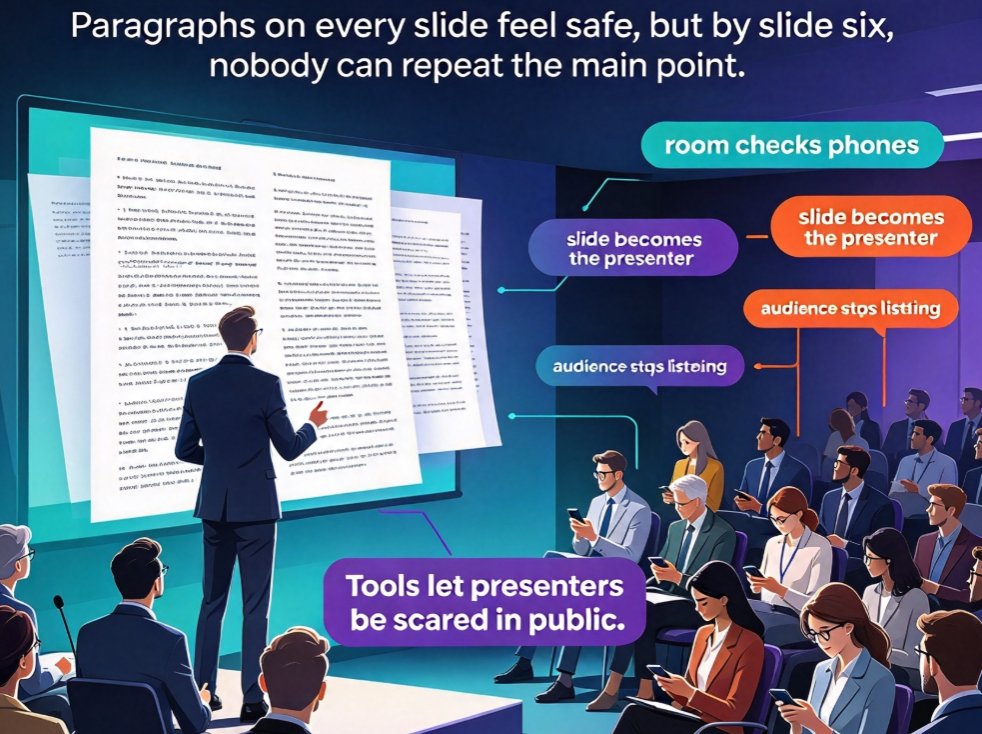
You've sat through it a hundred times. The presenter is a little shaky — not because they don't know the material, but because they're terrified of going blank mid-sentence. So they've done the only thing that feels safe: pasted a paragraph onto every slide, turned toward the screen, and started reading. The room checks phones. By slide six, nobody could repeat a single point they made.
I've watched this scene play out in sales kickoffs, university lecture halls, and all-hands meetings for fifteen years. The presenter isn't lazy — they're scared. And the tools they use let them be scared in public.
Here's what changes everything: keep the slide minimal, and move the full story into speaker notes and AI narration. If someone reads only your slide titles, they should still understand the whole story. Everything else belongs in your notes and your voice track.
Zendeck was built around this notes-first philosophy. Once you try it, you'll wonder how you ever presented any other way.
01 — Why Text-Heavy Slides Fail (and the Numbers Behind It)
When every slide carries 80-plus visible words, your audience faces a choice: read or listen. They can't do both well. Working memory is a tight bottleneck, and when the slide and the speaker compete for it, the slide usually wins. That's not engagement — that's a reading session with you standing awkwardly next to it. Every cognitive-load study I've leaned on over the years says the same thing: when the visual channel is saturated with text, the auditory channel shuts down.
Let's be honest about what a text-heavy deck actually gets you: a false sense of safety. The paragraph on the slide feels like insurance against forgetting, but it also guarantees the room stops looking at you. The slide becomes the presenter, and you become the operator.
Here's the difference laid out cleanly:
| Text-heavy deck | Minimal-first deck | |
|---|---|---|
| Words per slide | 60–120 | Under 40 visible words |
| Audience behavior | Read slides; ignore the speaker | Listen; watch the speaker |
| Speaker's role | Human teleprompter | Storyteller with room to move |
| Recall after a day | Low; bullets blur together | High; one clear idea per slide |
| If you lose your place | Read the slide (awkward) | Glance at notes; keep going |
And the recall pattern is consistent. Typical 24-hour recall numbers look something like this — illustrative, but the shape repeats in team after team:
When teams switch to a minimal-first format, the most common reaction is surprise that the presentation gets shorter and the discussion gets longer. The slides stop being the script and become the skeleton. The meat of the talk lives where it should — in what you say. If you want a deeper look at making decks that audiences actually absorb, the presentation skills library walks through these mechanics in more detail.
02 — The Speaker-Notes-First Workflow: Write the Story, Then Shrink the Slide
Most people design slides first and hope the words show up in their mouth. The notes-first workflow flips that order: write the full narrative as a rich outline, generate thorough speaker notes for every slide, and only then shrink the on-slide text to its essence. Same content, completely different experience.
Here's the flow that works in Zendeck:
- Draft the full story. Write your complete narrative the way you'd actually tell it — in Word or Markdown. Don't censor yourself; this is the raw material. If it reads like a conversation, even better.
- Generate speaker notes per slide. Zendeck reads your outline and produces two outputs at once: clean slide content and a speaker-note block that says what to say that isn't already on the slide. The note is the script; the slide is the headline.
- Auto-minimalize the slides. The deck builds with under 40 visible words per page, holding titles and the single idea each slide owns. If two ideas fight for one slide, split them — the notes will carry the transition.
- Apply smart layout. Zendeck unifies fonts, colors, and spacing so minimal slides still look designed, not empty. That finishing step matters: a sparse slide only reads as confident if the layout is intentional.
The key rule: what used to live on the slide now lives in the notes. This single sentence is the difference between a deck that reads and a deck that performs. It's also where the 2026 generation of AI presentation tools is heading — AI-generated speaker notes and rehearsal tools are becoming first-class features, not afterthoughts. When you want the visual polish without touching a design tool, smart layout handles the heavy lifting for you.
03 — One Prompt That Produces Notes Worth Speaking
Generating slides is easy. Generating notes that sound human is the hard part, because most prompts produce either a rehash of the slide or a wall of text. Here's a prompt that works well in any AI tool — and it's the style Zendeck follows when it structures notes for you:
Write slide content and speaker notes for a [NUMBER]-slide presentation on [TOPIC].
For each slide, provide:
- Slide title (under 8 words — assertive and specific, not a topic label)
- Body content (bullets or a short paragraph — max 30 words)
- Speaker note summary (what to say that ISN'T on the slide)
- Visual suggestion (specific chart, image, or layout — not "add a relevant graphic")

Rules:
- One idea per slide. No exceptions.
- Body text supports the title — don't repeat it.
- Never put a full sentence as a bullet point.
- Use numbers and specifics over vague claims.
- Title plus body stays under 40 visible words.
- If someone reads only the slide titles, they should still understand the story.
That last rule is the whole article in one line. Notice what the prompt demands: specific visual suggestions instead of "add a relevant graphic," speaker notes that don't duplicate the slide, and hard word budgets. That combination gives you the structure a notes-first deck needs.
One idea per slide. No exceptions. If two ideas fight for the same slide, the slide loses its center of gravity — and your audience loses the thread. Split it into two slides and let the notes carry the transition between them.
If you want the notes to match your voice, you can tune the style the same way you'd tune any prompt: ask for short sentences, conversational tone, or a specific structure like problem → evidence → next step. The speaker note should sound like you at your best, not like a textbook.
04 — Turn the Same Notes Into Narration: Your Deck's Second Life
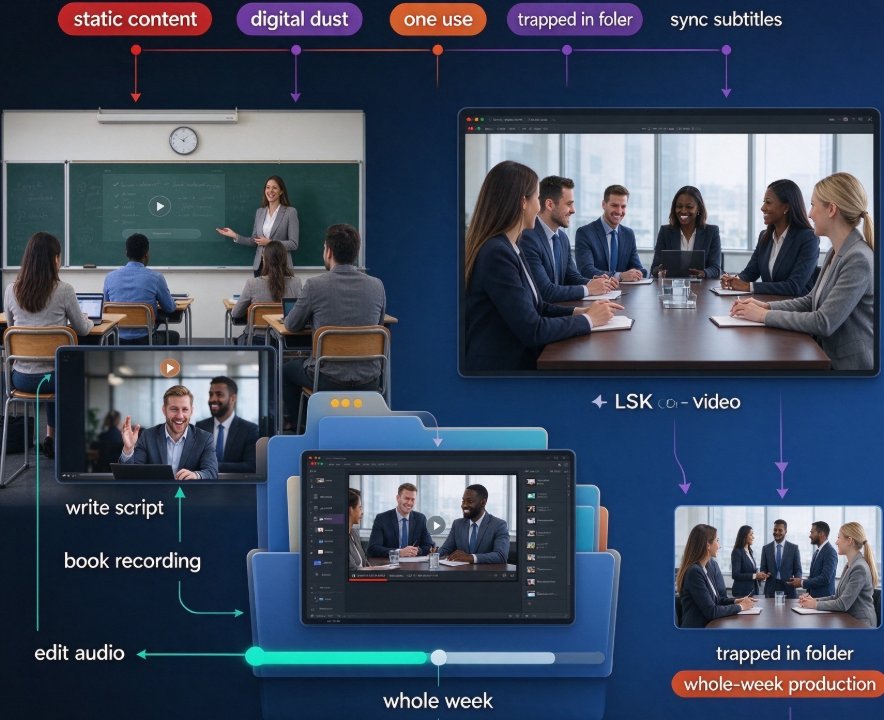
Here's the part most people miss: the notes you write for a live talk are a finished script. When you reuse them as AI narration, they become a video course, a sales enablement asset, or an asynchronous training deck — without you presenting again.
If you can present it live, you can publish it as video. Zendeck's PPT-to-video workflow turns your minimal slides into a narrated micro-course by reading from the notes you already perfected. You can layer in voiceover and subtitles in the same flow, and auto-generated subtitles keep the video accessible to every viewer. One source of truth — your notes — powers both your live talk and your on-demand version.
This matters more than it seems. Learners who watch on their own time can pause, rewind, and replay at their own pace, which makes your content more useful, not just more convenient. The same deck that worked in a meeting room now works in a learning platform. It's the reason so many training teams are treating AI-created video decks as the standard for corporate education.
05 — A Five-Minute Checklist Before You Go Live
Run through these before any presentation, and you'll catch the text-heavy habits before they reach the room:
- [ ] Read only the titles from start to finish — does the story still hold?
- [ ] No slide has more than 40 visible words.
- [ ] Every speaker note says something that isn't on the slide.
- [ ] Each slide owns exactly one idea.
- [ ] Visuals are specific: a chart, an icon, a layout — not "decorative."
- [ ] Rehearse from the notes at least once, out loud.
- [ ] The video version (if needed) is queued from the same notes.
When your slides are minimal and your notes run deep, the presentation stops being a memory test and becomes a conversation. You'll walk in knowing the full story is written down, the room will actually listen, and the same material works as a video afterward. That's the whole trick — and it's the way good presentation tools are designed to be used.
FAQ
What is the speaker-notes-first workflow in Zendeck?
It's the order of operations Zendeck follows: you draft the full story as an outline (Word or Markdown), Zendeck generates speaker notes for every slide alongside minimal slide content, and smart layout applies the visual polish. The slide holds under 40 visible words; the full narrative lives in the notes.
Can Zendeck generate speaker notes automatically?
Yes. When Zendeck converts your outline into a deck, it produces a speaker-note block per slide that says what to say beyond what's on the slide — no teleprompter-style slides needed. This is part of the broader 2026 shift toward AI-generated speaker notes and rehearsal tools.
Can I reuse the same speaker notes as narration for a video deck?
Yes — this is the hidden superpower. Zendeck's PPT-to-video turns your minimal slides into a narrated micro-course by reading from the notes you already wrote, so your live deck and on-demand version share one source of truth. You can add voiceover and subtitles in the same flow.
How many words should be on a minimal slide?
A good ceiling is 40 visible words including the title — and ideally far fewer. If someone reads only the titles and still gets the story, you've nailed the balance.
Will minimal slides make my presentation feel thin?
Only if the content isn't there — but that's the point: the content lives in your notes and narration, not on the slide. Audiences judge a deck by how it feels to watch, not by how many words are on screen. A confident presenter always beats a crowded slide.