From PPT to Micro-Course: Zendeck's AI Narrates Your Slides
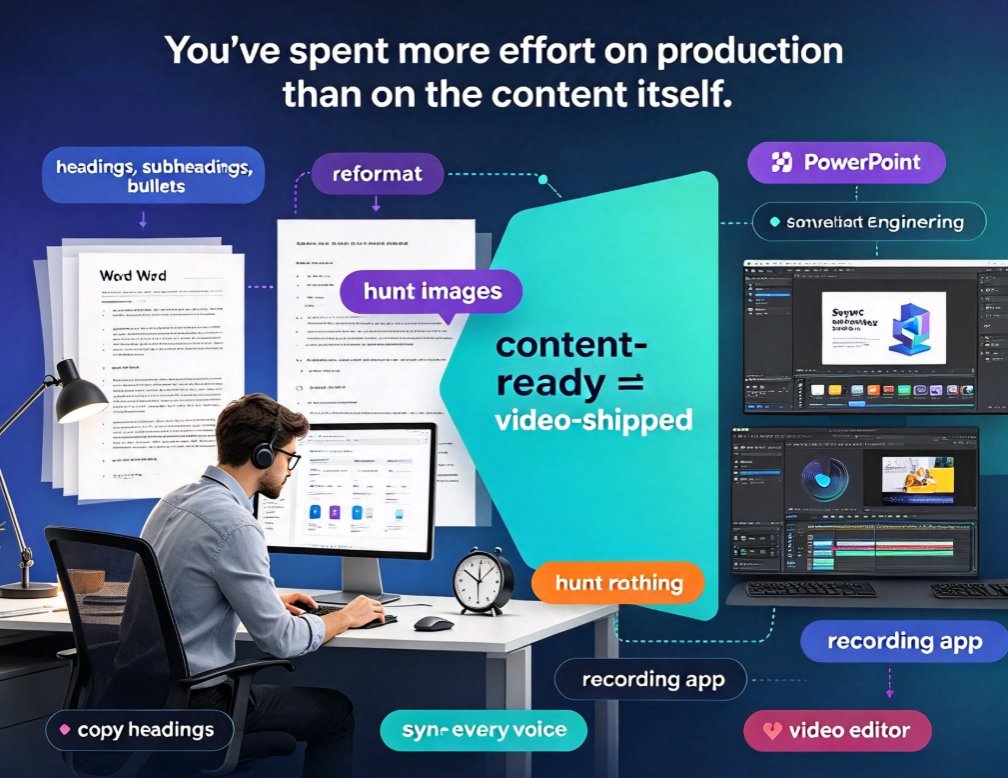
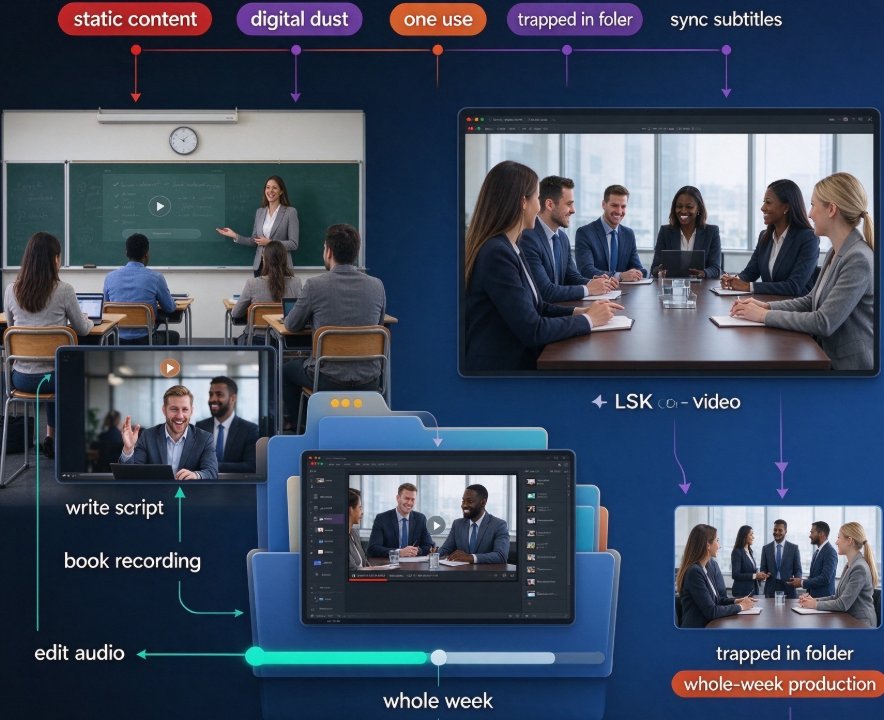
You're an educator, trainer, or L&D lead. You've spent dozens of hours building a PowerPoint deck — the one with the clean visuals, the well-ordered examples, the case study that always lands. It ran beautifully in the classroom or the boardroom. Then it went back into the folder. It got one use, maybe two, and now it's static content collecting digital dust.
Meanwhile, learners are asking for video versions. Your teammates want it on the LMS. The sales team wants a version they can share externally. But re-recording a narrated version means writing a script, booking time to record, editing audio, and syncing subtitles — a project that eats your whole week. So the deck stays where it is.
Let's be real: your PowerPoint is already a storyboard — it just needs a voice. And converting PPT to video is no longer a production task that demands a video editing team.
01 The Problem: Your Best Deck Only Gets Used Once
The real cost here isn't the video editing time — it's the audience you never reach. A static deck lives inside a classroom, a meeting room, or a shared drive. Nobody stumbles across it, nobody watches it on their phone, and nobody revisits it six months later.
A narrated micro-course, by contrast, is an always-on asset. Share it on your LMS, embed it in your course page, drop it into an email. It works on a laptop, a tablet, or a phone. The material finally meets the learners where they already are.
The gap between having great content and sharing it as video is now a workflow problem, not a talent problem. And with the right tool, that workflow takes minutes instead of days.
02 Why Narrated Micro-Courses Beat Static Slides
◉ What exactly is a "narrated micro-course"?
It's a short video lesson — usually 5 to 15 minutes — built from slides with a synchronized voiceover and captions. Think of it as your PowerPoint finally being explained out loud instead of silently scrolled through. It's the format PPT-to-video was designed for.
The reason educators and trainers are moving this direction isn't because video is fashionable. It's because people retain more from synchronized voice-plus-visuals than from reading slides alone — a core principle in multimedia learning research. And the forgetting curve is brutal: without reinforcement, we lose roughly half of new information within an hour and up to 70% within a day.
A narrated lesson gives the viewer the slide and the explanation at the same moment. That dual-channel experience builds a stronger memory trace, turning passive viewing into something closer to a guided walkthrough.
PPT-to-video is the fastest-growing format in corporate training and education right now — not because people want more screen time, but because a 6-minute narrated lesson beats a 30-page PDF on retention, pace, and completion rates.
Here's how the two formats stack up in practice:
| Dimension | Static PPT (self-paced read) | Narrated micro-course |
|---|---|---|
| Learner engagement | Low — clicking through silently | High — voice + visuals hold attention |
| Knowledge retention | Fades quickly without reinforcement | Stronger via dual-channel audio + visual |
| Accessibility | Manual screen reading, no captions | Auto subtitles support hearing-impaired learners |
| Reach | Limited to meetings and LMS downloads | Shareable link, embed anywhere, mobile-friendly |
| Updating | Re-edit slides manually | One-click re-sync voice and subtitles in Zendeck |
| Production time | Fast to create, slow to consume | Minutes to produce, fast to consume |
If you're still wondering whether the effort is worth it, consider this: the same deck that sits inert on your drive could be your most popular onboarding resource — if it had a voice. That's exactly the argument behind AI-generated video decks replacing traditional corporate training.
03 What Zendeck's PPT-to-Video Actually Does
Here's the honest pitch: Zendeck's PPT-to-video feature takes the deck you already have and turns it into a narrated mini-course with AI voiceover and auto-generated subtitles — no design skills, no recording booth, and no video editing experience required.
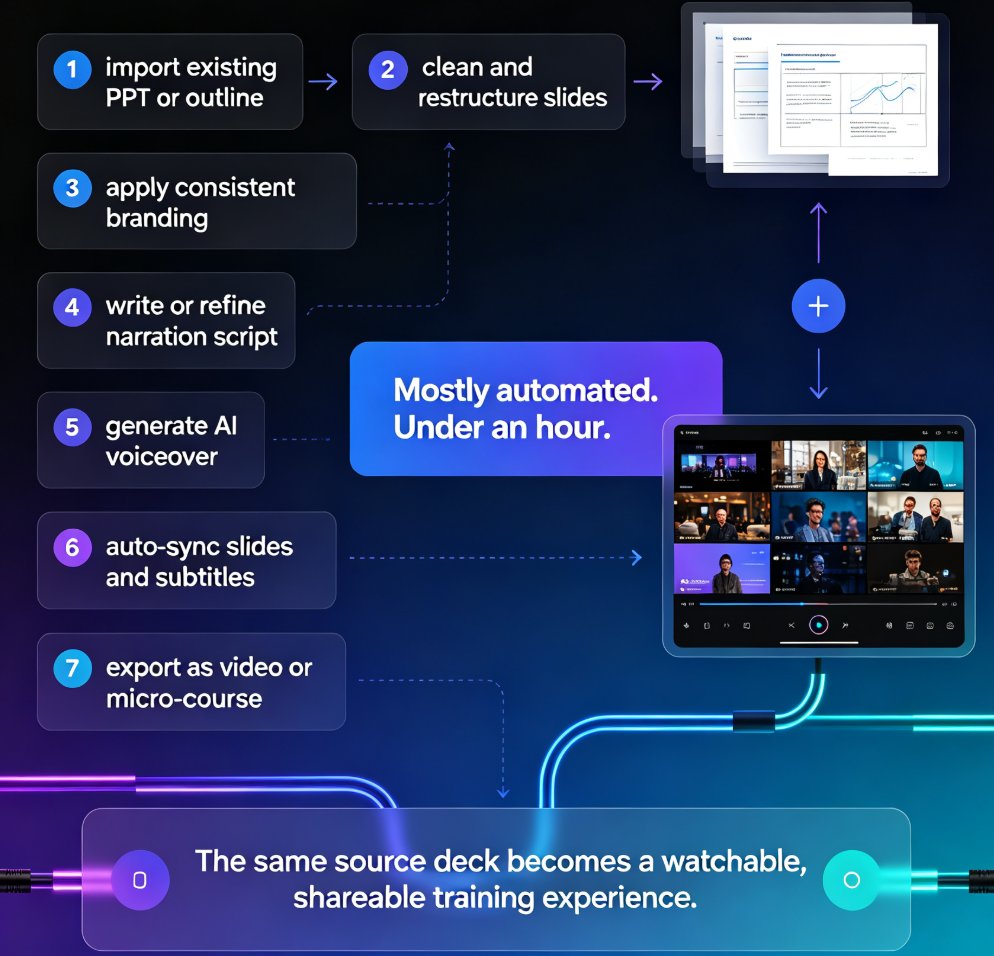
The workflow is deliberately short: import your slides, choose a voice, let Zendeck generate the narration and captions, then export. The smart layout engine keeps slides clean and consistent through the whole video, and the asset library ensures everything stays on-brand.
◉ Do I need design or video editing skills?
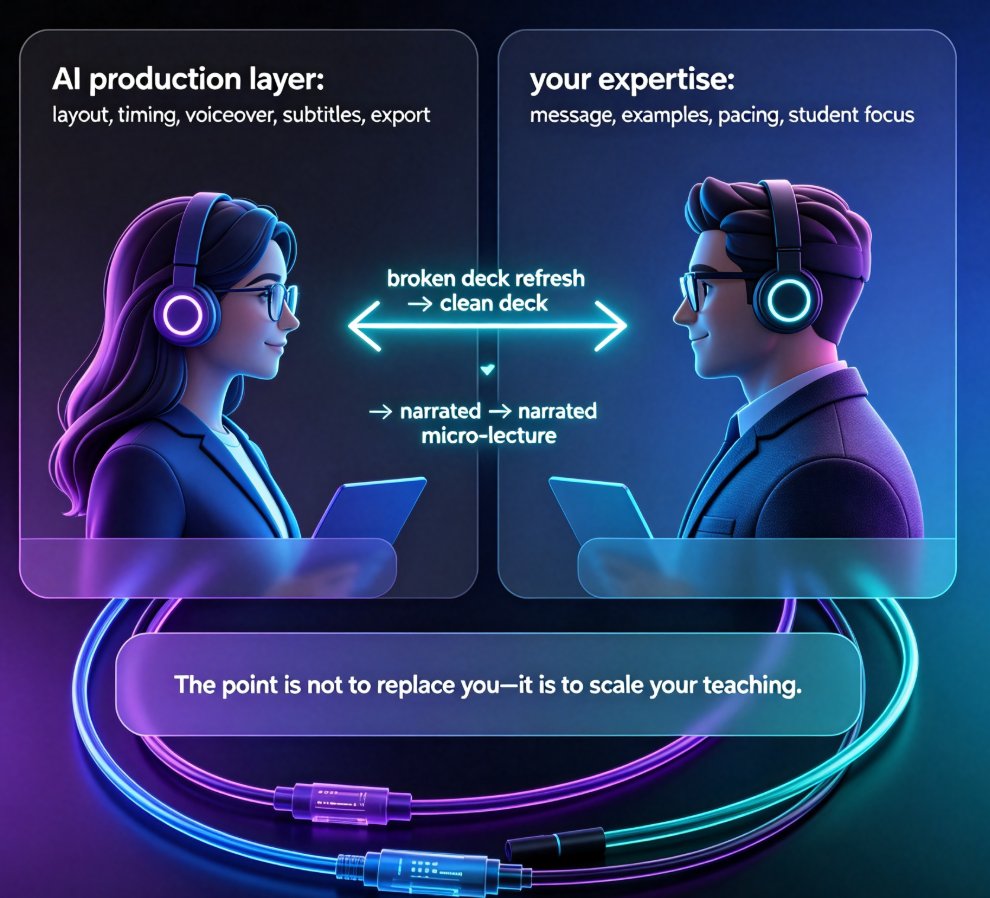
No. That's the entire point. Zendeck handles layout, voiceover, subtitle timing, and export formatting. You focus on the content — the slides you've already built and refined.
Zendeck turns static slides into a watchable micro-course in minutes — no recording booth, no video editor, no voice talent.
If you want a deeper walkthrough of the narration controls, the detailed guide on adding narration to slides with Zendeck's PPT-to-video breaks down every option.
04 The Step-by-Step: From .PPTX to Published Micro-Course
Let's walk through the exact process so you know what to expect.
Step 1 — Import your slides. Upload your existing PPT, or paste a Word outline if you're building from scratch. Zendeck parses the structure and applies a clean, consistent layout so nothing looks accidental.
Step 2 — Review the smart layout. Let Zendeck reskin the deck — unify fonts, colors, and spacing. This matters more than you'd think, because a video amplifies small design inconsistencies that go unnoticed in a live presentation.
Step 3 — Choose your narrator. Pick an AI voice that fits your audience: warm for onboarding, neutral for corporate training, energetic for sales enablement. No casting, no studio time.
Step 4 — Generate the voiceover and subtitles. Zendeck syncs the narration to each slide automatically and generates captions timed to the audio. That single step replaces what's usually the most tedious part of video production.
Step 5 — Tune pacing. Adjust the duration of individual slides when a section needs more dwell time. You don't need perfect timing on the first pass — you can regenerate the voiceover for one slide without touching the rest of the deck.
Step 6 — Export and share. Publish as video and drop it into your LMS, share a link, or embed it on your course page.
The full loop — from .pptx to published video — typically takes under an hour for a standard 20–30 slide deck. Compare that with manual recording plus subtitle sync, which can easily eat half a day or more.
For a closer look at the voiceover and captioning options specifically, check the walkthrough on adding voiceover and subtitles with Zendeck's AI.
05 Narration Best Practices (So You Don't Sound Like a Robot)
AI voiceover is only as good as the script — and the script is usually your speaker notes, rewritten to sound like talking. Here's what experienced L&D folks do differently:
- Write for the ear, not the eye. Slide text is fragmented on purpose. Narration needs complete sentences and natural transitions: "So the first thing to know about onboarding is..."
- Keep slides light. Aim for 5–7 words per visual headline and let the voice carry the detail. A cluttered slide competes with the narration instead of supporting it.
- Open with a hook. The first 10 seconds decide whether anyone keeps watching. Start with a question or a concrete problem, not a table of contents.
- Chunk the narration into 2–3 sentence blocks. That makes pacing feel human and gives viewers a moment to breathe.
- One slide, one idea. If a slide needs a 90-second explanation, split it into two slides. Rapid-fire slides feel rushed; long dwell feels sluggish.
A quick rule of thumb: if a slide contains more than three bullet points, your video will feel like a lecture transcript. Cut it before you generate the voice, not after.
06 When to Use This Approach (and When Not To)
◉ Is this approach good for every subject?
Not every topic, no. Let's be honest about where narrated micro-courses shine and where they fall short.
Excellent fits: - Onboarding programs — welcome videos, tool walkthroughs, culture primers - Compliance refreshers — policy summaries that need to reach everyone quickly - Flipped classroom pre-work — let learners watch the concept, then debate it live - Sales enablement — product demos and objection-handling scenarios - SOP and workflow training — step-by-step processes with visual support - Conference recaps and webinar replays
Poor fits: - Highly technical content that requires live Q&A and hands-on problem solving - Material that changes so frequently you'd regenerate the whole video every week - Advanced design critique sessions where learners need to interact with artifacts
When the topic is procedural or conceptual, narrated micro-courses are unbeatable. When it's experiential, keep it live. If you want to extend the format even further, adding quizzes to your micro-lessons is a natural next step — see how to add interactive quizzes to your micro-courses.
07 Common Mistakes to Avoid
Having reviewed dozens of converted decks, here are the four mistakes that make an AI-narrated course feel amateur:
1. Reading the slide verbatim. If the narration just repeats what's on screen, viewers feel talked down to. The voice should expand, explain, and connect — not recite.
2. Overstuffing slides. A slide with eight bullets becomes a wall of text the moment it's on camera. Trim ruthlessly before generating the voiceover.
3. Skipping subtitles. This one's a real miss. Auto-generated captions aren't just an accessibility feature — most learners watch with sound off at some point, and captions boost comprehension for non-native speakers. Zendeck's caption support is baked into the workflow; don't disable it. If you want the details, the piece on auto-generated subtitles for accessible micro-courses explains why this matters.
4. Ignoring pacing. A uniform speaking speed across a 40-slide deck feels robotic. Speed up the obvious sections, slow down for the subtle ones, and use per-slide timing to create rhythm.
08 FAQ
Can Zendeck convert an existing PowerPoint into a narrated micro-course automatically?
Yes. Zendeck's PPT-to-video feature imports your existing slides, applies a smart layout, generates AI voiceover, and auto-syncs subtitles — no recording booth, video editor, or design skills required. A typical 20–30 slide deck can be exported as a shareable video in under an hour.
Do I need to write a script, or can Zendeck narrate directly from the slide text?
Zendeck generates narration from your slide content, so the quality of the voice track largely depends on how conversational your slide text or speaker notes are. For the best result, write slides in short, spoken-style sentences and add a hook in the opening slide.
Can I edit or re-generate the narration for a single slide without redoing the whole deck?
Yes. Zendeck lets you regenerate the voiceover for individual slides and adjust per-slide pacing, so one fix doesn't force you to re-record the entire course. This keeps iteration quick and practical.
Are the subtitles automatically synced to the narration and included in the export?
Yes. Zendeck auto-generates subtitles and syncs them to the audio timeline, so viewers get captions without manual timing work. That also improves accessibility for learners who need or prefer captions.
Who is this PPT-to-video workflow best suited for?
It's ideal for educators, corporate trainers, L&D teams, and content operators who want to repurpose existing decks into always-on learning assets — for onboarding, compliance refreshers, micro-courses, and sales enablement — without hiring voice talent or spending days in a video editor. If your deck is gathering dust right now, this is the fastest path from PPT to video. Start with the PPT-to-video category guide to see what else the format can do.