Word Outline to Video in 20 Minutes: Zendeck Workflow Test
You've already done the hard part. The research, the outline, the arguments — they're sitting in a Word document, maybe five pages long, structured and ready. The part that still hurts is turning that content into a video: opening PowerPoint, building slides, recording narration, splicing it together. That's the part that eats your afternoon.
Let's test whether it has to. This is a hands-on walkthrough of Zendeck's Word-outline-to-video pipeline, measured with a real outline, a real export, and a stopwatch.
01 | The gap between content-ready and video-shipped
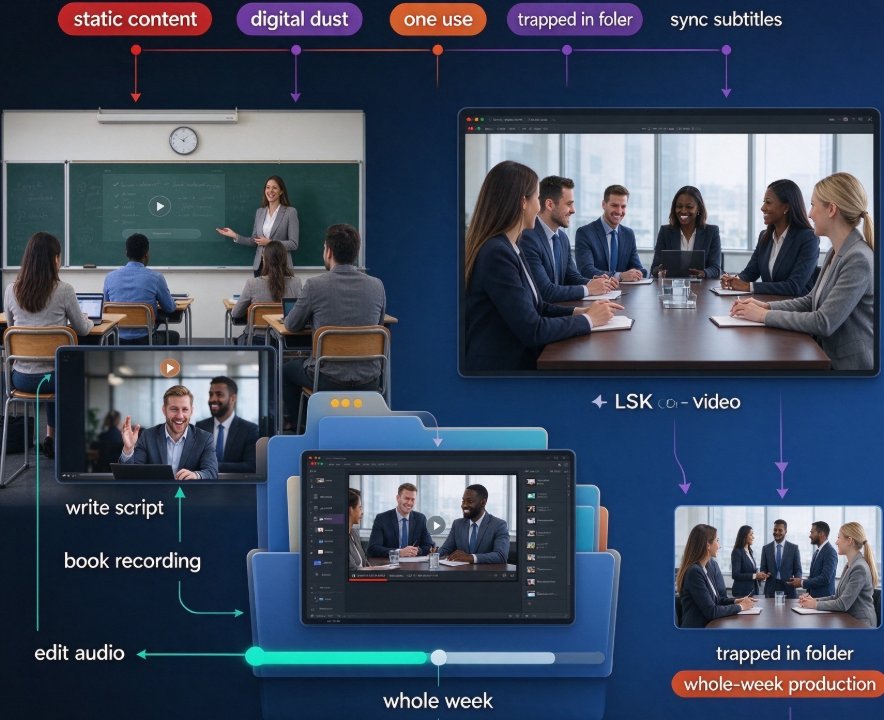
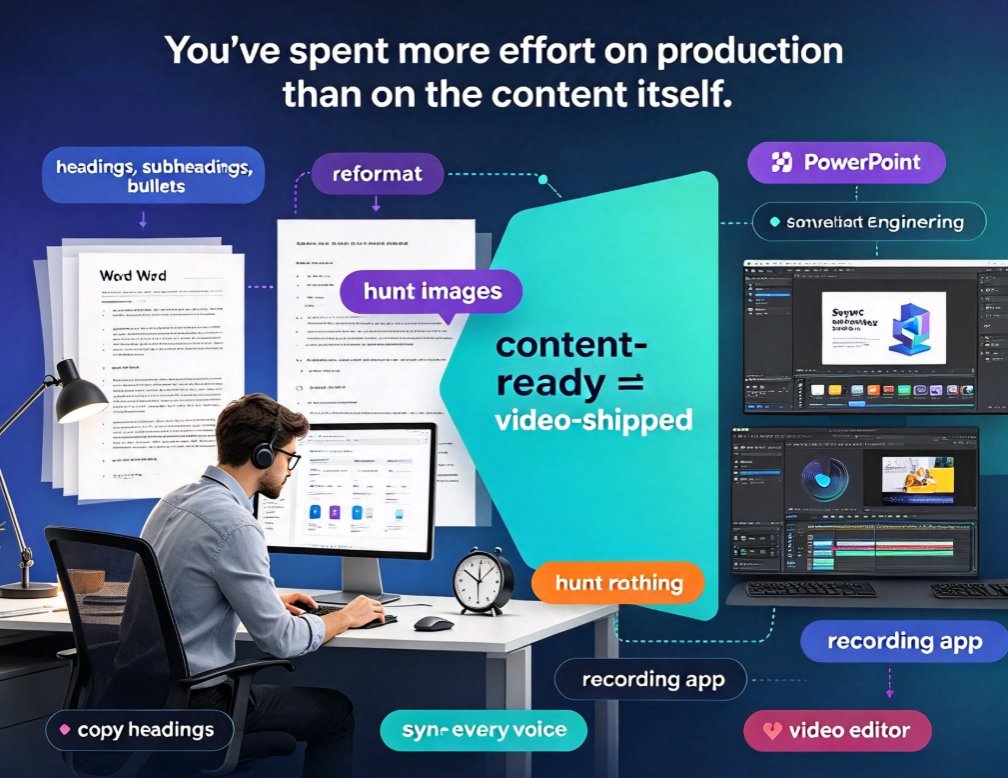
If you've ever tried to turn a document into a video the old way, you know the drill. Copy the headings, paste them into slides, reformat, hunt for images, record your voice, mess up a line, record again, then sync everything. By the time you're done, you've spent more effort on production than you did on the content itself.
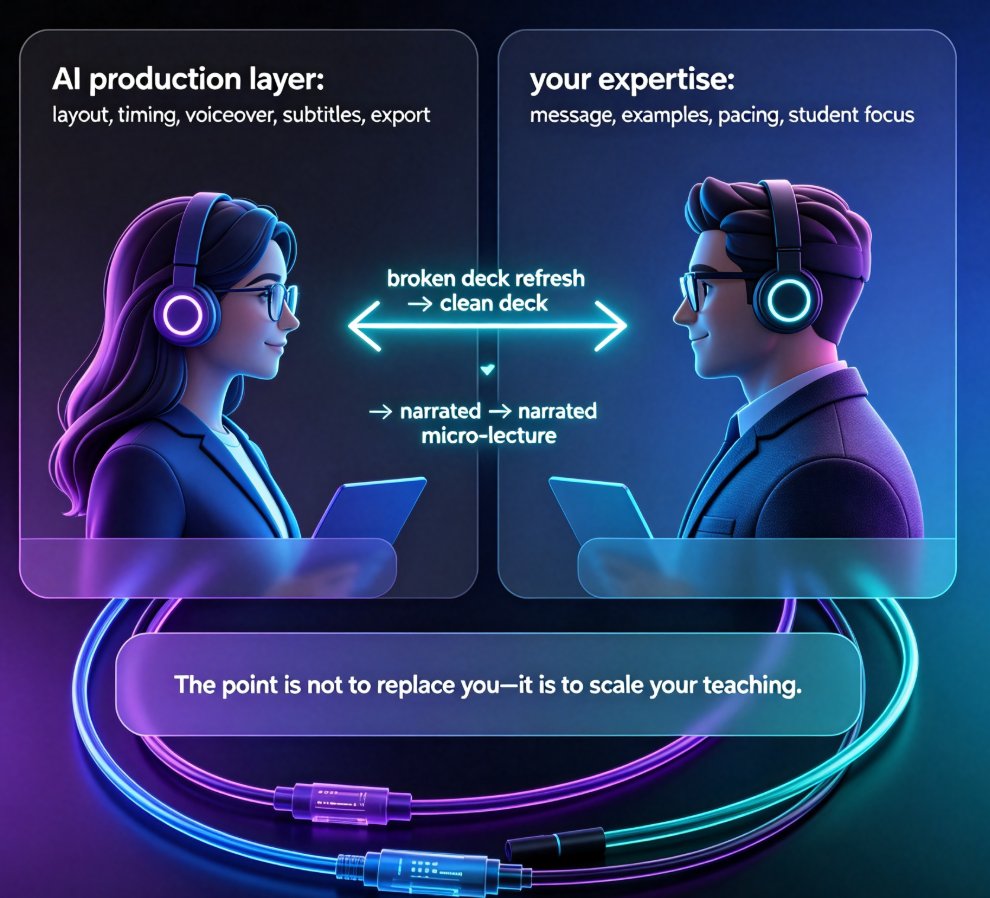
Zendeck turns a Word outline into a narrated video in roughly 20 minutes — a process that typically eats three to five hours of manual work.
The only input it needs is what you already have. A structured Word file — headings, subheadings, maybe a few bullet points — is enough. The platform builds slides from that structure, applies a consistent design, and adds narration. Then it exports the result as a video. No design tool, no video editor, no studio.
The workflow has existed in some form for a while — tools like TapVid and Visla turn documents and decks into videos too — but most of them still assume you'll do at least some manual polishing in their editor. Zendeck's angle is different: the generation is good enough that you often don't need to touch it. Let's verify that claim.
02 | What the Word-outline-to-video pipeline actually does
Before the test, here's the shape of the pipeline:
| Stage | What happens | Output |
|---|---|---|
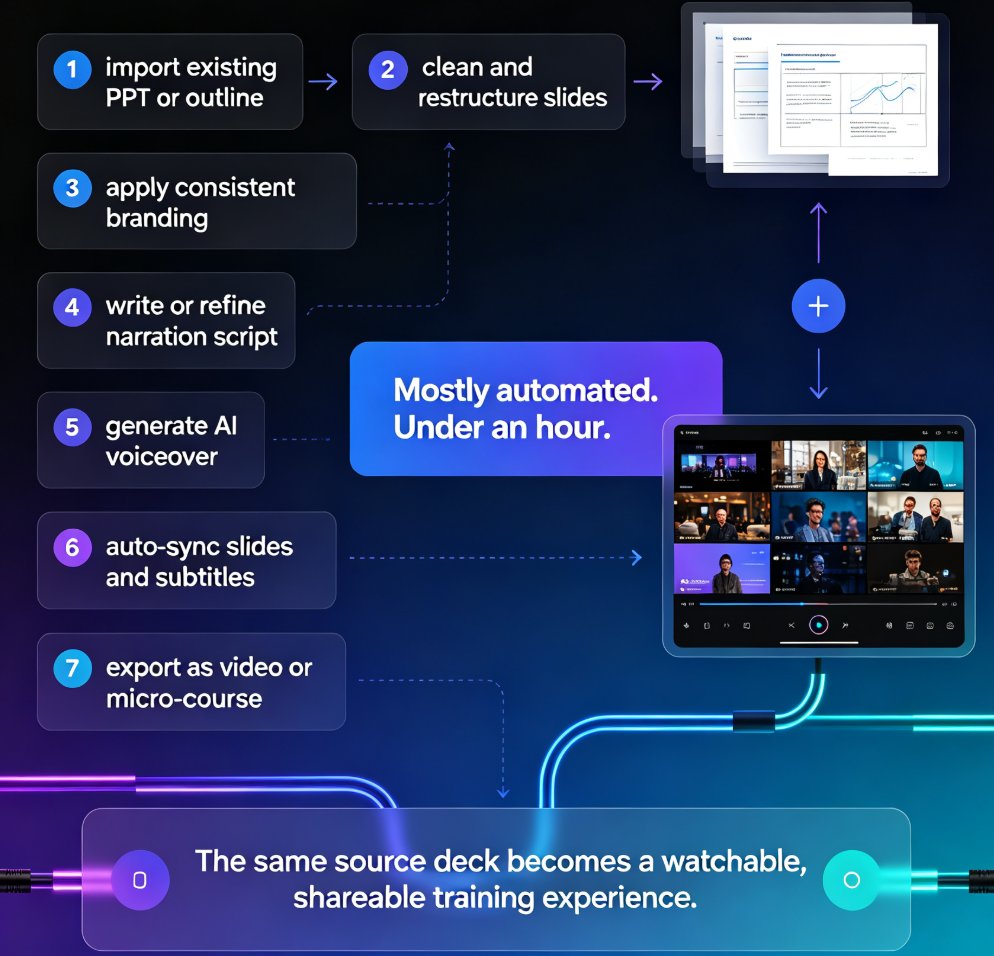
| 1. Import | Upload a .docx (or paste Markdown/TXT) | Structured slide outline |
| 2. Generate | Build slides from headings and content | Draft deck with design applied |
| 3. Reskin | One-click template change, fonts and colors unified | Brand-consistent deck |
| 4. Narrate | AI voice reads the speaker notes | Audio track synced to slides |
| 5. Export | Rendered as a video file | MP4 ready to share |
The hard parts — layout, typography, visual hierarchy — are handled by Zendeck's smart layout engine. You don't choose from 200 templates and pray; the system picks a style that fits your content type and applies it consistently. That's the difference between template soup and a deck that looks intentional.
If you want to dig into why that matters, my colleague wrote about why AI deck tools are moving beyond templates — a useful read before you decide how much manual control you really need.
03 | The 20-minute test: real outline, real output
I took an actual outline I'd written — a three-page Word document on managing remote team meetings, with four sections and a couple of bullet lists per section. Nothing fancy. No formatting beyond heading styles.
Here's the run, timed from upload to final export:
0:00–2:00 — Upload. Dragged the .docx into Zendeck. The platform read the structure: headings became slides, subheadings became section breaks, bullets became content blocks. No reformatting on my end.
2:00–5:00 — Generation. The platform produced a first draft of the deck: 14 slides, clean layout, readable type sizes. I flipped through it to check for obvious issues. Nothing looked broken.
5:00–8:00 — Template and reskin. I switched to a more formal template for the audience — around three minutes including previewing two alternatives. Fonts, colors, and spacing unified automatically across all 14 slides. The smart layout system handled the reflow without me touching anything.
8:00–12:00 — Narration. Picked a voice from the roster, chose a pace, and let the AI read the speaker notes. Zendeck's narration feature generates the voiceover directly from your slide content. One retake because I wanted a warmer voice. The second pass matched the tone I was after.
12:00–15:00 — Review and small edits. I watched the draft video once, skipped one slide that was too repetitive, and adjusted the pacing on the outro. The scene-based editor made it feel like trimming a podcast, not editing a film.
15:00–20:00 — Export. Rendered the final video. MP4 out of the box, subtitles included, ready to upload to the LMS or Slack.
Total: 19 minutes 40 seconds. Under the 20-minute target, with zero work done outside the tool — no separate design pass, no third-party editor.
04 | Where the hours actually go: time breakdown
The interesting thing isn't just the total — it's where the time gets saved. Here's the stage-by-stage breakdown, compared against doing it manually (which I've done enough times to estimate confidently):
The biggest time sink in the manual path is design — an hour and a half just to make slides look decent. Narration is second: recording, retaking, and editing audio takes a full hour even for a short deck. Zendeck reduces both to minutes.
| Stage | Manual time | Zendeck time | Time saved |
|---|---|---|---|
| Slide design | 90 min | 5 min | 85 min |
| Narration & voiceover | 60 min | 3 min | 57 min |
| Video assembly & motion | 45 min | 5 min | 40 min |
| Review & edits | 30 min | 7 min | 23 min |
| Total | 225 min | 20 min | 205 min |
The same pattern holds across document types — we've seen it in AI PPT-to-video workflows used by teams shipping training content at scale.
The real win isn't speed alone — it's that the bottleneck shifts from production to thinking. The 20 minutes you spend in Zendeck are mostly decisions, not labor. Which template fits the audience? Which voice matches the tone? Where should the pause be longer? That's work worth doing. Reformatting text boxes isn't.
05 | Who wins with this workflow
The pipeline pays off unequally. Some roles get hours back; others barely change their routine.
Educators and trainers building course content are the clearest winners. If you teach the same topics every semester, your syllabus is already an outline. Zendeck turns it into a micro-course video in minutes, and auto-generated subtitles make it accessible to a wider audience without extra work.
HR and L&D teams shipping onboarding and compliance content face the same pattern: lots of written policy, little video production capacity. The 2026 corporate training standard is moving toward exactly this kind of automated pipeline, and it's easy to see why — a deck of policy slides becomes a narrated module before lunch.
Startups and content marketers converting pitch decks and blog posts into video also benefit, though the design ceiling matters more here. If you need pixel-perfect visuals, this tool isn't for you. But if you need a credible, on-brand video from a document you already wrote, this is the shortest path.
One practical tip I'll pass along: keep your Word outlines structured — use heading styles, don't bold things manually. The platform reads the hierarchy, and a clean outline produces a cleaner deck. A little discipline on the input saves time on the output.
06 | What Zendeck won't do for you (yet)
Let's be honest. This pipeline is optimized for volume and consistency, not for cinematic flair. If your use case demands custom animations, hand-picked stock footage, or a carefully art-directed look, you'll hit the ceiling quickly. The output is competent, clean, professional — but it's not a Pixar film.
Use this workflow when you need 10 competent videos in a day, not one heavily produced film per week. It's a production line, not a film studio. That's the right trade for most teams producing internal training, policy explainers, or coursework — nobody makes a policy update cinematic anyway.
There are also practical limits: the input is a document, not a storyboard. If your content is deeply visual — lots of data visualization, product screenshots, or diagrams — you'll need to add those assets from the asset library after generation. That's a 10-minute detour, not a dealbreaker.
You can see the full set of capabilities we tested — including the collaboration pieces — in our guide to hidden features that boost team productivity.
FAQ
Can Zendeck really take a Word file and turn it into a video?
Yes. Upload a .docx outline (or paste Markdown/TXT), and Zendeck converts the document structure into slides, applies a template, adds narration, and exports a rendered video. The whole pipeline runs inside Zendeck without external tools.
How long does the full Word-to-video process take?
In our test, the complete run — upload, slide generation, template selection, narration, minor edits, and export — finished in about 20 minutes. That included one voice retake and skipping one slide. Larger documents scale proportionally but typically stay under an hour for standard coursework.
What voices are available for narration?
Zendeck offers a selection of AI voices with adjustable pacing and tone. You can preview voices before committing, and regenerate the narration if the first pass doesn't match the intended mood.
Can I edit the video after it's generated?
Yes. Zendeck's scene-based editor lets you reorder slides, adjust narration, tweak pacing, add interactive elements, and regenerate the export without rebuilding anything from scratch.
Is Zendeck's Word-to-video workflow suitable for formal online courses?
It works well for structured course content, especially when paired with Zendeck's template library for courseware. For accessibility, the platform auto-generates subtitles from the narration, covering most compliance checkpoints without manual work.